
1. Product Overview
The UMIK UMIKSMART Video Smart Lock with Camera (Model C95) is an advanced keyless entry solution designed for enhanced home security and convenience. This innovative deadbolt lock integrates a built-in WiFi camera, offering multiple unlocking methods and real-time monitoring capabilities for your front door.

Image 1.1: Front and rear view of the UMIK UMIKSMART Video Smart Lock, alongside a smartphone displaying its live video feed, illustrating the integrated camera and app functionality.
2. Key Features
- Multiple Unlocking Methods: Supports fingerprint recognition (up to 100 fingerprints), PIN codes, Tuya app control, 2 IC Cards, and 2 physical keys for versatile access.
- Integrated HD Surveillance: Features a 1080p camera with a 170° wide-angle view, night vision, and motion detection for comprehensive monitoring.
- Two-Way Audio & Video Calling: Communicate with visitors in real-time via the app, enhancing security and convenience.
- Long Battery Life: Equipped with a 4,200 mAh battery pack, providing approximately 180 days of use on a single full charge. Includes a Type-C charging port for emergency power.
- Weather Resistance: IP65 waterproof certification ensures durability and reliable performance in various weather conditions.
- Automatic Locking: Customizable auto-lock feature (5-99 seconds) for added peace of mind.

Image 2.1: Visual representation of the five distinct methods available for unlocking the smart lock: fingerprint, Tuya app, IC card, passcode, and mechanical keys.

Image 2.2: Illustration highlighting the fingerprint recognition feature, noting its capacity for 50 fingerprints, a rapid 0.3-second recognition time, and a 99.9% recognition rate.

Image 2.3: Overview of the smart lock's comprehensive features, including low battery warning, IP65 waterproof rating, temporary password functionality, automatic locking, and an emergency charging port.

Image 2.4: Depiction of the smart lock's intelligent security features, emphasizing its 170-degree wide-angle view and the automatic capture function triggered by doorbell presses.

Image 2.5: Visual illustrating the 1080P camera and two-way audio capabilities, allowing users to see and communicate with visitors, supported by built-in Wi-Fi connectivity.
Video 2.6: An overview of the UMIK Smart Lock, highlighting its 5000mAh battery life (approximately 6 months), sleek and sturdy design, anti-smudge technology, and various entry methods including temporary passwords and fingerprints. The video also demonstrates the camera and two-way audio features, emphasizing convenience and safety.
3. Package Contents
Please ensure all components are present before beginning installation:
- Exterior Smart Lock Unit with Camera and Keypad
- Interior Lock Unit
- Deadbolt Latch
- Mounting Plate
- Screws and Installation Hardware
- 2 x IC Cards
- 2 x Physical Keys
- User Manual (this document)
- Rechargeable Battery Pack (4,200 mAh)
- Type-C Charging Cable
4. Installation Guide
The UMIK UMIKSMART Video Smart Lock is designed for DIY installation and can typically be installed in under 30 minutes. Follow the detailed instructions provided in the physical installation guide included with your product for best results.
4.1 Pre-Installation Check
Before installation, verify your door's compatibility with the lock's dimensions. This lock is compatible with US standard doors.

Image 4.1: Diagrams illustrating critical door measurements (thickness, backset) and the smart lock's dimensions to ensure compatibility before purchase and installation. Includes visuals for both left-handed and right-handed door configurations.
4.2 Installation Steps
- Prepare the Door: Remove your existing deadbolt and ensure the door boreholes and backset are compatible with the smart lock.
- Install the Deadbolt Latch: Insert the deadbolt latch into the door edge and secure it with screws. Ensure the latch bolt is facing the correct direction for your door's swing.
- Install the Exterior Unit: Route the cable from the exterior unit through the deadbolt and the door. Align the exterior unit with the deadbolt and secure it.
- Install the Mounting Plate: Attach the mounting plate to the interior side of the door, securing it with screws through the deadbolt and exterior unit.
- Connect the Cable: Connect the cable from the exterior unit to the interior unit.
- Install the Interior Unit: Attach the interior unit to the mounting plate, ensuring the thumb turn aligns correctly with the deadbolt mechanism. Secure with screws.
- Install Battery: Insert the fully charged 4,200 mAh battery pack into the interior unit.
- Test Functionality: Manually test the deadbolt operation and ensure smooth locking and unlocking.
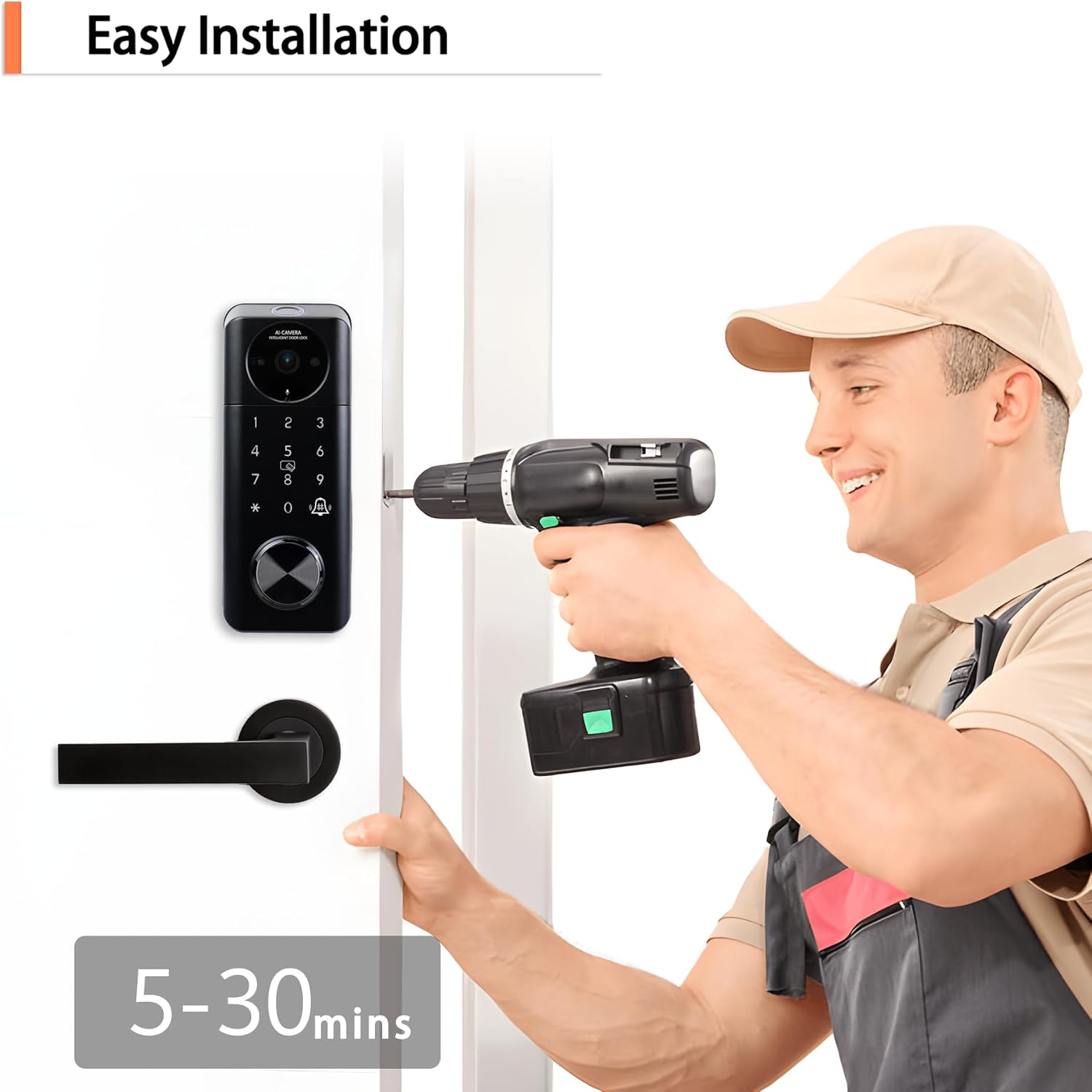
Image 4.2: A person demonstrating the ease of installation for the smart lock, using a drill to secure it to a door, with an estimated installation time of 5-30 minutes.
5. Initial Setup and App Configuration
After physical installation, configure your smart lock using the Tuya app for full functionality.
5.1 App Download and Account Creation
- Download the "Tuya Smart" or "Smart Life" app from your smartphone's app store (iOS or Android).
- Register for a new account or log in if you already have one.
5.2 Adding the Smart Lock to the App
- Open the Tuya app and tap the "+" icon to add a new device.
- Select "Security & Video Surveillance" then "Smart Lock" or search for "Smart Lock with Camera".
- Follow the in-app instructions to connect the lock to your home Wi-Fi network. Ensure your phone is connected to a 2.4GHz Wi-Fi network during setup.
- The lock will enter pairing mode (indicated by a light or sound prompt).
- Once connected, you can rename your lock and access its settings.
5.3 User Management (Fingerprints, PINs, IC Cards)
The app allows you to manage up to 100 fingerprints and multiple PIN codes and IC cards.
- Adding Fingerprints: In the app, navigate to the lock's settings, select "User Management" or "Fingerprint Management," and follow the prompts to register new fingerprints. You will be guided to place your finger on the lock's sensor multiple times.
- Adding PIN Codes: Choose "PIN Code Management" to create permanent, temporary, or one-time PIN codes. You can set validity periods for temporary codes.
- Adding IC Cards: Select "IC Card Management" and follow the instructions to pair the included IC cards with the lock.
6. Operating Instructions
6.1 Unlocking the Door
- Fingerprint: Place your registered finger on the fingerprint sensor. The lock will unlock if the fingerprint is recognized.
- PIN Code: Enter your registered PIN code on the keypad, followed by the "#" key.
- IC Card: Tap the registered IC card against the designated area on the lock.
- Tuya App: Open the app, select your lock, and tap the unlock icon. You can also remotely unlock the door from anywhere with an internet connection.
- Physical Key: In case of emergency or battery depletion, use the physical key to unlock the deadbolt. The keyhole is typically located discreetly on the exterior unit.
6.2 Locking the Door
- Automatic Lock: If enabled in the app, the lock will automatically engage the deadbolt after a set period (5-99 seconds) once the door is closed.
- One-Touch Lock: Press and hold the "#" key on the keypad for a few seconds to manually lock the door from the outside.
- Tuya App: Open the app, select your lock, and tap the lock icon to remotely lock the door.
- Manual Lock (Interior): Use the thumb turn on the interior unit to manually lock the deadbolt.
6.3 Camera and Communication Features
- Live View: Access the live video feed from the lock's camera through the Tuya app at any time.
- Motion Detection: The built-in sensor actively monitors outside the door. You will receive notifications on your app for detected motion.
- Two-Way Audio & Video Calling: When a visitor presses the doorbell button on the lock, you will receive a video call notification on your phone. You can answer to see and speak with the visitor.
- Event Recording: The lock records video clips of events such as motion detection, doorbell presses, and unlock attempts. These recordings can be reviewed in the app's history or album section.
7. Maintenance
- Battery Charging: The lock features a 4,200 mAh rechargeable battery. When the battery level is low, you will receive a warning via the app. Charge the battery using the provided Type-C charging cable. For emergency charging, connect a power bank to the Type-C port located underneath the mechanical keyhole.
- Cleaning: Wipe the exterior and interior units with a soft, damp cloth. Avoid using abrasive cleaners or solvents that could damage the finish or electronic components.
- Firmware Updates: Periodically check the Tuya app for available firmware updates for your smart lock. Updates can improve performance, add new features, and enhance security.
- Environmental Protection: While the lock is IP65 waterproof, prolonged exposure to extreme weather conditions should be minimized where possible to ensure longevity.

Image 7.1: Illustration of the smart lock's 4200 mAh rechargeable battery, emphasizing its long life of over 6 months and the convenience of low battery alerts and emergency Type-C USB charging.
8. Troubleshooting
| Problem | Possible Cause | Solution |
|---|---|---|
| Lock not responding / No power. | Battery is depleted. | Charge the battery using the Type-C port or replace with a fully charged battery pack. |
| Fingerprint not recognized. | Finger not placed correctly; sensor dirty; unregistered fingerprint. | Ensure finger covers the sensor completely; clean the sensor; register the fingerprint in the app. |
| PIN code not working. | Incorrect code entered; code expired (for temporary codes); keypad malfunction. | Verify the PIN code; check code validity in the app; try physical key or app unlock. |
| Cannot connect to Wi-Fi / App offline. | Weak Wi-Fi signal; incorrect Wi-Fi password; router issues. | Ensure lock is within Wi-Fi range; re-enter Wi-Fi password in app; restart router. |
| Camera not showing live feed or recording. | Poor Wi-Fi connection; app permissions; camera malfunction. | Check Wi-Fi strength; ensure app has camera/microphone permissions; restart lock (remove/reinsert battery). |
| Door does not lock/unlock smoothly. | Misalignment during installation; deadbolt obstruction. | Recheck installation alignment; ensure door frame strike plate is clear. |
9. Specifications
| Brand | UMIK UMIKSMART |
| Model Number | C95 |
| Lock Type | Biometric Deadbolt |
| Material | Aluminum |
| Color | Black (Matte) |
| Dimensions (L x W x H) | 2.97 x 1.01 x 7.54 inches |
| Item Weight | 6.5 ounces (184.9 Grams) |
| Battery Type | 1 Lithium Ion battery (included) |
| Battery Capacity | 4,200 mAh |
| Connectivity | Wi-Fi |
| Special Features | Auto-Lock, Fingerprint, Built-in Camera, Two-Way Audio |
| Waterproof Rating | IP65 |
10. Warranty and Support
For warranty information and customer support, please refer to the official UMIK UMIKSMART website or contact their customer service directly. Details regarding protection plans are typically available at the point of purchase or through the manufacturer's support channels.
Protection Plans:
- 3-Year Protection Plan: $23.99
- 4-Year Protection Plan: $32.99
- Complete Protect: $16.99/month (covers all eligible past and future purchases)
For further assistance, visit the UMIK UMIKSMART Store.