
Alikali Alikali Genesis
Alikali 9-inch Car Radio Stereo with CarPlay and Android Auto for Hyundai Genesis 2009-2014 User Manual
Model: Alikali Genesis
Introduction
This manual provides detailed instructions for the installation, operation, maintenance, and troubleshooting of your Alikali 9-inch Car Radio Stereo. This unit is specifically designed for Hyundai Genesis models from 2009 to 2014, offering advanced features such as wireless CarPlay, Android Auto, GPS navigation, Bluetooth 5.0, and support for a high-definition rear camera. Please read this manual thoroughly before installation and use to ensure proper functionality and safety.
Safety Information
- Professional Installation Recommended: Due to the complexity of car electrical systems, professional installation is highly recommended to prevent damage to the unit or your vehicle.
- Power Disconnection: Always disconnect the vehicle's battery before performing any electrical work to avoid short circuits or electrical shock.
- Wiring: Ensure all wiring connections are secure and properly insulated to prevent electrical hazards. Refer to the wiring diagram provided in this manual and the installation video.
- Driving Safety: Do not operate the unit's advanced features or watch videos while driving. Always prioritize safe driving practices.
- Ventilation: Ensure adequate ventilation around the unit to prevent overheating.
Package Contents
Verify that all items are present in the package:
- Alikali 9-inch Car Stereo Unit
- Power Cable (x2)
- 2 USB Cable
- Camera Input Cable
- GPS Antenna
- Instruction Manual
- Protocol Box
- AUX Line
- HD Rear Camera

Setup
Installation Overview
The installation process involves connecting various cables to the main unit and integrating it into your vehicle's dashboard. The following steps provide a general guide. For specific vehicle-model details, consult your vehicle's service manual or a professional installer.

Wiring Connections
Follow these steps to connect the necessary cables to your car stereo unit:
- Radio Adapter Cable: Connect the radio adapter cable to the corresponding port on the car stereo unit. This cable ensures proper radio signal reception.
- GPS Antenna: Attach the GPS antenna to the designated GPS port on the unit. Position the antenna in a location with a clear view of the sky for optimal signal reception.
- Camera Input: Connect the camera input cable to the unit. This is essential for integrating the included HD rear camera.
- USB Cables: Plug in the USB cables to the USB ports on the unit. These ports can be used for media playback, charging devices, or connecting to CarPlay/Android Auto (wired).
- RCA Input/Output: Connect the RCA input/output cables for external audio/video devices or amplifiers.
- Power Cable: Connect the main power cable harness to the unit. Ensure all wires are correctly matched according to the vehicle's wiring diagram.
- Reversing Light Wire: Connect the reversing light wire from the camera input harness to your vehicle's reversing light power source. This enables automatic display of the rear camera feed when reversing.
Initial Power On
After all connections are made and the unit is securely installed in the dashboard, reconnect the vehicle's battery. Turn on the ignition to power up the car stereo. The unit should boot up and display the main interface.
Operating Instructions
Touchscreen Navigation
The unit features a responsive 9-inch IPS touchscreen. Navigate through menus and applications by tapping, swiping, and pinching gestures, similar to a smartphone.

Bluetooth Connection
To connect your mobile phone via Bluetooth for hands-free calls and music streaming:
- On the car stereo, go to the 'Apps' menu and select 'Bluetooth'.
- On your mobile phone, enable Bluetooth and search for available devices.
- Select 'CarBT' from the list of devices on your phone.
- Enter the PIN '0000' on your phone when prompted.
- Once connected, 'phone audio' and 'media audio' should appear under 'Paired devices' on the car stereo. If not, restart the Bluetooth on your phone and try again.
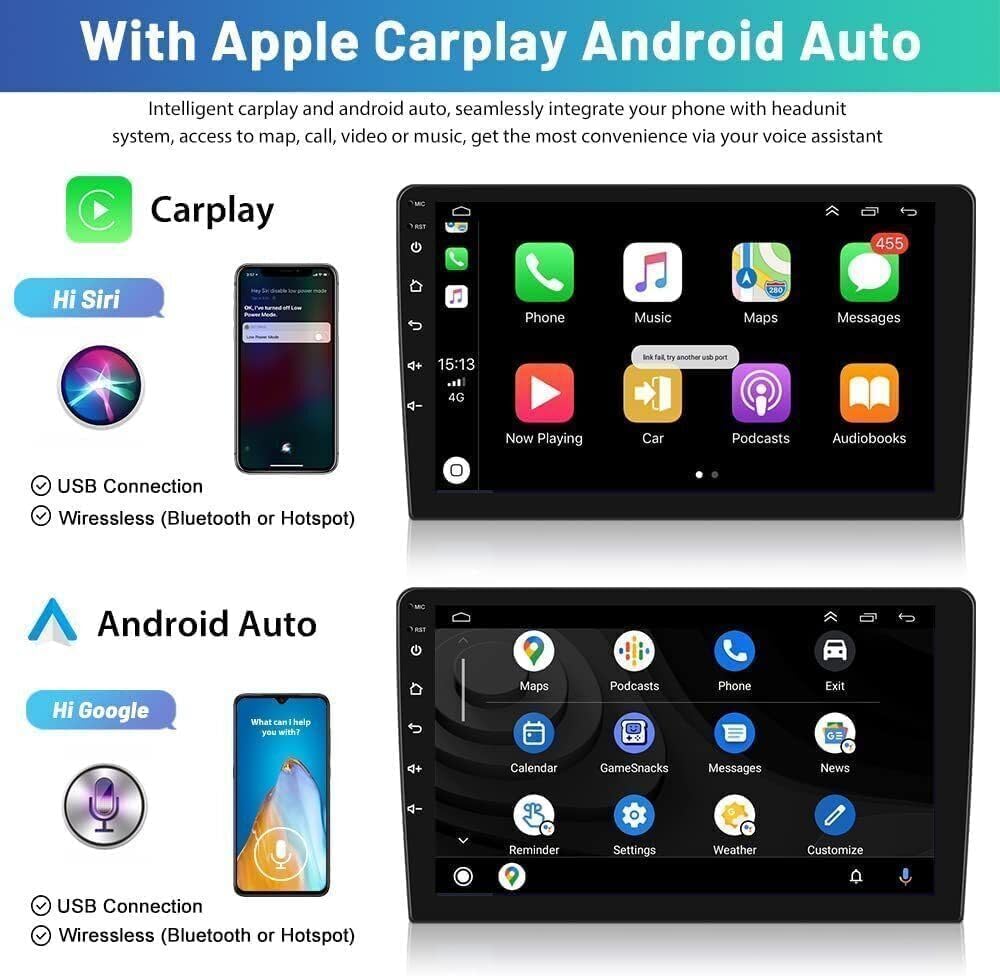
Wireless CarPlay and Android Auto (ZLINK)
The unit supports both wireless CarPlay and Android Auto via the ZLINK application. This allows seamless integration of your smartphone for navigation, music, calls, and more.
- Open the 'ZLINK' application from the 'Apps' menu on the car stereo.
- For Wireless Connection: Ensure your phone's Bluetooth is on and connected to 'CarBT'. The ZLINK app should automatically detect and connect to your phone.
- If Connection Fails (Manual WiFi): If ZLINK does not connect automatically, you may need to manually connect to the car stereo's WiFi hotspot.
- Go to 'Settings' > 'Android Settings' > 'Network & Internet' > 'Hotspot & tethering' > 'Wi-Fi hotspot' on the car stereo.
- Turn on the Wi-Fi hotspot and note the network name (e.g., AndroidAP_B442) and password.
- On your mobile phone, go to Wi-Fi settings and connect to the car stereo's hotspot using the noted password.
- Once connected via WiFi, open the ZLINK app again.
- Second Connection: For subsequent connections, simply connect your phone's Bluetooth to 'CarBT', and ZLINK should automatically connect.

GPS Navigation
The unit has built-in Wi-Fi and GPS, supporting online maps like Google Maps, Waze, and Here Maps. You can share your phone's hotspot for online map access or download offline maps from the app store for navigation without an internet connection.

Steering Wheel Control (SWC)
The unit supports your vehicle's original steering wheel controls. This allows you to manage audio, calls, and navigation functions directly from your steering wheel, enhancing driving safety.

Mirror Link
Mirror Link functionality allows you to display your smartphone's screen directly on the car stereo. This is compatible with both Android and iOS mobile phones.

HD Rear Camera
The included waterproof night vision camera provides clear reversing images, offering parking assistance. The unit automatically switches to the reversing image when the vehicle is put into reverse gear.

Radio and Media Playback
The unit supports FM/RDS radio. You can also play media from USB drives or via Bluetooth streaming.

Maintenance
- Screen Cleaning: Use a soft, lint-free cloth to clean the touchscreen. Avoid abrasive cleaners or solvents that could damage the screen.
- Software Updates: Periodically check the manufacturer's website or the unit's settings for available software updates to ensure optimal performance and access to new features.
- General Care: Keep the unit free from dust and moisture. Avoid exposing it to extreme temperatures.
Troubleshooting
| Problem | Possible Cause | Solution |
|---|---|---|
| Unit does not power on | Loose power connection, blown fuse, incorrect wiring. | Check all power cable connections. Inspect vehicle fuses and the unit's fuse. Verify wiring against the diagram. |
| No sound | Volume too low, mute activated, incorrect speaker wiring, amplifier issue. | Increase volume, check mute status. Verify speaker connections. Ensure external amplifiers (if used) are powered and connected correctly. |
| Bluetooth/CarPlay/Android Auto not connecting | Bluetooth/WiFi off, incorrect pairing, software glitch. | Ensure Bluetooth/WiFi is enabled on both devices. Re-pair the devices. Try manual WiFi hotspot connection as described in the Operating section. Restart both devices. |
| GPS signal weak or lost | GPS antenna obstructed or improperly placed, antenna connection loose. | Ensure GPS antenna has a clear view of the sky. Check antenna connection to the unit. |
| Rear camera not displaying | Camera input cable loose, reversing light wire not connected, camera faulty. | Check camera input cable connection. Verify the reversing light wire is correctly connected to the vehicle's reversing light. |
Specifications
| Feature | Detail |
|---|---|
| Display Size | 9 Inches |
| Operating System | Android 13 (supports iOS and Android devices) |
| RAM | 4GB |
| ROM | 64GB |
| Connectivity | USB, Wi-Fi, Bluetooth 5.0 |
| Special Features | IPS Touchscreen, Wireless CarPlay, Wireless Android Auto, GPS Navigation, Steering Wheel Control (SWC), AHD Backup Camera Support, FM/AUX, AV IN, RCA, RLV/AHD |
| Mounting Type | Dashboard Mount |
| Item Weight | 4.02 pounds |
| Vehicle Service Type | Car (Hyundai Genesis 2009-2014) |
Warranty
This Alikali Car Radio Stereo comes with an 18-month warranty from the date of purchase. This warranty covers manufacturing defects and malfunctions under normal use. Please retain your proof of purchase for warranty claims. The warranty does not cover damage caused by improper installation, misuse, accidents, or unauthorized modifications.
Support
If you encounter any issues or have questions regarding your Alikali Car Radio Stereo that are not addressed in this manual, please contact our customer support team. For technical assistance, it is helpful to have your product model and purchase details ready.
Customer Support: Please refer to the contact information provided with your product packaging or on the official Alikali website.