
UMIK UMIKSMART LD0101011
UMIK UMIKSMART Fingerprint Door Lock User Manual
Model: LD0101011
Introduction
This manual provides comprehensive instructions for the installation, operation, and maintenance of your UMIK UMIKSMART Fingerprint Door Lock. Please read this manual carefully before installation and use to ensure proper function and safety.
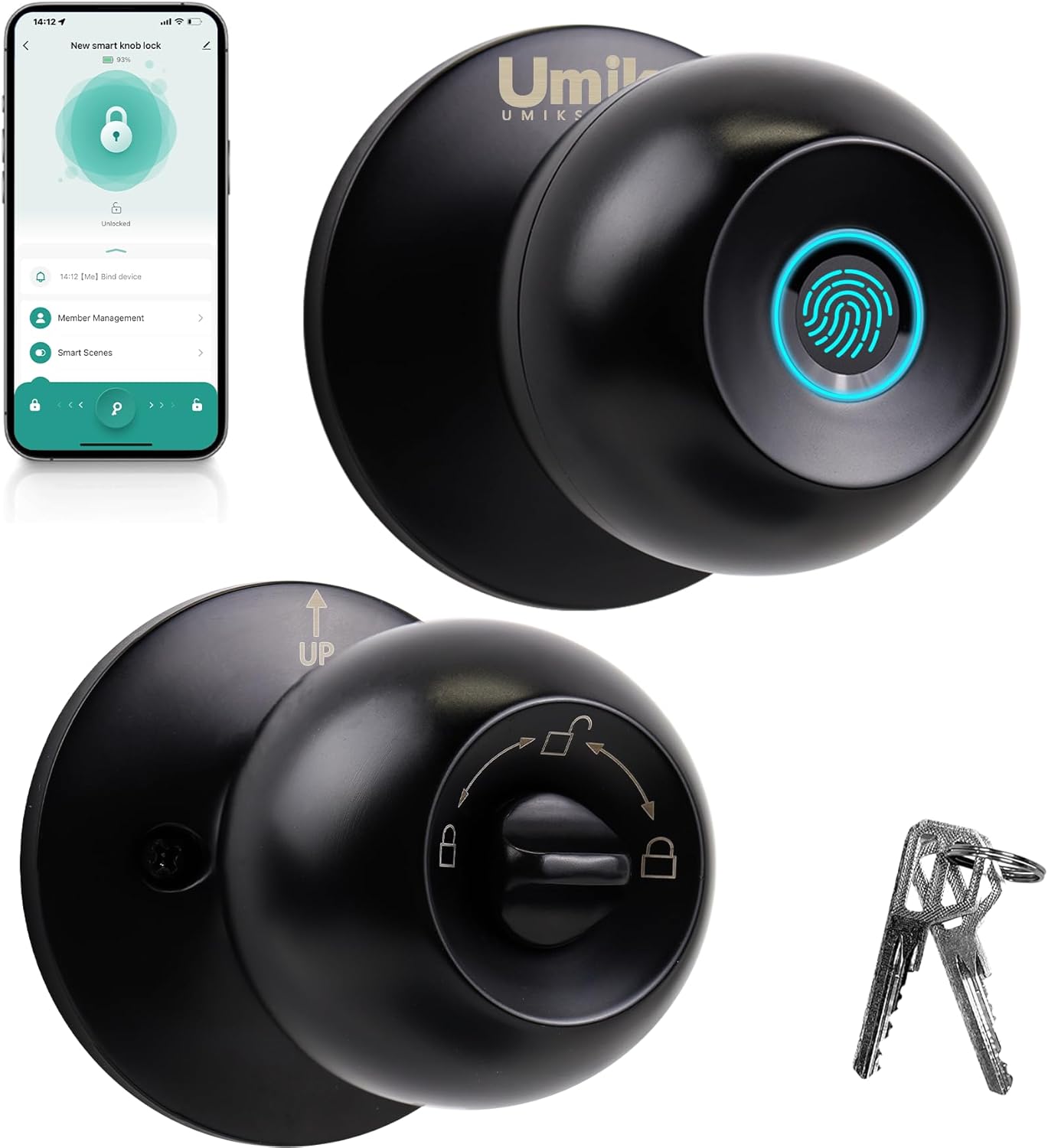
Image: The UMIK UMIKSMART Fingerprint Door Lock, showing the front and rear knobs, along with the mobile app interface and physical keys.
What's in the Box
Verify that all components are present before beginning installation:
- Front Lock Knob (with fingerprint sensor)
- Rear Lock Knob (with internal locking mechanism)
- Lock Body/Latch
- Gusset Plate and Gusset Box
- Physical Keys (2 included)
- Installation Key
- Blot and Screws
- User Manual (this document)
Video: UMIK Installation Instructions. This video provides a visual guide to the components included in the package and the step-by-step installation process for the UMIK Smart Door Lock.
Installation Guide
1. Door Compatibility Check
Before installation, ensure your door meets the following specifications:
- Door Thickness: 35mm - 55mm (1 3/8" - 2 1/8")
- Cross Bore Diameter: 38mm - 55mm (1.5" - 2.17")
- Backset: Adjustable between 60mm (2 3/8") and 70mm (2 3/4")

Image: Diagram illustrating required door dimensions for installation, including door thickness, hole diameter, and backset measurements.
2. Disassembly of Lock Knobs
- Remove Front Panel: Use a screwdriver to gently pry off the front panel of the lock.
- Remove Rear Lock Handle: Use the provided installation key to align with the hole and press down the spring. This will allow you to remove the rear lock handle.
3. Installation Steps
- Install the Lock Body: Insert the lock body into the door edge hole. Ensure it is flush with the door. Secure it by tightening the screws.
- Install the Front Lock: Pass the tail ruler of the front lock through the square rod in the lock body.
- Position the Rear Lock: Ensure the word "UP" on the rear lock is facing upwards.
- Tighten the Pull Screw: Secure the rear lock by tightening the pull screw.
- Adjust Alignment: Adjust the horizontal and vertical position of the reverse lock knob according to the horizontal and vertical state of the tail ruler, ensuring they are in a unified state.
- Fasten the Rear Lock Handle: Attach the rear lock handle securely.
For a visual guide, please refer to the "UMIK Installation Instructions" video in the "What's in the Box" section.

Image: A person installing the UMIK Smart Door Lock, highlighting the ease of installation within 10-30 minutes.
Operating Instructions
Unlocking Methods
The UMIK Fingerprint Door Lock offers three convenient unlocking methods:
- Fingerprint Unlock: Provides up to 20 fingerprint recognition slots for quick 0.5-second unlocking.
- Tuya App Control: Control and monitor your lock remotely via the Tuya app.
- Mechanical Key: A hidden mechanical keyhole provides a backup unlocking method.
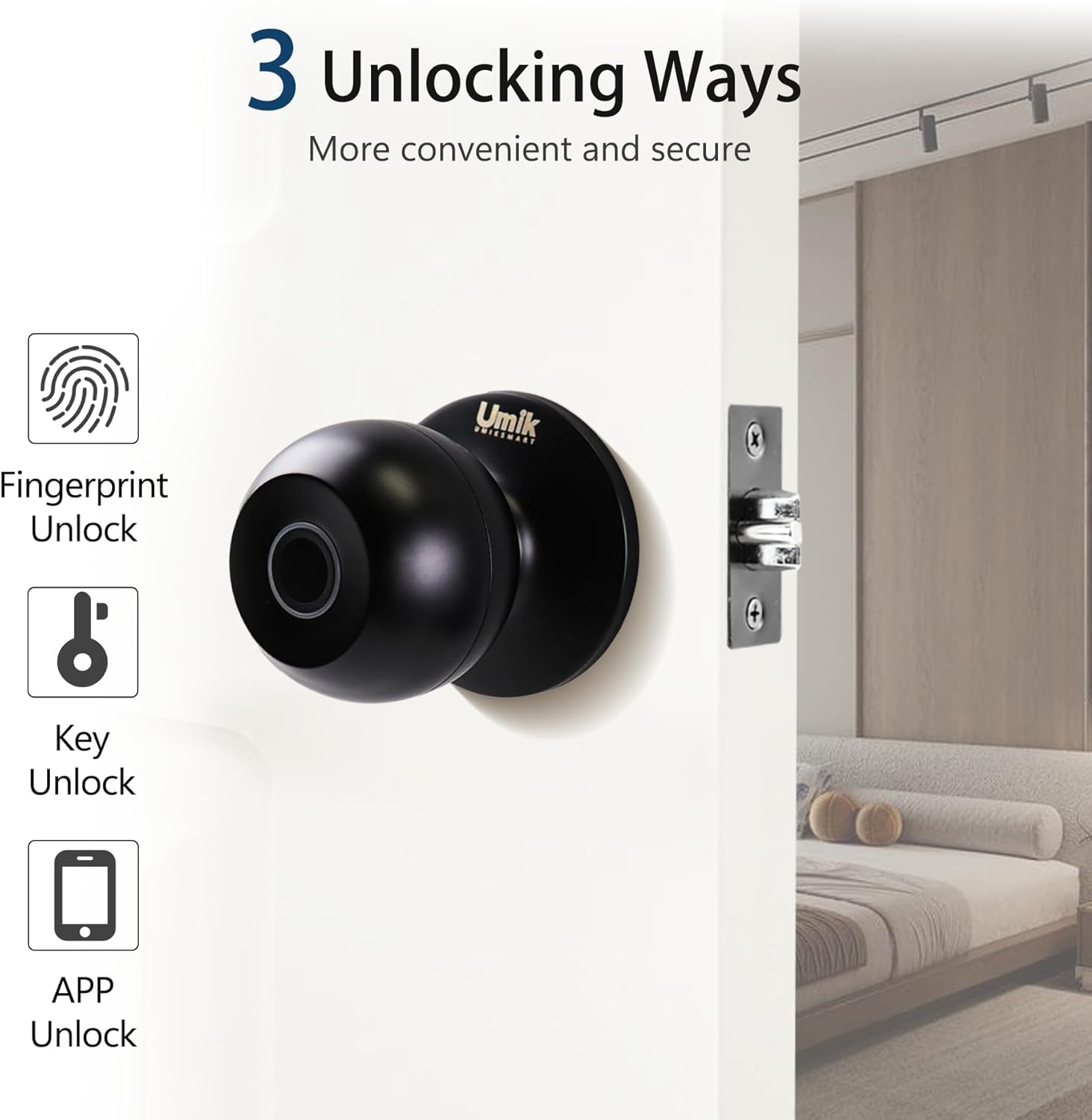
Image: Visual representation of the three unlocking methods: Fingerprint Unlock, Key Unlock, and App Unlock.
Tuya App Features
The Tuya app enhances your lock's functionality:
- User Management: Add, modify, or delete authorized users and their fingerprints.
- Set Fingerprint: Easily enroll new fingerprints through the app.
- History Log: View unlock records and traffic patterns for enhanced security monitoring.
- Mute Volume: Adjust or mute the lock's sound alerts.
- Automatic Locks: Configure automatic locking settings.
- Security Locks: Manage security features to prevent unauthorized access.
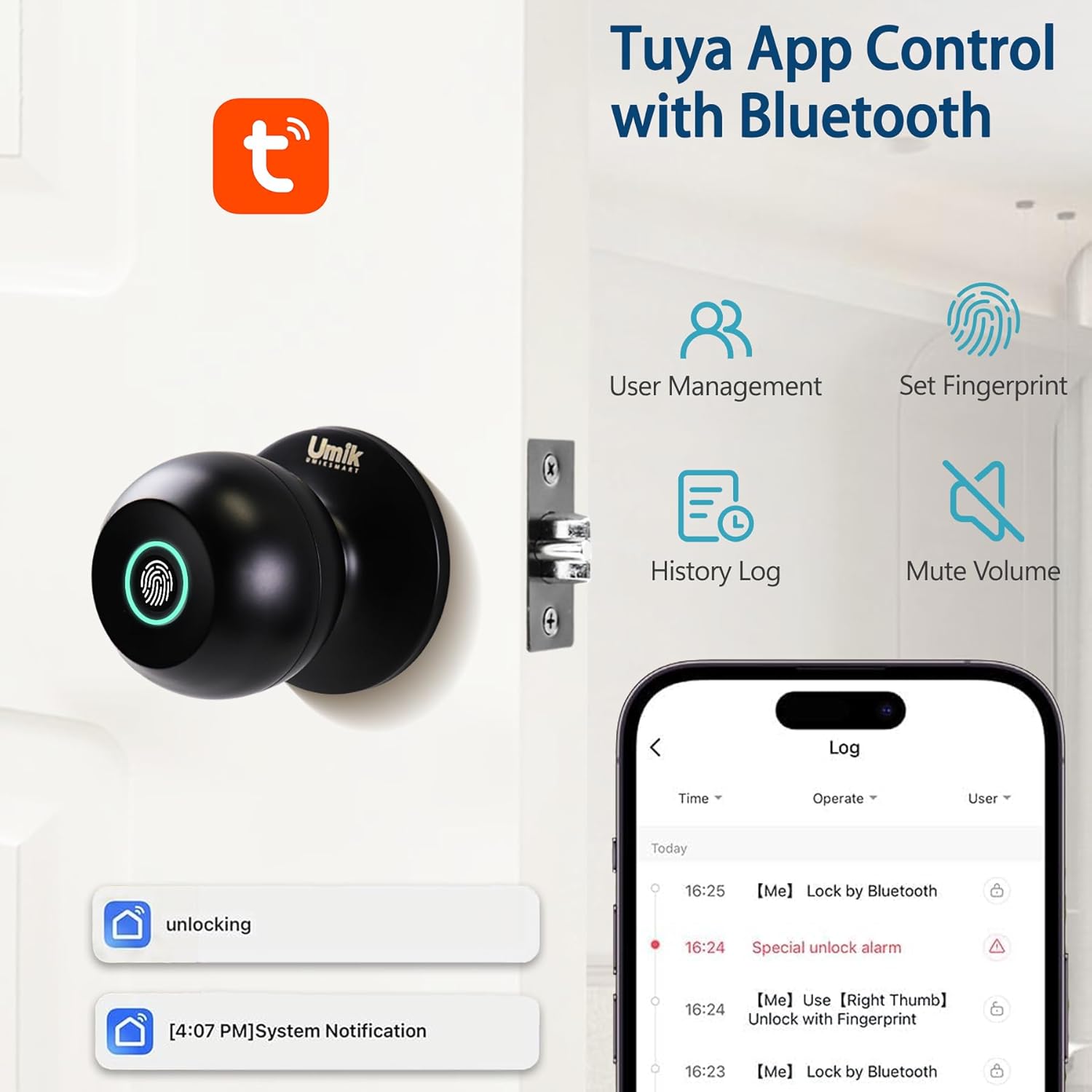
Image: Screenshot of the Tuya app interface showing options for User Management, Set Fingerprint, History Log, and Mute Volume, alongside the smart lock.
Multi-function Modes
The smart lock supports different operational modes:
- Privacy Mode: The lock will automatically lock after 5 seconds.
- Passage Mode: The lock remains unlocked for continuous access.
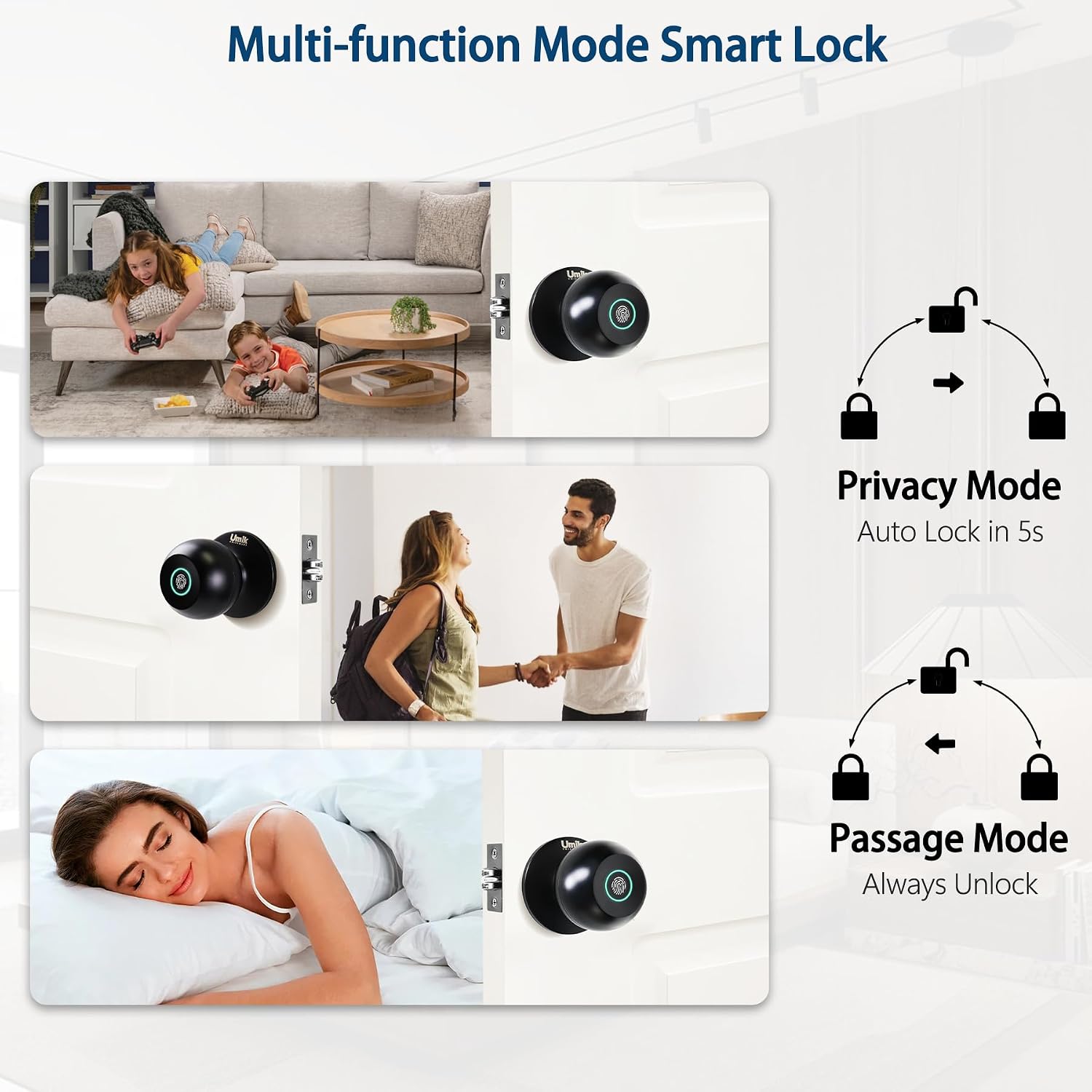
Image: Depiction of Privacy Mode (auto-lock in 5s) and Passage Mode (always unlock), showing the lock in different scenarios.
Maintenance
Battery Management
The lock is powered by a 400mAh lithium battery, offering extended usage:
- Usage: Up to 1200 times on a single charge.
- Charging: Features a Type-C port for quick power-ups.
- Low-Battery Alerts: The lock will provide alerts when the battery is low, ensuring you have ample time to recharge.
- Emergency Access: In case of complete power depletion, the mechanical keys can be used for emergency access.

Image: The smart lock being charged via a Type-C cable, illustrating its long working time with a rechargeable battery and low battery alarm feature.
Durability and Environment
The UMIK Fingerprint Door Lock is designed for durability:
- Material: Constructed with premium aluminum.
- Finish: Sleek matte black finish.
- Water Resistance: IP54 waterproof rating, making it suitable for various indoor environments.
- Temperature Range: Operates effectively within a temperature range of 23°F to 158°F.
Troubleshooting
- Lock not responding: Check battery level. Recharge if necessary. Use mechanical key for immediate access.
- Fingerprint not recognized: Ensure your finger is clean and dry. Try re-enrolling your fingerprint from different angles in the app.
- App connectivity issues: Ensure Bluetooth is enabled on your device. Make sure the lock is within Bluetooth range. Restart the app or your device if necessary.
- Difficulty with disassembly/installation: Refer to the "UMIK Installation Instructions" video and ensure all steps, especially pressing the spring with the installation key, are followed correctly. Verify door compatibility measurements.
- Lock not auto-locking: Check if the lock is set to "Passage Mode" in the app. Switch to "Privacy Mode" if auto-lock is desired.
Specifications
| Feature | Detail |
|---|---|
| Brand | UMIK UMIKSMART |
| Model Name | LD0101011 |
| Special Feature | Auto-Lock, Fingerprint |
| Lock Type | Fingerprint Lock, Key Lock |
| Item Dimensions (L x W x H) | 2.95 x 2.95 x 2.95 inches |
| Material | Aluminum |
| Color | Matte Black |
| Item Weight | 0.353 ounces (approx. 10 grams) |
| Control Method | Touch |
| Connectivity Protocol | Bluetooth |
| Batteries | 1 Lithium Ion battery (included) |
| Water Resistance | IP54 |
Warranty and Support
For warranty information, technical support, or further assistance, please refer to the official UMIK UMIKSMART website or contact their customer service directly. Keep your purchase receipt for warranty claims.
Related Documents - LD0101011
 |
Umik L02 Smart Lock Installation Manual Comprehensive guide for installing and operating the Umik L02 Smart Lock, featuring step-by-step instructions, smart lock features, Tuya app integration, and troubleshooting tips. |
 |
Umik Smart Lock I03 Installation Manual and User Guide Comprehensive installation manual and user guide for the Umik Smart Lock (Model I03), detailing product parameters, packing list, installation steps, panel usage, app connection with TUYA, troubleshooting, and emergency power supply. |
 |
Umik D04 Smart Lock: Installation and Operation Manual This installation and operation manual provides detailed instructions for the Umik D04 Smart Lock, covering setup, user management, TUYA app integration, and troubleshooting for enhanced home security. |
 |
Umiksmart Smart Lock L02: Installation, Operation, and Troubleshooting Guide Comprehensive guide for the Umiksmart L02 Smart Lock, covering installation, operation, app integration, and troubleshooting. Learn to set up your smart lock using fingerprint, passcode, key, and the TUYA app. |
 |
Umik P01/P05 Fingerprint Padlock Installation Manual Comprehensive installation manual for the Umik P01/P05 Fingerprint Padlock, covering setup, fingerprint registration, emergency password, factory reset, and charging indicators. |
 |
Umik D07 Smart Door Lock User Manual and Installation Guide Comprehensive guide for the Umik D07 Smart Door Lock, covering product parameters, installation, app setup, troubleshooting, and usage. Learn how to install, pair, and operate your smart lock. |
Ask a question about this manual
Ask about setup, troubleshooting, compatibility, parts, safety, or missing instructions. Manuals+ will review the question and use this page’s manual context to help answer it.