

Image: The ASHOIH 3.3-inch All-in-One OBD2 HUD Display, showcasing its vibrant interface with speed and RPM readings, and an example of its placement on a vehicle dashboard.
Introduction
This manual provides detailed instructions for the installation, operation, and maintenance of your ASHOIH 3.3-inch All-in-One OBD2 HUD Display. This device integrates vehicle diagnostics and GPS functions, offering real-time data monitoring, performance insights, and safety alerts to enhance your driving experience.
Package Contents
Please verify that all items are present in the package:
- 1X Main Unit (ASHOIH 3.3-inch All-in-One OBD2 HUD Display)
- 1X OBD Cable
- 1X Adhesive Tape
- 1X User Manual (This document)

Image: The lower portion of the image displays the main unit, Type-C OBD cable, and user manual, which are the primary accessories included in the product package. An anti-slip pad is also shown.
Product Overview
Familiarize yourself with the various components and features of your HUD display.
Image: Detailed views of the HUD display, showing the front with ambient lighting, the back with a scroll wheel button, light sensor, and Type-C port, and the side with a rotatable and adjustable bracket. Product dimensions are also indicated.
Key Components:
- Display Screen: 3.3-inch screen for data visualization.
- Ambient Lighting: Customizable LED lights on the sides.
- Scroll Wheel Button: Located on the back for navigation and selection.
- Light Sensor: Automatically adjusts display brightness.
- Type-C Port: For power and data transmission.
- Rotatable/Adjustable Bracket: For flexible mounting options.
Setup and Installation
1. Mounting the Device:
The HUD display offers multiple mounting options for optimal viewing.
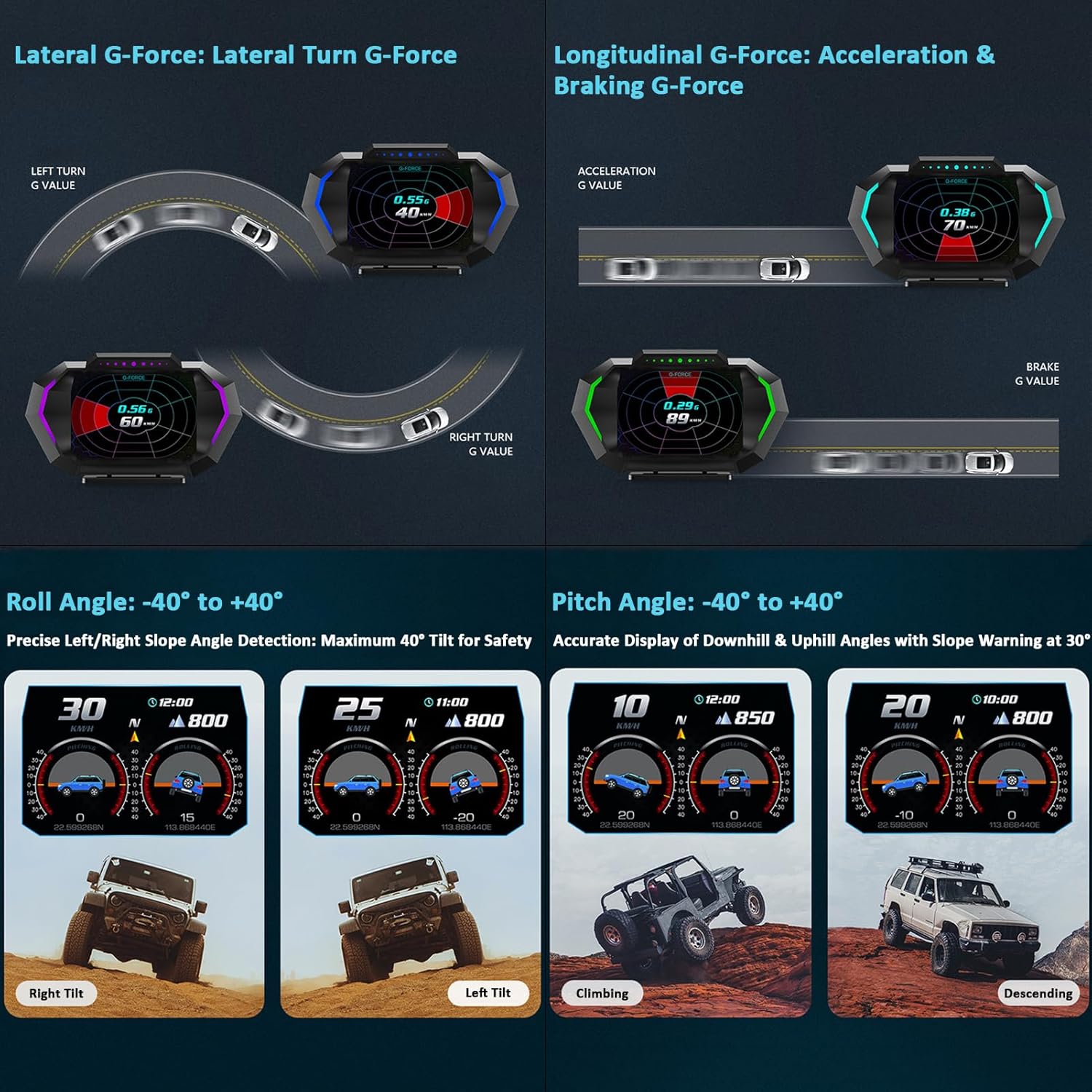
Image: The image illustrates the 360° split-type bracket and two installation methods: hanging installation (from the windshield) and dashboard placement. The bracket allows for flexible viewing angles and height adjustments.
- Dashboard Placement: Attach the adhesive tape to the bottom of the bracket and secure the unit on a flat, stable surface of your dashboard.
- Hanging Installation: Utilize the adjustable bracket to hang the unit from the windshield, ensuring it does not obstruct your view.
- Adjust the bracket to achieve your preferred viewing angle and height.
2. Connecting the OBD Cable:
- Locate your vehicle's OBD2 port. This is typically found under the dashboard on the driver's side.
- Connect one end of the provided OBD cable to the HUD display's Type-C port.
- Connect the other end of the OBD cable to your vehicle's OBD2 port.
- Ensure all connections are secure.
3. Initial Power-On:
- Once connected, start your vehicle's engine. The HUD display should power on automatically.
- Upon first startup, the system will automatically update the time zone based on the selected country flag and language.
- If needed, you can manually adjust the time zone through the device settings (refer to the "Operating Instructions" section).
Operating Instructions
1. Basic Navigation:
The device is primarily controlled using the scroll wheel button located on the back of the unit.
- Scroll Up/Down: Navigate through menus and options.
- Press (Short): Select an option or confirm an action.
- Press (Long): Enter/exit settings or return to the main interface.
2. Display Modes and Interfaces:
The HUD offers 13 different interface options to customize your data display.

Image: A collage of 13 distinct display interfaces, each presenting vehicle data in a different visual layout, demonstrating the customization options available.
- Use the scroll wheel to cycle through the available display interfaces.
- Each interface is designed for clarity and readability, with larger fonts and smoother visuals.
3. OBD2 + GPS Dual System Functions:
The device combines data from your vehicle's OBD2 system and GPS satellites to provide comprehensive information.

Image: The display highlights "OBD + GPS Dual System" and lists numerous data points supported, including Speed, Voltage, Coolant Temperature, Engine RPM, GPS Coordinates, Altitude, Roll Angle, and Pitch Angle, among others.
Key data points monitored include:
- Vehicle Data (OBD2): Speed, Voltage, Coolant Temperature, Engine RPM, Instant Fuel Consumption, Average Fuel Consumption, Engine Oil Temperature, Air-Fuel Ratio (AFR), Turbo Boost, Intake Air Temperature, Oil Pressure, Throttle Position, Engine Load, Transmission Fluid Temperature, PID Data List.
- GPS Data: Satellite Status, Altitude, Driving Direction, GPS Coordinates, Fuel Efficiency (km/L), System Time, Driving Time, Trip Distance, Odometer.
4. Performance Monitoring:
Assess your vehicle's performance with integrated G-force, acceleration, braking, and angle measurements.
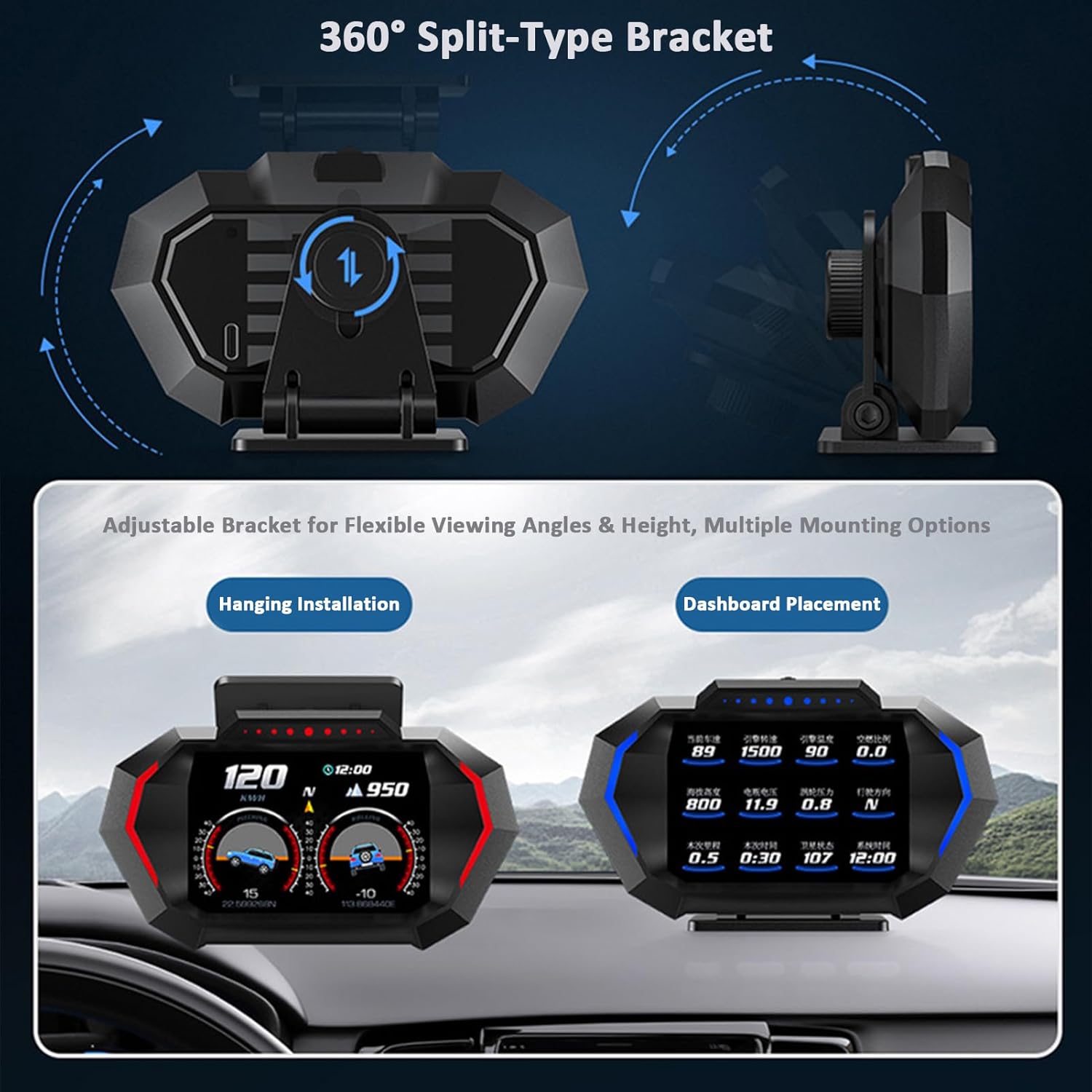
Image: This image demonstrates the display's capability to show Lateral G-Force (for turns), Longitudinal G-Force (for acceleration and braking), Roll Angle (left/right tilt), and Pitch Angle (uphill/downhill) with visual indicators.
- Accelerometer G-force Gauge: Monitor lateral and longitudinal G-forces during driving.
- Acceleration Test: Measure your vehicle's acceleration performance.
- Braking Test: Evaluate braking efficiency.
- Slope Angles: Display real-time roll and pitch angles, with warnings for angles exceeding 30°.
5. Ambient Lighting:
Customize the device's ambient lighting to match your preference or driving conditions.

Image: The image displays the HUD unit with different ambient light colors activated, including blue, red, dark green, ice blue, green, and purple. It also explains the four ambient light modes: RPM-based, Speed-based, Steady Color, and Off.
- Access ambient light settings through the main menu.
- Choose from colors such as blue, red, green, ice blue, dark green, and purple.
- Select from different modes:
- RPM Ambient Light: Changes color based on engine RPM.
- Speed Ambient Light: Changes color based on vehicle speed (selectable in settings).
- Steady Ambient Light: Freely choose a preferred static color.
- Ambient Light Off: Turn off the ambient lighting.
6. Alert Functions:
The HUD provides real-time alerts for various vehicle parameters to ensure safe driving.

Image: The display shows an alert icon and lists various alert types: Overspeed, RPM, Coolant Temperature, Voltage, Turbo Boost Pressure, Transmission Fluid Temperature, Engine Oil Temperature, and Slope & Tilt. The ambient light can also act as a visual alert reminder.
- Over-speed Alert: Notifies you when exceeding a set speed limit.
- High RPM Alert: Warns of excessively high engine revolutions.
- Water Temperature Alert: Indicates if the engine coolant temperature is too high.
- Low Voltage Alert: Alerts to low battery voltage.
- Tilt Alert: Provides a warning if the vehicle's roll or pitch angle exceeds a safe threshold (e.g., 30°).
- Other alerts include Turbo Boost Pressure, Transmission Fluid Temperature, and Engine Oil Temperature.
- Ambient lighting can also be configured to act as a visual alert reminder.
7. Language Support:
The device supports 13 languages for global usability.
- Access language settings through the main menu.
- Supported languages include Simplified Chinese, English, Japanese, Russian, French, and more.
Troubleshooting
If you encounter issues with your ASHOIH OBD2 HUD Display, please refer to the following common problems and solutions:
- No Display/No Power:
- Ensure the OBD cable is securely connected to both the HUD and the vehicle's OBD2 port.
- Verify that the vehicle's engine is running.
- Check the vehicle's fuse box for any blown fuses related to the OBD2 port.
- Inaccurate Speed/Data:
- Ensure the GPS signal is strong (if using GPS mode). Drive in an open area.
- Check settings for unit conversion (e.g., km/h vs. mph).
- Some vehicles may have slight discrepancies between dashboard speed and OBD2 speed. Adjust calibration in settings if available.
- Display Freezes/Unresponsive:
- Disconnect and reconnect the OBD cable to restart the device.
- If the issue persists, perform a factory reset through the device settings (consult the on-screen menu for this option).
- No GPS Signal:
- Ensure the device has a clear view of the sky. Metallic window tints or certain vehicle structures can interfere with GPS reception.
- Move the vehicle to an open area away from tall buildings or dense foliage.
If these steps do not resolve the issue, please contact ASHOIH customer support for further assistance.
Specifications
| Feature | Detail |
|---|---|
| Screen Size | 3.3 inches |
| Product Dimensions (L x W x H) | 5 x 1.46 x 2.87 inches (127 x 37 x 73 mm) |
| Main Unit Weight | 120g (approximately 4.2 ounces) |
| Material | Acrylonitrile Butadiene Styrene (ABS) |
| Connectivity | OBD2, GPS |
| Language Support | 13 languages (including English, Simplified Chinese, Japanese, Russian, French) |
Maintenance
- Cleaning: Use a soft, dry cloth to clean the display screen and exterior. Avoid abrasive cleaners or solvents.
- Storage: When not in use for extended periods, store the device in a cool, dry place away from direct sunlight and extreme temperatures.
- Cable Care: Handle the OBD cable carefully. Avoid sharp bends or excessive pulling to prevent damage.
Warranty and Support
For warranty information or technical support, please refer to the ASHOIH official website or contact their customer service department. Keep your purchase receipt as proof of purchase.
Contact information may be found on the product packaging or the ASHOIH brand website.