
1. Introduction
This manual provides detailed instructions for the installation, operation, and maintenance of your MWRCTV 8MP 4K PoE IP Bullet Security Camera, model MN852-PS. Please read this manual thoroughly before using the product to ensure proper functionality and safety.
The MWRCTV MN852-PS is an advanced security camera designed for both indoor and outdoor surveillance, featuring 8MP UltraHD resolution, AI-powered detection, color night vision, and two-way audio communication.
2. Product Overview
2.1 Key Features
- 8MP UltraHD Resolution: Delivers clear and detailed 4K (3840x2160px) video footage.
- 110° Wide-Angle Lens: Provides extensive coverage with a 2.8mm fixed lens.
- Power over Ethernet (PoE): Simplifies installation with a single cable for power and data.
- AI Human/Vehicle Detection: Reduces false alarms by accurately identifying people and vehicles.
- Regional Intrusion Detection: Define specific areas for motion detection alerts.
- Line Crossing Detection: Triggers alerts when a virtual line is crossed.
- Smart Color Night Vision: Offers three light modes (Smart, IR, White Light) for clear night monitoring, with full-color images upon motion detection.
- Two-Way Audio: Built-in microphone and speaker for real-time communication.
- MicroSD Card Slot: Supports up to 512GB for 24/7 local recording (card not included).
- IP66 Waterproof: Durable full metal case designed for outdoor use, resistant to dust and heavy rain.
- H.265 Video Coding: Efficient compression for high-quality video with reduced storage and bandwidth.
- ONVIF Compatibility: Works with most ONVIF-supported NVRs and RTSP streaming.
2.2 Package Contents
Verify that all items are present in your package:
- 1x MWRCTV 8MP 4K PoE IP Bullet Camera (MN852-PS)
- 1x RJ45 Port Waterproof Rubber Sleeve
- 1x Set of Fixed Camera Screws

Image: The MWRCTV 8MP 4K PoE IP Bullet Security Camera with its components labeled, including the aluminum alloy shell, microphone, 2.8mm lens, 6 IR LEDs, power port, PoE RJ45 port, and microSD card slot. Below it are images of the PoE camera, waterproof plug, and screw set, indicating "What's In The Box?".
3. Setup and Installation
3.1 Physical Installation
The camera can be mounted on a ceiling or wall. Ensure the mounting surface is strong enough to support the camera's weight.
- Choose a Location: Select a location that provides the desired viewing angle and is within reach of your network cable.
- Mark Drilling Holes: Use the camera's base as a template to mark the positions for drilling holes.
- Drill Holes: Drill pilot holes and insert the wall anchors if necessary.
- Secure the Camera: Attach the camera to the mounting surface using the provided screws.
- Adjust Angle: Loosen the adjustment screws to position the camera for optimal coverage, then tighten them securely.

Image: Two examples of camera mounting: one showing a camera mounted under a roof overhang (roof-mounted) and another showing a camera mounted on a vertical wall (wall-mounted). This illustrates flexible installation options.
3.2 Connection Options
The MWRCTV MN852-PS camera supports various connection methods:
- Work with PoE NVR: Connect the camera directly to a PoE NVR using a single Ethernet cable for both power and data.
- Work with PoE Switch: Connect the camera to a PoE switch, which then connects to your router. This also uses a single Ethernet cable for power and data.
- Work with Router (with separate power): Connect the camera to your router using an Ethernet cable for data, and use a separate 12V DC power adapter (not included) for power.

Image: A diagram illustrating three ways to connect the camera: 1) directly to a PoE NVR, 2) to a PoE switch, and 3) to a router with a separate power adapter. Each option shows the necessary cabling.
Ensure the RJ45 port waterproof rubber sleeve is properly installed to protect the Ethernet connection from environmental elements, especially for outdoor installations.
4. Operating Instructions
4.1 Initial Setup and App Connection
To access and control your camera, download the recommended mobile application (e.g., "SeeEasy" as indicated in product images) from the App Store (iOS) or Google Play Store (Android).
- Download App: Search for "SeeEasy" or the recommended app in your device's app store.
- Register/Login: Create an account or log in to the app.
- Add Device: Follow the in-app instructions to add your camera. This typically involves scanning a QR code on the camera or manually entering its ID.
- Configure Settings: Once connected, you can configure various settings such as Wi-Fi (if applicable, though this is a PoE camera), recording preferences, and alert notifications.

Image: A mobile phone screen displaying the "SeeEasy" app, with options to download from Android App on Google Play and Available on the iPhone App Store. This indicates the primary application for camera control.
4.2 AI Monitoring Functions
The camera features advanced AI capabilities to enhance security and reduce false alarms:
- AI Human and Vehicle Detection: The camera can distinguish between human figures and vehicles, sending alerts only for relevant events. This minimizes notifications from pets or swaying branches.
- Regional Intrusion Detection: Define specific zones within the camera's view. If motion is detected within these zones, an alert will be triggered.
- Line Crossing Detection: Set a virtual line in the camera's field of view. An alert is sent if an object crosses this line in a specified direction.
- Personnel Stay Detection: Monitors if individuals remain in a designated area for an unusual duration.

Image: An illustration detailing the camera's AI features, including Smart Motion Detection (minimizing false alerts by filtering humans/vehicles), Perimeter Protection (creating virtual fences), and Personnel Absence Alarm (monitoring for personnel presence).
These functions can be configured within the mobile application to suit your specific monitoring needs. Alerts can be sent via email notifications or push messages to your phone.

Image: A visual representation of how the camera sends notifications. It shows a mobile phone displaying app messages for "Regional Intrusion" and "Door Moving target" detection, along with a G-Mail notification for "Regional invasion release," indicating real-time alerts for human and vehicle intrusions.
4.3 Smart Color Night Vision
The camera offers three night vision modes, selectable via the mobile app:
- Smart Light Mode (Default): Infrared (IR) illumination is active at night. When motion is detected, the white light LEDs activate, providing clear, full-color images during the alert.
- IR Light Mode: Only infrared LEDs are used, providing black and white night vision. This mode is discreet.
- White Light Mode: White light LEDs are continuously on at night, providing full-color vision and acting as a deterrent.
Image: A three-panel comparison showing the camera's night vision capabilities. The first panel shows a "Well-lit" scene during the day. The second shows a "Dimly lit" scene at night in black and white (IR mode). The third panel shows a "Person detected" scene at night with white light activated, providing a full-color image of the detected person.
4.4 Two-Way Audio
Utilize the built-in microphone and speaker for real-time two-way communication through the camera. This allows you to listen to the environment and speak to individuals near the camera directly from your mobile device.
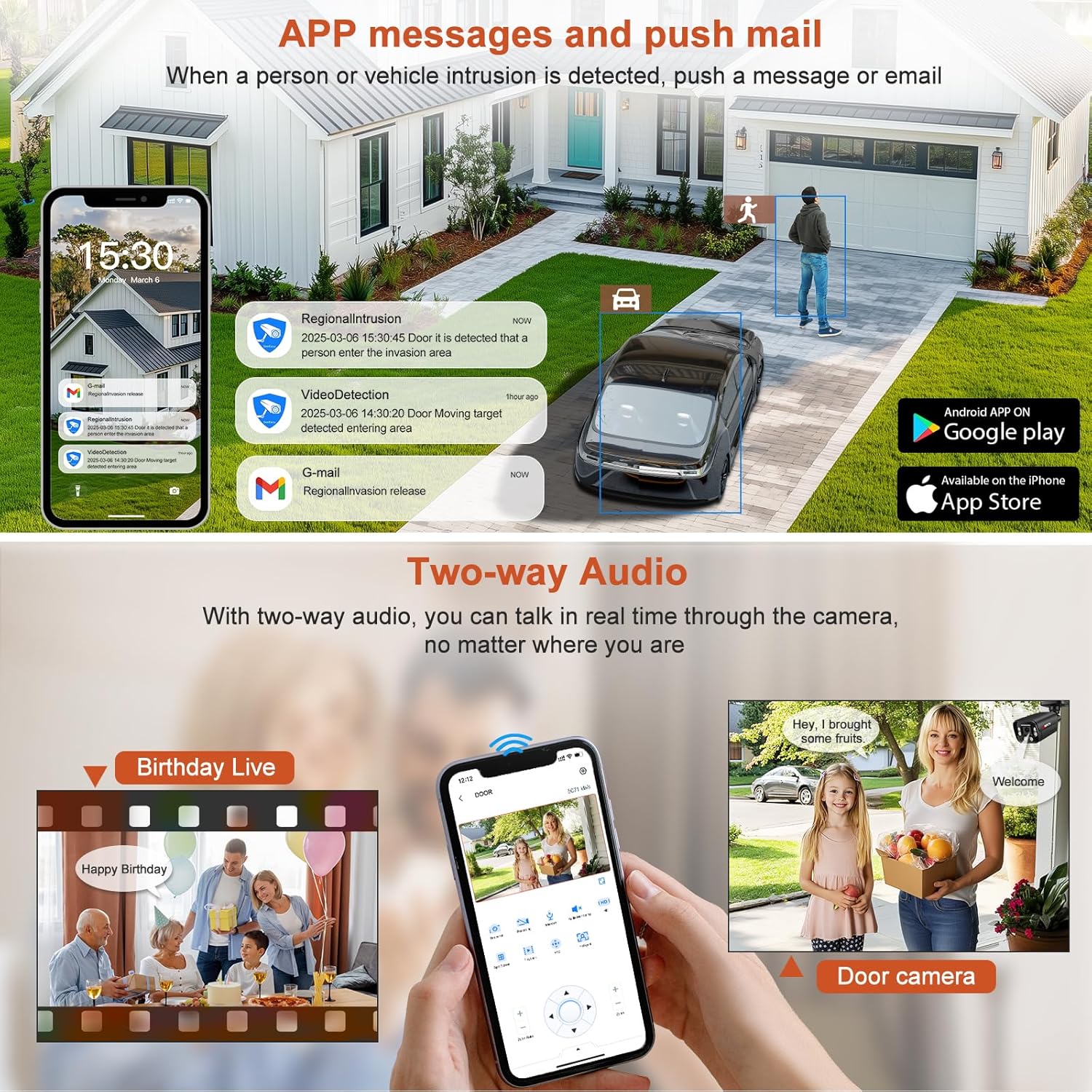
Image: An illustration demonstrating the two-way audio feature. It shows a user interacting with the camera via a mobile app, communicating with people at the camera's location, such as a family celebrating a birthday or a person at the door.
5. Maintenance
5.1 General Care
- Cleaning: Periodically clean the camera lens with a soft, damp cloth to ensure clear image quality. Avoid abrasive cleaners.
- Firmware Updates: Check the mobile application regularly for firmware updates to ensure optimal performance and access to new features.
- Cable Inspection: For outdoor installations, periodically inspect the network cable and waterproof sleeve for any signs of wear or damage.
5.2 Storage and Bandwidth Management (H.265)
The camera utilizes H.265 video coding technology, which offers significant advantages over older H.264 compression:
- Reduced Storage Space: H.265 can reduce file sizes by up to 50% compared to H.264, allowing for longer recording times on the same MicroSD card (up to 512GB supported).
- Lower Bandwidth Consumption: This efficiency also means less network bandwidth is required for streaming 4K video, improving remote viewing performance.

Image: A graphic comparing H.265 and H.264 video compression. It shows that H.265 requires significantly less storage and bandwidth compared to H.264 for the same video quality, illustrating its efficiency.
6. Troubleshooting
If you encounter issues with your MWRCTV camera, refer to the following common solutions:
| Problem | Possible Cause | Solution |
|---|---|---|
| No image/offline | No power, network issue, incorrect connection. |
|
| Poor image quality | Dirty lens, low bandwidth, incorrect resolution settings. |
|
| Frequent false alarms | Motion detection too sensitive, incorrect AI settings. |
|
| Two-way audio not working | Microphone/speaker disabled, app permissions, network issues. |
|
For further assistance, please contact MWRCTV customer support.
7. Specifications
| Feature | Detail |
|---|---|
| Model Name | MN852-PS |
| Video Capture Resolution | 8MP (4K) |
| Lens | 2.8mm Fixed Lens |
| Viewing Angle | 110 Degrees |
| Connectivity Technology | Wired (PoE) |
| Connectivity Protocol | Ethernet, ONVIF |
| Power Source | Corded Electric (PoE or 12V DC) |
| Indoor/Outdoor Usage | Indoor, Outdoor |
| Water Resistance Level | IP66 Waterproof |
| Night Vision Range | 85 Feet |
| Video Encoding | H.265 |
| Storage | MicroSD Card Slot (up to 512GB, not included) |
| Material | Aluminum Alloy, Acrylonitrile Butadiene Styrene (ABS) |
| Dimensions (L x W x H) | 4.2 x 4.2 x 3.4 inches |
| Item Weight | 14.4 ounces |
| UPC | 717701103687 |
8. Warranty and Support
MWRCTV provides comprehensive support for its products:
- Product Warranty: Refer to your purchase documentation for specific warranty terms.
- 30-Day Free Return: Products are eligible for a 30-day free return period.
- Lifetime Technical Support: MWRCTV offers lifetime technical support for its products.
- 24/7 Online Support: Access online support at any time for assistance.
For technical assistance, warranty claims, or general inquiries, please visit the official MWRCTV website or contact their customer service directly.

Image: A graphic displaying icons representing MWRCTV's customer support offerings: Lifetime Tech Support, 30-Day Free Return, Product Warranty, and 24/7 Online Support.