
1. Product Overview
The Tuya Popular M8 Wireless Doorbell Camera is a smart intercom system designed to enhance your home security. It features 1080 HD video, two-way audio communication, and night vision capabilities, allowing you to monitor your doorstep and interact with visitors from anywhere via Wi-Fi.
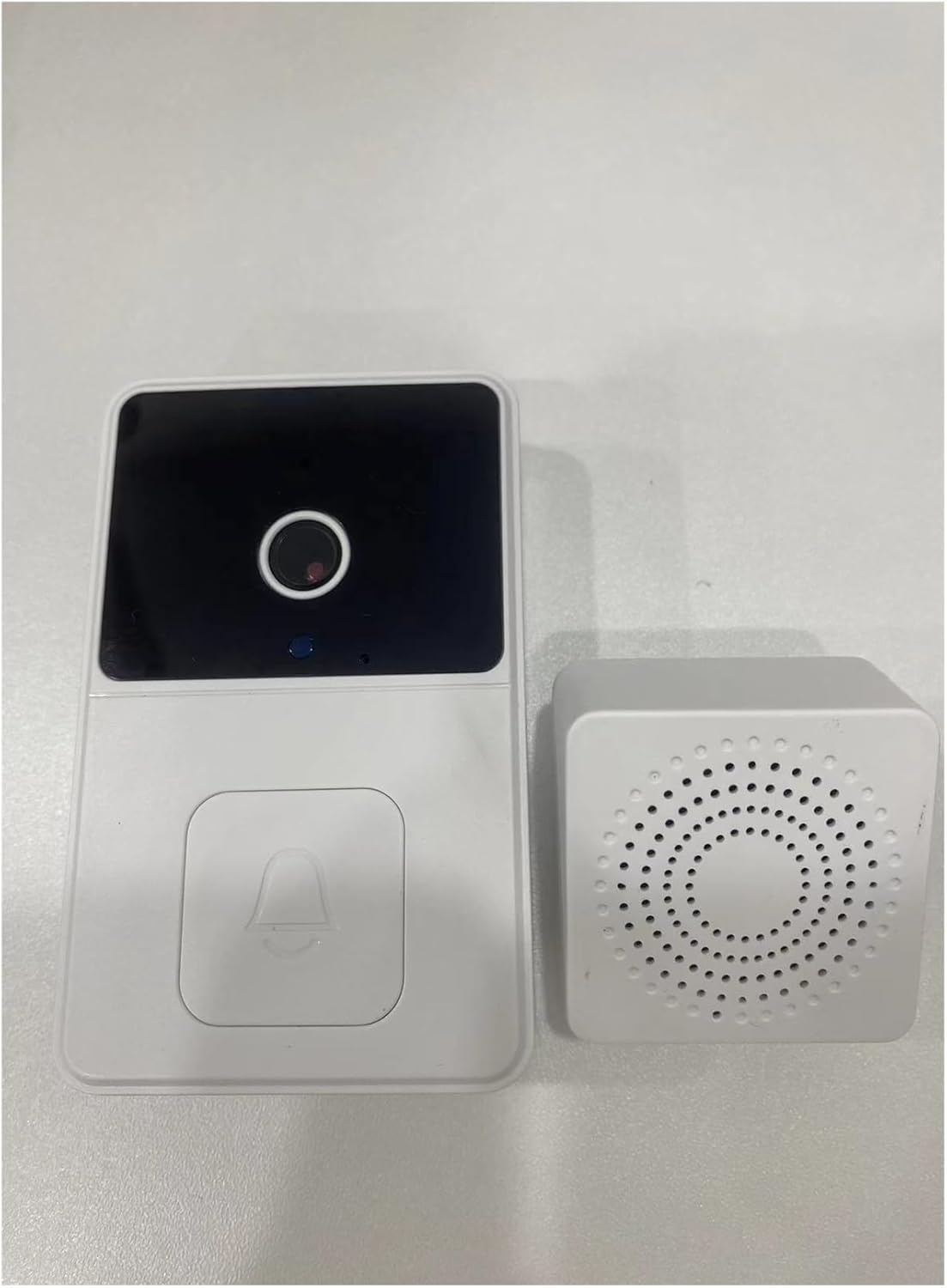
Figure 1.1: The M8 Wireless Doorbell Camera (left) and its accompanying Chime unit (right).
Key Features:
- 1080 HD Video: Captures clear, high-definition video of your doorstep.
- Two-Way Audio: Built-in microphone and speaker enable real-time conversation with visitors.
- Wi-Fi Connectivity: Connects to your home Wi-Fi network for remote access and notifications.
- Remote Live View: Monitor your property from anywhere using the companion mobile application.
- Message Push Notifications: Receive instant alerts on your smartphone when the doorbell is pressed or motion is detected.
- Easy Installation: Designed for straightforward setup without the need for professional assistance.

Figure 1.2: Visual representation of the M8 Doorbell's key features, including HD image, two-way audio, Wi-Fi connection, remote monitoring, one-click shooting, infrared night vision, and rechargeable battery.
2. Technical Specifications
| Specification | Detail |
|---|---|
| Product Name | M8 Video Doorbell |
| Resolution | 640*480p (effective for video transmission) |
| View Angle | 120 degrees |
| Functions | Device Button, Message push, Remote Live View |
| Wi-Fi Support | Yes |
| Night Vision | Yes |
| Battery | Built-in rechargeable battery |
| Operating Temperature | -10°C to 50°C (14°F to 122°F) |
| Waterproof Rating | IP55 Dustproof and Waterproof |
3. Setup Guide
Follow these steps to set up your M8 Wireless Doorbell Camera and Chime:
- Charge the Doorbell: Before first use, ensure the doorbell's built-in battery is fully charged. Connect it to a standard USB power source using the provided cable.
- Download the App: Download the 'Tuya Smart' or 'Smart Life' application from your smartphone's app store (iOS or Android).
- Pair the Doorbell: Open the app and follow the on-screen instructions to add a new device. Power on the doorbell and put it into pairing mode (refer to app for specific button presses).
- Connect to Wi-Fi: During the app setup, connect the doorbell to your home's 2.4GHz Wi-Fi network. Ensure the doorbell is installed within the range of a strong Wi-Fi signal.
- Install the Chime: Plug the chime unit into a standard electrical outlet in a central location within your home. It will automatically pair with the doorbell.
- Mount the Doorbell: Choose a suitable location near your door, ensuring a clear view and good Wi-Fi signal. Use the provided mounting hardware to securely attach the doorbell to the wall.
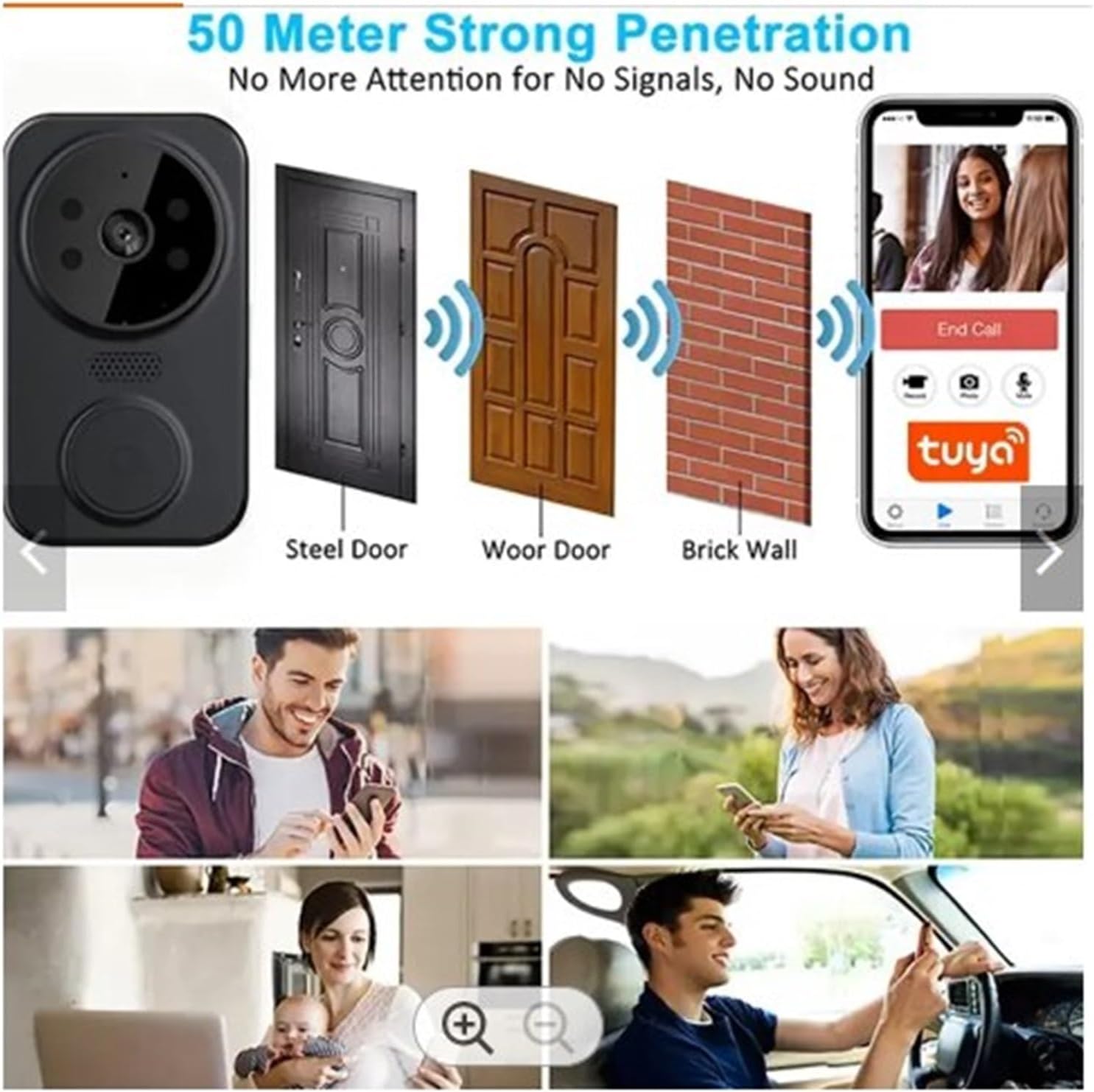
Figure 3.1: Example of the chime plugged into an outlet and the doorbell mounted on a wall.
For optimal performance, install the doorbell in a location with strong Wi-Fi signal and away from potential signal interference sources like microwave ovens.

Figure 3.2: Illustration of the doorbell's strong signal and long-distance transmission capabilities, showing connectivity through various wall types.
4. Operation
Operating your M8 Wireless Doorbell Camera is intuitive:
- Doorbell Press: When a visitor presses the doorbell button, the indoor chime will ring, and you will receive an instant notification on your smartphone via the app.
- Two-Way Communication: Upon receiving a notification, open the app to view the live feed. You can then initiate two-way audio communication with the visitor.
- Remote Live View: At any time, open the app to access a live video feed from your doorbell camera, allowing you to monitor your doorstep proactively.
- Night Vision: The doorbell automatically switches to night vision mode in low-light conditions, providing clear black-and-white video.

Figure 4.1: A user pressing the doorbell button, with a smartphone displaying the live video feed from the doorbell camera.

Figure 4.2: Diagram illustrating the doorbell's signal penetration capabilities through various materials like steel, wood, and brick walls, ensuring reliable communication.
5. Care and Maintenance
To ensure the longevity and optimal performance of your M8 Wireless Doorbell Camera, please observe the following guidelines:
- Temperature Range: Operate the product within its specified working temperature range of -10°C to 50°C (14°F to 122°F). Avoid using it in environments with excessively high or low temperatures.
- Moisture Protection: This is a precision electronic product. Do not use it in excessively wet environments or where water may enter the product. While it has an IP55 rating for dust and water resistance, direct submersion or exposure to high-pressure water jets should be avoided.
- Lens Care: To prevent image distortion or poor picture quality (e.g., bright near and dark in the distance, or whitish images), avoid placing the front and side of the lens close to reflective surfaces such as glass or white walls.
- Cleaning: Gently wipe the camera lens and body with a soft, dry cloth. Do not use harsh chemicals or abrasive cleaners.

Figure 5.1: The IP55 rating indicates the doorbell's resistance to dust and water splashes, along with its recommended operating temperature range of -20°C to 60°C (-4°F to 140°F).
6. Troubleshooting
If you encounter issues with your M8 Wireless Doorbell Camera, refer to the following common problems and solutions:
- No Wi-Fi Connection:
- Ensure the doorbell is within range of your Wi-Fi router.
- Verify your Wi-Fi network is 2.4GHz. The doorbell does not support 5GHz networks.
- Check your Wi-Fi password for accuracy during setup.
- Restart your Wi-Fi router and the doorbell.
- Poor Picture Quality:
- Ensure the camera lens is clean and free of smudges or dirt.
- Check for reflective surfaces (e.g., glass, white walls) directly in front or to the side of the lens that might cause glare or overexposure.
- Verify sufficient lighting for optimal image capture, especially during the day.
- Chime Not Ringing:
- Ensure the chime unit is properly plugged into a working electrical outlet.
- Confirm the chime is paired with the doorbell. If not, refer to the setup guide for pairing instructions.
- Check if the chime's volume is turned up.
- App Notifications Not Received:
- Ensure your smartphone has a stable internet connection.
- Check your phone's notification settings to ensure notifications for the 'Tuya Smart' or 'Smart Life' app are enabled.
- Verify that the doorbell is connected to Wi-Fi and online in the app.
7. Warranty Information
This product comes with a 3-month warranty from the date of purchase. The warranty covers manufacturing defects and malfunctions under normal use. It does not cover damage caused by misuse, accidents, unauthorized modifications, or failure to follow the instructions in this manual.
Please retain your proof of purchase for warranty claims.
8. Customer Support
If you require further assistance or have questions not covered in this manual, please contact your retailer or the manufacturer's customer support. Provide your product model (M8) and a detailed description of the issue to facilitate a quicker resolution.
For the latest support information and FAQs, please visit the official product support website (if available, refer to product packaging or purchase details).