
Introduction
This manual provides detailed instructions for the installation, operation, and maintenance of your CAMECHO Android 15 Car Radio. This unit features an 8-core Qualcomm chip, 4GB RAM, 64GB ROM, a 9-inch touchscreen, and is designed for Mercedes Benz Smart Fortwo W451 models from 2011 to 2015. Key functionalities include wireless Carplay, Android Auto, GPS navigation, Bluetooth 5.1, FM/RDS radio, DSP sound processing, steering wheel control support, and rear camera input.
Safety Information
- Read all instructions carefully before installation and operation.
- Installation should be performed by a qualified technician to prevent damage to the unit or vehicle.
- Do not operate the device in a manner that distracts you from driving. Always prioritize road safety.
- Ensure all wiring connections are secure and properly insulated to avoid short circuits.
- Keep the unit away from water and excessive moisture.
- Do not attempt to disassemble or modify the unit. This will void the warranty.
Package Contents
Verify that all items are present in the package before proceeding with installation.
- CAMECHO Android 15 Car Radio Unit
- Power Cable
- RCA Cables
- GPS Antenna
- USB Cables
- Rear Camera Input Cable
- Radio Adapter Cable
- LVDS Cable (if applicable)
- Antenna Adapter
- User Manual
- Installation Tools (if included)
- Cooling Fan (pre-installed or separate)

Image: Detailed view of the CAMECHO car radio unit, its dimensions, and a comprehensive list of included accessories such as power cables, RCA cables, GPS antenna, USB cables, rear camera input cable, radio adapter cable, LVDS cable, antenna adapter, user manual, and installation tools.
Setup and Installation
This section outlines the general steps for installing the CAMECHO Android 15 Car Radio. Professional installation is recommended.
Compatibility
This unit is specifically designed for Mercedes Benz Smart Fortwo W451 models manufactured between 2011 and 2015.
Installation Steps
- Preparation: Disconnect the vehicle's battery to prevent electrical shorts. Remove the original car radio and trim panels carefully.
- Wiring Connections: Connect the power cable, RCA cables, GPS antenna, USB cables, and rear camera input cable to the corresponding ports on the new unit and the vehicle's harness. Ensure the radio adapter cable and antenna adapter are correctly used.
- External Devices: If using optional external devices (e.g., USB recorder, DAB+, external microphone, OBD), connect them as per their respective instructions.
- Test Fit: Before fully securing, temporarily connect the unit and reconnect the battery to test basic functions (power, audio, display).
- Secure Installation: Mount the car radio securely into the dashboard opening. Reinstall all trim panels.
- Final Check: Reconnect the battery and perform a comprehensive test of all features.
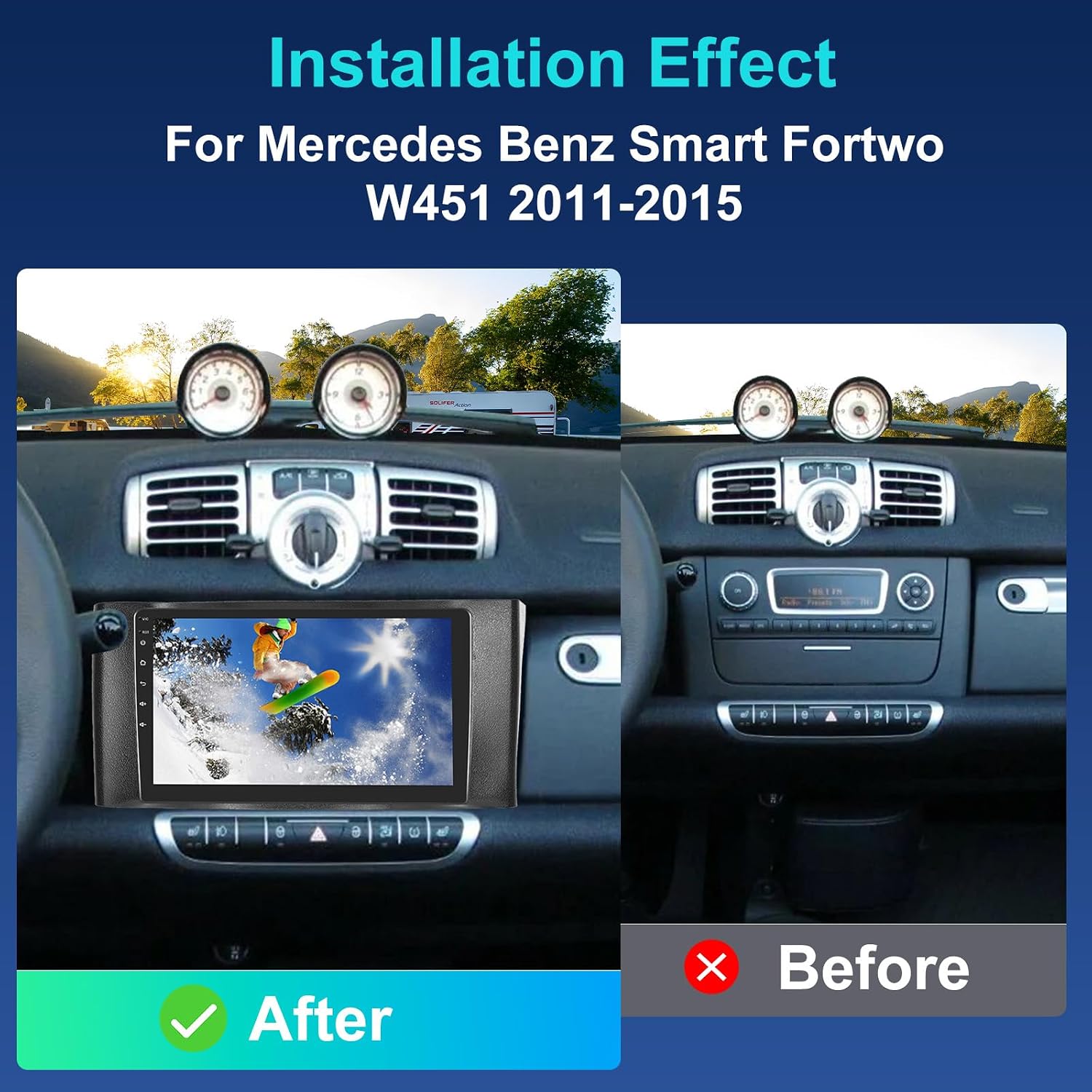
Image: Visual comparison showing the vehicle's dashboard before and after the CAMECHO car radio installation, highlighting the integrated appearance.

Image: Illustration of optional external devices compatible with the car radio, such as USB interfaces, USB recorders, DAB+ modules, rear cameras, external microphones, and OBD diagnostic tools. These are typically purchased separately.
Operating Instructions
Your CAMECHO Android 15 Car Radio offers a wide range of features. This section details how to use them.
Basic Interface and Navigation
The unit features a 9-inch capacitive touchscreen. Navigate through menus and applications by tapping, swiping, and pinching gestures. The Android 15 operating system provides a familiar user experience.

Image: A visual summary of the car radio's core functionalities, including its hardware specifications (8-Core, 4GB+64GB, Android 15) and software features like Carplay, Android Auto, GPS, Bluetooth, and DSP.
Wireless Carplay & Android Auto
Connect your iPhone or Android smartphone wirelessly to access navigation, music, calls, and messages directly on the car radio display. This feature enhances driving safety by minimizing phone interaction.
- Ensure Bluetooth and Wi-Fi are enabled on your smartphone.
- On the car radio, select the Carplay or Android Auto application.
- Follow the on-screen prompts to pair your device.

Image: Demonstrations of wireless Apple Carplay, wireless Android Auto, and wireless Mirror Link, showing how smartphone interfaces are projected onto the car radio screen.
GPS Navigation
The unit includes an integrated GPS receiver supporting both online and offline navigation. Download maps for offline use or connect to Wi-Fi for real-time traffic updates and online mapping services.
- Access navigation applications from the main menu.
- Ensure the GPS antenna is properly installed for optimal signal reception.

Image: Displays of GPS navigation with route guidance, active Wi-Fi connection, split-screen functionality, and video playback in picture-in-picture mode.
Wi-Fi Connectivity
Connect the car radio to a Wi-Fi network or mobile hotspot to access online features, download apps, stream media, and browse the internet.
- Go to Settings > Network & Internet > Wi-Fi.
- Select your desired network and enter the password if required.
Bluetooth 5.1
Utilize Bluetooth for hands-free calling and wireless audio streaming from your smartphone.
- Enable Bluetooth on both the car radio and your phone.
- Search for available devices on the car radio and select your phone to pair.
- Confirm the pairing code if prompted.

Image: User interfaces for Bluetooth 5.1 connectivity, FM/RDS radio tuning, and the 32-band Digital Sound Processor (DSP) for audio customization.
FM/RDS Radio
Tune into your favorite radio stations with the built-in FM/RDS tuner. The system supports 18 preset stations.
- Select the Radio application from the main menu.
- Use the scan function to find available stations or manually tune to a frequency.
- Save preferred stations to presets.
Digital Sound Processor (DSP)
Customize your audio experience with the integrated DSP. Adjust sound fields, bass, mid-range, and treble for clear, balanced stereo sound.
- Access the DSP settings through the audio or sound application.
- Experiment with different equalizer presets or create custom sound profiles.
Steering Wheel Control (SWC)
Control essential functions of the car radio directly from your vehicle's steering wheel buttons for convenience and safety.
- Navigate to the SWC settings in the system menu.
- Follow the on-screen instructions to map your steering wheel buttons to specific radio functions.

Image: Displays illustrating the backup camera view, the interface for configuring steering wheel controls, options for advanced UI customization via ShaderLab, and the 3D car model display feature.
AHD Rear Camera Support
The unit supports an AHD rear camera (included). When the vehicle is in reverse gear, the car radio screen automatically displays the rear view, assisting with parking and maneuvering.
- Ensure the rear camera is correctly installed and connected to the dedicated input.
- Test the camera functionality by engaging reverse gear.
Mirror Link
Mirror Link allows you to display your smartphone's screen content directly onto the car radio's 9-inch display. This works for both Android and iOS devices.
- Connect your phone via Wi-Fi or USB cable.
- Open the Mirror Link application on the car radio and follow the pairing instructions.
Split Screen and Picture-in-Picture (PIP)
Enhance multitasking with Split Screen, allowing two applications to run side-by-side. Picture-in-Picture enables simultaneous video viewing while performing other operations.
- To activate Split Screen, long-press the recent apps button or drag an app to one side of the screen.
- PIP mode typically activates automatically when switching to another app while a video is playing.

Image: The 1280x720 LED touchscreen demonstrating Picture-in-Picture video playback and split-screen capabilities, allowing multiple applications to be viewed simultaneously.
3D Car Model Display and Dynamic Effects
Experience dynamic 3D car model displays with high-precision rendering. Users can select different car models and colors, and rotate them 360 degrees for a comprehensive view.
Fan Settings
Manage the internal cooling fan settings to optimize performance and prevent overheating, especially during extended use or in hot environments.
- Access fan settings through the system menu to adjust fan speed or mode.
Advanced UI Customization (ShaderLab Topics)
Personalize the user interface by adjusting UI colors and font styles to match your preferences.
- Find UI customization options within the display or personalization settings.
Voice Control
Utilize voice commands for various functions (activation may be required). This allows for hands-free operation of the unit, improving safety.
- Ensure the external microphone is connected for optimal voice recognition.
- Refer to the system settings for voice control activation and command lists.
Global Weather Display
The unit can display real-time weather conditions from around the world (activation may be required). This feature requires an active internet connection.
Specifications
| Feature | Specification |
|---|---|
| Brand | CAMECHO |
| Model Name | 4G+64G 8Core Android 15 |
| Operating System | Android 15 |
| Processor | 8-Core Qualcomm Chip |
| RAM | 4GB |
| Internal Storage | 64GB |
| Screen Size | 9 Inches |
| Screen Type | Capacitive Touchscreen |
| Connectivity | Bluetooth 5.1, Wi-Fi, USB |
| Navigation System | Integrated GPS (online/offline support) |
| Radio Tuner | FM/RDS (18 presets) |
| Audio Processing | Built-in DSP |
| Vehicle Compatibility | Mercedes Benz Smart Fortwo W451 (2011-2015) |
| Special Features | Wireless Carplay & Android Auto, Mirror Link, 3D Car Model Display, Picture-in-Picture, Split Screen, Steering Wheel Control, Rear Camera Input, Fan Settings, UI Customization, Voice Control, Global Weather Display |
| Components Included | Radio + Accessories |
| Country of Origin | China |
Maintenance
- Cleaning: Use a soft, dry cloth to clean the screen and exterior of the unit. For stubborn marks, slightly dampen the cloth with water. Avoid harsh chemicals or abrasive materials.
- Software Updates: Periodically check for software updates through the system settings or the manufacturer's website to ensure optimal performance and access to new features.
- Temperature: Avoid exposing the unit to extreme temperatures for prolonged periods.
- Connections: Periodically check all cable connections to ensure they are secure and free from corrosion.
Troubleshooting
| Problem | Possible Cause | Solution |
|---|---|---|
| Unit does not power on. | Loose power connection, blown fuse, vehicle battery issue. | Check power cables and fuse. Ensure vehicle battery is charged. Consult a technician if issues persist. |
| No sound. | Volume too low, incorrect audio source, speaker wiring issue. | Increase volume. Select correct audio source. Check speaker connections. |
| GPS signal lost or inaccurate. | GPS antenna obstructed or improperly connected. | Ensure GPS antenna has a clear view of the sky and is securely connected. |
| Bluetooth not connecting. | Bluetooth off on device/radio, device not in pairing mode, interference. | Ensure Bluetooth is enabled on both devices. Put phone in pairing mode. Try restarting both devices. |
| Rear camera not displaying. | Camera not connected, faulty camera, incorrect wiring to reverse light. | Check camera connections and power supply. Ensure reverse trigger wire is correctly connected. |
| Touchscreen unresponsive. | Software glitch, screen damage. | Restart the unit (use reset button if available). If issue persists, contact support. |
| System freezes or crashes. | Software error, too many apps running, overheating. | Restart the unit. Close unnecessary applications. Check fan settings. Consider a factory reset if frequent. |
Warranty and Support
For warranty information, please refer to the documentation provided at the time of purchase or contact your retailer. CAMECHO offers customer support for technical assistance and troubleshooting.
For support inquiries, please contact:
Email: CAMECHOVIP@126.com

Image: A customer service representative, indicating available support. Contact email: CAMECHOVIP@126.com.