
Introduction
This manual provides essential instructions for setting up, operating, and maintaining your CUNPU 27-inch FHD Touchscreen Monitor. Please read this manual thoroughly before using the product to ensure proper and safe operation. Keep this manual for future reference.
Product Features
- Full HD Display: Enjoy a 27-inch Full HD (1920x1080) display with a 178° wide viewing angle, 60Hz refresh rate, 1000:1 contrast ratio, 220cd/m² brightness, 100% sRGB color gamut, and 16.7 million colors. Designed for optimal visual clarity in work and video applications.
- Eye Comfort Technology: Features blue light reduction and flicker-free technology to minimize eye strain during extended use, providing a comfortable viewing experience.
- Responsive 10-Point Touchscreen: The capacitive 10-point touchscreen allows for intuitive interaction, smooth navigation, and efficient content control. No additional drivers or styluses are required for basic touch functions.
- Versatile Connectivity: Equipped with standard HDMI, VGA, and USB ports. The USB port is essential for enabling the touch function. Compatible with various devices including PCs, laptops, and workstations.
- HDR10 Support & Ergonomic Design: HDR10 mode enhances color depth and realism. The monitor supports 100x100mm VESA mounting and offers tilt adjustment for flexible positioning, making it suitable as a secondary display for productivity.
- Note on Touch Function: To activate the touch feature, connect the monitor to your PC using both the included USB-B and HDMI cables. Please note that macOS is not currently supported for touch functionality.
Setup
1. Unpacking
Carefully remove all components from the packaging. Ensure all items listed in the packing list are present and undamaged.
2. Assembling the Stand
Attach the monitor stand base to the stand column, then secure the column to the back of the monitor. Refer to the diagram below for proper assembly.
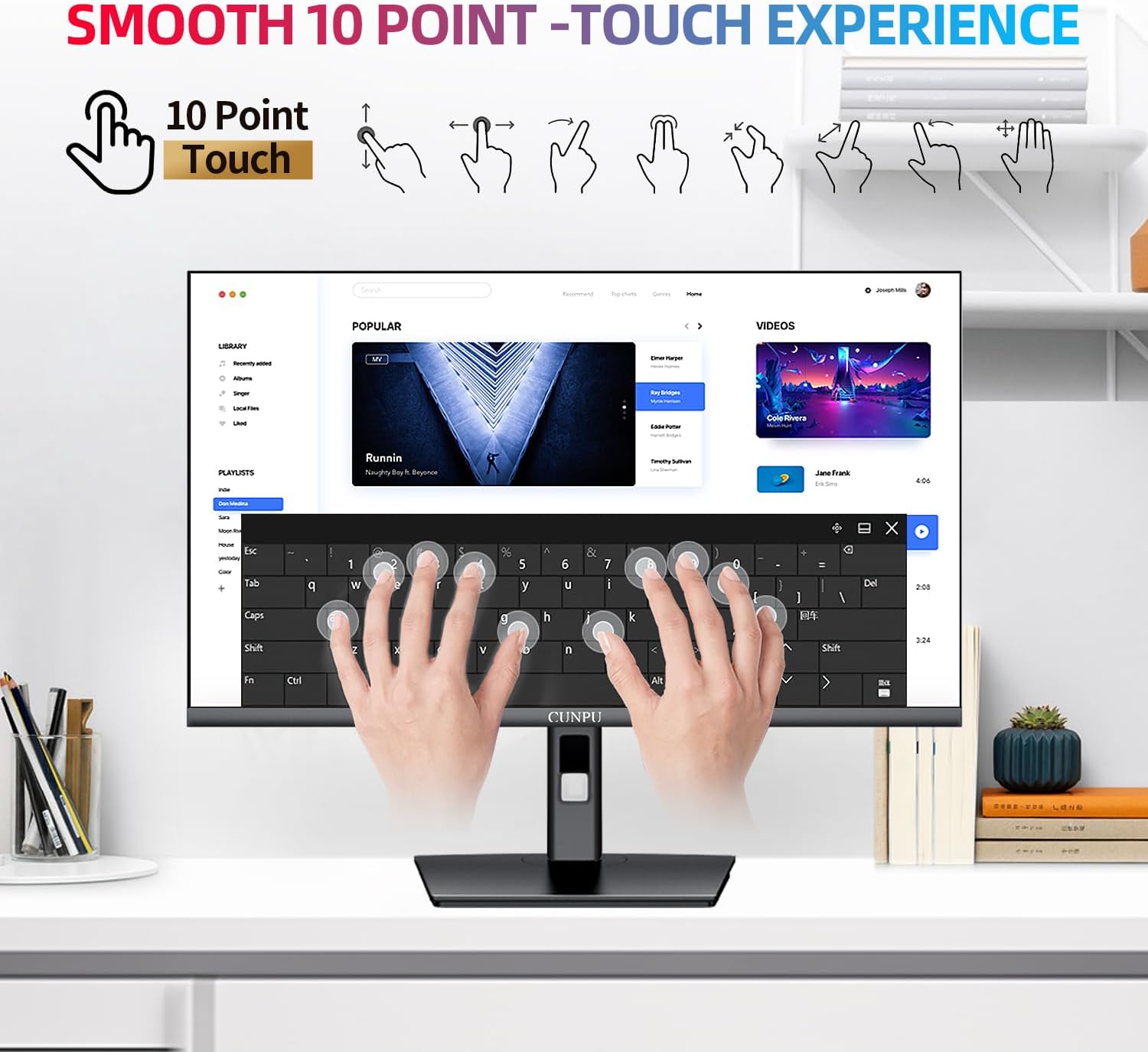
Image: The CUNPU 27-inch monitor with its stand fully assembled, ready for use on a desk.
3. Connecting to Your Device
The monitor supports HDMI and VGA video inputs. For touch functionality, a USB connection is also required.
Video Connection
- HDMI: Connect one end of the HDMI cable to the HDMI port on your monitor and the other end to the HDMI output port on your PC or laptop.
- VGA: Connect one end of the VGA cable to the VGA port on your monitor and the other end to the VGA output port on your PC or laptop.
Touch Function Connection (USB)
To enable the 10-point touch feature, you must connect the monitor to your computer via a USB cable.
- Connect the USB-B end of the provided USB cable to the USB 2.0 port on the monitor.
- Connect the USB-A end of the cable to an available USB port on your PC or laptop.
Important Note:
The touch function requires both the video cable (HDMI/VGA) and the USB cable to be connected simultaneously. macOS does not support the touch function of this monitor.
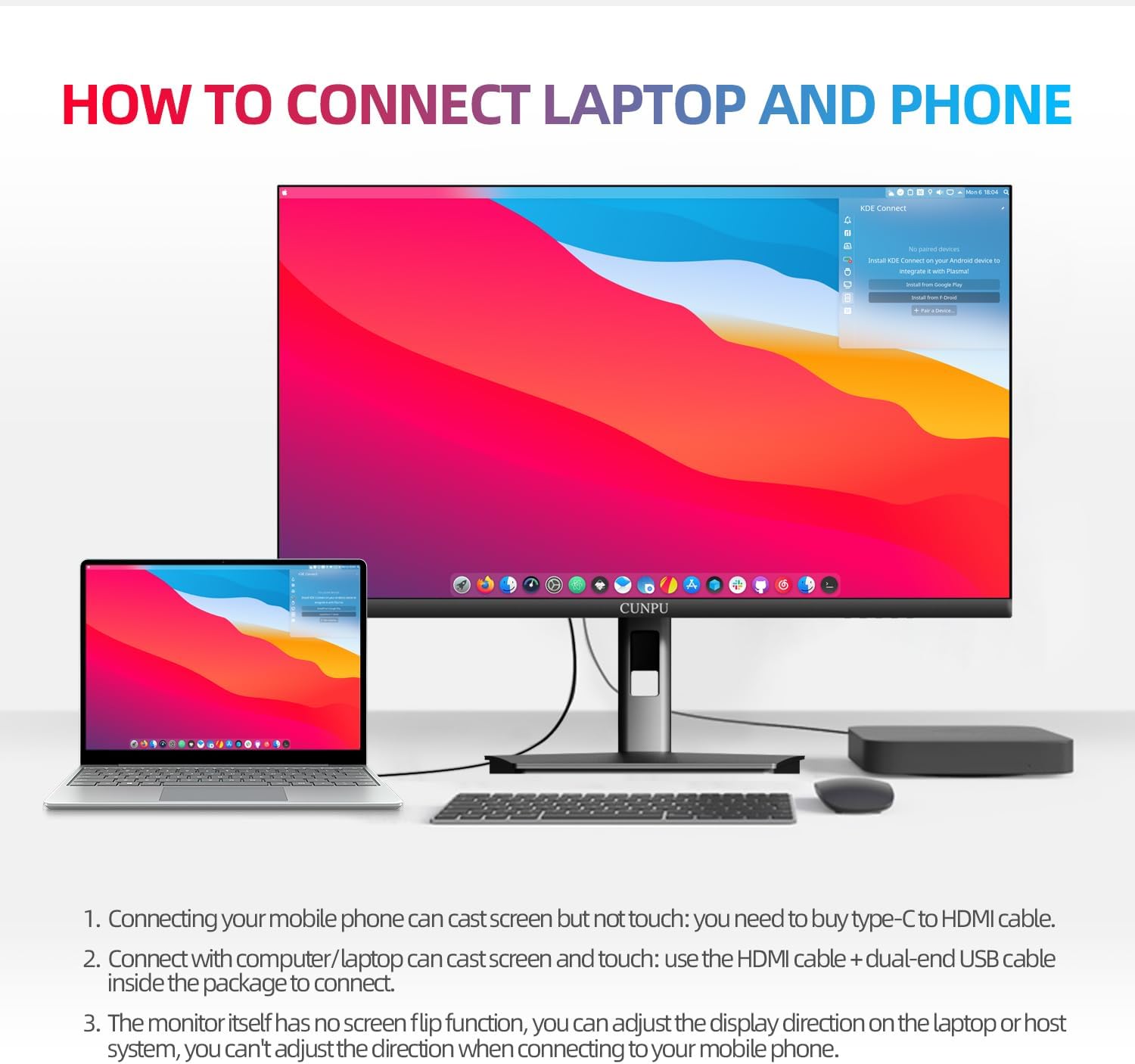
Image: A visual guide demonstrating how to connect a laptop and a mobile phone to the CUNPU monitor using HDMI, VGA, and USB cables. It highlights that touch functionality requires a USB connection to the PC.

Image: Detailed diagram showing the dimensions of the CUNPU monitor and the location of its ports: USB 2.0 (for Touch Function), HDMI, VGA, and DC power input.
4. Power Connection
Connect the power adapter to the DC input port on the monitor, then plug the adapter into a power outlet.
Operating Instructions
1. Powering On/Off
Press the power button located on the back or bottom of the monitor to turn it on or off.
2. Using the Touchscreen
Once connected via USB and video, the 10-point capacitive touchscreen will be active.
- Single Touch: Functions like a mouse click.
- Drag: Press and hold, then move your finger across the screen.
- Zoom In/Out: Use two fingers to pinch in or spread out on the screen.
- Multi-touch Gestures: The monitor supports various multi-touch gestures depending on your operating system (Windows, Chromebook).

Image: An illustration demonstrating different 10-point touch gestures supported by the monitor, including single touch, enlarge, narrow, drag, multi-touch, up/down scroll, left/right swipe, and two-finger touch.

Image: The CUNPU monitor displaying a colorful image, emphasizing its Nano IPS panel, 100% sRGB color accuracy, 300cd/m² brightness, and 8-bit color depth (16.7M colors).
3. On-Screen Display (OSD) Menu
Use the buttons on the back or bottom of the monitor to navigate the OSD menu. This menu allows you to adjust display settings such as brightness, contrast, color temperature, input source, and HDR mode.
4. Tilt Adjustment
The monitor stand allows for tilt adjustment. Gently tilt the screen to your preferred viewing angle.
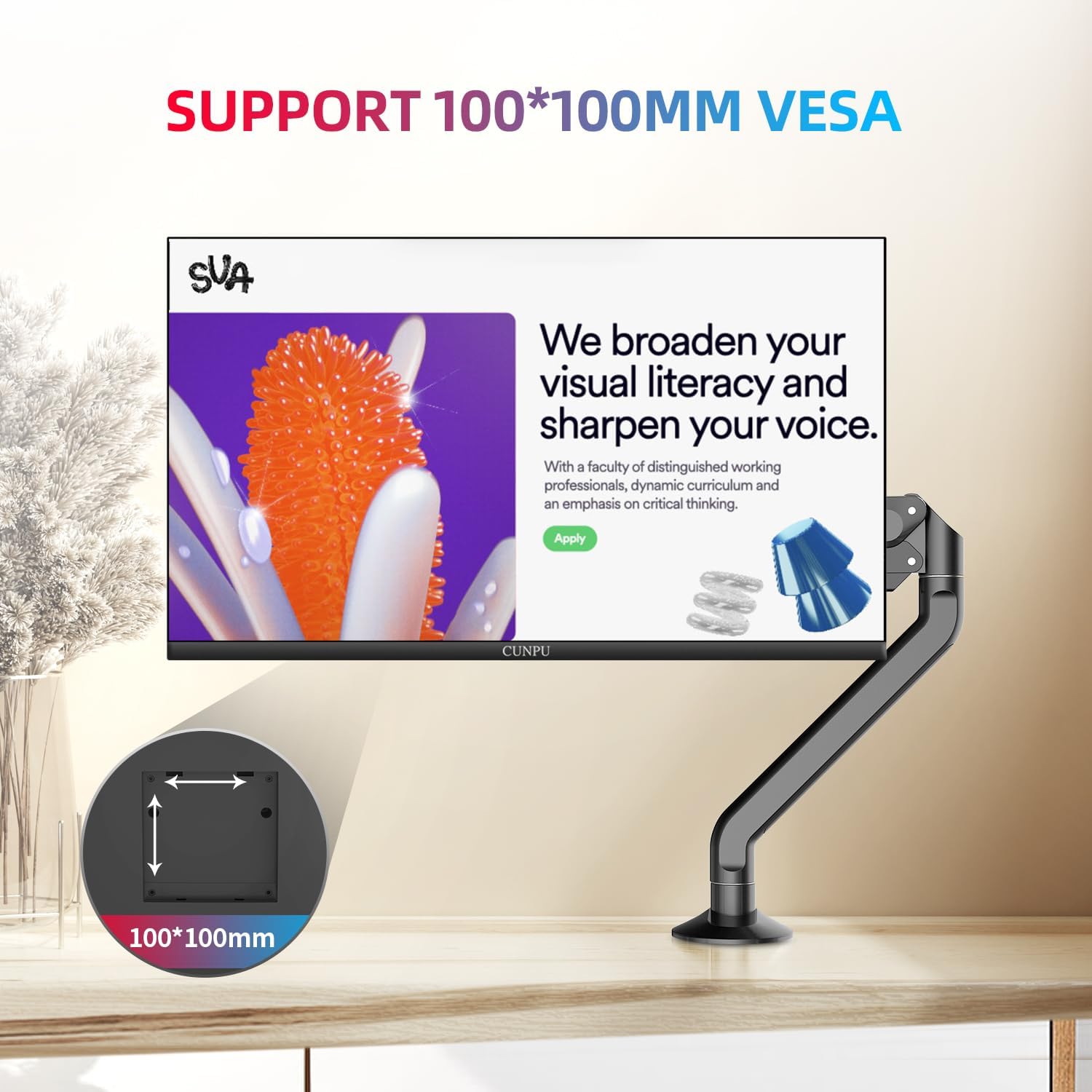
Image: The CUNPU monitor attached to a VESA compatible arm, demonstrating its 100x100mm VESA mounting support for flexible installation options.
5. Low Blue Light & Flicker-Free
This monitor is designed with low blue light and flicker-free technology to reduce eye strain. These features are active by default.
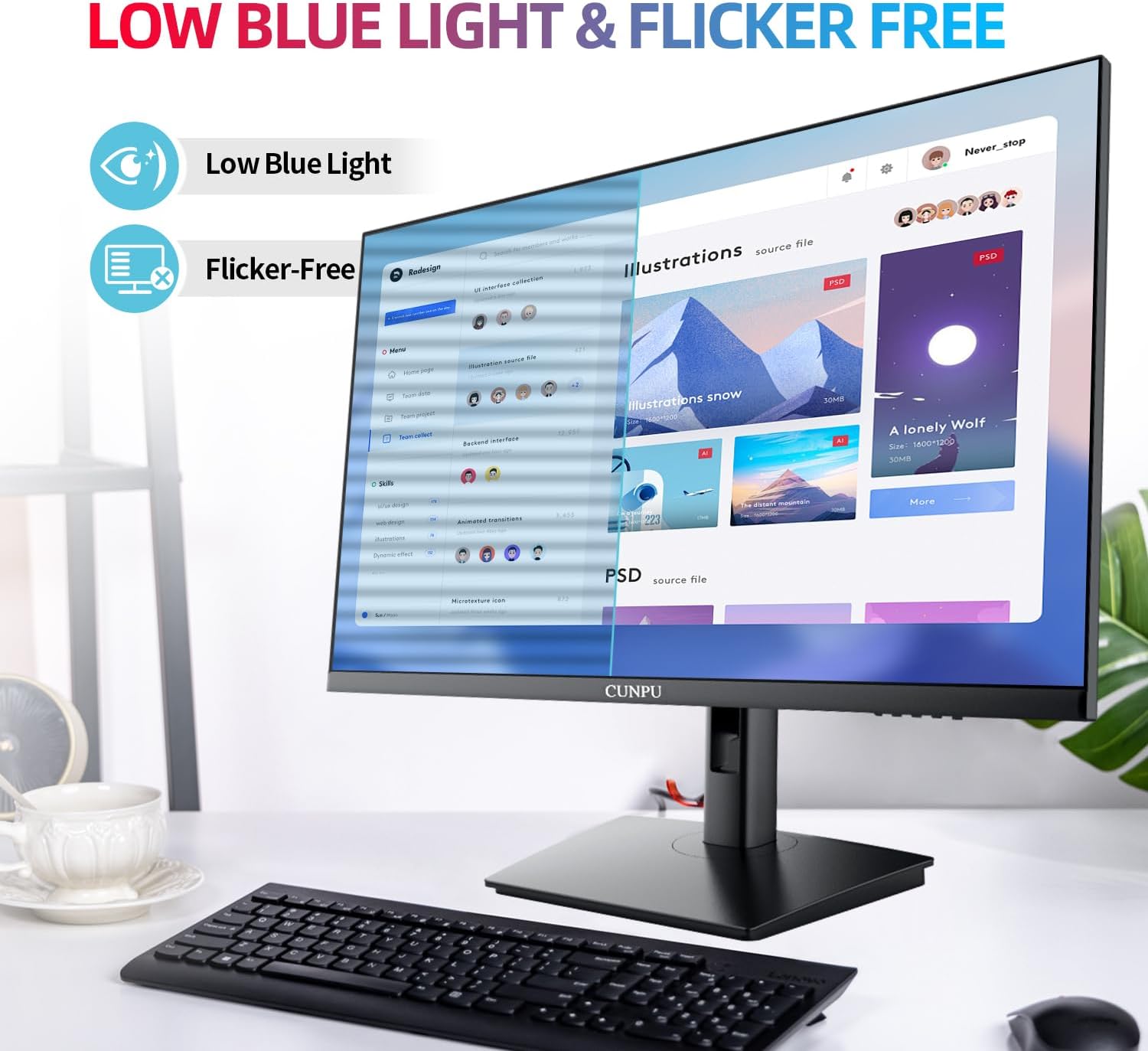
Image: The CUNPU monitor displaying a graphical user interface, with icons indicating its Low Blue Light and Flicker-Free technologies for enhanced eye comfort.
Maintenance
- Cleaning the Screen: Use a soft, lint-free cloth slightly dampened with water or a non-abrasive screen cleaner. Do not spray cleaner directly onto the screen.
- Cleaning the Casing: Use a soft, dry cloth to wipe the monitor casing. Avoid using strong detergents or solvents.
- Storage: When not in use for extended periods, store the monitor in a cool, dry place, away from direct sunlight and extreme temperatures.
Troubleshooting
| Problem | Possible Cause | Solution |
|---|---|---|
| No image on screen | Power cable not connected; Video cable not connected; Incorrect input source selected. | Check power and video cable connections. Ensure the correct input source (HDMI/VGA) is selected via the OSD menu. |
| Touch function not working | USB cable not connected; USB cable faulty; macOS operating system. | Ensure the USB-B to USB-A cable is securely connected between the monitor and your PC. Try a different USB port or cable. Note that macOS is not supported for touch. |
| Image is blurry or distorted | Incorrect resolution; Faulty video cable. | Set the display resolution to 1920x1080. Check or replace the video cable. |
| Screen flickers | Refresh rate issue; Environmental interference. | Ensure the refresh rate is set to 60Hz or 75Hz (if supported by your device). Check for nearby electronic devices causing interference. |
Specifications
| Feature | Detail |
|---|---|
| Brand | CUNPU |
| Model Number | TUH1AW-7727Y |
| Screen Size | 27 inches |
| Resolution | 1920 x 1080 (FHD 1080p) |
| Aspect Ratio | 16:9 |
| Panel Type | Nano IPS |
| Refresh Rate | 60Hz (up to 75Hz depending on device) |
| Contrast Ratio | 1000:1 |
| Brightness | 220cd/m² |
| Color Gamut | 100% sRGB |
| Color Support | 16.7 Million (8-bit) |
| Touch Technology | 10-point Capacitive |
| Video Inputs | 1x HDMI, 1x VGA |
| Other Ports | 1x USB 2.0 (for Touch Function), DC Power Input |
| VESA Compatibility | 100 x 100 mm |
| Dimensions (W x H x D) | 53.98 x 40.69 x 18.19 cm (with stand) |
| Weight | 5.69 kg |
Warranty and Support
For warranty information and technical support, please refer to the warranty card included with your product or visit the official CUNPU website. Keep your purchase receipt as proof of purchase.
Contact Information:
- Website: Please refer to product packaging.
- Email: Please refer to product packaging.
Note: Specific warranty terms and support channels may vary by region.