1. Introduction
This manual provides comprehensive instructions for the installation, operation, and maintenance of your Tuya Smart WiFi Video Doorbell. Please read this manual thoroughly before using the product to ensure proper functionality and safety.
The Tuya Smart WiFi Video Doorbell is designed to enhance your home security with features such as 1080P/3MP video, two-way audio, PIR motion detection, and remote access via smartphone applications.
2. Product Features
- 4.3-inch high-definition LCD screen for clear indoor viewing.
- 1080P (2MP) or 3MP (2304×1296 Pixels) video resolution options.
- Built-in 5000mAh rechargeable lithium battery for extended standby time (up to 6 months).
- PIR motion detection with automatic capture and alarm notifications.
- Two-way audio communication with noise cancellation.
- Infrared (IR) LEDs for clear night vision.
- Support for multiple mobile applications: Tuya, Smart Life, YCC365 Plus, iCam365.
- Local storage via TF card (up to 128GB, FAT32 format required) and cloud storage function.
- Quick access via app, waking up within 3 seconds and responding within 1 second.
- Easy installation with WiFi connection, no complex wiring required.
3. Package Contents
Verify that all items listed below are included in your package. If any items are missing or damaged, please contact customer support.
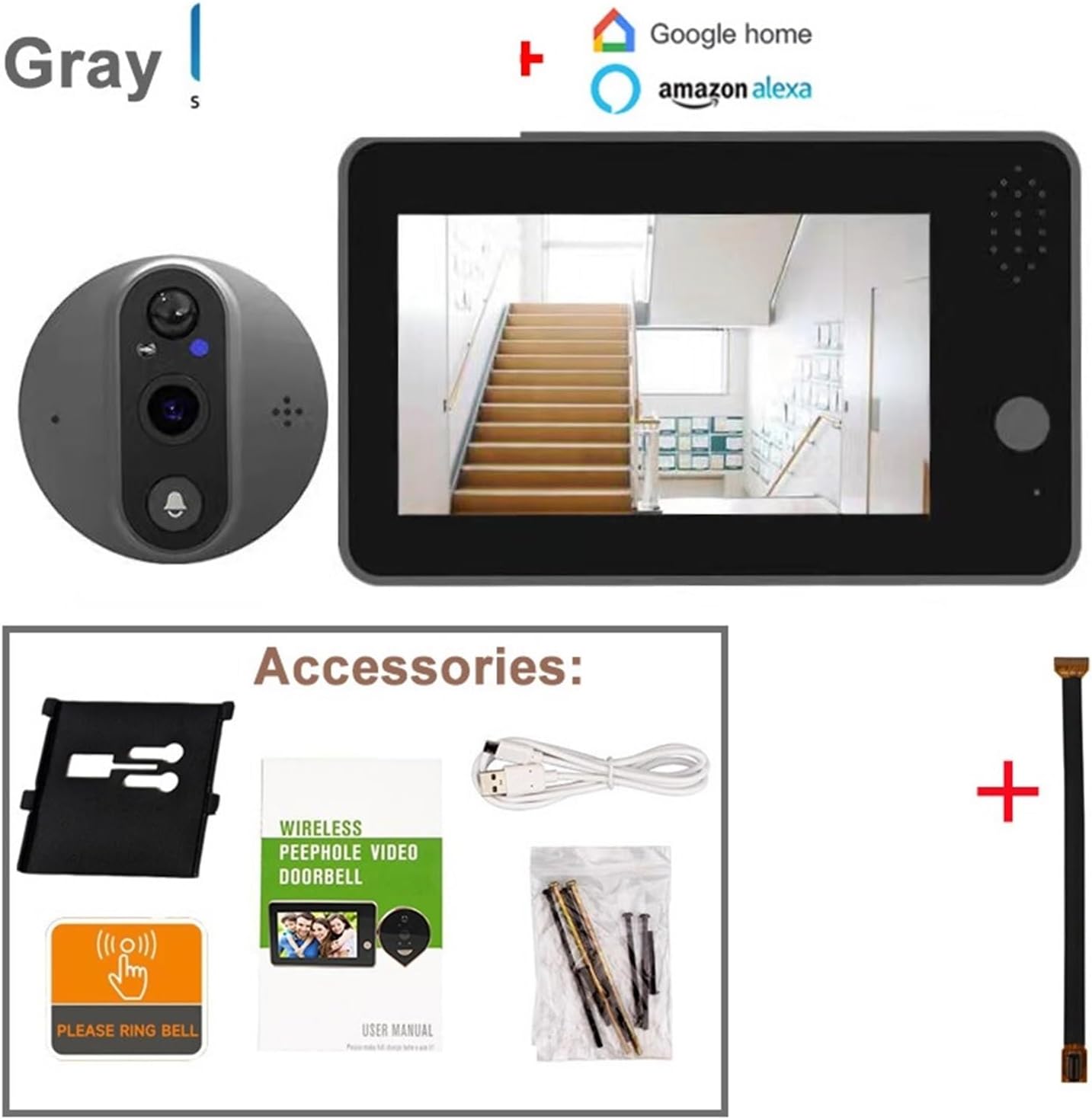
Image: The package includes the indoor monitor, outdoor doorbell unit, mounting bracket, USB charging cable, screws, a 'Please Ring Bell' sticker, and the user manual. An extension cable is also shown.
- Indoor Monitor Unit (with 4.3-inch LCD)
- Outdoor Doorbell Unit (Peephole Camera)
- Mounting Bracket
- USB Charging Cable
- Mounting Screws and Anchors
- "Please Ring Bell" Sticker
- User Manual
- Extension Cable (for connecting indoor and outdoor units)
4. Product Overview and Dimensions
Familiarize yourself with the components and dimensions of your video doorbell system.

Image: This diagram shows the indoor monitor with its screen, button, and speaker. The outdoor unit displays the PIR motion detector, speaker, microphone, IR lamp, and doorbell button. Dimensions for both units are provided, indicating the indoor monitor is approximately 137mm x 84mm x 20mm, and the outdoor unit is 67mm x 67mm x 15mm with a 55mm peephole extension.
Indoor Monitor Unit:
- 4.3 inch LED Screen: Displays live view and recorded footage.
- Screen Button: For navigation and selection.
- Speaker: For two-way audio and alerts.
- Micro SD / TF Card Slot: For local video storage (supports up to 128GB, FAT32 format).
- Micro USB Port: For charging the built-in battery.
- Power On/Off Switch: To turn the device on or off.
Outdoor Doorbell Unit:
- PIR Motion Detect Sensor: Detects human movement.
- Speaker: For two-way audio.
- MIC (Microphone): For two-way audio.
- IR Lamp: Infrared lights for night vision.
- Doorbell Button: Activates the doorbell and initiates a call.
5. Installation Guide
Follow these steps carefully to install your Tuya Smart WiFi Video Doorbell.
5.1 Compatibility Check
- The doorbell is suitable for door thicknesses between 40mm and 120mm.
- The peephole diameter should be between 16mm and 50mm.
- The cable installation length is 11cm.
- Not suitable for: double doors, doors with small windows or steel mesh, soft-packed doors, or doors without existing peepholes (a peephole must be drilled if none exists).
5.2 Physical Installation
- Remove Existing Peephole: Carefully unscrew and remove your current peephole viewer from the door.
- Insert Outdoor Unit: Insert the cable of the outdoor doorbell unit through the peephole hole from the outside of the door. Ensure the unit is flush against the door.
- Attach Mounting Bracket: From the inside of the door, thread the mounting bracket onto the cable. Secure it with the provided screws, ensuring it is tight and stable.
- Connect Indoor Monitor: Connect the cable from the outdoor unit to the corresponding port on the back of the indoor monitor.
- Mount Indoor Monitor: Slide the indoor monitor onto the mounting bracket until it clicks securely into place.
5.3 Initial Power Up and Charging

Image: This image highlights the built-in 5000mAh rechargeable lithium battery, emphasizing its low power consumption and power-saving design, allowing for a standby time of approximately 3 months on a single charge.
The device comes with a built-in 5000mAh lithium battery. Before first use, fully charge the device using the provided USB cable and a standard USB power adapter (not included).
- Connect the USB cable to the Micro USB port on the indoor monitor.
- Connect the other end to a USB power source.
- The charging indicator will show the charging status.
- A full charge can last up to 6 months under normal usage conditions.
6. App Setup and WiFi Connection
To utilize the smart features, you need to connect the doorbell to your home WiFi network and set it up with a compatible mobile application.

Image: This graphic illustrates the doorbell's compatibility with various mobile applications including YCC365 Plus, Tuya, iCam365, and Smart Life. It also visually represents the two-way audio feature, allowing users to communicate with visitors remotely.
- Download App: Download and install one of the compatible applications: Tuya Smart, Smart Life, YCC365 Plus, or iCam365 from your smartphone's app store (Google Play Store for Android, Apple App Store for iOS).
- Register/Login: Open the app and register a new account or log in if you already have one.
- Add Device: Follow the in-app instructions to add a new device. Select "Video Doorbell" or "Smart Camera" category.
- WiFi Connection:
- The doorbell only supports 2.4GHz WiFi networks. It is not compatible with 5GHz WiFi.
- If your router broadcasts both 2.4GHz and 5GHz networks, temporarily disable the 5GHz network during the initial setup process.
- Enter your 2.4GHz WiFi network name (SSID) and password when prompted by the app.
- The app will guide you through connecting the doorbell to WiFi, often involving scanning a QR code displayed on your phone screen with the doorbell camera.
- Complete Setup: Once connected, you can name your device and configure additional settings within the app. You can re-enable your 5GHz WiFi network after successful connection.
7. Operating Instructions
7.1 Live View and Two-Way Audio

Image: This image displays the complete video doorbell system, featuring the outdoor peephole camera unit and the indoor monitor. The monitor's screen shows a live feed, demonstrating its function as a door viewer.
- Indoor Monitor: Press the screen button on the indoor monitor to view the live feed from the outdoor camera.
- Mobile App: Open the connected app on your smartphone. Select your doorbell device to access the live view.
- Two-Way Audio: While in live view or during a doorbell call, use the microphone icon in the app or on the indoor monitor (if available) to speak with the visitor. The doorbell's built-in speaker will transmit your voice, and its microphone will capture the visitor's response.
7.2 Doorbell Call Function
- When a visitor presses the doorbell button on the outdoor unit, the indoor monitor will ring and display the live view.
- Simultaneously, a notification will be sent to your connected smartphone app.
- You can answer the call from either the indoor monitor or your smartphone to engage in two-way communication.
7.3 PIR Motion Detection

Image: This image details the Smart PIR Motion Detection feature, showing detection ranges (low sensitivity at 0.5m, middle at 1.5m, high at 3m). It also highlights the HD Night Vision with 3 high-power IR LED lights and the 3MP HD camera resolution.
- The built-in PIR sensor detects human movement near your door.
- Upon detection, the doorbell will automatically capture a picture or record a video clip.
- An alarm notification will be pushed to your mobile phone.
- You can adjust the sensitivity of the PIR detection (low, middle, high) within the app settings to minimize false alarms.
7.4 Night Vision
- The doorbell is equipped with 2 or 3 high-power IR LEDs and a built-in IR-CUT filter.
- It automatically switches between day and night modes, providing clear visibility even in low-light or dark conditions.
8. Storage and Playback

Image: This graphic illustrates the two primary storage options: Micro TF Card for local video data and Cloud Storage Service. It notes that the Micro TF card needs to be purchased separately and that recorded videos can be viewed on the mobile app or exported to a computer, but not directly on the device's screen.
8.1 TF Card Storage (Local)
- The device supports a Micro TF card up to 128GB (not included).
- Important: The TF card must be formatted to FAT32. For cards above 64GB, you may need to convert the format on your computer.
- Insert the TF card into the designated slot on the indoor monitor.
- Recorded videos (from doorbell presses or motion detection) will be saved to the TF card.
- TF card videos can be played back directly on the mobile app or exported to a computer for viewing. They cannot be played back on the device's screen.
8.2 Cloud Storage (Optional)
- The doorbell supports cloud storage functionality. This service typically requires a subscription through the app.
- Cloud storage provides a secure backup of your video recordings.
- Tuya app supports 30-day cycle storage of cloud image messages. YCC365 Plus/iCam365 typically support 3 days of cloud storage.
- Cloud videos can be played back directly from the app.
8.3 Playback
- Access recorded videos through the "Playback" or "History" section within your chosen mobile application.
- You can view historical records and abnormal situation captures at any time.
9. Maintenance and Care
- Cleaning: Use a soft, dry cloth to clean the indoor monitor and outdoor unit. Do not use abrasive cleaners or solvents.
- Battery: Recharge the battery when the low battery indicator appears. Avoid completely draining the battery frequently to prolong its lifespan.
- Firmware Updates: Periodically check the app for firmware updates for your doorbell. Updates can improve performance and add new features.
- Operating Temperature: Ensure the device operates within its specified temperature range to prevent damage.
10. Troubleshooting
| Problem | Possible Cause | Solution |
|---|---|---|
| Device won't power on. | Battery is depleted. | Charge the device using the USB cable. |
| Cannot connect to WiFi. | Incorrect WiFi band (5GHz). Incorrect WiFi password. Weak WiFi signal. | Ensure you are connecting to a 2.4GHz WiFi network. Temporarily disable 5GHz on your router during setup. Double-check password. Move router closer or use a WiFi extender. |
| No notifications on phone. | App notifications disabled. App not running in background. Network issues. | Check app notification settings on your phone. Ensure app has necessary permissions. Verify internet connection. |
| PIR motion detection is too sensitive/not sensitive enough. | PIR sensitivity setting. | Adjust PIR sensitivity (low, middle, high) in the app settings. |
| TF card not recognized or recording. | Incorrect format. Card full or faulty. | Ensure TF card is FAT32 formatted. Try reformatting or using a different card. |
| Poor video quality. | Lens obstruction. Low light conditions. Network bandwidth. | Clean the camera lens. Ensure IR LEDs are not obstructed. Check your internet speed. |
11. Specifications
| Feature | Detail |
|---|---|
| LCD Display Size | 4.3 inch |
| Image Sensor Solution | OV9712 CMOS Sensor + Hi3518E SoC |
| Focal Length | 1.7mm |
| Angle of View | 120 degrees wide angle |
| Audio | Built-in microphone & speaker, 2-way audio with noise cancellation |
| Video Compression | H.265 |
| Resolution | 1920*1080P@25fps (2MP) or 2304x1296 (3MP) depending on model variant |
| Stream | Double stream |
| Battery | Built-in 5000mAh lithium battery |
| Storage | Max 128GB TF card (FAT32 format), Cloud storage |
| WiFi | 2.4GHz only |
| Door Thickness Compatibility | 40-120mm |
| Peephole Diameter Compatibility | 16-50mm |
| Manufacturer | YUD5DAS |
| Country of Origin | China |
12. Warranty and Support
For warranty information and technical support, please refer to the contact details provided by your retailer or the manufacturer's official website. Keep your purchase receipt as proof of purchase.
Manufacturer: YUD5DAS


