
1. Introduction
This manual provides detailed instructions for the safe and efficient use of your KYOCERA DuraXA Equip E4831 rugged flip phone. The DuraXA Equip is designed to withstand challenging environments, featuring robust protection against temperature extremes, blowing rain, salt fog, humidity, freeze-thaw cycles, icing/freezing rain, water submersion, and dust. It is also certified to withstand drops, shocks, and vibrations, and offers protection in hazardous locations.
Please read this manual thoroughly before operating your device to ensure proper functionality and longevity.
2. Device Overview
Familiarize yourself with the physical components of your DuraXA Equip E4831.
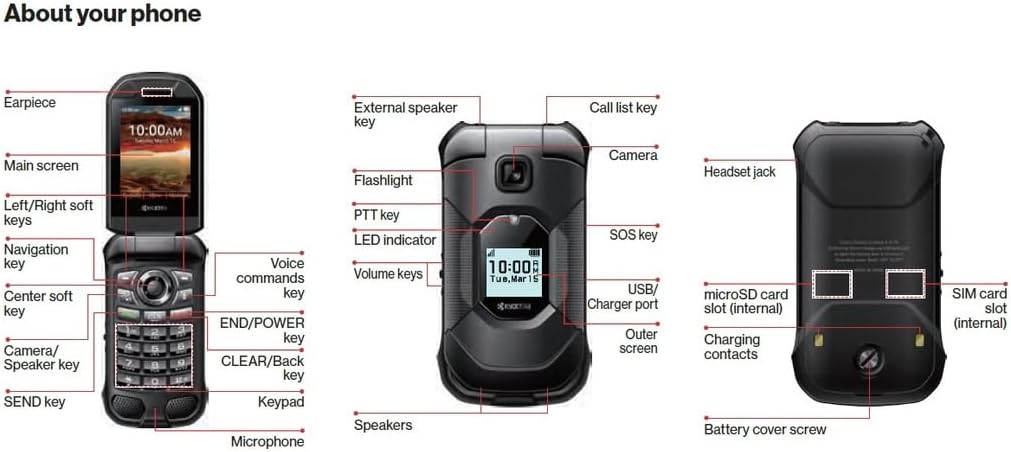
Figure 2.1: Key components of the KYOCERA DuraXA Equip E4831, including internal and external features, and port locations.

Figure 2.2: Front view of the KYOCERA DuraXA Equip E4831 when closed, displaying the external screen.
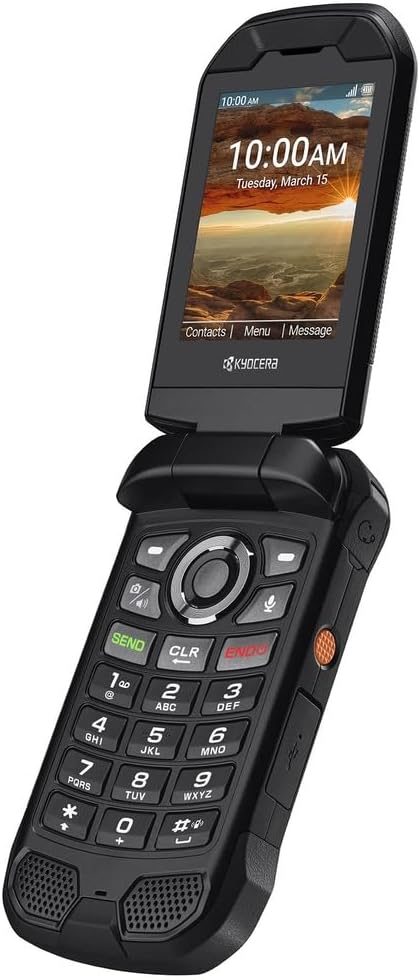
Figure 2.3: Open view of the KYOCERA DuraXA Equip E4831, showcasing the main display and keypad.
3. Setup
3.1 Unboxing and Initial Inspection
Upon opening the package, ensure all components are present:
- KYOCERA DuraXA Equip E4831 Phone
- USB Cable
- Power Adapter
Inspect the phone for any visible damage. If any components are missing or damaged, contact your retailer immediately.
3.2 Inserting SIM Card and microSD Card
The DuraXA Equip E4831 supports a single SIM card and a microSD card for expandable storage. Both slots are internal, typically located under the battery cover.
- Power off the device and remove the battery cover.
- Carefully insert your SIM card into the designated SIM card slot with the gold contacts facing down.
- If desired, insert a microSD card into the microSD card slot.
- Replace the battery and battery cover securely.
3.3 Battery Installation and Charging
Your phone comes with a 1770 Milliamp Hours (mAh) nonstandard battery. The battery is included and may be pre-installed.
- If the battery is not installed, align the battery contacts with the terminals in the phone and gently press it into place.
- Connect the USB cable to the phone's USB Type C connector port.
- Connect the other end of the USB cable to the power adapter, then plug the adapter into a wall outlet.
- Allow the phone to charge fully before first use. The LED indicator will show charging status.
3.4 Powering On/Off
- To Power On: Press and hold the END/POWER key until the screen illuminates.
- To Power Off: Press and hold the END/POWER key until the power options appear on the screen, then select 'Power Off'.
4. Operating Your Device
4.1 Basic Navigation and Keypad Functions
The DuraXA Equip features a large, tactile, glove-friendly keypad and a 4-way navigation key for easy menu access.
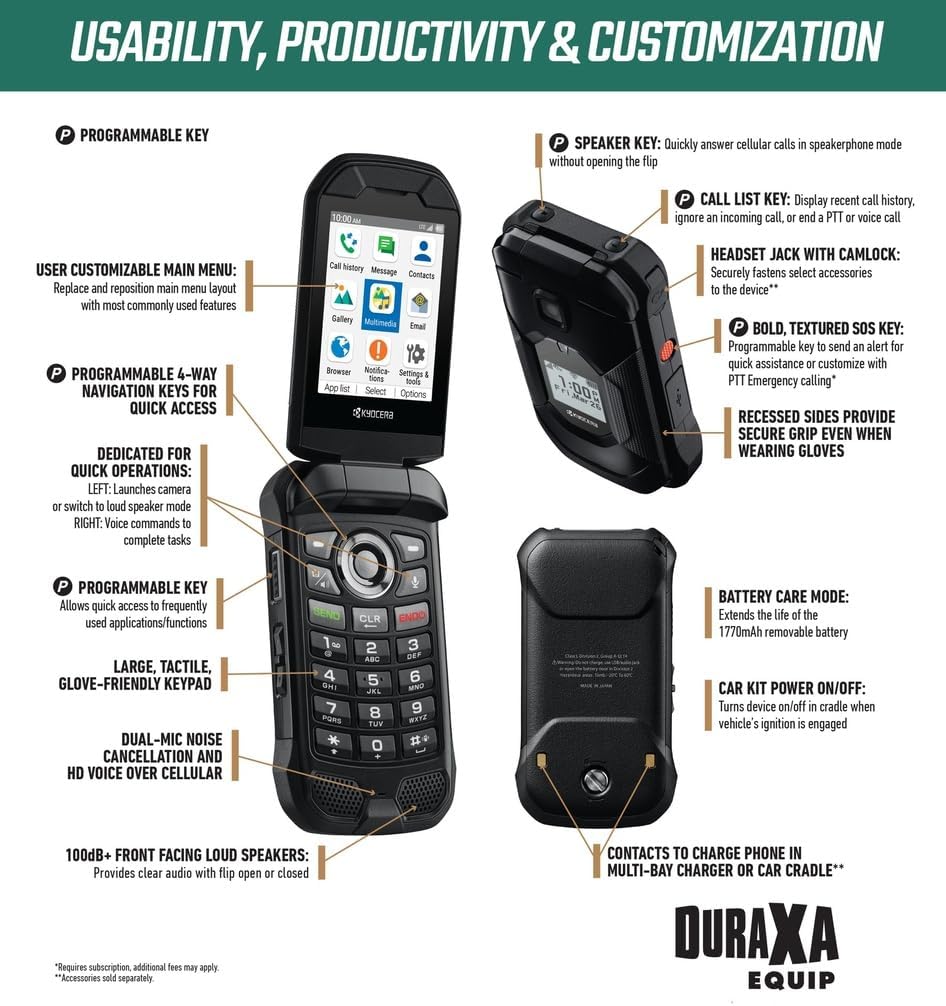
Figure 4.1: Usability, Productivity & Customization Features.
- Navigation Key: Use the up, down, left, and right directions to navigate through menus and options. The center soft key confirms selections.
- Soft Keys: The keys directly below the screen (Left/Right soft keys) perform functions indicated on the display above them, which change depending on the context.
- SEND Key: Initiates calls or answers incoming calls.
- END/POWER Key: Ends calls or powers the device on/off.
- CLEAR/Back Key: Deletes characters or goes back to the previous screen.
4.2 Making and Receiving Calls
- To Make a Call: Enter the phone number using the keypad and press the SEND key.
- To Answer a Call: When the phone rings, press the SEND key.
- To End a Call: Press the END/POWER key.
- Speaker Key: Quickly answer cellular calls in speakerphone mode without opening the flip.
- Call List Key: Display recent call history, ignore an incoming call, or end a PTT or voice call.
4.3 Sending and Receiving Messages
Access the messaging application from the main menu to compose and send text messages (SMS) or multimedia messages (MMS).
4.4 Camera Usage
The DuraXA Equip E4831 includes a camera. To access the camera, navigate to the camera application from the main menu or use the dedicated programmable key if assigned.
- Taking Photos: Open the camera app, frame your shot, and press the designated capture button (often the center soft key or a volume key).
4.5 Connectivity
The device supports 4G cellular technology for reliable communication.
- Cellular Data: Access mobile internet services through your carrier's 4G network.
- Bluetooth: Connect to compatible Bluetooth devices such as headsets or car kits.
4.6 Programmable Keys and Customization
The DuraXA Equip offers several customizable features:
- Programmable Key: This key allows quick access to frequently used applications or functions.
- Programmable 4-Way Navigation Keys: The left navigation key can launch the camera or switch to loudspeaker mode. The right navigation key can be set for voice commands.
- User Customizable Main Menu: Replace and reposition main menu layout with most commonly used features for personalized access.
- Bold, Textured SOS Key: Programmable key to send an alert for quick assistance or customize with PTT Emergency calling.
5. Maintenance
5.1 Cleaning Your Device
Due to its rugged design, the DuraXA Equip E4831 is waterproof and dustproof. To clean your device:
- Wipe the phone with a soft, damp cloth.
- For tougher grime, a mild soap solution can be used, followed by rinsing with clean water.
- Ensure all port covers are securely closed before cleaning with liquids.
- Do not use harsh chemicals, cleaning solvents, or aerosol sprays.
5.2 Battery Care
To extend the life of your phone's battery:
- Avoid exposing the phone to extreme temperatures.
- Do not leave the phone charging for extended periods after it is fully charged.
- Utilize the phone's built-in 'Battery Care Mode' if available, which helps optimize charging cycles.
5.3 Storage and Handling
- Store the phone in a cool, dry place when not in use.
- Avoid placing heavy objects on the phone.
- Ensure all port covers are sealed to maintain water and dust resistance.
6. Troubleshooting
This section addresses common issues you might encounter with your DuraXA Equip E4831.
| Problem | Possible Cause | Solution |
|---|---|---|
| Device won't power on | Low or depleted battery; software glitch. | Charge the battery for at least 30 minutes. Attempt a soft reset by removing and reinserting the battery (if removable). |
| No network connection | SIM card not inserted correctly; out of network coverage; network settings issue. | Check SIM card insertion. Move to an area with better coverage. Restart the phone. Verify network settings with your carrier. |
| Poor call quality | Weak signal; microphone/speaker obstruction; environmental noise. | Move to an area with stronger signal. Ensure microphone and speaker are clear of debris. Use the dual-mic noise cancellation feature. |
| Phone freezes or is unresponsive | Application error; low memory. | Press and hold the END/POWER key to force a restart. If persistent, consider a factory reset (backup data first). |
| Battery drains quickly | Excessive background apps; high screen brightness; aging battery. | Close unused applications. Reduce screen brightness. Enable Battery Care Mode. If battery is old, consider replacement. |
If the problem persists after trying these solutions, please contact customer support.
7. Specifications
Key technical specifications for the KYOCERA DuraXA Equip E4831:
| Feature | Specification |
|---|---|
| Model Name | DuraXA Equip |
| Brand | KYOCERA |
| Operating System | AOSP |
| Screen Size | 2.6 Inches (Main Display) |
| Memory Storage Capacity | 16 GB |
| Battery Capacity | 1770 Milliamp Hours |
| Wireless Carrier | Unlocked |
| Cellular Technology | 4G |
| Color | Black |
| SIM Card Slot Count | Single SIM |
| Connector Type | USB Type C |
| Item Weight | 1 pounds |
| Package Dimensions | 7 x 4 x 2 inches |
8. Warranty and Support
This KYOCERA DuraXA Equip E4831 is a renewed product. Renewed products typically come with a specific return policy and limited warranty provided by the seller or refurbisher, rather than the original manufacturer's new product warranty.
For this specific renewed device, a 90-day refund/replacement return policy is offered by the seller, USA OEM, and fulfilled by Amazon.
For any issues not covered in the troubleshooting section or for warranty claims, please contact the seller directly through the platform where the purchase was made. Keep your proof of purchase for any warranty or return inquiries.