
ehomful ehom-NZ
ehomful Hidden Camera Clock User Manual
Model: ehom-NZ
1. Introduction
Thank you for choosing the ehomful Hidden Camera Clock. This device is designed to provide discreet surveillance with its integrated 1080P HD camera, night vision, and motion detection capabilities, all housed within a functional digital clock. This manual provides detailed instructions for setup, operation, and maintenance to ensure optimal performance and longevity of your device.
2. Safety Information
- Do not expose the device to extreme temperatures, direct sunlight, or high humidity.
- Avoid dropping or subjecting the device to strong impacts.
- Keep the device away from water and other liquids.
- Use only the provided charging cable and a compatible power adapter.
- Do not attempt to disassemble or modify the device. This will void the warranty and may cause damage.
- Ensure the device is placed on a stable, flat surface.
- Dispose of the device and its components responsibly according to local regulations.
3. Package Contents
Please check the package for the following items:
- ehomful Hidden Camera Clock (video camera)
- Charging Cable
- Instruction Manual
4. Product Overview
The ehomful Hidden Camera Clock is designed to blend seamlessly into various indoor environments, providing discreet surveillance. Its compact black design features a digital time display on the front, with the camera lens subtly integrated to maintain its inconspicuous appearance.

Figure 4.1: The ehomful Hidden Camera Clock with a smartphone showing its live video feed.
This versatile device can be used in various indoor settings, including homes, offices, and bedrooms, to monitor children, pets, or general security.

Figure 4.2: Examples of suitable indoor environments for the hidden camera clock.
5. Setup Guide
5.1 Initial Charging
Before first use, fully charge the device using the provided charging cable. A full charge provides approximately 130 minutes of continuous working time. For 24-hour continuous operation, keep the device connected to a USB power source.

Figure 5.1: The hidden camera clock connected to a power source for continuous operation.
5.2 App Installation
Download the "Lookcam" application from your mobile phone's app store (available for Android and iOS devices). This app is required for remote viewing and control of the camera.
5.3 Connection Methods
The camera supports three primary connection methods:

Figure 5.2: Overview of the three connection methods for the camera.
- Plug & Play (No WiFi Network): Insert a Micro SD card (up to 128GB, not included) into the device. The camera will automatically begin recording to the card. You can then transfer the card to a computer to view recordings.
- AP Mode (No WiFi Network): The camera generates its own Wi-Fi hotspot. Connect your smartphone directly to this hotspot to view live footage within a short range. This mode does not require an internet connection.
- Remote Access (Requires WiFi Network): Connect the camera to your home or office 2.4GHz Wi-Fi network using the "Lookcam" app. Scan the QR code provided in the app to configure the connection. Once connected, you can view live video and recordings remotely from anywhere in the world via Wi-Fi or mobile data.
If the Wi-Fi connection fails, try resetting the device and attempting to connect again. Refer to the app's instructions for detailed steps on Wi-Fi configuration.
6. Operating Instructions
6.1 Live View and Recording
Once connected via the "Lookcam" app, you can access a clear and sharp 1080P real-time video stream. The camera records in HD 1080P with a 150° wide-angle view. You can remotely stream videos and download both videos and photos directly to your smart device.

Figure 6.1: The camera provides 1080P HD video resolution.
6.2 Motion Detection and Alerts
The camera features a powerful motion detection function. When human activity is detected, the camera will send an instant alert notification to your smartphone via the app, accompanied by a video clip. This allows you to check the situation in real-time. You can also customize the monitoring areas within the app to avoid false positives from irrelevant movements.
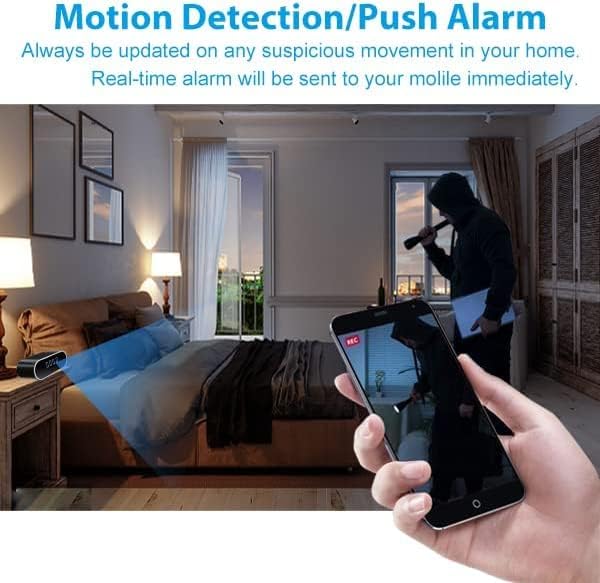
Figure 6.2: Motion detection triggers real-time alerts to your mobile device.
6.3 Night Vision
The camera is equipped with night vision capabilities, allowing it to capture clear footage even in low-light conditions. The night vision range extends up to 20 meters.
6.4 Continuous Loop Recording
The device supports continuous loop video recording. When the memory card (up to 128GB, not included) is full, the new content will automatically overwrite the oldest existing content, ensuring continuous surveillance without manual deletion.

Figure 6.3: Loop recording ensures continuous operation by overwriting old files.
6.5 Time Display Settings
The clock's default time display is a 24-hour system. You can adjust the time display format (24 hours, 12 hours, or no time display) through the settings within the "Lookcam" application.
7. Maintenance
- Clean the device regularly with a soft, dry cloth. Do not use liquid cleaners or aerosols.
- Ensure the camera lens is free from dust and smudges for clear video quality.
- Keep the charging port free of debris.
- Store the device in a cool, dry place when not in use for extended periods.
8. Troubleshooting
| Problem | Possible Cause | Solution |
|---|---|---|
| Device does not power on. | Battery is depleted. | Connect the device to a power source using the charging cable and allow it to charge for at least 30 minutes before attempting to power on. |
| Cannot connect to Wi-Fi. | Incorrect Wi-Fi password; Router is 5GHz only; Device is too far from router. | Ensure correct 2.4GHz Wi-Fi network and password. Move the device closer to the router. Reset the device and try connecting again. |
| App shows device offline. | Loss of Wi-Fi connection; Device powered off. | Check Wi-Fi signal strength. Ensure the device is powered on and connected to a stable power source. Reset the device and re-establish connection. |
| Poor video quality. | Dirty lens; Insufficient lighting; Network bandwidth issues. | Clean the camera lens with a soft cloth. Ensure adequate lighting in the monitoring area. Check your internet connection speed. |
| Motion detection alerts are too frequent/infrequent. | Sensitivity settings are incorrect; Monitoring area not optimized. | Adjust motion detection sensitivity in the "Lookcam" app. Define specific monitoring areas to exclude irrelevant zones. |
9. Specifications
| Feature | Specification |
|---|---|
| Model Name | ehom-NZ |
| Indoor/Outdoor Usage | Indoor |
| Connectivity Technology | Wireless (Wi-Fi) |
| Video Capture Resolution | 1080p |
| Viewing Angle | 150 Degrees |
| Night Vision Range | 20 Meters |
| Power Source | Battery Powered |
| Max Memory Card Capacity | 128GB (not included) |
| Material | Acrylonitrile Butadiene Styrene (ABS) |
| Item Dimensions (L x W x H) | 3 x 4 x 1.2 inches |
| Item Weight | 6.7 ounces |
| Color | Black |
| Included Components | Charging Cable, Instruction Manual, Video Camera |
10. Warranty and Support
ehomful provides a full warranty for this product. If you encounter any issues during setup or operation, or if the device does not function as expected, please do not hesitate to contact ehomful customer service for assistance. Our support team is available to help resolve any problems you may experience.
For service inquiries, please refer to the contact information provided with your purchase or visit the official ehomful website.
Ask a question about this manual
Ask about setup, troubleshooting, compatibility, parts, safety, or missing instructions. Manuals+ will review the question and use this page’s manual context to help answer it.