
1. Introduction and Overview
The ReTrack Q185 is an integrated device combining a gimbal, selfie stick, and tripod with advanced AI auto face tracking capabilities. Designed for stable video recording, live broadcasting, and photography, it offers an extended reach and versatile positioning for various creative needs.
2. Package Contents
Please verify that all items listed below are present in your package:
- ReTrack Q185 Smart AI Auto Face Tracking Gimbal Tripod Selfie Stick
- Bluetooth Remote Shutter
- USB Charging Cable
- User Manual (this document)
3. Product Features
- Integrated Design: Combines gimbal, face tracking, and selfie stick functionalities.
- AI Gesture Control: Activates tracking mode upon face recognition with a long press to power on.
- One-Click Pop-Up Design: Features a stable quad-leg bracket that opens and closes with a single touch.
- Extended Reach: Can be extended up to 1.8 meters for wide-angle shooting.
- 1/4 Standard Screw: Ensures broad compatibility with devices such as GoPro, digital cameras, and fill lights.
- 360° Pan-Tilt Rotation: Allows for comprehensive panoramic shooting and flexible angle adjustments.
4. Setup
4.1 Unpacking and Initial Inspection
Carefully remove all components from the packaging. Inspect the device for any signs of damage. If any damage is found, do not use the product and contact customer support.
4.2 Charging the Device
Before first use, fully charge the ReTrack Q185. Connect the provided USB charging cable to the charging port on the device and to a standard USB power adapter (not included). The charging indicator light will show the charging status and turn off or change color when fully charged.
4.3 Extending the Selfie Stick and Deploying the Tripod
To extend the selfie stick, gently pull the top section upwards. To deploy the quad-leg tripod, press the designated button (one-click pop-up design) at the base. The legs will automatically extend and lock into place, providing a stable base.
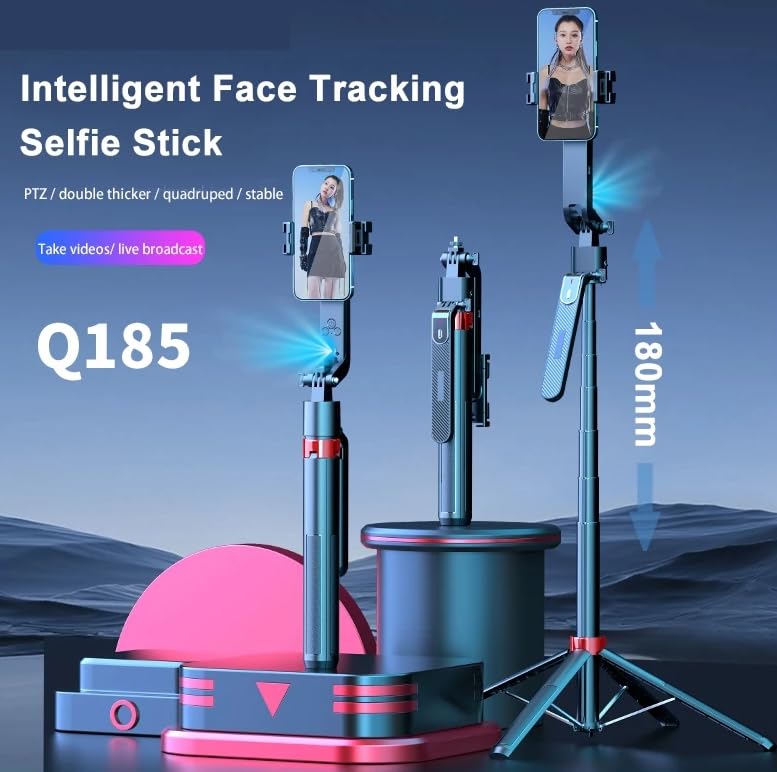
Image 1: The ReTrack Q185 shown in both its compact selfie stick form and extended tripod configuration with a phone mounted. This illustrates the device's dual functionality.
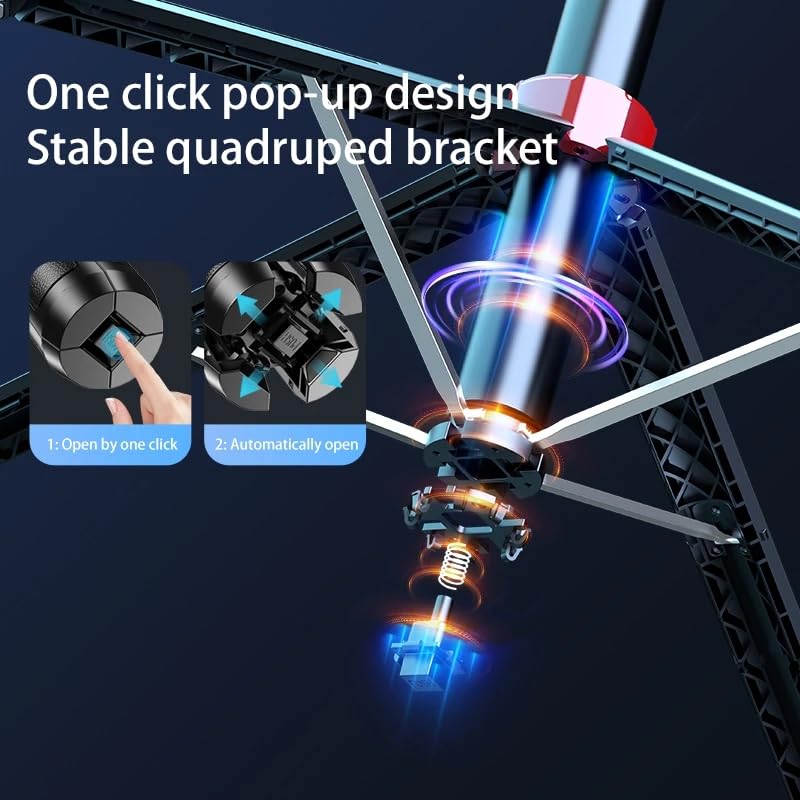
Image 2: A detailed view of the one-click pop-up design for the stable quad-leg bracket. The image highlights the mechanism that allows the tripod legs to automatically open when a button is pressed.
4.4 Bluetooth Pairing (Remote Shutter)
- Ensure the remote shutter is charged (if applicable) and powered on.
- Activate Bluetooth on your smartphone.
- Search for available devices and select "ReTrack Shutter" or a similar name.
- Once paired, the indicator light on the remote will confirm connection.
5. Operating Instructions
5.1 Powering On/Off
To power on the device, long press the power button until the indicator light illuminates. To power off, long press the power button again until the indicator light turns off.
5.2 Mounting Your Device
Gently open the phone clamp and securely place your smartphone or compatible device. Ensure the device is balanced within the clamp for optimal performance.
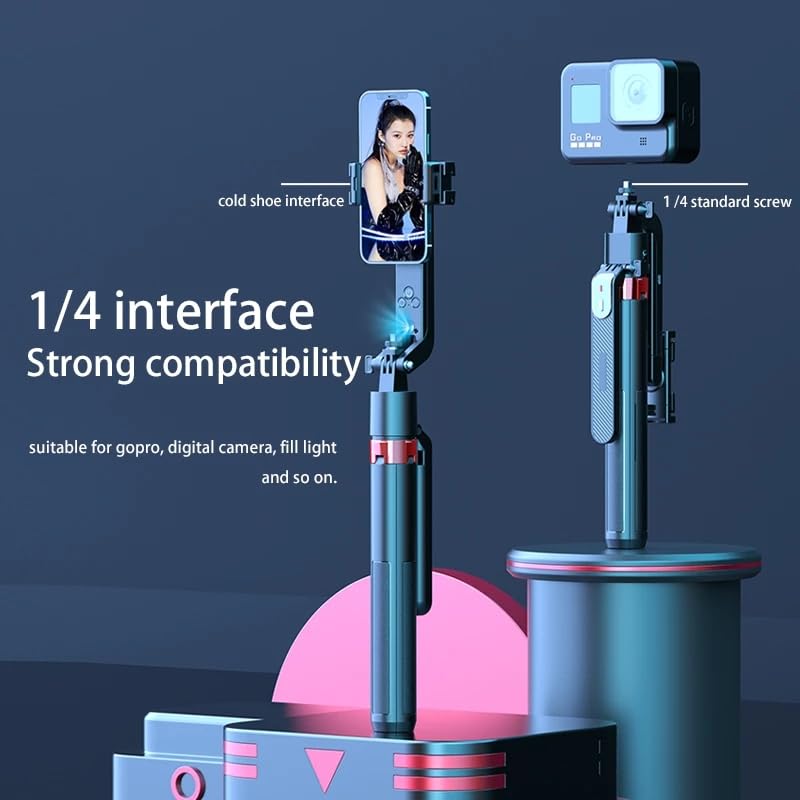
Image 3: The ReTrack Q185 showcasing its 1/4 standard screw interface and cold shoe interface. This highlights the device's compatibility with various accessories like GoPro cameras, digital cameras, and fill lights.
5.3 AI Auto Face Tracking
Upon powering on, the device will automatically enter tracking mode when it recognizes a face. The green indicator light will remain on, signifying active face tracking. Position yourself within the camera's view, and the gimbal will automatically rotate to keep you centered.
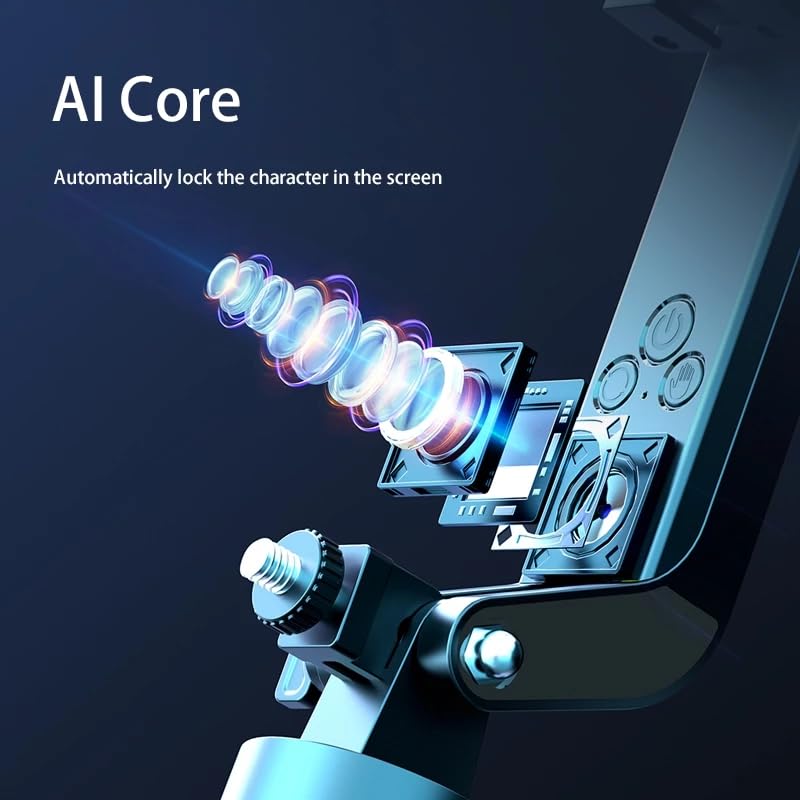
Image 4: An illustration of the AI Core technology, demonstrating how it automatically locks onto and tracks a character within the frame. This visualizes the intelligent tracking capability of the device.
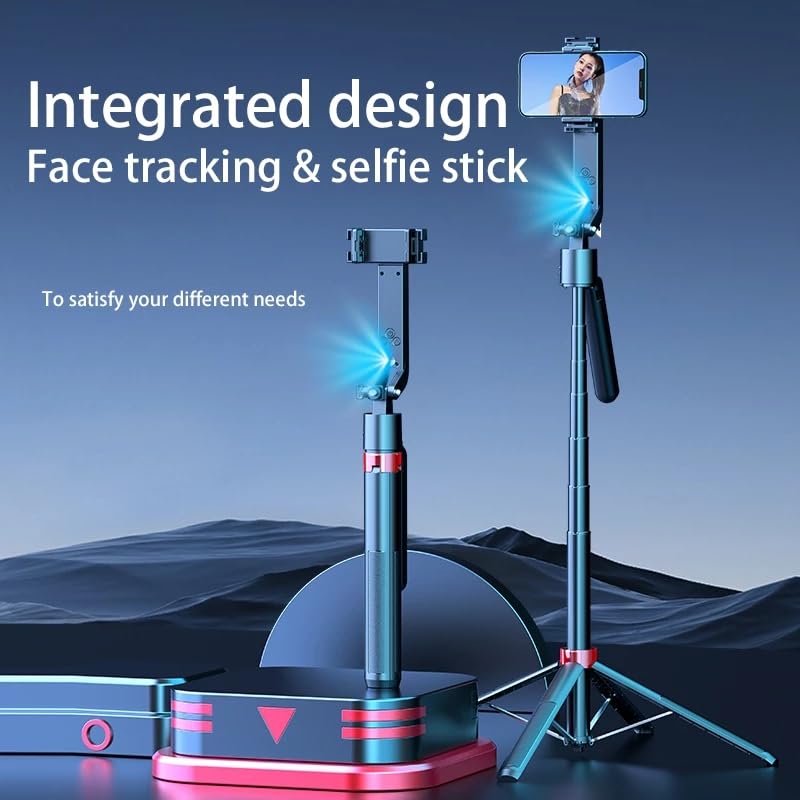
Image 5: Depicts panoramic shooting with AI gesture control. The image shows a user making a gesture, and the device tracking 360 degrees, indicating how the AI recognizes gestures to initiate tracking.
5.4 Adjusting Angles and Rotation
The ReTrack Q185 supports 360° pan-tilt rotation. Manually adjust the angle of the phone holder or allow the AI tracking to automatically follow your movement. The balance handle design ensures smooth and stable adjustments.
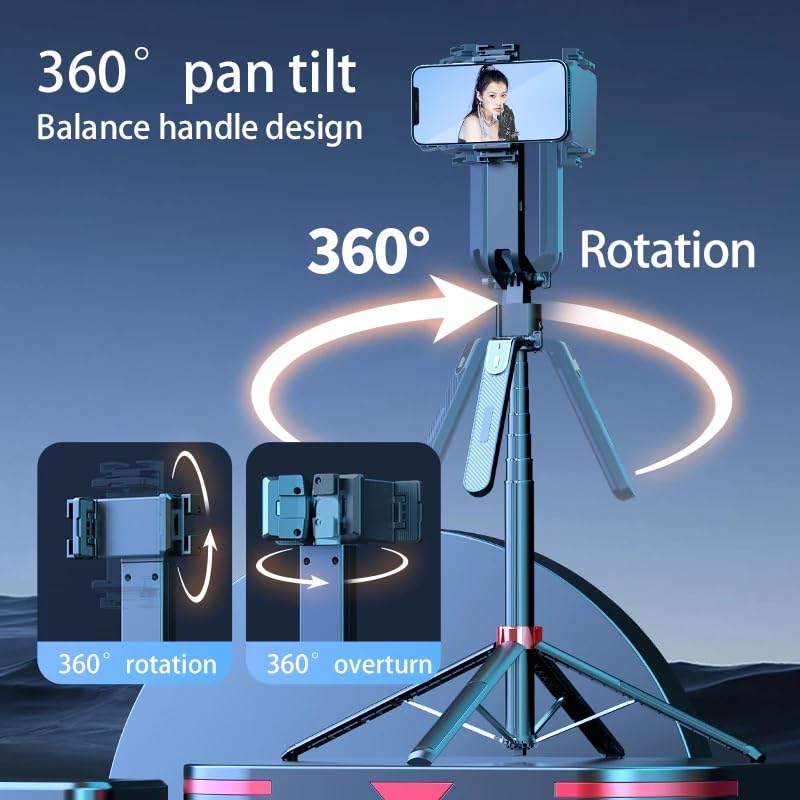
Image 6: Illustrates the 360° pan-tilt rotation capability and the balance handle design. It shows the device rotating horizontally and vertically, emphasizing its flexibility for various shooting angles.
5.5 Using the Bluetooth Remote Shutter
Once paired, use the Bluetooth remote shutter to remotely trigger your phone's camera for photos or to start/stop video recording. Refer to your phone's camera app settings for specific remote control functionalities.
6. Maintenance
- Cleaning: Use a soft, dry cloth to clean the device. Avoid using harsh chemicals or abrasive materials.
- Storage: Store the device in a cool, dry place away from direct sunlight and extreme temperatures.
- Battery Care: For optimal battery life, charge the device regularly and avoid fully discharging it for extended periods.
7. Troubleshooting
7.1 Device Not Powering On
- Ensure the device is fully charged.
- Verify that the power button is being long-pressed correctly.
7.2 Bluetooth Remote Not Connecting
- Check if the remote shutter has sufficient battery.
- Ensure Bluetooth is enabled on your phone and the remote is in pairing mode.
- Try unpairing and re-pairing the remote shutter.
7.3 AI Face Tracking Not Working
- Ensure adequate lighting for face recognition.
- Make sure your face is clearly visible and not obstructed.
- Confirm the green indicator light is on, indicating tracking mode is active.
8. Specifications
| Model | Q185 |
| Brand | ReTrack |
| Product Dimensions | 10D x 10W x 10H Millimeters (compact) |
| Max Extension Length | 1800mm (1.8 meters) |
| Item Weight | 300 Grams |
| Compatibility | Smartphones, GoPro, Digital Cameras, Fill Lights (via 1/4 standard screw) |
| Tracking Feature | Smart AI Auto Face Tracking, 360° Rotation |
| Control | AI Gesture Control, Bluetooth Remote Shutter |
9. Warranty and Support
This product comes with a standard manufacturer's warranty. For specific warranty terms, conditions, and duration, please refer to the warranty card included in your product packaging or contact ReTrack customer support. For technical assistance or further inquiries, please visit the official ReTrack website or contact their customer service department.
