
1. Introduction
Welcome to the Xakava SF3000 Portable Handheld HD Gaming Console user manual. This guide provides essential information for setting up, operating, maintaining, and troubleshooting your new device. The SF3000 is designed to offer a versatile entertainment experience, combining retro gaming with multimedia functionalities.
Key features include a 4.5-inch IPS HD screen, a dual-core processor for smooth gameplay, support for multiple emulators (MAME, PS1, FC, SFC, GBC), and a 3000 mAh battery that also functions as an emergency power bank. It comes pre-loaded with a vast library of games and supports additional content via TF card.
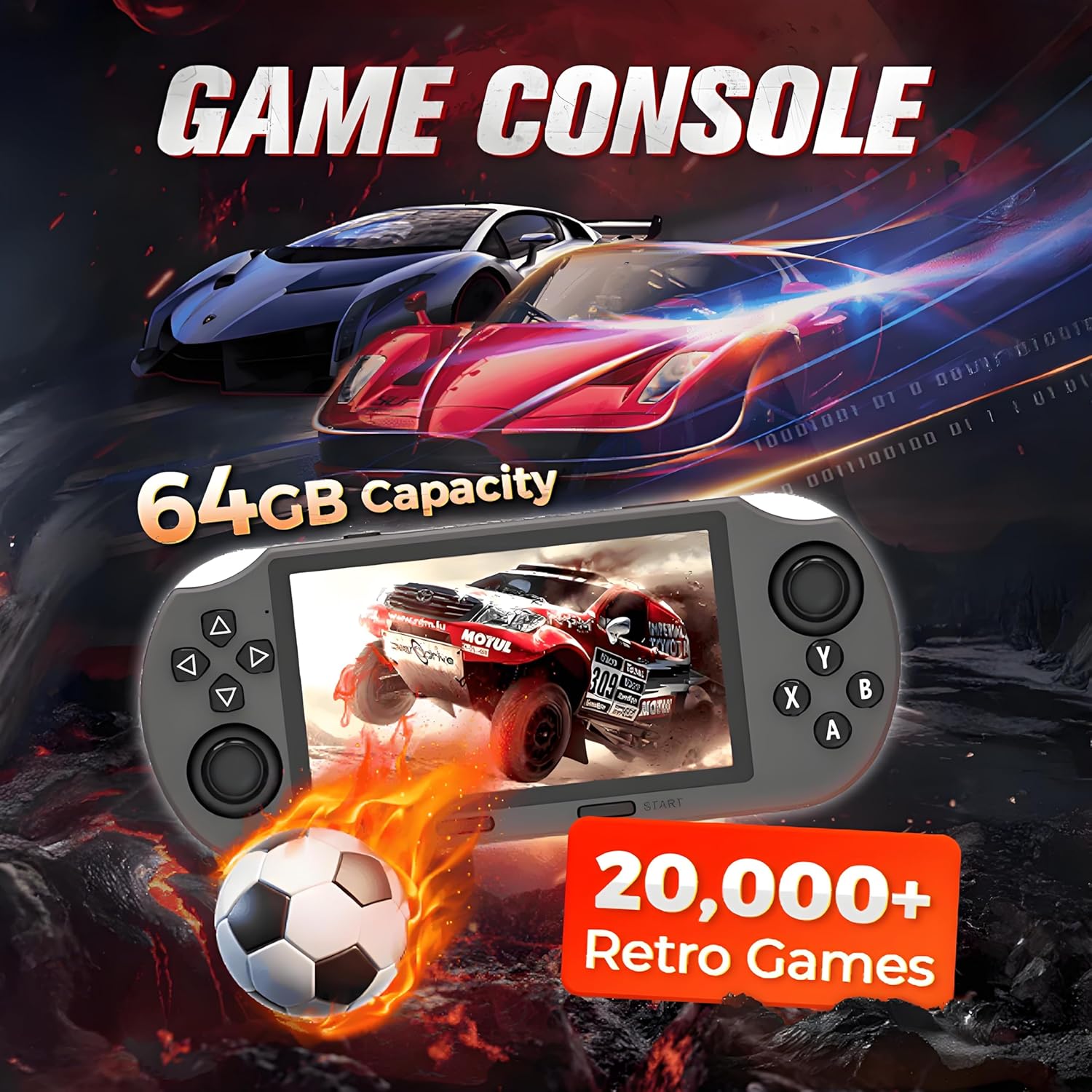
An overview image of the SF3000 console, emphasizing its large game library and storage capacity for retro gaming.
2. Safety Guidelines
Please read and follow these safety guidelines to ensure safe operation and prevent damage to the device or injury.
- Choking Hazard: This product contains small parts that may pose a choking hazard to young children. Keep out of reach of children under 3 years of age.
- Do not expose the device to extreme temperatures, direct sunlight, or moisture.
- Avoid dropping or subjecting the device to strong impacts.
- Do not attempt to disassemble or modify the device. This will void the warranty.
- Use only the provided charging cable and a compatible power adapter.
3. Package Contents
Verify that all items are present in your package:
- 1 x Xakava SF3000 Portable Handheld HD Gaming Console
- 2 x Wireless Controllers (if purchased with the 'With 2 Controllers' variant)
- 1 x USB Type-C Charging Cable
- 1 x User Manual (this document)

This image displays the Xakava SF3000 handheld gaming console along with its two accompanying wireless controllers, illustrating the complete gaming set.
4. Product Components and Controls
Familiarize yourself with the console's layout and functions:

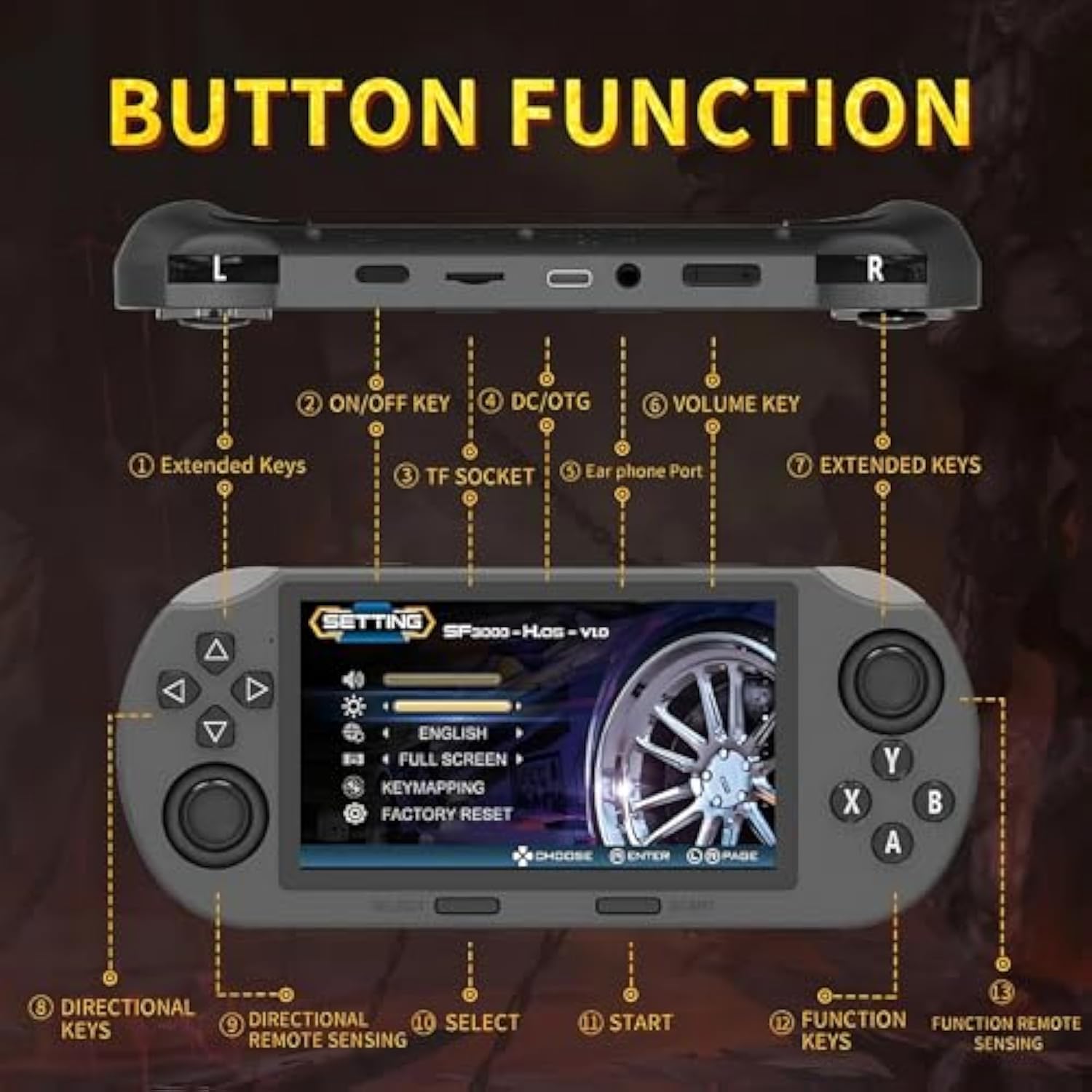
A detailed diagram illustrating the layout and function of all buttons, joysticks, and ports on the Xakava SF3000 handheld gaming console, including extended keys, on/off switch, TF socket, earphone port, DC/OTG port, volume key, directional keys, remote sensing, select, start, and function keys.
- Extended Keys (L1/R1, L2/R2): Located on the top edge for additional in-game controls.
- ON/OFF Key: Power button to turn the console on or off.
- TF Socket: Slot for inserting a TF (MicroSD) card to expand storage or load additional content.
- DC/OTG Port: USB Type-C port for charging the console and for On-The-Go (OTG) functions, such as connecting a USB flash drive or external devices.
- Earphone Port: 3.5mm jack for connecting headphones.
- Volume Key: Adjusts the audio output level.
- Directional Keys (D-Pad): For directional input in games and menu navigation.
- Directional Remote Sensing (Analog Joysticks): For precise 360-degree movement in games.
- SELECT Button: Typically used for menu selections or in-game functions.
- START Button: Used to begin games, pause, or confirm selections.
- Function Keys (A, B, X, Y): Standard action buttons for gameplay.

Close-up views highlighting the ergonomic design and quality components of the SF3000, including responsive crystal buttons, a precise anti-slip joystick, a built-in stand for hands-free viewing, and a comfortable grip for extended play.
5. Initial Setup
5.1 Charging the Console
Before first use, fully charge the console. Connect the provided USB Type-C cable to the DC/OTG port on the console and the other end to a compatible USB power adapter (not included) or a computer's USB port. The charging indicator will show the charging status. A full charge typically takes 3-4 hours.
5.2 Powering On/Off
- To Power On: Press and hold the ON/OFF key until the screen illuminates.
- To Power Off: Press and hold the ON/OFF key until a power-off prompt appears on the screen, then confirm your selection. Alternatively, a short press may put the device into sleep mode.
5.3 Inserting a TF (MicroSD) Card
If you wish to expand storage or add more games/media, gently insert a TF (MicroSD) card into the TF Socket until it clicks into place. Ensure the card is oriented correctly.
6. Basic Operation
6.1 Navigating the Interface
Use the Directional Keys (D-Pad) or the Analog Joysticks to navigate through menus and select options. The A, B, X, Y Function Keys, along with SELECT and START, are used for confirming selections, returning to previous screens, or performing specific actions as indicated on-screen.
6.2 Playing Games
The SF3000 supports multiple retro game emulators. Navigate to the 'Games' section from the main menu. Select your desired emulator or game from the list. The console comes pre-loaded with over 20,000 games. Use the console's buttons and joysticks for gameplay.

This image illustrates the extensive library of over 20,000 classic retro arcade games available on the SF3000 console, with various game titles shown on screen.

This image focuses on the console's 4.5-inch HD display, showcasing its visual clarity, alongside the two wireless controllers for multiplayer gaming.
7. Multifunctional Features
7.1 E-Book Reader
The SF3000 can function as an e-book reader. Transfer compatible e-book files to your TF card or a USB flash drive (connected via OTG) and access them through the console's multimedia menu.
7.2 Video Player
Enjoy videos on the 4.5-inch HD screen. Transfer video files to your TF card or connect a USB flash drive to the DC/OTG port. Navigate to the 'Video' section in the main menu to browse and play your media. The integrated stand allows for comfortable viewing.

This image shows the SF3000 console functioning as a video player, capable of playing content directly from a USB flash drive, and featuring its integrated stand for convenient viewing.
7.3 Emergency Power Bank
The SF3000's 3000 mAh battery can provide emergency charging for mobile phones or other small USB-powered devices. Connect your device to the console's DC/OTG port using an appropriate cable. The console will enter 'Charging Mode'.
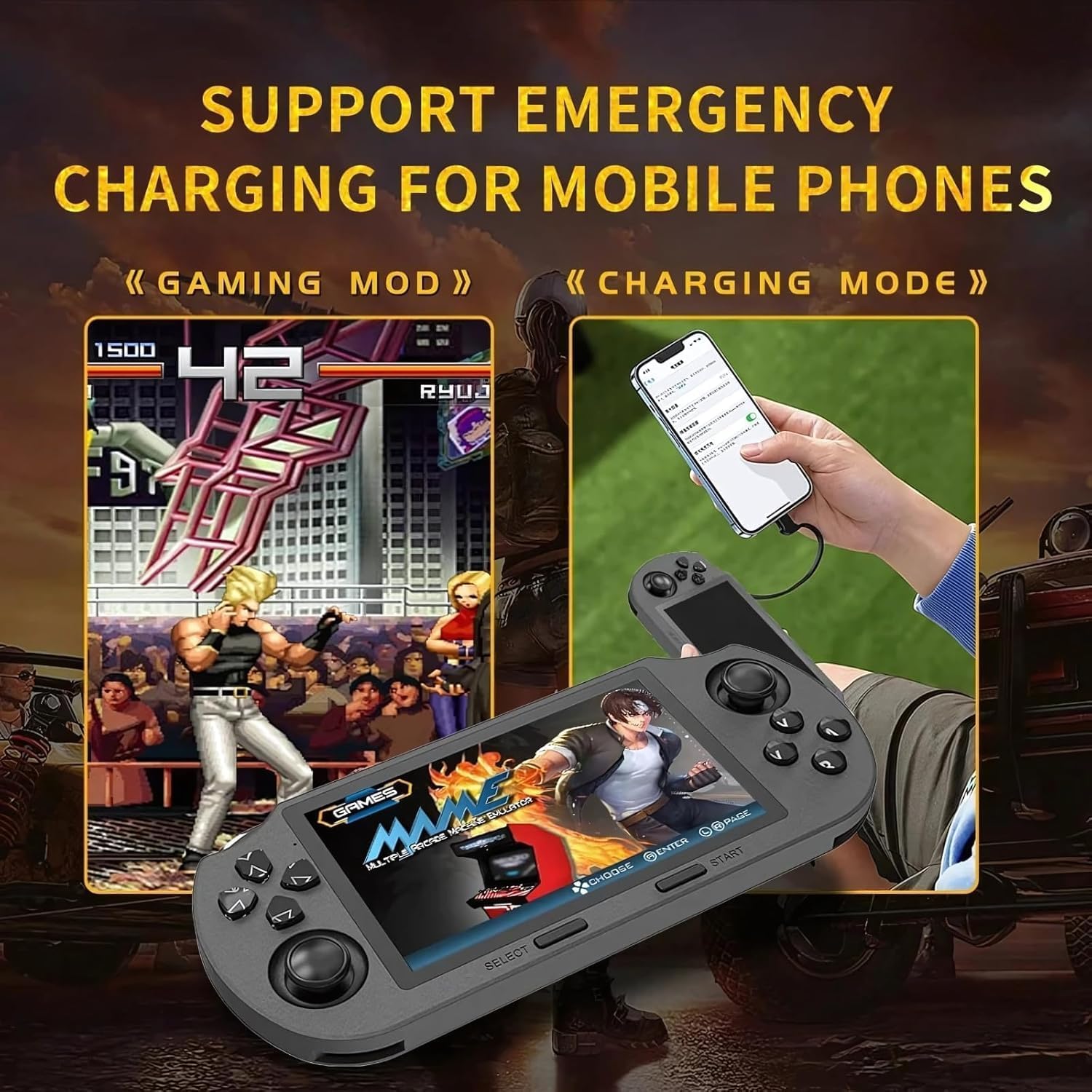
An image illustrating the SF3000's dual functionality, showing it in 'Gaming Mode' and then connected to a mobile phone in 'Charging Mode' to provide emergency power.
An image highlighting the SF3000's 3000mAh high-capacity battery, which supports extended gameplay and also enables its multifunctional capabilities as a video player, digital photo viewer, and e-book reader.
8. Maintenance and Care
- Cleaning: Use a soft, dry cloth to clean the console's exterior. Do not use liquid cleaners or abrasive materials.
- Battery Care: To prolong battery life, avoid fully discharging the battery frequently. Charge the device regularly, even if not in use for extended periods.
- Storage: Store the console in a cool, dry place away from direct sunlight and extreme temperatures.
- Screen Protection: Consider using a screen protector to prevent scratches on the display.
9. Troubleshooting
If you encounter issues with your SF3000 console, refer to the following common problems and solutions:
| Problem | Possible Solution |
|---|---|
| Console does not power on. | Ensure the battery is charged. Connect the console to a power source and try again. |
| Games are not loading or running slowly. | Check if the TF card is properly inserted. Ensure game files are compatible with the emulators. Restart the console. |
| Screen is unresponsive or frozen. | Press and hold the ON/OFF key for 10-15 seconds to force a restart. |
| Battery drains quickly. | Reduce screen brightness. Close unused applications. Ensure the console is fully powered off when not in use. |
If the problem persists, please contact customer support for further assistance.
10. Technical Specifications
Detailed specifications for the Xakava SF3000 Portable Handheld HD Gaming Console:
| Feature | Specification |
|---|---|
| Model Number | SF30003 |
| Screen Size | 4.5 Inches |
| Display Type | IPS HD LCD |
| Resolution | 854 x 480 |
| CPU | Dual-core 1.2 GHz |
| Memory Storage Capacity | 64 GB (Internal) |
| DDR3 Capacity | 64G (likely refers to internal storage or RAM, clarified as internal storage above) |
| Battery Capacity | 3000 mAh |
| Working Time (Battery Life) | 5–7 hours (approx. 6 hours) |
| Interface | Type-C (DC/OTG) |
| Material | Plastic |
| Product Dimensions | 9.3 x 0.55 x 4.6 inches |
| Item Weight | 1.1 pounds (approx. 400g) |
| Recommended Age | 3 years and up |
| UPC | 679070113653 |
11. Warranty and Support
11.1 Warranty Information
The Xakava SF3000 Portable Handheld HD Gaming Console is covered by a standard manufacturer's warranty against defects in materials and workmanship. Please retain your proof of purchase for warranty claims. Specific warranty terms and duration may vary by region and retailer. For detailed warranty information, refer to the documentation provided at the time of purchase or contact your retailer.
11.2 Customer Support
If you require technical assistance, have questions about your product, or need to report an issue, please contact Xakava customer support. Refer to the contact information provided on the product packaging or the official Xakava website.