
Introduction
Thank you for choosing the OHY XVX WK80 Bluetooth Keyboard. This portable and versatile keyboard is designed for seamless compatibility across various operating systems, offering a comfortable typing experience with its slim profile and backlit keys. This manual provides detailed instructions for setup, operation, maintenance, and troubleshooting to ensure optimal performance.

Image: The OHY XVX WK80 Bluetooth Keyboard, showcasing its compact design and key layout.

Image: Diagram illustrating the ultra-thin and lightweight design of the keyboard, highlighting its portability.
Setup
1. Powering On/Off
Locate the ON/OFF switch on the top right side of the keyboard. Slide the switch to the 'ON' position to power on the keyboard. Slide it to 'OFF' to power it down.
2. Bluetooth Pairing
- Ensure the keyboard is powered on.
- Press the 'Connect' button located next to the ON/OFF switch. The Bluetooth indicator light will begin to flash, indicating it is in pairing mode.
- On your device (tablet, phone, laptop), go to Bluetooth settings and search for available devices.
- Select 'OHY WK80' or a similar name from the list of found devices.
- Follow any on-screen prompts to complete the pairing process. Once successfully paired, the Bluetooth indicator light on the keyboard will stop flashing.
3. System Matching
To optimize keyboard functionality for your specific operating system, use the following key combinations:
- For Windows devices: Press Fn + W
- For Android devices: Press Fn + Q
- For iOS/iPadOS devices: Press Fn + E

Image: Visual representation of the keyboard's wide compatibility with tablets, laptops, and phones.

Image: Diagram showing the FN key combinations (FN+W, FN+Q, FN+E) for matching the keyboard to Windows, Android, and iOS systems.
4. Charging the Keyboard
The keyboard features a 420mAh high-capacity battery. To charge, connect the included USB-C cable to the keyboard's charging port and to a power source. A full charge takes approximately 2.5 to 3 hours, providing over 30 hours of continuous use and up to 120 days of standby time. The 'Charge Power' indicator light will illuminate during charging.

Image: Close-up of the keyboard showing the Type-C charging port and charging indicators.
Operating Instructions
1. Backlight Control
The WK80 keyboard features a 7-color adjustable backlight. To control the backlight:
- Press the Alt + Lightbulb icon key (usually near the bottom right) to cycle through backlight colors.
- Press the Ctrl + Lightbulb icon key to adjust backlight brightness or turn it off.

Image: The keyboard illuminated with its adjustable backlight feature.
2. Function Keys (Hotkeys)
The keyboard includes dedicated function keys (F1-F12) that can be accessed by pressing the Fn key simultaneously with the desired function key. These keys provide quick access to various media and system controls:
| Key Combination | Function |
|---|---|
| Fn + F1 | Search |
| Fn + F2 | Select All |
| Fn + F3 | Copy |
| Fn + F4 | Paste |
| Fn + F5 | Cut |
| Fn + F6 | Previous Track |
| Fn + F7 | Play/Pause |
| Fn + F8 | Next Track |
| Fn + F9 | Volume Down |
| Fn + F10 | Volume Up |
| Fn + F11 | Brightness Down |
| Fn + F12 | Brightness Up |

Image: Illustration detailing the hotkeys and FN+function key combinations for various commands.
3. Key Design and Feel
The WK80 features a QWERTY layout with quiet tactile scissor-switch keys, offering a comfortable typing experience with 1.2mm optimized key travel and a sound level of 28dB. Some keys feature unique 'Kanagawa Style' patterns for aesthetic appeal.
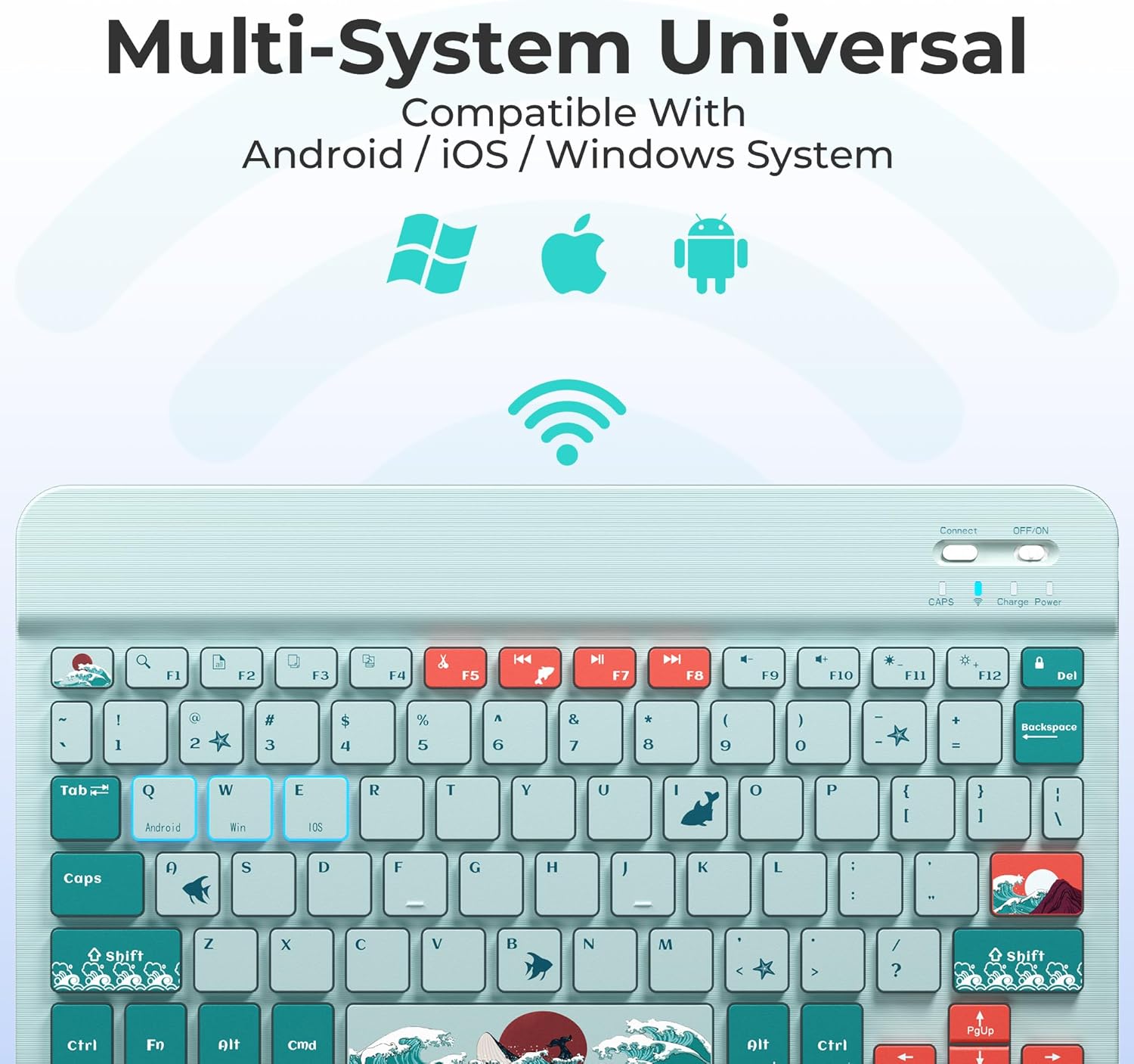
Image: Close-up showing the internal structure of a scissor-switch key compared to a regular key.

Image: Detail of the keyboard showcasing the unique 'Kanagawa Style' patterns on certain keycaps.
Maintenance
To ensure the longevity and optimal performance of your OHY XVX WK80 Bluetooth Keyboard, follow these maintenance guidelines:
- Cleaning: Use a soft, dry cloth to wipe the keyboard surface. For stubborn dirt, slightly dampen the cloth with water or a mild cleaning solution. Avoid excessive moisture.
- Spill Resistance: The keyboard is designed to be spill-resistant, but it is not waterproof. In case of a spill, immediately power off the keyboard, disconnect it from any power source, and allow it to dry completely before use.
- Storage: Store the keyboard in a cool, dry place away from direct sunlight and extreme temperatures.
- Handling: Avoid dropping the keyboard or subjecting it to strong impacts, as this can damage internal components.
Troubleshooting
If you encounter issues with your OHY XVX WK80 Bluetooth Keyboard, please refer to the following common solutions:
- Keyboard Not Connecting/Frequent Disconnections:
- Ensure the keyboard is fully charged.
- Verify that Bluetooth is enabled on your device and the keyboard is within the 10-meter operating range.
- Try turning the keyboard off and on again.
- Delete the keyboard from your device's Bluetooth list and re-pair it.
- Ensure the correct system matching (Fn+W/Q/E) is selected for your device.
- Keys Not Responding or Typing Incorrectly:
- Check for any debris or obstructions under the keys.
- Ensure you are pressing the keys fully.
- If random keys are being typed repeatedly, try re-pairing the keyboard to your device.
- Restart your connected device.
- Backlight Not Working:
- Ensure the keyboard is powered on and charged.
- Use the backlight control keys (Alt + Lightbulb / Ctrl + Lightbulb) to adjust brightness or cycle colors.
Specifications
| Feature | Detail |
|---|---|
| Brand | OHY |
| Model | WK80 |
| Connectivity Technology | Bluetooth 5.0 |
| Compatible Operating Systems | Windows, iOS/iPadOS, Android, Mac |
| Compatible Devices | iPad Pro (12.9-inch, 1st-2nd Gen), iPad Pro 9.7/10.5/11/12.9-inch, iPad Air (1st-5th Gen), iPad mini (1st-6th Gen), iPad (3rd-10th Gen), Galaxy Tab S9/S9+/S8/S8+/S8 Ultra, Galaxy Tab A8, S7 FE, Amazon Fire 7/HD 8/8 Plus/10/10 Plus, Microsoft Surface Pro 9/Go 3/Pro X, Lenovo Tab P11/P12 Pro/M10 Plus (3rd Gen), Google Pixel Tablet, computer PC, desktop, laptops, tablets, other Bluetooth Enabled Devices. |
| Keyboard Description | QWERTY Layout, Scissor-Switch |
| Special Features | Backlit (7-color adjustable), Foldable (not explicitly stated in specs but implied by 'portable travel keyboard' and images), Lightweight, Portable, Rechargeable |
| Battery | 1 Lithium Ion battery (included), 420mAh capacity |
| Charging Port | Type-C |
| Item Weight | 8.1 ounces (approx. 230g) |
| Package Dimensions | 10.63 x 6.1 x 0.67 inches |
| Material | Plastic |
| Color | WK80-Blue |
Warranty and Support
The OHY XVX WK80 Bluetooth Keyboard comes with an 18-Month Warranty. For any product-related inquiries or assistance, please contact our 24hr VIP Support team. Refer to your product packaging or the seller's contact information for support details.