1. Product Overview
This CAMECHO car stereo is designed for Suzuki Swift models from 2011 to 2017. It features a 9-inch IPS touchscreen, runs on Android 13, and includes 6GB RAM and 128GB ROM. Key functionalities include wireless Carplay and Android Auto, GPS navigation, Bluetooth 5.0, FM/RDS radio, DSP sound processing, Mirror Link, and split-screen capability. A reversing camera and external microphone are included for enhanced functionality.

Image: Key features including Android 13, 6GB RAM + 128GB ROM, 8-Core Processor, and 2.5D IPS Screen.
2. Package Contents
Verify that all items listed below are present in the package:
- 1 x Car Stereo (with frame)
- 1 x Radio Antenna
- 1 x GPS Antenna
- 1 x RCA Cable
- 2 x USB Cables
- 1 x Reversing Camera (with cable)
- 1 x User Manual
- Installation Tool
- External Microphone
- Accessories (brackets, etc.)

Image: Product dimensions, rear panel connections, and included accessories list.
3. Installation Guide
Professional installation is recommended. Ensure the vehicle's power is disconnected before beginning installation. Refer to the wiring diagram for correct connections.
3.1 Wiring Connections
- Power Cable: Connect the main power harness to the vehicle's wiring. Ensure correct positive, negative, and ACC (accessory) connections.
- RCA Cables: Connect for audio output (e.g., external amplifier) and video input/output.
- USB Cables: Connect the provided USB cables for external USB devices or charging.
- GPS Antenna: Mount the GPS antenna in a location with a clear view of the sky, typically on the dashboard or under the windshield.
- Radio Antenna: Connect the vehicle's radio antenna to the unit.
- Reversing Camera: Connect the reversing camera cable to the designated input. Ensure the trigger wire is connected to the vehicle's reverse light circuit.
- External Microphone: Plug in the external microphone for clearer hands-free calls.
- Steering Wheel Control: Connect the steering wheel control wires according to your vehicle's wiring diagram. Configuration may be required in the unit's settings.
3.2 Mounting the Unit
Secure the car stereo unit into the dashboard opening using the provided brackets and screws. Ensure a snug fit and proper alignment with the vehicle's interior.
4. Basic Operation
4.1 Power On/Off
The unit will power on automatically when the vehicle's ignition is turned to the ACC or ON position. To power off, turn off the vehicle's ignition.
4.2 Touchscreen Interface
Navigate the system using the 9-inch IPS touchscreen. Tap icons to open applications, swipe to scroll, and use pinch-to-zoom gestures where supported.
4.3 Volume Control
Adjust the volume using the on-screen controls or the vehicle's steering wheel controls, if configured.
5. Key Features
5.1 Wireless Carplay & Android Auto
Connect your compatible smartphone wirelessly to access navigation, music, messages, and more directly on the car stereo display. After initial pairing, the connection will be automatic.
- Ensure Bluetooth and Wi-Fi are enabled on your smartphone.
- On the car stereo, open the Carplay or Android Auto application.
- Follow the on-screen prompts to pair your device.
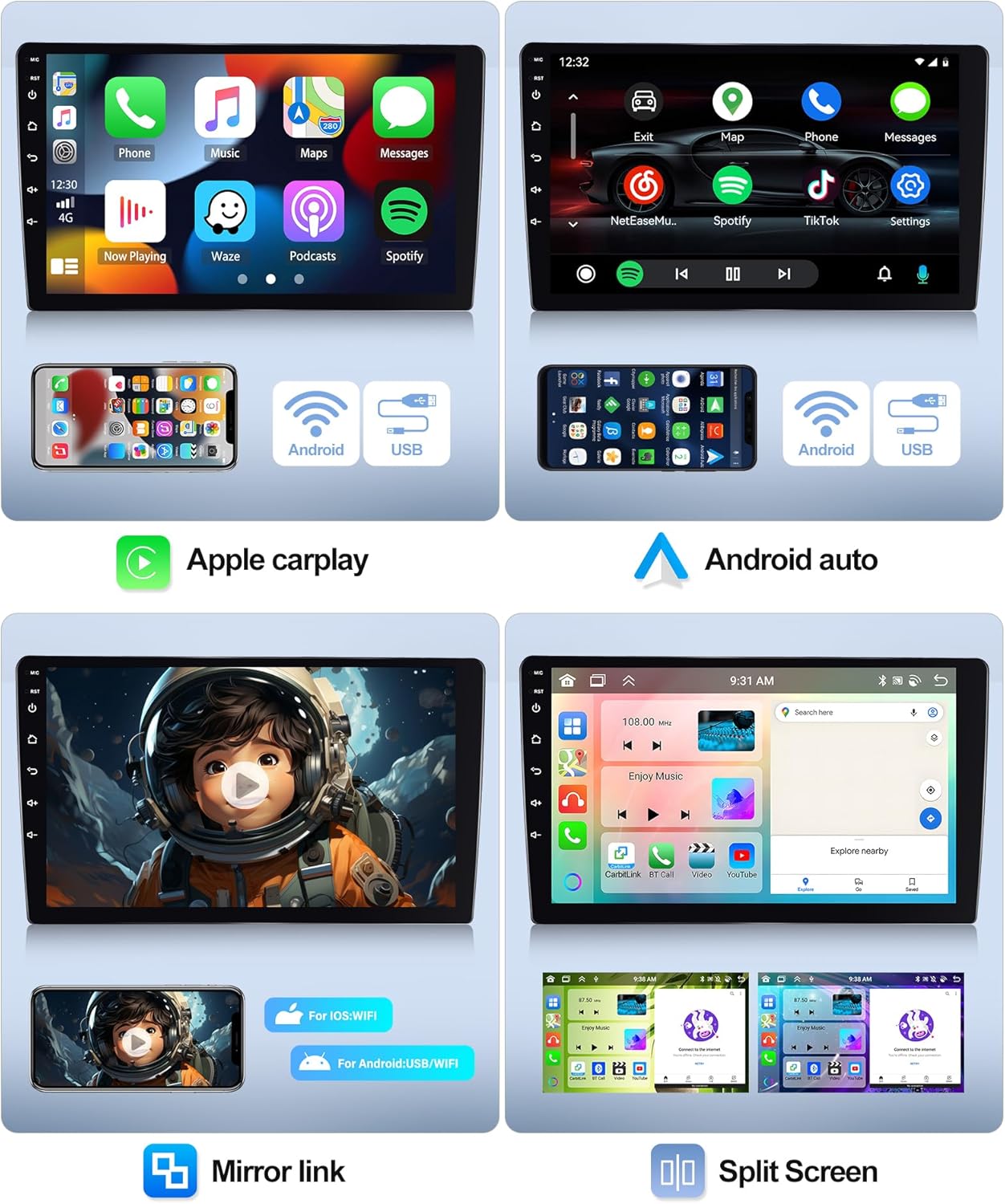
Image: Wireless Carplay, Android Auto, and Mirror Link features with split screen functionality.
5.2 GPS Navigation & WiFi
The unit comes with pre-installed offline maps. Connect to a Wi-Fi network to download additional map data, receive real-time traffic updates, and access online navigation services.
- To connect to Wi-Fi, go to Settings > Network & Internet > Wi-Fi. Select your network and enter the password.
- Open the Navigation app to set your destination.

Image: GPS Navigation and WiFi connectivity.
5.3 Bluetooth 5.0
Pair your smartphone via Bluetooth for hands-free calling and audio streaming.
- On the car stereo, open the Bluetooth app.
- Enable Bluetooth on your phone and search for available devices.
- Select the car stereo from the list and confirm pairing.
5.4 FM/RDS Radio
Access FM radio stations and receive RDS (Radio Data System) information, such as station names and traffic announcements.
- Open the Radio app.
- Use the scan function to find stations or manually tune to a frequency.
- Save your favorite stations for quick access.

Image: Bluetooth connectivity, DSP EQ settings, FM/RDS radio, and Internet radio.
5.5 DSP (Digital Sound Processor)
Utilize the built-in DSP to customize audio settings, including equalizer presets, balance, and fader, for an optimized listening experience.
5.6 Mirror Link
Mirror your smartphone's screen onto the car stereo display. Supports one-way control for iOS devices and two-way control for Android devices.
- Open the Mirror Link app on the stereo.
- Follow the instructions for connecting your specific phone model via USB or Wi-Fi.
5.7 Split Screen
Run two applications simultaneously on the screen, such as navigation and music, for enhanced multitasking.
- While an app is open, long-press the recent apps button or drag the app to one side of the screen (depending on UI).
- Select a second app to open on the other side.
5.8 Reversing Camera Function
When the vehicle is shifted into reverse gear, the display will automatically switch to the reversing camera view, providing assistance for parking and maneuvering.
6. Specifications
| Feature | Specification |
|---|---|
| System | Android 13 |
| Chipset | 8257 (8-Core) |
| Screen Size | 9 inches |
| Memory (RAM+ROM) | 6GB RAM + 128GB ROM |
| Screen Resolution | 1280*720 |
| Radio Chip | 8035 |
| Power Output | 4*45W |
| Bluetooth Version | 5.0 |
| Working Temperature | -20 ℃ to 75 ℃ |
| Steering Wheel Control | Support |
| Power Amplifier Chip | YD7388 |
| Radio Band | FM/RDS |
| Video Output | Support |
| Reversing Input | AHD/CVBS |
| External Microphone | Support |
| Split Screen | Support |
| Maps | Built-in offline maps (requires internet to download data) |
| WiFi | Support |
| USB | Dual USB interface |
| Audio Format | APE/FLAC/WAV/MP3/WMA etc |
| Video Format | MKV/RMVB/AVI/MP4/MDV etc |
| Image Format | PNG/JPEG/JPG/GIF/WBMP/BNP etc |
| Factory Setting Keyword | 1234 |
| Supported Languages | Chinese/English/French/Italian/Korean/Japanese/Arabic/Spanish/Portuguese/Russian/Turkish/Vietnamese/Hebrew/Polish/German |
7. Troubleshooting
If you encounter issues with your car stereo, refer to the following common problems and solutions:
- No Power: Check all power connections, including the main power harness, ACC wire, and ground wire. Ensure the vehicle's fuse for the stereo is intact.
- No Sound: Verify speaker connections. Check volume levels and ensure the mute function is not active. Confirm RCA audio outputs are correctly connected if using an external amplifier.
- GPS Signal Loss: Ensure the GPS antenna is mounted in a location with a clear view of the sky and is securely connected.
- Bluetooth Connection Issues: Ensure Bluetooth is enabled on both the stereo and your phone. Delete previous pairings and try reconnecting.
- Touchscreen Unresponsive: Try restarting the unit by turning the vehicle's ignition off and on. If the issue persists, a factory reset might be necessary (Factory Setting Keyword: 1234).
- Reversing Camera Not Displaying: Check the camera's power and video signal connections. Ensure the reverse trigger wire is correctly connected to the vehicle's reverse light.
For persistent issues, contact customer support.
8. Maintenance
To ensure the longevity and optimal performance of your car stereo, follow these maintenance guidelines:
- Cleaning: Use a soft, dry cloth to clean the screen and exterior. Avoid abrasive cleaners or solvents that may damage the surface.
- Software Updates: Periodically check for available software updates to ensure the system runs efficiently and has the latest features. Updates can typically be found on the manufacturer's website or through the unit's settings if connected to Wi-Fi.
- Temperature: Avoid exposing the unit to extreme temperatures for extended periods.
9. Warranty Information
This product comes with a manufacturer's warranty. Key warranty terms include:
- Warranty Period: 2 years from the date of purchase.
- Returns: 30-day return policy from the date of purchase.
- Support Response: Manufacturer aims to respond to inquiries within 24 hours.
Please retain your proof of purchase for warranty claims.
10. Customer Support
For technical assistance, troubleshooting, or warranty inquiries, please contact CAMECHO customer support:
- Email: bs_support21@126.com
Please provide your product model number and a detailed description of the issue when contacting support.

Image: Customer support representative available for online assistance.


