
TWSYOXPR V380 Pro
V380 Pro WiFi IP Camera User Manual
Model: V380 Pro | Brand: TWSYOXPR
Product Overview
The TWSYOXPR V380 Pro WiFi IP Camera is an advanced outdoor security monitoring solution featuring a unique triple-lens system for comprehensive coverage. It delivers 12MP 6K ultra HD image quality across three lenses, providing detailed surveillance from multiple angles simultaneously. Designed for both indoor and outdoor use, this camera offers robust features including advanced night vision, two-way audio communication, and multiple connectivity options.
Key Features
- 12MP 6K Ultra HD Resolution: Three lenses combine to capture exquisite details and provide a shocking visual experience without fuzzy blind areas.
- Triple-Screen Display: Unique design allows simultaneous display of multiple perspectives, enhancing monitoring efficiency via the mobile APP.
- Advanced Night Vision: Equipped with high-performance red night vision light, automatically switching to night vision mode in low light for clear outdoor scene monitoring up to 10 meters.
- IP66 Waterproof Rating: Built to withstand severe weather conditions, ensuring stable operation in rain, wind, and storms.
- Easy Installation and Setup: Designed for quick deployment, suitable for home security or commercial area monitoring.
- Two-Way Audio: Supports real-time talkback for clear voice communication.
- Pan-Tilt Control: Horizontal rotation of 355° and vertical rotation of 90° for flexible viewing angles.
- Multiple Connection Methods: Supports 2.4Ghz WiFi, AP hotspot, and RJ45 network port.
Package Contents
Please verify that all items are present and in good condition upon opening the package. The standard package for the V380 Pro WiFi IP Camera typically includes:
- V380 Pro WiFi IP Camera Unit
- Power Adapter (US Plug)
- Mounting Screws and Wall Plugs
- Waterproof Kit for Network Cable (if applicable)
- Quick Start Guide
Note: Contents may vary slightly based on the specific product variant purchased.
Setup
Physical Installation
The V380 Pro camera is designed for outdoor installation and can be wall-mounted or pole-mounted. Choose a location that provides the desired viewing angle and is within range of your power source and Wi-Fi network.
- Select Location: Identify a suitable mounting spot, ensuring a clear line of sight and protection from direct impact.
- Mark Drilling Points: Use the mounting template (if provided) or the camera base to mark the screw holes on the wall or pole.
- Drill Holes: Drill pilot holes at the marked points. Insert wall plugs if mounting on masonry.
- Secure Camera: Attach the camera base to the wall or pole using the provided screws. Ensure it is firmly secured.

Figure 1: Camera mounted with PTZ control illustration. The camera can rotate horizontally up to 320 degrees and tilt vertically up to 90 degrees, allowing for flexible monitoring of the surrounding area.
Power Connection
Connect the provided power adapter to the camera's power input port and then plug it into a standard electrical outlet. Ensure the connection is secure and protected from moisture if installed outdoors.
Network Connection
The V380 Pro camera supports both wireless (Wi-Fi) and wired (RJ45) connections.
Wireless Connection (2.4GHz Wi-Fi)
- Ensure your Wi-Fi router is powered on and broadcasting a 2.4GHz network.
- During the app setup process, you will be prompted to connect the camera to your Wi-Fi network. Follow the on-screen instructions in the V380 Pro app.
Wired Connection (RJ45)
- Connect one end of an Ethernet cable to the camera's RJ45 port.
- Connect the other end of the Ethernet cable to your router or network switch.
- The camera will automatically attempt to establish a wired connection.
AP Hotspot Transmission (within 10 meters)
For direct connection without a router, the camera can create its own Wi-Fi hotspot. This is useful for initial setup or when no Wi-Fi network is available.
- Power on the camera.
- On your mobile device, search for Wi-Fi networks and connect to the camera's hotspot (usually named "MV..." or similar).
- Open the V380 Pro app to connect directly to the camera.

Figure 2: Various connection methods for the V380 Pro camera, including wireless via Wi-Fi, wired via Ethernet cable, and direct connection via its built-in Wi-Fi hotspot.
App Installation and Setup (V380 Pro)
- Download App: Search for "V380 Pro" in your mobile device's app store (Google Play Store for Android or Apple App Store for iOS) and download the application.
- Register Account: Open the V380 Pro app and follow the prompts to register a new account or log in if you already have one.
- Add Device: Tap the "+" icon or "Add Device" option in the app.
- Scan QR Code or Select Device Type: Follow the app's instructions to scan the QR code on the camera (if available) or manually select the camera type and proceed with the network configuration steps (Wi-Fi or wired).
- Complete Setup: Once the camera is successfully added, you can view the live feed and configure settings.
Operating Instructions
Live View and Monitoring (Triple Screens)
The V380 Pro camera features a unique triple-lens system, allowing you to monitor multiple perspectives simultaneously through the V380 Pro app.
- Open the V380 Pro app and select your camera from the device list.
- The app will display the live feed from the three lenses. You can switch between different views or arrange them as per the app's interface.
- The top-left lens, left and right lens, and bottom lens each provide 4MP resolution, combining for a total 12MP view.
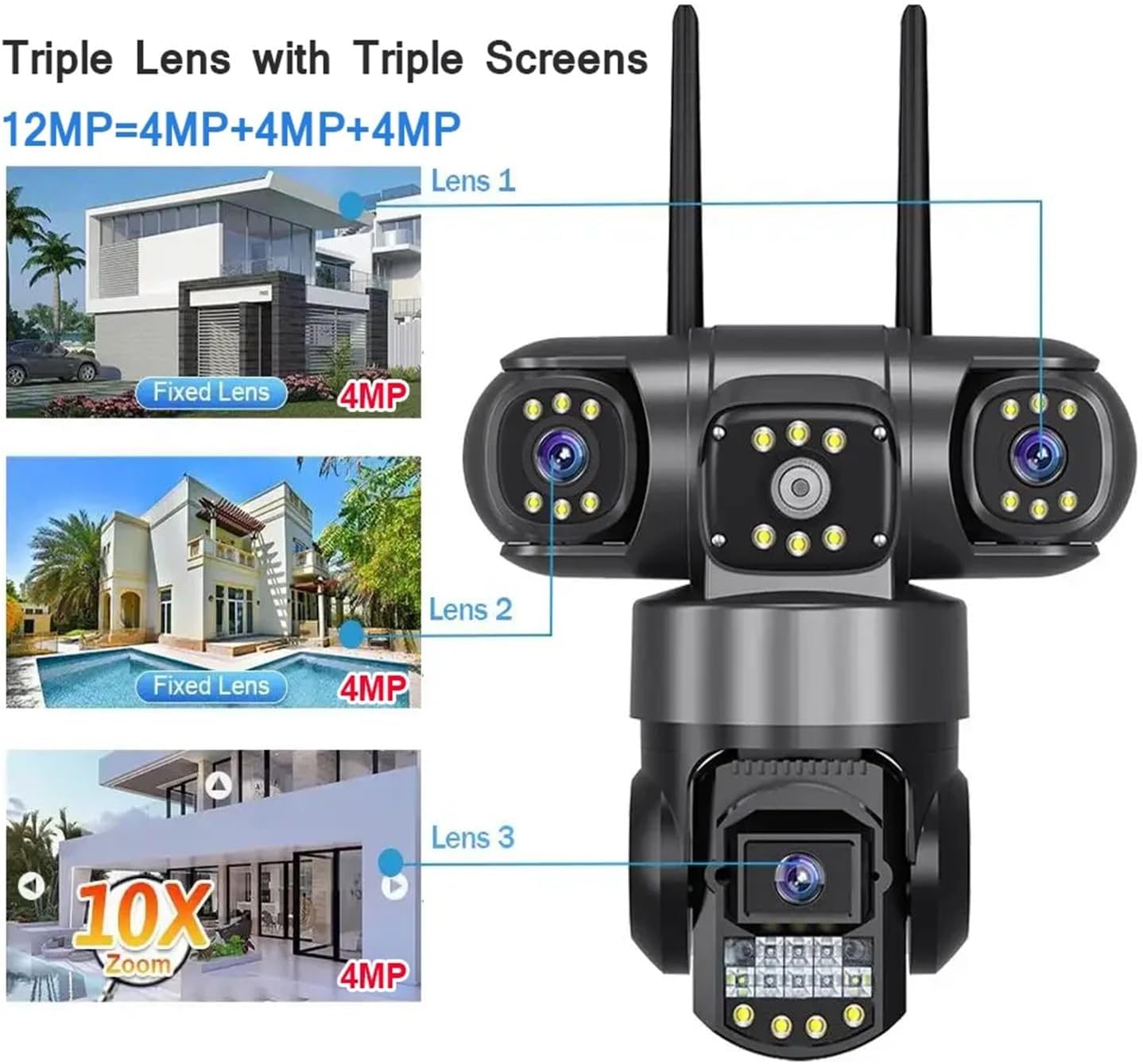
Figure 3: The triple lens system provides a combined 12MP resolution, with each lens contributing 4MP for detailed monitoring.
Pan-Tilt-Zoom (PTZ) Control
Control the camera's viewing direction remotely using the V380 Pro app.
- In the live view interface, locate the PTZ controls (usually represented by directional arrows or a joystick icon).
- Drag your finger across the screen or tap the arrows to pan the camera horizontally (up to 355°) and tilt it vertically (up to 90°).
- While the camera has digital zoom capabilities, optical zoom is not supported.
Two-Way Audio
Communicate with individuals near the camera using the built-in microphone and speaker.
- In the live view, tap the microphone icon to enable two-way audio.
- Press and hold the microphone button to speak, and release to listen.

Figure 4: The camera supports real-time two-way audio, allowing users to communicate with people near the camera via the mobile app.
Night Vision Modes
The camera offers multiple night vision modes to ensure clear surveillance in low-light conditions.
- Infrared Night Mode: Uses infrared LED lights for black and white night vision. Warm light is off.
- Full Light Mode: Warm light is continuously on, providing full-color night vision.
- Double Light Mode: By default, the camera uses infrared night vision. The warm-up light automatically enables when motion is detected, switching to full-color vision.

Figure 5: The camera offers versatile night vision options, including full-color, infrared, and a smart double light mode that activates warm light upon motion detection.
Motion Detection and Alarms
Configure the camera to detect motion and send alerts to your mobile device.
- In the V380 Pro app, navigate to the camera settings.
- Find the "Alarm" or "Motion Detection" settings.
- Enable motion detection and adjust sensitivity levels as needed.
- Configure alarm actions, such as push notifications to your phone or local alarm sounds.
Recording and Storage
The camera supports local storage via a TF card (up to 128GB) and cloud storage options (subscription may be required).
- TF Card Installation: Locate the TF card slot on the camera (refer to the quick start guide for exact location). Insert a compatible TF card (not included).
- Recording Settings: In the app, configure recording modes (e.g., continuous, motion-triggered) and playback options.
- Cloud Storage: Explore cloud storage options within the V380 Pro app for off-site backup of your recordings.
Maintenance
Cleaning
Regular cleaning helps maintain optimal performance and image clarity.
- Gently wipe the camera lens with a soft, lint-free cloth. Avoid abrasive materials or harsh chemicals.
- Clean the camera body with a damp cloth. Ensure no water enters the internal components.
- Periodically check for any debris or spiderwebs obstructing the view or infrared lights.
Firmware Updates
Keep your camera's firmware updated to ensure the latest features, security enhancements, and bug fixes.
- Check for firmware updates periodically through the V380 Pro app settings.
- Follow the app's instructions carefully during the update process. Do not power off the camera during an update.
Troubleshooting
| Problem | Possible Cause | Solution |
|---|---|---|
| Camera offline/Cannot connect to Wi-Fi | Incorrect Wi-Fi password; Camera too far from router; 5GHz Wi-Fi network used; Network interference. | Verify Wi-Fi password. Move camera closer to router or use a Wi-Fi extender. Ensure router is broadcasting 2.4GHz Wi-Fi. Reduce interference. Reset camera and reconfigure. |
| No image/Black screen in app | Camera not powered on; Network connection issue; App glitch. | Check power supply. Verify network connection (Wi-Fi/Ethernet). Restart the V380 Pro app. Restart the camera. |
| Motion detection not working | Sensitivity too low; Detection area not set; Notifications disabled in app/phone settings. | Increase motion detection sensitivity in app. Define detection zones. Enable push notifications for the V380 Pro app. |
| Two-way audio not working | Microphone/speaker muted in app; Volume too low; Network latency. | Check audio settings in the app. Increase volume. Ensure stable network connection. |
| Night vision unclear | Lens dirty; Infrared lights obstructed; Insufficient ambient light for full color mode. | Clean the camera lens. Clear any obstructions. Ensure appropriate night vision mode is selected. |
Specifications
| Feature | Detail |
|---|---|
| Model | V380 Pro Security Video Monitor |
| Brand | TWSYOXPR |
| High Definition | 12 Million Pixels (6K Ultra HD) |
| Lens Configuration | Triple Lenses (3 x 4MP resolution) |
| Pan-Tilt Rotation | Horizontal: 355°, Vertical: 90° |
| Digital Zoom | Supported |
| Optical Zoom | None |
| Night Vision Distance | Approx. 5-10 meters (IR-CUT automatic switch) |
| Audio | Two-way audio supported |
| AI Function | Motion Detection |
| Alarm Action | Local alarm, picture push |
| Connectivity | 2.4Ghz WiFi, AP hotspot, RJ45 network port |
| Storage | Supports TF card up to 128GB (not included) |
| Power Supply | 12V (Mains power supply) |
| Operating Temperature | -10°C to 60°C (14°F to 140°F) |
| IP Level | IP66 (Waterproof/Weatherproof) |
| App | V380 Pro |
| Color | Black |
| Item Weight | 50 Grams (1.76 ounces) |
Warranty and Support
For warranty information and technical support, please refer to the documentation provided with your purchase or contact TWSYOXPR customer service directly. Keep your purchase receipt as proof of purchase for warranty claims.
For app-related issues or frequently asked questions, please visit the V380 Pro app's help section or their official website.
Related Documents - V380 Pro
 |
V380 Pro Smart Camera User Manual Comprehensive user manual for the V380 Pro Smart Camera, covering app installation, device reset, network connection methods (QR, Bluetooth, AP, 4G), APN settings, and cloud service configuration. |
 |
V380 Pro Smart Camera User Manual Comprehensive user manual for the V380 Pro Smart Camera, covering app download, device setup, network connection methods, 4G configuration, and safety guidelines. |
 |
V380 Pro Smart Camera Product Manual - Setup and User Guide Comprehensive product manual for the V380 Pro Smart Camera, detailing setup, WiFi and 4G network configuration, app usage, cloud services, and troubleshooting for optimal surveillance. |
 |
GG Winwa 12MP 50X Zoom PTZ IP Dome Camera - Support and Operation Guide Find support for your GG Winwa 12MP 50X zoom Triple Lens WIFI PTZ IP Dome Camera. Access video operations, user manuals, and contact support via email for assistance with AI Humanoid Detection and Home Security CCTV monitoring. |
 |
Swann Enforcer™ Bullet Security Camera Instruction Manual - 12MP, Night Vision, Weatherproof Official instruction manual for the Swann Enforcer™ Bullet Security Camera. Learn about installation, connection, mounting, weather protection, and optimal camera placement for your 12MP Swann NVR system. |
 |
Comelit Professional CCTV Solutions: Reference Guide Explore Comelit's comprehensive range of professional CCTV and video surveillance solutions, including the Next and Advance Series. Discover advanced analytics, robust cyber security, and high-performance products for all security needs. |
Ask a question about this manual
Ask about setup, troubleshooting, compatibility, parts, safety, or missing instructions. Manuals+ will review the question and use this page’s manual context to help answer it.