
1. Introduction
This manual provides detailed instructions for the installation, operation, and maintenance of your ZBARK 10.25 Inch Android Auto Car Stereo. This system is designed to enhance your driving experience with advanced multimedia, navigation, and connectivity features. Please read this manual thoroughly before installation and use to ensure proper function and safety.
2. System Compatibility
This unit is specifically designed for Audi Q5 models manufactured between 2010 and 2018 that are equipped with the original Audi Multimedia Linux system. It supports plug-and-play installation without requiring complex programming or circuit modification. Ensure your vehicle's original interfaces match the requirements for seamless integration.

Figure 2.1: Compatibility check for Audi Q5 multimedia systems. This unit is compatible with original Audi Multimedia systems and high-spec car models with the correct LVDS plug. It is not compatible with Audi Symphony, Audi Concert, Audi CD Changer, Audi Chorus, or low-configuration car models.
3. Package Contents
Before beginning installation, verify that all components are present in the package:
- 10.25 Inch Android Auto Car Stereo Display Unit
- Main Wiring Harness
- GPS Antenna
- USB Cable
- RCA Cable
- Installation Tools (if included)
- User Manual (this document)

Figure 3.1: Included accessories and the main display unit. The image displays the 10.25-inch display, the main wiring harness, and a document labeled "Instructions for use".
4. Setup & Installation
Installation of this unit requires careful handling of vehicle components. If you are not confident in performing the installation yourself, it is recommended to seek professional assistance. Ensure the vehicle's ignition is off and the battery is disconnected before starting the installation process.
4.1. Pre-Installation Overview
The installation involves removing the original display and multimedia control panel, connecting the new wiring harness, and mounting the new display. The process is designed to be plug-and-play with existing vehicle systems.
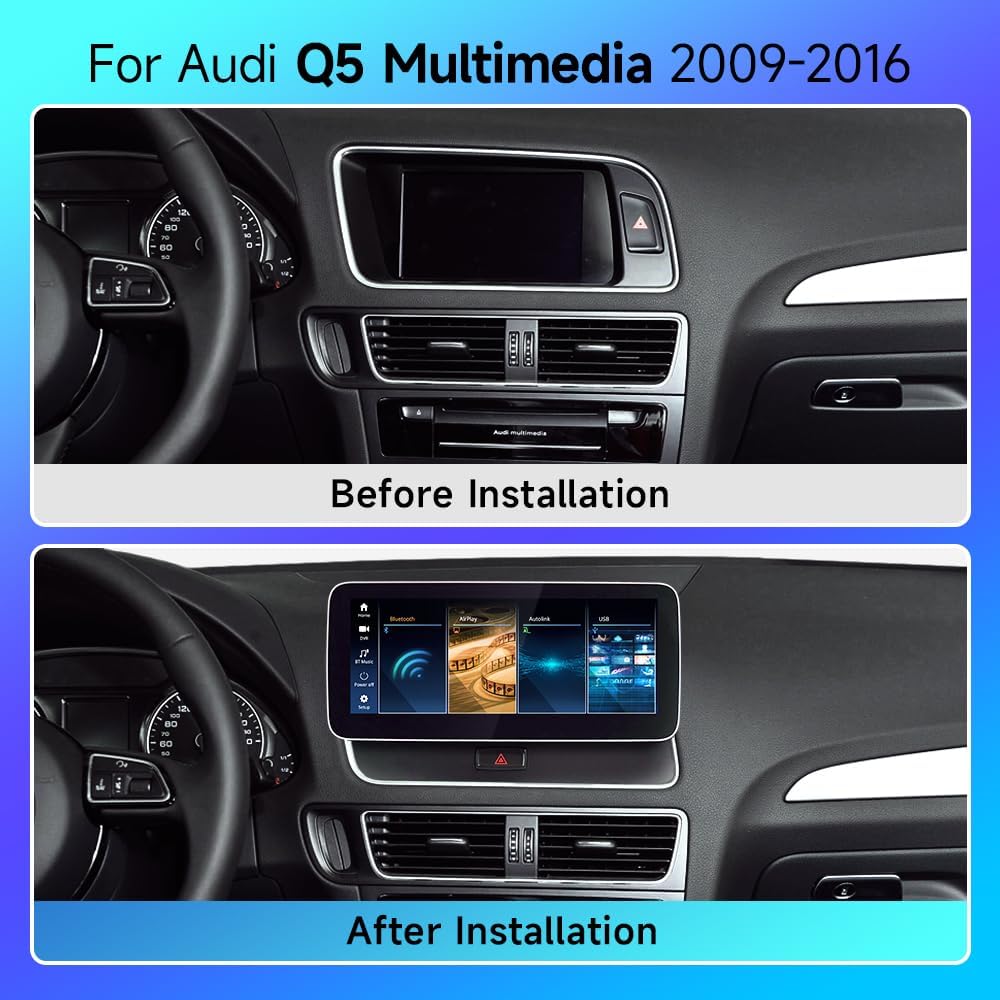
Figure 4.1: Comparison of the Audi Q5 dashboard before and after the installation of the 10.25-inch Android Auto Car Stereo. The "Before Installation" image shows the original smaller display, while the "After Installation" image shows the larger, integrated ZBARK display.
4.2. Installation Steps
- Disconnect Battery: For safety, disconnect the negative terminal of your vehicle's battery.
- Remove Original Components: Carefully remove the original car stereo display and the multimedia control panel using appropriate trim removal tools. Refer to your vehicle's service manual for specific instructions on panel removal.
- Connect Wiring Harness: Connect the provided wiring harness to the vehicle's existing connectors. Ensure all connections are secure.
- Install New Display: Mount the new 10.25-inch display unit into the dashboard opening.
- Reconnect Components: Reinstall the multimedia control panel and any other removed trim pieces.
- Reconnect Battery: Reconnect the vehicle's battery.
- Test System: Turn on the ignition and test the new stereo system for proper functionality.
4.3. Installation Video Guide
For a visual guide on the installation process, please refer to the official installation video below:
Video 4.1: Official ZBARK installation video for the 10.25-inch Audi Q5 car stereo. This video demonstrates the step-by-step process of removing the original unit and installing the new display and wiring.
5. Operating Instructions
5.1. Basic Operation
- Power On/Off: The unit powers on automatically with the vehicle's ignition. To power off, turn off the vehicle's ignition.
- Touch Screen Control: Navigate the interface using the responsive touch screen.
- Volume Control: Use the vehicle's original steering wheel controls or the on-screen interface for volume adjustment.
5.2. Wireless CarPlay and Android Auto
The system supports wireless CarPlay and Android Auto for seamless smartphone integration. This allows access to navigation, music, calls, and messages directly from your car's display.
- Enable Bluetooth: On your smartphone, enable Bluetooth.
- Pair Device: On the car stereo, go to the Bluetooth settings and pair with your smartphone.
- Activate CarPlay/Android Auto: Once paired, select the CarPlay or Android Auto icon on the stereo's main menu. Follow any on-screen prompts on your phone to complete the setup.

Figure 5.1: Display of Wireless Android Auto and Wireless CarPlay interfaces on the ZBARK car stereo. The image shows the main screen with various app icons, and two smartphones below representing Android Auto and CarPlay connectivity.
5.3. Navigation System
The integrated high-precision real-time navigation system provides accurate route planning and real-time traffic updates. Voice-controlled navigation is supported for convenience and safety.
- Access Navigation: Tap the "Navigation" icon on the home screen.
- Enter Destination: Use the on-screen keyboard or voice command to enter your destination.
- Route Guidance: Follow the on-screen directions and voice prompts for your route.
5.4. Multimedia Playback
Enjoy a wide range of audio and video content through various sources.
- Online Music/Video: Access streaming services via Wi-Fi connection.
- USB Playback: Connect a USB drive to play media files.
- Bluetooth Audio: Stream music from your paired smartphone.
6. Maintenance
To ensure the longevity and optimal performance of your ZBARK car stereo, follow these maintenance guidelines:
- Screen Cleaning: Use a soft, lint-free cloth to gently wipe the screen. Avoid abrasive cleaners or solvents.
- Software Updates: Periodically check for and install system software updates via Wi-Fi to ensure the latest features and security patches.
- Environmental Conditions: Avoid exposing the unit to extreme temperatures, direct sunlight for prolonged periods, or excessive moisture.
7. Troubleshooting
If you encounter issues with your ZBARK car stereo, refer to the following common problems and solutions:
| Problem | Possible Cause | Solution |
|---|---|---|
| No Power | Loose power connection, blown fuse. | Check all power cable connections. Inspect and replace any blown fuses in the vehicle's fuse box or the stereo's wiring harness. |
| No Sound Output | Incorrect wiring, volume too low, mute activated. | Verify speaker wiring connections. Increase volume. Check if the system is muted. Ensure the original car's audio system is correctly integrated. |
| CarPlay/Android Auto Not Connecting | Bluetooth not enabled, incorrect pairing, software glitch. | Ensure Bluetooth is active on both devices. Re-pair your smartphone. Restart both the car stereo and your smartphone. |
| GPS Signal Lost/Inaccurate | GPS antenna obstruction, poor satellite reception. | Ensure the GPS antenna is installed in a clear location with an unobstructed view of the sky. Move to an open area. |
| System Lag/Slow Response | Too many apps running, low memory. | Close unnecessary applications. Restart the system. Ensure the system software is up to date. |
If the problem persists after trying these solutions, please contact ZBARK customer support for further assistance.
8. Specifications
| Feature | Detail |
|---|---|
| Display Size | 10.25 inches |
| Processor | 8 Core High-Performance Processor |
| Operating System | Android (integrated with vehicle's Linux system) |
| Connectivity | WiFi, 4G SIM Support, Bluetooth |
| Navigation | Built-in GPS Navi, Real-time Traffic Updates, Voice Control |
| Smartphone Integration | Wireless CarPlay, Wireless Android Auto |
| Control Type | Touch Screen |
| Compatible Devices | Car's built-in systems, Smartphone |
| Connector Type | 3.5mm Jack, RCA |
| Audio Output Mode | Stereo |
| Surround Sound Channel | 2.0 |
| Video Encoding | H.264, MPEG-4 |
| Item Weight | 4.91 pounds (2.23 kg) |
| Package Dimensions | 16.73 x 9.13 x 7.09 inches |
9. Warranty and Support
For warranty information and technical support, please refer to the documentation provided with your purchase or contact ZBARK customer service directly. Keep your purchase receipt as proof of purchase for warranty claims.
ZBARK Customer Service: [Insert Contact Information Here, e.g., website, email, phone number]