
1. Introduction
This manual provides instructions for the POWMUS Android 14 Tablet L211. This device features a 10.1-inch HD IPS display, an octa-core processor, 24GB RAM (8GB physical + 16GB virtual), 128GB internal storage expandable up to 1TB, an 8000mAh battery, Wi-Fi 6, and Bluetooth 5.0 connectivity. It operates on the Android 14 operating system.
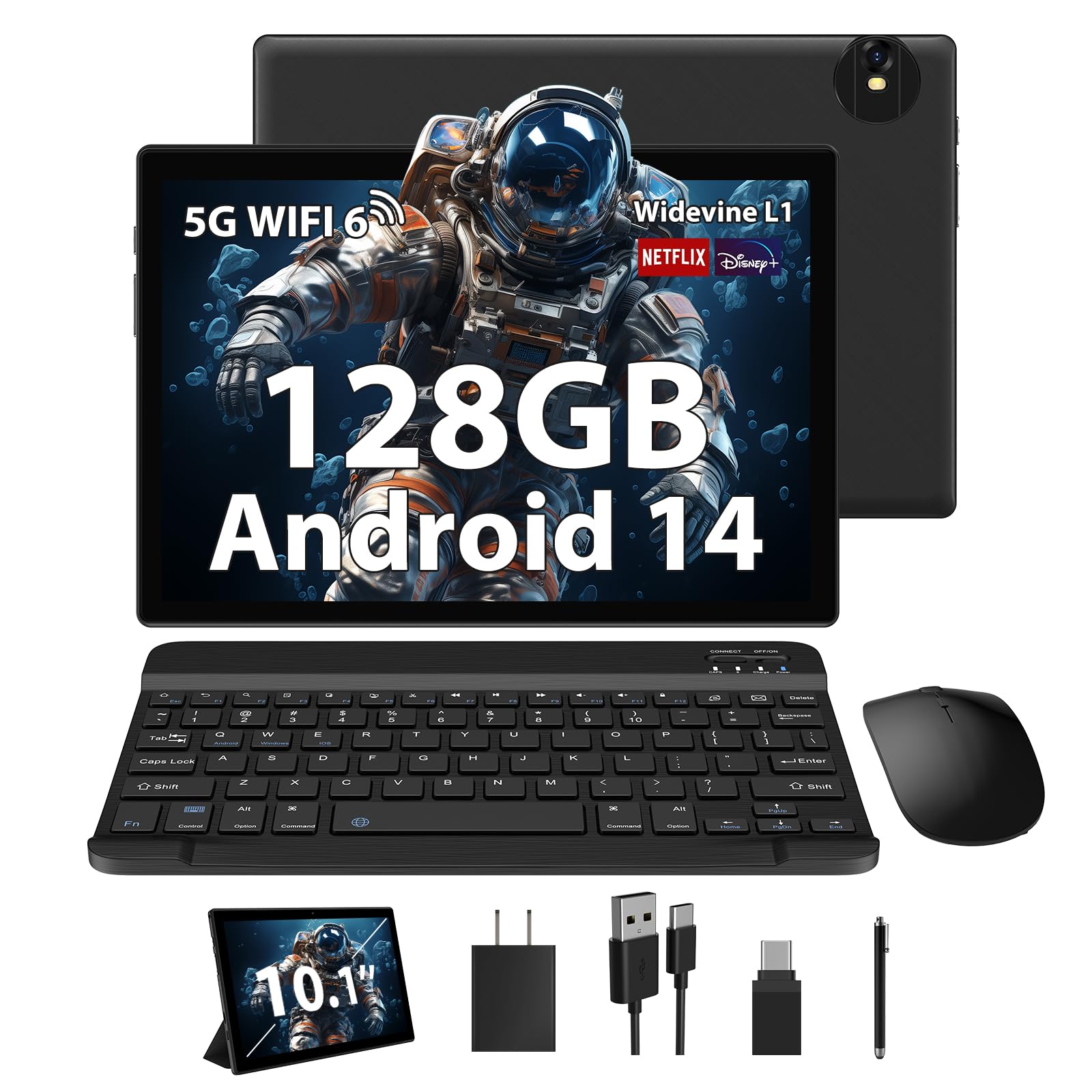
Image 1: POWMUS Android 14 Tablet L211.
2. What's in the Box
Verify that all items are present in the package:
- POWMUS Android 14 Tablet L211
- Keyboard
- Mouse
- Protection Case
- Stylus Pen
- USB-C to USB Connector
- USB Type-C Charging Cable
- Power Adapter

Image 2: Tablet and included accessories.
3. Setup
3.1 Charging the Tablet
Before first use, fully charge the tablet. Connect the USB Type-C charging cable to the tablet's charging port and the power adapter to a wall outlet.

Image 3: Tablet connected to a USB Type-C charger.
3.2 Power On/Off
- To Power On: Press and hold the Power button until the screen lights up.
- To Power Off: Press and hold the Power button, then select 'Power off' from the options.
- To Restart: Press and hold the Power button, then select 'Restart' from the options.
3.3 Initial Configuration
Upon first power-on, follow the on-screen prompts to set up your Android 14 device. This includes selecting language, connecting to Wi-Fi, and signing in with a Google account.
3.4 Connecting to Wi-Fi
- Go to Settings.
- Tap Network & internet.
- Toggle Wi-Fi to On.
- Select your desired Wi-Fi network from the list and enter the password if prompted.
3.5 Connecting Bluetooth Devices
The tablet supports Bluetooth 5.0 for connecting accessories like the included keyboard and mouse, or headphones.
- Go to Settings.
- Tap Connected devices.
- Tap Pair new device.
- Ensure your Bluetooth device is in pairing mode. Select it from the list of available devices.
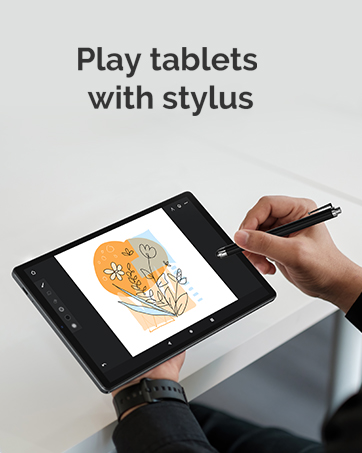
Image 4: Bluetooth device pairing screen.
3.6 Inserting a TF Card
To expand storage, insert a TF (microSD) card into the designated slot. The tablet supports up to 1TB of external storage.
4. Operating the Tablet
4.1 Basic Navigation
The tablet uses a capacitive touchscreen for navigation. Use gestures such as tap, swipe, pinch-to-zoom, and long-press to interact with the interface.
4.2 Using Keyboard and Mouse
The included keyboard and mouse can be connected via Bluetooth for a laptop-like experience. Refer to section 3.5 for Bluetooth pairing instructions.
4.3 Display Features
The 10.1-inch HD IPS screen offers a resolution of 1280x800 pixels. It is certified with Widevine L1, enabling Full HD and Ultra HD content streaming on compatible platforms.
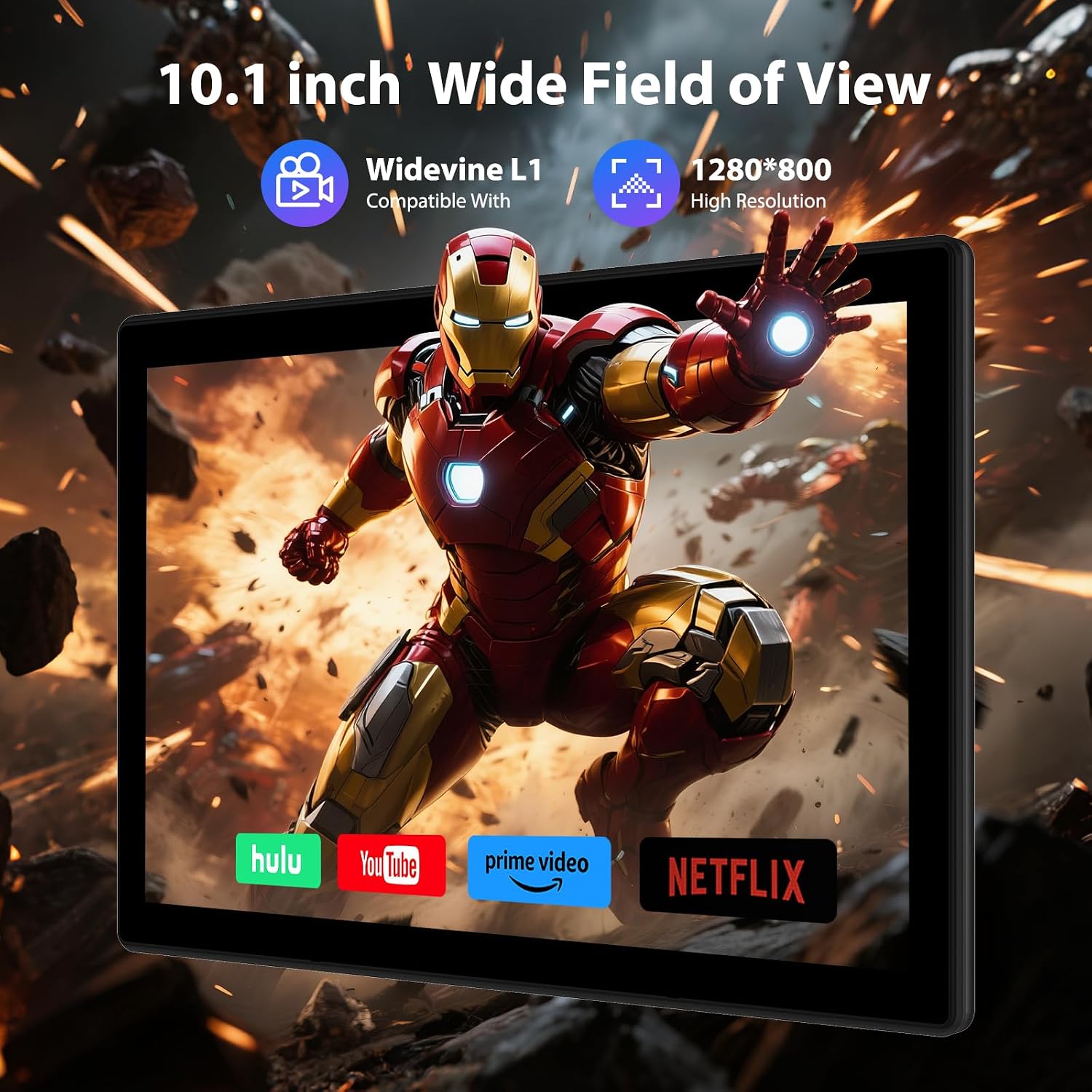
Image 5: Tablet displaying streaming content with Widevine L1 support.
4.4 Camera Usage
The tablet is equipped with a 5MP front camera and an 8MP rear camera. Open the Camera application to capture photos and videos.

Image 6: Tablet's dual camera system and example usage.
4.5 Split Screen Functionality
Android 14 supports split-screen mode, allowing two applications to run side-by-side. To activate, open an app, then swipe up from the bottom of the screen to access recent apps. Long-press the app icon at the top of the app card and select 'Split top'. Then choose a second app.

Image 7: Tablet demonstrating split screen functionality.
4.6 Face Unlock
Configure Face Unlock for convenient and secure access to your tablet. Navigate to Settings > Security & privacy > Device unlock > Face Unlock and follow the setup instructions.
4.7 Parental Controls and App Lock
The tablet includes features for parental control, such as app lock and screen time management, to help manage usage for younger users. These settings can typically be found under Settings > Digital Wellbeing & parental controls.

Image 8: Tablet displaying parental control features.
4.8 Casting to TV or Monitor
The tablet supports wireless display casting to compatible TVs or monitors. This feature allows you to mirror your tablet's screen on a larger display. Access this function through Settings > Connected devices > Connection preferences > Cast.

Image 9: Tablet screen casting to a TV.
5. Maintenance
5.1 Cleaning the Tablet
Use a soft, lint-free cloth to clean the screen and body of the tablet. Avoid using harsh chemicals or abrasive materials. Do not spray liquids directly onto the tablet.
5.2 Battery Care
To prolong battery life, avoid exposing the tablet to extreme temperatures. Charge the tablet regularly and avoid letting the battery completely drain frequently. The 8000mAh battery is designed for extended use.
5.3 Software Updates
Regularly check for and install system updates to ensure optimal performance, security, and access to the latest features. Go to Settings > System > System update.
6. Troubleshooting
6.1 Device Freezing or Unresponsive
If the tablet becomes unresponsive, press and hold the Power button for approximately 10-15 seconds to force a restart.
6.2 Excessive Battery Drain
Check for background applications consuming power. Adjust screen brightness, disable unused connectivity features (Wi-Fi, Bluetooth, GPS), and ensure all apps are updated. If the issue persists, a factory reset may be considered (see 6.5).
6.3 Wi-Fi or Bluetooth Connectivity Issues
Try toggling Wi-Fi or Bluetooth off and on. Restart the tablet. For Wi-Fi, ensure your router is functioning correctly and restart it if necessary. For Bluetooth, ensure the device you are trying to connect to is in pairing mode.
6.4 Screen Not Responding to Touch
Restart the tablet. If the issue continues, ensure the screen is clean and free of debris. If a screen protector is installed, ensure it is properly applied and not interfering with touch sensitivity.
6.5 Factory Reset
A factory reset will erase all data on your tablet and restore it to its original factory settings. Back up important data before proceeding. Go to Settings > System > Reset options > Erase all data (factory reset) and follow the prompts.
7. Specifications
| Feature | Specification |
|---|---|
| Model Number | L211 |
| Operating System | Android 14 |
| Processor | Octa-core 2.0 GHz |
| RAM | 24GB (8GB physical + 16GB virtual) |
| Internal Storage (ROM) | 128GB |
| Expandable Storage | Up to 1TB via TF card (not included) |
| Screen Size | 10.1 Inches |
| Display Type | HD IPS |
| Native Resolution | 1280 x 800 pixels |
| Aspect Ratio | 16:10 |
| Front Camera | 5MP |
| Rear Camera | 8MP |
| Battery Capacity | 8000 mAh |
| Connectivity | Wi-Fi 6 (802.11ax), Bluetooth 5.0 |
| Charging Port | USB Type-C |
| Special Features | Widevine L1, Supports Keyboard and Mouse |
| Parcel Dimensions | 33.7 x 19.5 x 4.2 cm |
| Weight | 1.26 kg |
8. Warranty and Support
The POWMUS Android 14 Tablet L211 comes with a 1-year protection plan. Lifetime technical support is also provided. For any queries or assistance, please contact POWMUS customer support.