
1. Introduction
Welcome to the user manual for your new UXD A5 Android 13 Tablet. This guide provides essential information on setting up, operating, maintaining, and troubleshooting your device to ensure optimal performance and user experience. Please read this manual thoroughly before using your tablet.
2. Package Contents
Verify that all items listed below are included in your package:
- UXD A5 Android 13 Tablet
- Stylus
- Screen Protector
- OTG Dongle
- Keyboard
- Mouse
- Foldable Bag
- Charging Cable
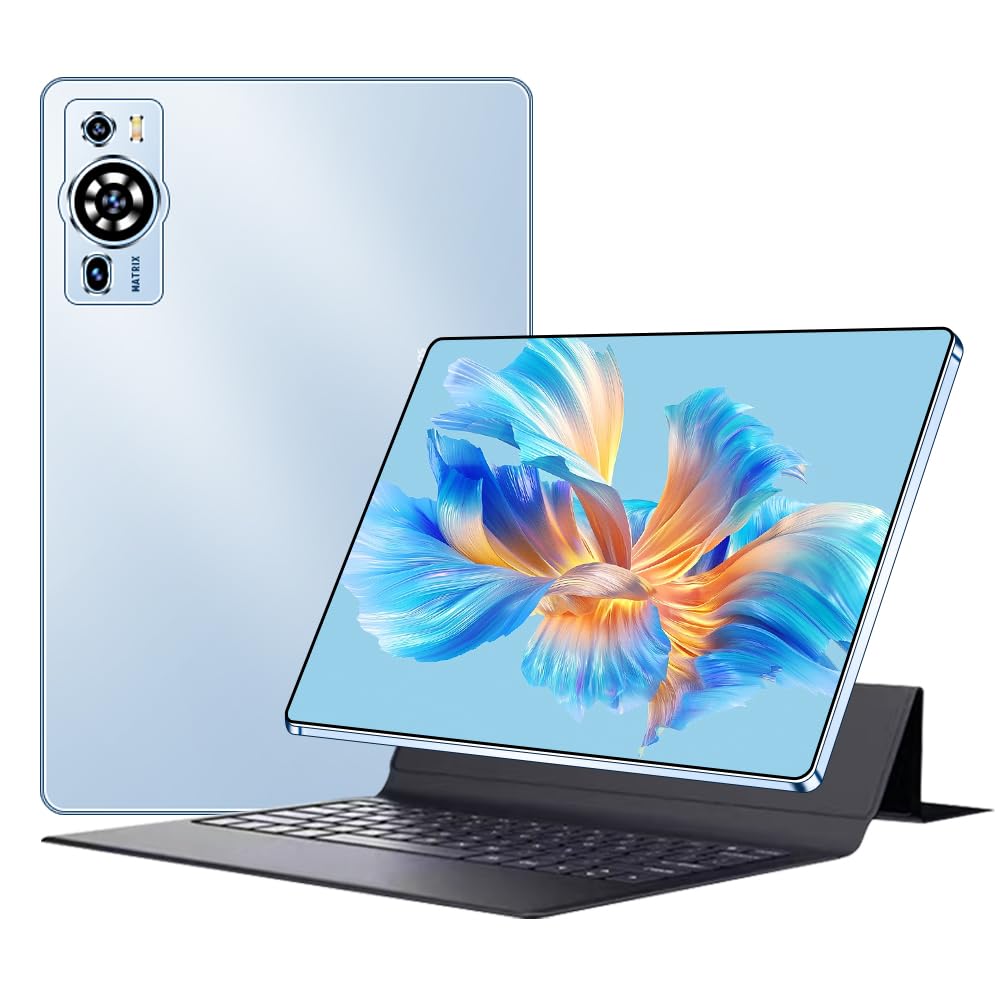
Image 2.1: UXD A5 Tablet with keyboard, mouse, stylus, and other accessories.
3. Product Overview
Familiarize yourself with the physical components of your tablet:

Image 3.1: Diagram illustrating the tablet's ports and buttons.
- Headphone Jack: For connecting wired headphones.
- Power Button: Press and hold to power on/off or restart. Press briefly to wake/sleep the screen.
- Volume Keys: Adjust the tablet's volume.
- Charging Port (Type C): Connect the provided USB-C cable for charging.
- Front Camera: For video calls and selfies.
- SIM Card Slot: Insert a Nano-SIM card for 4G cellular connectivity and a microSD card for expandable storage.
- Speakers: Stereo speakers for audio output.
4. Initial Setup
4.1. Charging the Tablet
Before first use, fully charge your tablet. Connect the provided USB-C charging cable to the tablet's charging port and plug the other end into a power adapter (not always included) or a computer's USB port. The battery indicator on the screen will show charging status.
4.2. Powering On/Off
- To Power On: Press and hold the Power Button until the UXD logo appears.
- To Power Off: Press and hold the Power Button until the power options menu appears, then select "Power off."
- To Restart: Press and hold the Power Button until the power options menu appears, then select "Restart."
4.3. Inserting SIM and MicroSD Cards
Locate the SIM card slot on the side of the tablet. Use the provided SIM ejector tool (if included) to open the tray. Carefully place your Nano-SIM card and/or microSD card into the designated slots on the tray, ensuring correct orientation. Insert the tray back into the tablet until it clicks into place.
4.4. Connecting Accessories
- Keyboard and Mouse: These accessories typically connect via Bluetooth. Go to Settings > Connected devices > Bluetooth on your tablet, turn on Bluetooth, and pair with the keyboard and mouse. Follow the specific pairing instructions for each accessory.
- Stylus: The stylus can be used directly on the screen for drawing, writing, and navigation. No pairing is usually required for basic functionality.
- OTG Dongle: Connect the OTG dongle to the tablet's USB-C port to connect USB devices like flash drives or external hard drives.
5. Operating Instructions
5.1. Navigating Android 13
Your tablet runs on Android 13, offering an intuitive user interface. Swipe up from the bottom for the app drawer, swipe down from the top for quick settings and notifications. Use gestures or the navigation bar for Home, Back, and Recent Apps functions.
5.2. Connectivity
- Wi-Fi 6: To connect to Wi-Fi, go to Settings > Network & internet > Internet, select your desired network, and enter the password.
- Bluetooth 5.0: For connecting wireless headphones, speakers, or other Bluetooth devices, go to Settings > Connected devices > Bluetooth.
- 4G Cellular: If you have inserted a SIM card, enable mobile data in Settings > Network & internet > Mobile network.
5.3. Display Settings
The 10.1-inch HD IPS display offers vibrant visuals. Adjust brightness, dark theme, and font size in Settings > Display. The tablet supports features like eye protection modes to reduce strain.

Image 5.1: Tablet display highlighting key features like connectivity and eye protection.
5.4. Camera Usage
Your tablet is equipped with dual cameras. Open the Camera app to take photos or record videos. Tap on the screen to focus and use the on-screen controls for various modes and settings.
5.5. Battery Management
The 8000 mAh battery provides extended usage. To optimize battery life, adjust screen brightness, close unused apps, and enable battery saver mode when needed. Avoid extreme temperatures.

Image 5.2: Battery performance overview for various activities.
5.6. Usage Scenarios
The UXD A5 tablet is versatile for various tasks:

Image 5.3: Examples of tablet use for creative, entertainment, and productivity tasks.
- Painting & Drawing: Utilize the stylus for creative applications.
- Gaming: Enjoy a smooth gaming experience with the Octa-Core processor and 12GB RAM.
- Study & Work: Use the keyboard and mouse for productivity, and the stylus for note-taking.
- Media Consumption: Watch videos and listen to music on the HD display and stereo speakers.
6. Care and Maintenance
- Cleaning: Use a soft, lint-free cloth to clean the screen and body. Avoid harsh chemicals.
- Storage: Store the tablet in a cool, dry place away from direct sunlight and extreme temperatures.
- Software Updates: Regularly check for and install system updates to ensure optimal performance and security. Go to Settings > System > System update.
- Protecting the Screen: Apply the included screen protector to prevent scratches.
7. Troubleshooting Guide
This section addresses common issues you might encounter:
- Tablet will not turn on: Ensure the tablet is charged. Connect it to a charger for at least 30 minutes, then try powering on again. If it still doesn't turn on, perform a forced restart by holding the power button for 10-15 seconds.
- Screen is unresponsive: Restart the tablet. If the issue persists, ensure the screen is clean and free of debris.
- Wi-Fi connection issues: Check if Wi-Fi is enabled in settings. Restart your router and the tablet. Forget the network and reconnect.
- Slow performance: Close unused applications. Clear cache data from apps. Consider performing a factory reset (back up your data first).
- Accessories not connecting: Ensure Bluetooth is enabled on the tablet and the accessory is in pairing mode. Check battery levels of wireless accessories.
8. Technical Specifications
| Brand | UXD |
| Model Number | A5 |
| Operating System | Android 13 |
| Processor Brand | MediaTek Octa Core |
| RAM | 12 GB |
| Storage Capacity | 256 GB |
| Screen Size | 10.1 Inches |
| Display Resolution | 1920 x 1200 pixels (HD IPS) |
| Battery Capacity | 8000 mAh |
| Battery Life | Up to 8 hours |
| Wireless Connectivity | Wi-Fi 6 (802.11ax, 802.11b), Bluetooth 5.0, 4G Cellular |
| Interfaces | USB Type-C, Bluetooth |
| Dimensions (L x W x H) | 24 x 16 x 0.9 cm |
| Product Weight | 1 Kilogram |
| Special Features | Detachable Keyboard, Stereo Speakers, USB OTG Support, Stylus Support |

Image 8.1: Tablet showcasing its ultra-slim design and weight.
9. Warranty and Support
Information regarding specific warranty terms and availability of spare parts is not provided in the product details. For warranty claims, technical support, or inquiries about spare parts, please refer to the manufacturer's official website or contact their customer service directly. Please retain your proof of purchase for any warranty-related requests.

