
1. Introduction
This manual provides detailed instructions for the installation and care of your SRJTEK replacement screen for the Google Pixel 8A. Please read all instructions carefully before beginning the installation process.
This replacement screen is compatible with Google Pixel 8A models GKV4X, G6GPR, G8HHN, and G576D. It features a 6.1-inch OLED display with a resolution of 1080x2400 pixels.
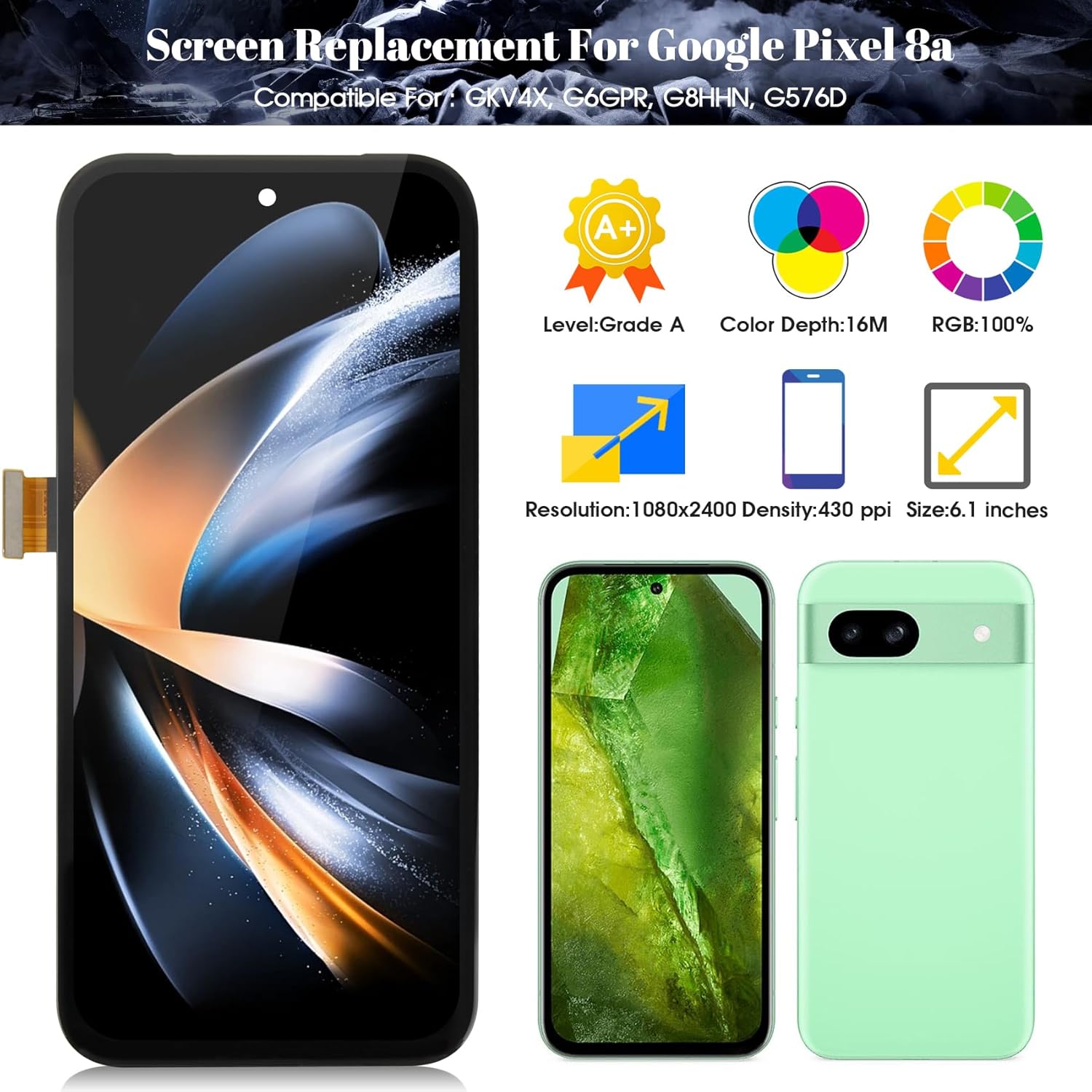
Image: Overview of the SRJTEK Google Pixel 8A screen replacement, showing key specifications like size, resolution, and color depth.
2. Safety Information and Important Notes
Performing a screen replacement requires careful handling of delicate components. Incorrect installation can damage your device. If you are not confident in your ability to perform this repair, seek professional assistance.
- Handle with Care: Screen edges and corners are fragile. Avoid applying excessive pressure.
- Bend Limit: Do not over-bend the LCD flex cable. Bending it beyond 90 degrees can cause damage.
- Power Off First: Ensure your device is completely powered off before beginning any installation steps.
- Electrostatic Discharge (ESD): Take precautions against ESD. Use an anti-static wrist strap or frequently touch a grounded metal object.
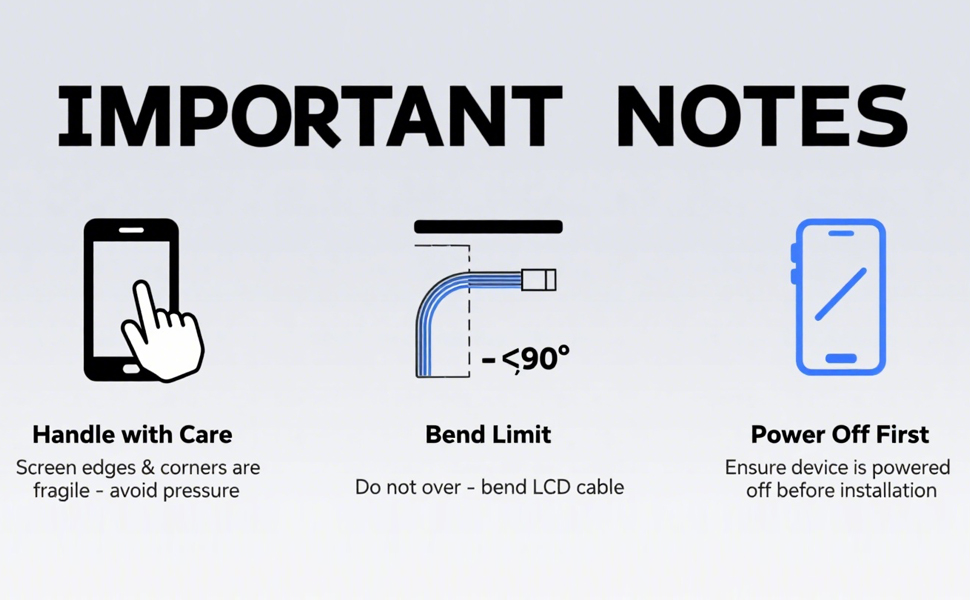
Image: Visual representation of important safety notes: handle with care, bend limit for flex cables, and power off the device before starting.
3. Package Contents
The SRJTEK screen replacement kit typically includes:
- SRJTEK Google Pixel 8A LCD Display Digitizer Touch Screen Assembly (without frame)
- Basic repair tool kit (may include screwdrivers, pry tools, suction cup, SIM ejector tool, adhesive strips)
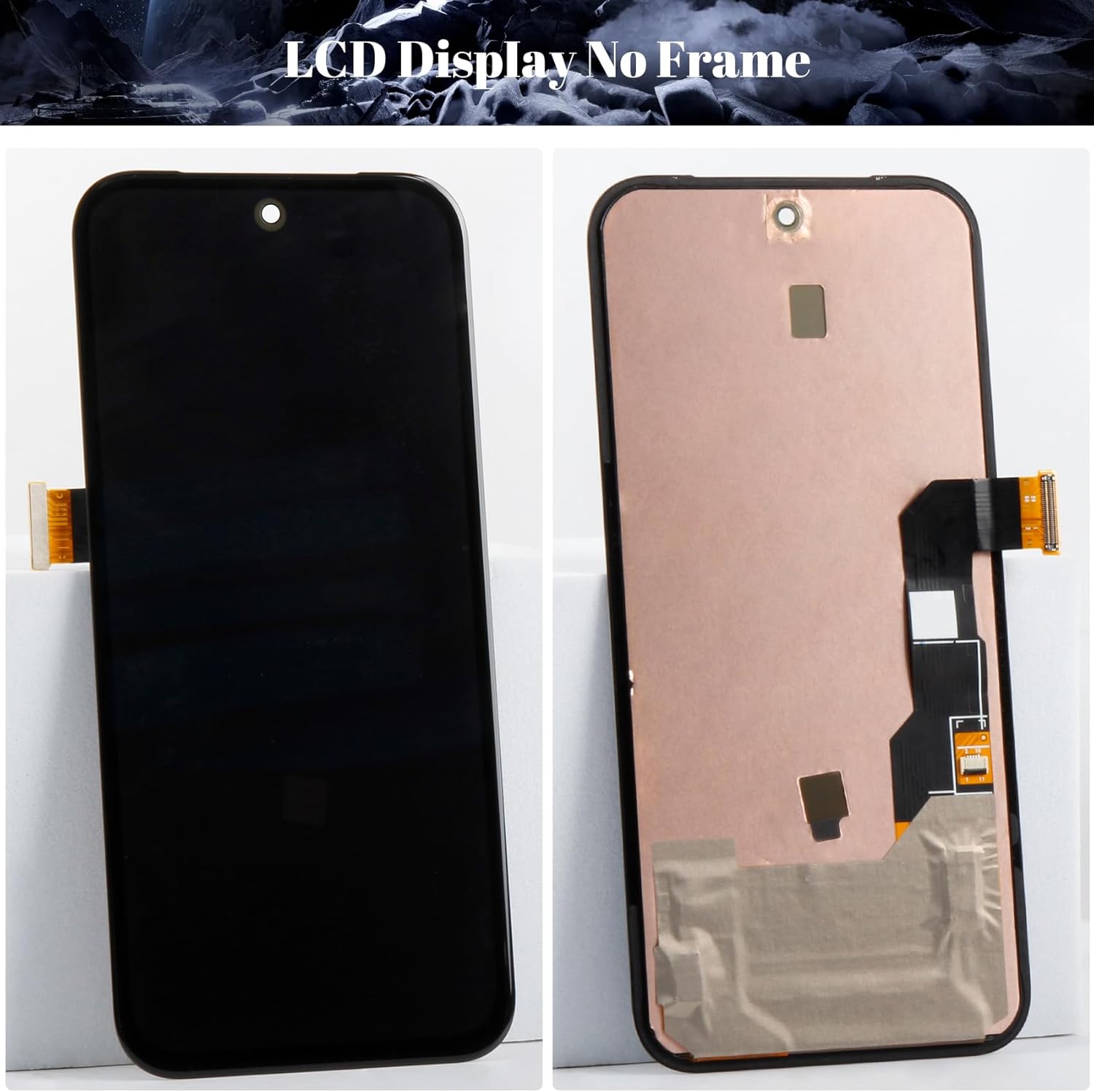
Image: Front and back view of the SRJTEK Google Pixel 8A LCD display assembly without a frame.

Image: Contents of a typical screen replacement tool kit, including various screwdrivers, pry tools, suction cup, and adhesive.
4. Setup and Installation
Before starting, ensure your phone is powered off and disconnect the battery if possible. This guide provides general steps; specific disassembly and reassembly procedures may vary slightly. Refer to online repair guides or videos for your specific phone model for detailed visual instructions.
- Prepare Your Workspace: Clear a clean, well-lit, and static-free area.
- Remove SIM Tray: Use the SIM ejector tool to remove the SIM card tray.
- Heat the Edges (if necessary): Gently heat the edges of the screen with a heat gun or hairdryer to soften the adhesive. Do not overheat.
- Pry Open the Screen: Use a suction cup to lift the screen slightly, then insert a thin pry tool (plastic preferred) to carefully separate the old screen from the phone frame. Work slowly around all edges.
- Disconnect Flex Cables: Once the screen is partially separated, carefully disconnect the flex cables connecting the screen to the motherboard. This usually involves prying up small ZIF connectors.
- Remove Old Screen: Completely remove the damaged screen.
- Transfer Components (if applicable): If your new screen does not come with a frame, you may need to transfer components like the earpiece speaker, front camera, and fingerprint sensor flex cable from your old screen to the new one. For fingerprint functionality, the fingerprint flex cable needs to be removed from your old screen and requires calibration after installation.
- Clean the Frame: Remove any old adhesive residue from the phone frame.
- Test New Screen: Before applying new adhesive, connect the new screen's flex cables to the motherboard. Power on the phone and test the display, touch functionality, and any transferred components. Power off the phone after testing.
- Apply New Adhesive: Apply new adhesive strips around the phone frame where the screen will sit.
- Install New Screen: Carefully align and press the new screen into the phone frame. Ensure all flex cables are properly connected and not pinched.
- Secure the Screen: Apply gentle, even pressure around the edges of the screen to ensure it adheres properly. You may use clamps or rubber bands for a few hours.
- Reinsert SIM Tray: Reinsert the SIM card tray.

Image: Close-up front view of the replacement LCD screen for Google Pixel 8A, showing the display area and cutout for the front camera.

Image: Close-up back view of the replacement LCD screen for Google Pixel 8A, showing the flex cable connections and mounting points.
5. Operating (Post-Installation Checks)
After installation, perform the following checks to ensure proper functionality:
- Power On: Turn on your Google Pixel 8A.
- Display Check: Verify that the display shows images correctly, with no dead pixels, lines, or discoloration.
- Touch Functionality: Test the entire screen for touch responsiveness. Drag an icon across the screen to ensure there are no dead spots.
- Brightness Adjustment: Check if the screen brightness can be adjusted.
- Fingerprint Sensor: If you transferred the fingerprint flex cable, ensure it is calibrated and functioning correctly.
- Front Camera/Earpiece: If transferred, test the front camera and earpiece speaker.
6. Maintenance
To prolong the life of your new screen:
- Screen Protector: Apply a high-quality screen protector to prevent scratches.
- Protective Case: Use a protective phone case to guard against drops and impacts.
- Cleaning: Clean the screen with a soft, lint-free cloth, preferably microfiber. Use a screen-specific cleaning solution if necessary, applied to the cloth, not directly to the screen.
- Avoid Pressure: Do not place heavy objects on your phone or apply excessive pressure to the screen.
- Temperature Extremes: Avoid exposing your phone to extreme temperatures.
7. Troubleshooting
If you encounter issues after installation, consider the following:
| Problem | Possible Cause | Solution |
|---|---|---|
| Screen not turning on | Loose flex cable connection, battery not connected, damaged screen. | Check all flex cable connections. Ensure battery is connected. Re-test the screen. If still not working, the screen may be faulty. |
| Touch not responding or dead spots | Loose touch flex cable, damaged touch digitizer, software issue. | Ensure touch flex cable is securely connected. Restart the phone. If the problem persists, the digitizer may be faulty. |
| Lines or discoloration on display | Damaged display flex cable, display panel damage, incorrect connection. | Check display flex cable connection. Ensure no debris is on the connector. If the issue persists, the display panel may be faulty. |
| Fingerprint sensor not working | Fingerprint flex cable not transferred, improperly connected, or not calibrated. | Ensure the original fingerprint flex cable was transferred and correctly connected. Perform fingerprint calibration as required by Google Pixel 8A. |
| Screen lifting from frame | Insufficient adhesive, improper seating. | Reapply new adhesive and ensure the screen is properly seated and clamped during curing. |
If troubleshooting steps do not resolve the issue, contact SRJTEK customer support or consult a professional repair service.
8. Specifications
- Product Type: LCD Display Digitizer Touch Screen Assembly (without frame)
- Compatibility: Google Pixel 8A (Models: GKV4X, G6GPR, G8HHN, G576D)
- Screen Size: 6.1 inches
- Resolution: 1080x2400 pixels
- Display Type: OLED
- Fingerprint Support: Yes (requires transfer of original flex cable and calibration)
- Item Weight: Approximately 0.32 ounces
- Manufacturer: SRJTEK
Screen Type Comparison
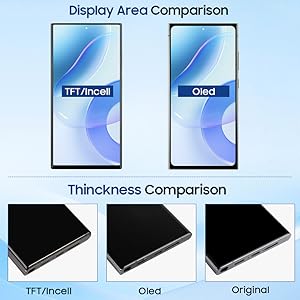
Image: Comparison illustrating differences in display area and thickness between TFT/Incell, OLED, and Original screen types.
Frame Type Comparison
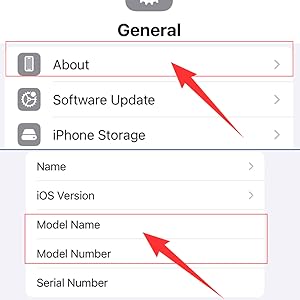
Image: Visual comparison between a screen replacement that includes a frame and one that does not. This product is "Without Frame".
9. Warranty and Support
SRJTEK products are quality tested before shipment. For warranty information or technical support, please refer to the seller's policy on the platform where the product was purchased or contact SRJTEK customer service directly.
Common issues addressed by warranty may include manufacturing defects such as unresponsive touch, dead pixels, or display abnormalities not caused by installation error or physical damage.
For further assistance, you may visit the SRJTEK store on Amazon: SRJTEK Store