
1. Introduction
Thank you for choosing the Upperizon G-14Q Portable Monitor. This manual provides essential information for setting up, operating, and maintaining your new monitor. Please read it thoroughly before use to ensure optimal performance and longevity of your device.
The Upperizon G-14Q is a 14-inch portable display featuring 2.5K (2520x1680) resolution, 100% sRGB color gamut, 450 nits brightness, and HDR support. It offers versatile connectivity via USB-C and HDMI, making it ideal for laptops, MacBooks, PCs, gaming consoles (PS5, Xbox), and other devices. Its lightweight design, integrated kickstand, and VESA compatibility enhance its portability and usability.

Image: The Upperizon G-14Q monitor highlighting its key display features: 2.5K resolution (2520x1680), 100% sRGB color accuracy, and 450 Nits brightness for a vivid visual experience.
2. Safety Information
- Do not expose the monitor to rain, moisture, or extreme temperatures.
- Avoid placing the monitor near heat sources or in direct sunlight.
- Use only the power adapter and cables provided or recommended by Upperizon.
- Do not attempt to disassemble or modify the monitor. Refer all servicing to qualified personnel.
- Keep the monitor away from strong magnetic fields.
- Clean the screen with a soft, lint-free cloth. Avoid using harsh chemicals.
3. Package Contents
Please check the package for the following items:
- Upperizon G-14Q Portable Monitor
- USB-C to USB-C Cable (for power and video)
- Mini HDMI to HDMI Cable (for video)
- USB-A to USB-C Cable (for power)
- Power Adapter
- User Manual (this document)
4. Product Overview
Familiarize yourself with the monitor's features and ports.

Image: Detailed diagram showing the various ports and controls on the Upperizon G-14Q portable monitor. This includes two Type-C ports, a Mini HDMI port, a power button, a menu button, a headphone jack, VESA mounting holes, and integrated speakers.
Port and Button Functions:
- Mini HDMI Port: Connects to devices for video input.
- USB Type-C Ports (x2):
- One port for power supply and video/audio signal transmission (full-featured USB-C).
- Another port primarily for power supply or additional data (depending on device compatibility).
- Power Button: Press and hold to turn the monitor on/off. Short press to access/exit the OSD menu.
- Menu Button/Scroll Wheel: Used to navigate and select options within the On-Screen Display (OSD) menu.
- Headphone Jack: For connecting external audio devices.
- Built-in Speakers: Provides audio output.
- VESA Holes: 75mm x 75mm mounting holes for VESA-compatible stands or wall mounts (M4x6 screws).
- Kickstand: Integrated adjustable kickstand for flexible viewing angles.
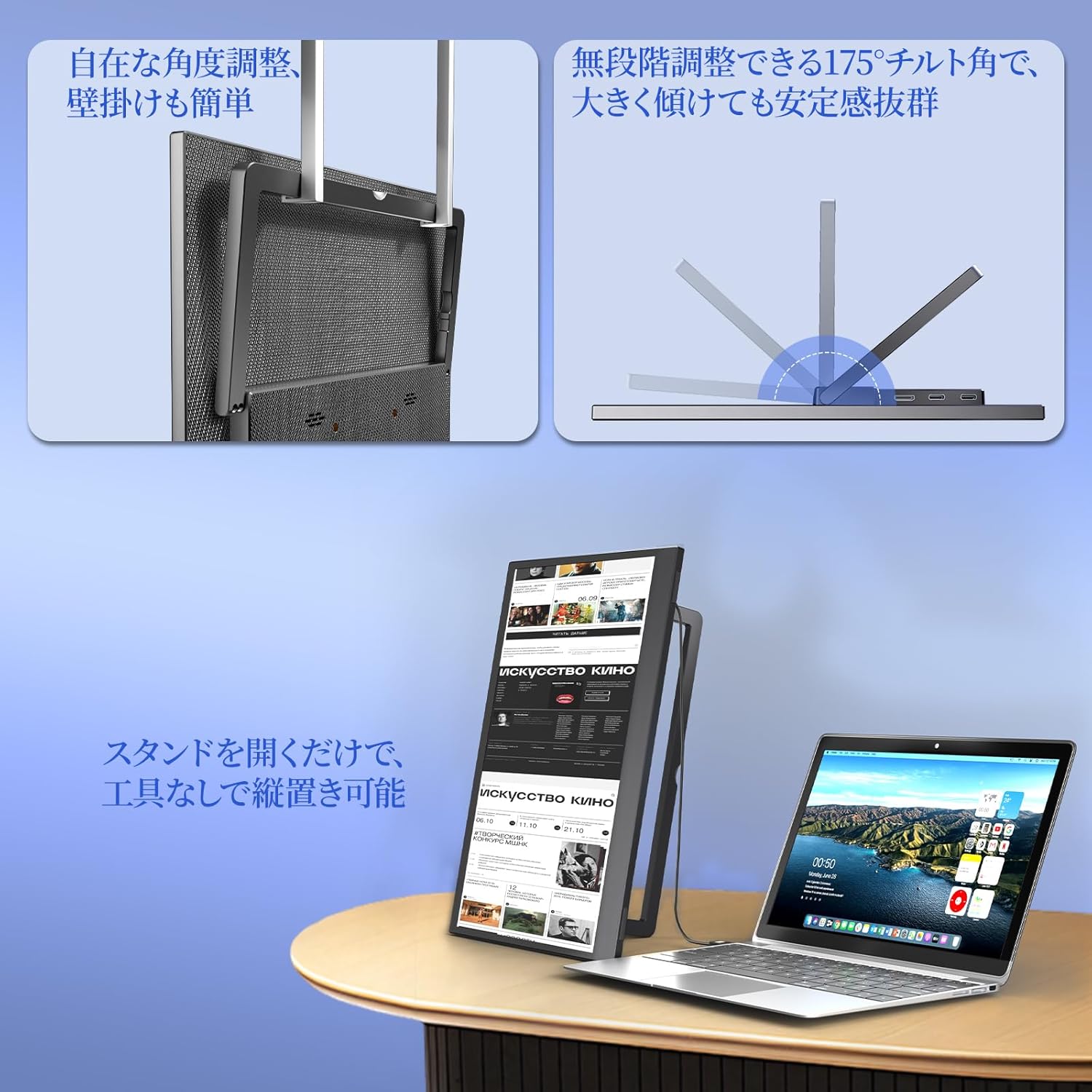
Image: The Upperizon G-14Q monitor demonstrating its flexible kickstand for various viewing angles and its VESA compatibility for alternative mounting solutions.

Image: Visual representation of the monitor's physical attributes, including its slim profile (8mm to 16mm), narrow 4mm bezels, light weight of approximately 570g, and a durable, fingerprint-resistant carbon-fiber-like back finish.
5. Setup
5.1 Powering the Monitor
The monitor can be powered via a USB-C connection. Connect the provided USB-C to USB-C cable or USB-A to USB-C cable to a power source (e.g., wall adapter, laptop USB port, power bank).
5.2 Connecting to Devices
The Upperizon G-14Q supports both USB-C and Mini HDMI connections for video input.
- USB-C Connection (Full-featured):
If your device (laptop, smartphone, tablet) has a full-featured USB-C port that supports DisplayPort Alternate Mode (DP Alt Mode) and power delivery, you can connect the monitor using a single USB-C to USB-C cable. This cable will transmit video, audio, and power simultaneously.
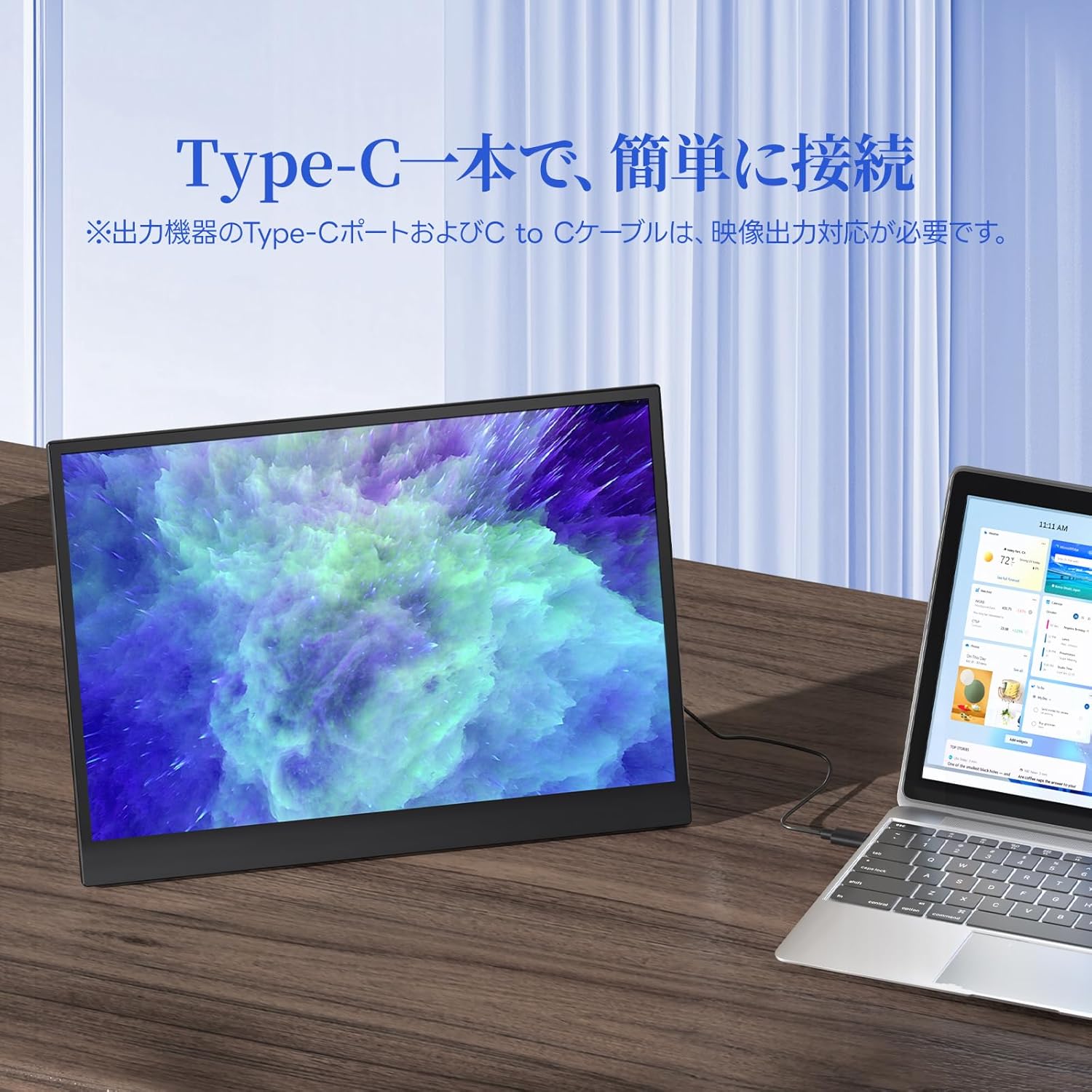
Image: The Upperizon G-14Q portable monitor seamlessly connected to a laptop using a single USB Type-C cable, demonstrating simplified connectivity for both power and display.
- HDMI Connection:
For devices with an HDMI output (e.g., desktop PC, gaming console, older laptops), use the provided Mini HDMI to HDMI cable. You will also need to power the monitor separately using a USB-C to USB-A cable connected to a power adapter or a powered USB port.
5.3 VESA Mounting
The monitor features 75mm x 75mm VESA mounting holes, allowing it to be attached to compatible monitor arms or wall mounts. Use M4x6 screws for secure installation.

Image: A multi-monitor setup featuring the Upperizon G-14Q mounted on a VESA arm, demonstrating its flexibility for various workspace configurations and space-saving benefits.
6. Operating the Monitor
6.1 On-Screen Display (OSD) Menu
Press the Power button briefly to access the OSD menu. Use the Menu button/scroll wheel to navigate through options and adjust settings such as brightness, contrast, color temperature, input source, and more.
6.2 Display Modes
When connected to a computer, you can configure the display mode:
- Extension Mode: Extends your desktop across both screens, providing more workspace.
- Duplicate Mode: Mirrors your primary display, showing the same content on both screens.
- Vertical Display: Allows you to rotate the monitor for a portrait orientation, useful for coding or document viewing.
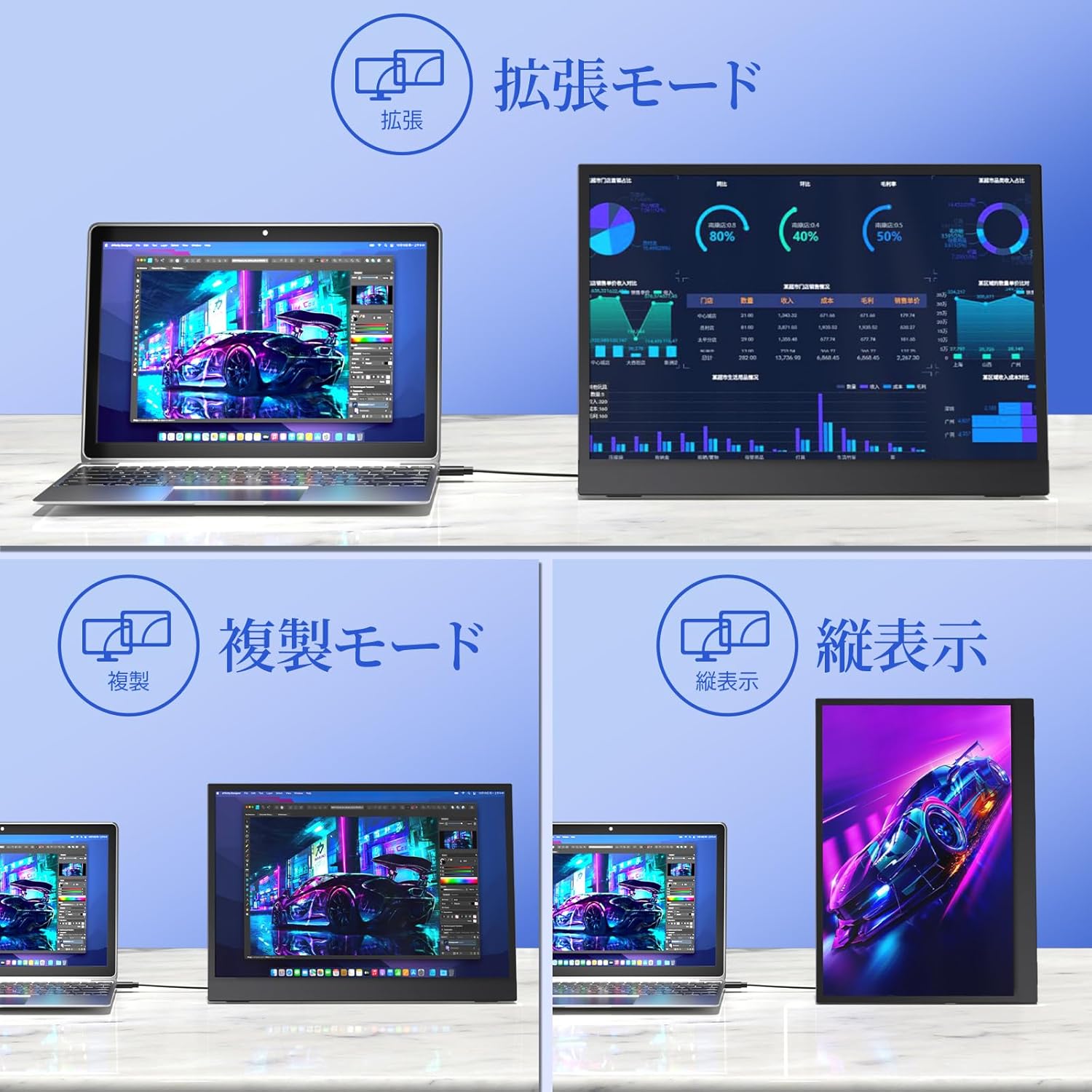
Image: Illustrations of the Upperizon G-14Q monitor in various display configurations: Extension Mode for expanded workspace, Duplicate Mode for mirrored content, and Vertical Display for portrait orientation.
6.3 Aspect Ratio
The G-14Q features a 3:2 aspect ratio, which is ideal for productivity tasks like document editing and web browsing, offering more vertical screen space. Ensure your device's display settings are configured to output the correct aspect ratio for optimal viewing.

Image: A visual comparison demonstrating the correct display of content with a 3:2 aspect ratio on the Upperizon G-14Q monitor versus an example where an incorrect aspect ratio leads to distorted images.
7. Maintenance
- Cleaning the Screen: Gently wipe the screen with a soft, lint-free cloth. For stubborn marks, slightly dampen the cloth with water or a screen-cleaning solution. Do not spray liquid directly onto the screen.
- Cleaning the Casing: Use a soft, dry cloth to clean the monitor's casing.
- Storage: When not in use for extended periods, store the monitor in a cool, dry place, preferably in its original packaging or a protective sleeve.
- Avoid Impact: Protect the monitor from drops and impacts, especially the screen.
8. Troubleshooting
| Problem | Possible Cause | Solution |
|---|---|---|
| No display/No signal |
|
|
| Flickering screen |
|
|
| No sound |
|
|
| Image distortion/Incorrect aspect ratio |
|
|
9. Specifications
| Feature | Detail |
|---|---|
| Brand | Upperizon |
| Model Number | G-14Q |
| Screen Size | 14 Inches |
| Resolution | 2520x1680 Pixels (2.5K) |
| Aspect Ratio | 3:2 |
| Refresh Rate | 60 Hz |
| Display Technology | LCD, IPS Panel |
| Screen Surface | Matte |
| Viewing Angle | 178 Degrees |
| Response Time | 5 Milliseconds |
| Hardware Connectivity | Thunderbolt, USB 3.1 Type C (x2), Mini HDMI (x1) |
| Adaptive Sync | FreeSync |
| Color | Black |
| Item Dimensions (D x W x H) | 0.62"D x 8.74"W x 12.2"H |
| Weight | Approximately 570g |
| Brightness | 450 Nits |
| Color Gamut | 100% sRGB |
| VESA Compatibility | 75mm x 75mm |
10. Warranty and Support
The Upperizon G-14Q Portable Monitor comes with a 2-year warranty from the date of purchase, as specified by the manufacturer. Please retain your proof of purchase for warranty claims.
For technical support, troubleshooting assistance, or warranty inquiries, please contact Upperizon customer service through the retailer's platform or visit the official Upperizon website for contact information.
Online Support: Visit the Upperizon Store on Amazon