
IMIPAW B0F2DTMXPP
IMIPAW Automatic Cat Feeder with Camera User Manual
Model: B0F2DTMXPP
1. Introduction
Thank you for choosing the IMIPAW Automatic Cat Feeder with Camera. This device is designed to provide convenient and precise feeding for your pet, ensuring they receive meals on schedule while allowing you to monitor and interact with them remotely. This manual provides detailed instructions for setup, operation, and maintenance to help you get the most out of your new feeder.

Figure 1: IMIPAW Automatic Cat Feeder with Camera.
2. Safety Information
- Ensure the feeder is placed on a stable, level surface to prevent tipping.
- Use only dry pet food with a size between 2-10mm to prevent clogging.
- Keep the power adapter and cable away from pets to prevent chewing or damage.
- Do not immerse the main unit in water or any other liquid.
- This device is intended for indoor use only.
- Keep out of reach of children.
3. Setup Guide
3.1 Unboxing and Components
Carefully remove all components from the packaging. Verify that all parts are present:
- Automatic Pet Feeder Main Unit
- Food Storage Container
- Food Bowl
- Power Adapter
- User Manual
3.2 Powering the Device
The feeder can be powered by the included AC adapter or 3 x D batteries (not included) for backup power.
- Connect the power adapter to the feeder's power port and plug it into a wall outlet.
- For battery backup, open the battery compartment at the bottom of the feeder and insert 3 x D alkaline batteries, ensuring correct polarity.

Figure 2: Powering the feeder with AC adapter or D batteries.
3.3 Filling the Food Tank
- Remove the lid of the food storage container.
- Pour dry pet food into the container. Ensure the food size is between 2-10mm to prevent jamming.
- Replace the lid securely.
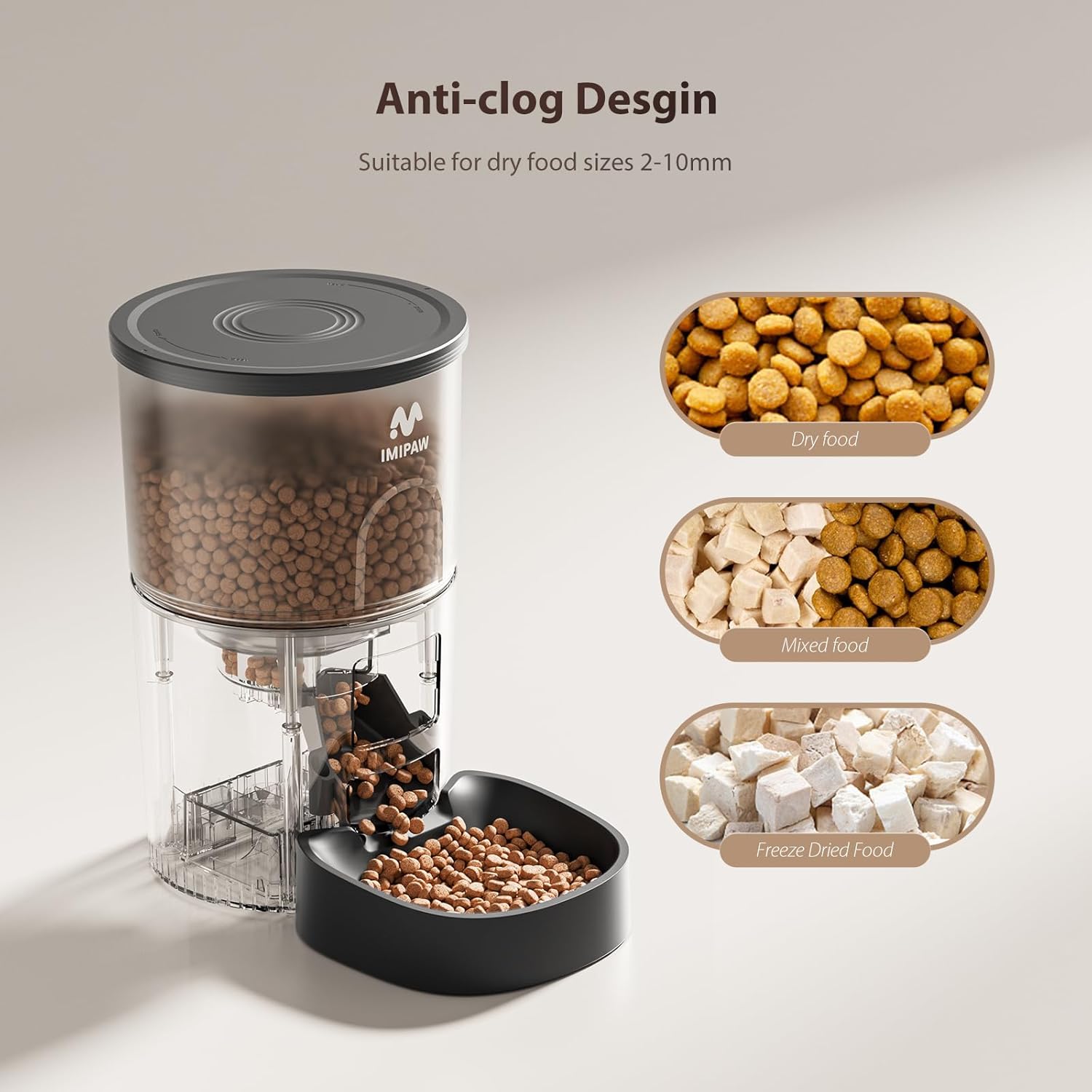
Figure 3: Anti-clog design and recommended food types.
3.4 App Download and Wi-Fi Connection
The IMIPAW feeder requires the "PetTech" app for full functionality. The feeder supports 2.4GHz Wi-Fi networks only.
- Download the "PetTech" app from your smartphone's app store.
- Register an account and log in.
- Add the device by following the in-app instructions. This typically involves scanning a QR code displayed on your phone screen with the feeder's camera.
- Ensure your phone is connected to a 2.4GHz Wi-Fi network during setup. 5GHz networks are not supported.

Figure 4: Connecting the feeder to your 2.4GHz Wi-Fi network via QR code.
3.5 Voice Recording Setup
You can record a personalized 10-second voice message that will play at each feeding time.
- Open the "PetTech" app and select your feeder.
- Navigate to the voice recording settings.
- Follow the prompts to record your message.
4. Operating Instructions
4.1 Scheduling Meals via App
Program your pet's feeding schedule with up to 8 meals per day and 20 portions per meal.
- In the "PetTech" app, select your feeder.
- Go to the "Feeding Schedule" or "Meal Plan" section.
- Set desired feeding times and the number of portions for each meal. One portion is approximately 1 tablespoon.
- Save your settings. The feeder will automatically dispense food at the programmed times.

Figure 5: Mobile App interface for setting feeding schedules.
4.2 Manual Feeding
You can dispense food manually at any time using the app or the physical button on the feeder.
- Via App: In the "PetTech" app, locate the "Feed Now" or "Manual Feed" option and select the number of portions.
- Via Feeder: Press the "FEED" button on the feeder's control panel to dispense one portion.
4.3 Two-Way Audio and Camera Monitoring
The built-in HD camera allows you to monitor your pet, and the two-way audio feature enables interaction.
- Live View: Open the "PetTech" app and select your feeder to view the live camera feed. The camera offers a 110° viewing angle.
- Two-Way Audio: Use the microphone icon in the app to speak to your pet, and listen through the feeder's speaker.
- Video Recording & Photo Taking: The app allows you to record video clips or take still photos from the live feed.

Figure 6: Interacting with your pet using two-way audio.

Figure 7: The 720p HD camera provides a clear view of your pet.
4.4 Motion Detection Reminders
The feeder can detect motion and send reminders to your app, allowing you to capture your pet's activities.
- Enable motion detection in the app settings for your feeder.
- Receive notifications when motion is detected near the feeder.

Figure 8: Motion detection alerts keep you informed of your pet's activity.
5. Maintenance
5.1 Cleaning Instructions
Regular cleaning ensures hygiene and proper functioning of the feeder.
- Unplug the feeder and remove any batteries.
- Remove the food storage container and food bowl.
- Wash the food storage container and food bowl with mild soap and water. Rinse thoroughly and dry completely before reassembling.
- Wipe the main unit with a soft, damp cloth. Do not submerge the main unit in water.
5.2 Desiccant Replacement
The desiccant pack helps keep food fresh. Replace it periodically (e.g., every 1-2 months).
- Locate the desiccant compartment, usually under the lid of the food container.
- Remove the old desiccant pack.
- Insert a new desiccant pack.
5.3 Battery Replacement
If using battery backup, replace the D batteries when the low battery indicator appears or when the feeder loses power during an outage.
- Unplug the AC adapter.
- Open the battery compartment at the bottom of the feeder.
- Replace the old batteries with new 3 x D alkaline batteries, observing polarity.
- Close the battery compartment.
6. Troubleshooting
| Problem | Possible Cause | Solution |
|---|---|---|
| Feeder not connecting to Wi-Fi. | Incorrect Wi-Fi band (5GHz not supported); incorrect password; weak signal; feeder too far from router. | Ensure your router is set to 2.4GHz. Double-check Wi-Fi password. Move feeder closer to the router. Restart feeder and router. |
| Food not dispensing. | Food tank empty; food jammed; dispensing mechanism blocked; incorrect schedule. | Refill food tank. Check for food jams and clear them. Ensure food size is appropriate (2-10mm). Verify feeding schedule in the app. |
| Camera not working or poor image quality. | Poor Wi-Fi connection; camera lens dirty; app issue. | Check Wi-Fi signal strength. Clean the camera lens. Restart the app and feeder. |
| Voice recording not playing. | No recording saved; volume too low. | Re-record the voice message in the app. Check app volume settings. |
7. Specifications
- Model: B0F2DTMXPP
- Brand: IMIPAW
- Dimensions: 7 x 7 x 12 inches
- Item Weight: 3.08 pounds
- Material: Acrylonitrile Butadiene Styrene
- Color: Black
- Power Supply: AC Adapter (5V DC), 3 x D Batteries (not included)
- Wi-Fi Support: 2.4GHz only
- Camera: 720p HD, 110° viewing angle
- Voice Recorder: Up to 10 seconds
- Meals Per Day: 1-8
- Portions Per Meal: Up to 20 (approx. 1 tbsp/portion)
- Suitable Food Size: 2-10mm dry food
8. Warranty and Support
For any issues or questions regarding your IMIPAW Automatic Cat Feeder, please contact IMIPAW customer support. Refer to the product packaging or the official IMIPAW website for the most up-to-date contact information and warranty details.
We hope our cat food feeder can help all pet owners reduce the burden of taking care of their pets and provide a pleasant experience.
Related Documents - B0F2DTMXPP
 |
IMIPAW Automatic Pet Feeder WiFi User Manual User manual for the IMIPAW Automatic Pet Feeder with WiFi, detailing setup, operation, safety precautions, and troubleshooting. Features app control, timed feeding, and voice recording. |
 |
IMIPAW Automatic Pet Feeder DU3L-WY User Manual User manual for the IMIPAW Automatic Pet Feeder, model DU3L-WY. This guide provides safety instructions, product overview, setup, operation, cleaning, maintenance, and troubleshooting for the WiFi-enabled pet feeder with app control. |
 |
Imipaw Automatic Pet Feeder DU4LB-KY User Manual User manual for the Imipaw Automatic Pet Feeder (Model DU4LB-KY). This guide provides detailed instructions on setup, programming feeding schedules, safety precautions, and troubleshooting for your pet's automatic food dispenser. |
 |
IMIPAW WiFi Pet Feeder: User Guide and App Operations Comprehensive guide to setting up and using the IMIPAW WiFi Pet Feeder, including manual operation steps and detailed instructions for the companion PETTECH mobile app. |
 |
IMIPAW Automatic Pet Feeder User Manual - WIFI Type Comprehensive user manual for the IMIPAW Automatic Pet Feeder (WIFI Type), covering setup, operation, safety, app connectivity, and troubleshooting for model DU4LB-WY. |
 |
iMiPaw DU3L-KY Automatic Pet Feeder: Programming and Portion Guide Learn how to program your iMiPaw DU3L-KY automatic pet feeder, including setting the time, meal schedules, and portion sizes. This guide also provides a reference for portion settings. |