1. Introduction
The Cubilux RCA to USB Line-in Audio Capture Cable is designed to facilitate the recording of stereo audio from various RCA LINE OUT sources directly to your computer. This cable converts analog RCA audio signals into digital USB audio, allowing for high-quality digital archiving or processing.


2. Package Contents
- 1 x Cubilux RCA to USB A Audio Capture Cable
3. Features
- RCA Audio Capture: Designed to record audio from RCA LINE OUT sources, including mixers, cassette tape players, CD players, and amplifiers.
- Computer Compatibility: Exclusively for use with computers (laptops, PCs).
- Dedicated Audio Capture: Specifically engineered for audio capture purposes; not intended for audio playback or connection to speakers/soundbars.
- High-Resolution Audio: Features a built-in Hi-Res Analog-to-Digital Converter (ADC) supporting up to 48 KHz/24-bit for crisp, lossless stereo sound without static, hissing, or cracking noise.
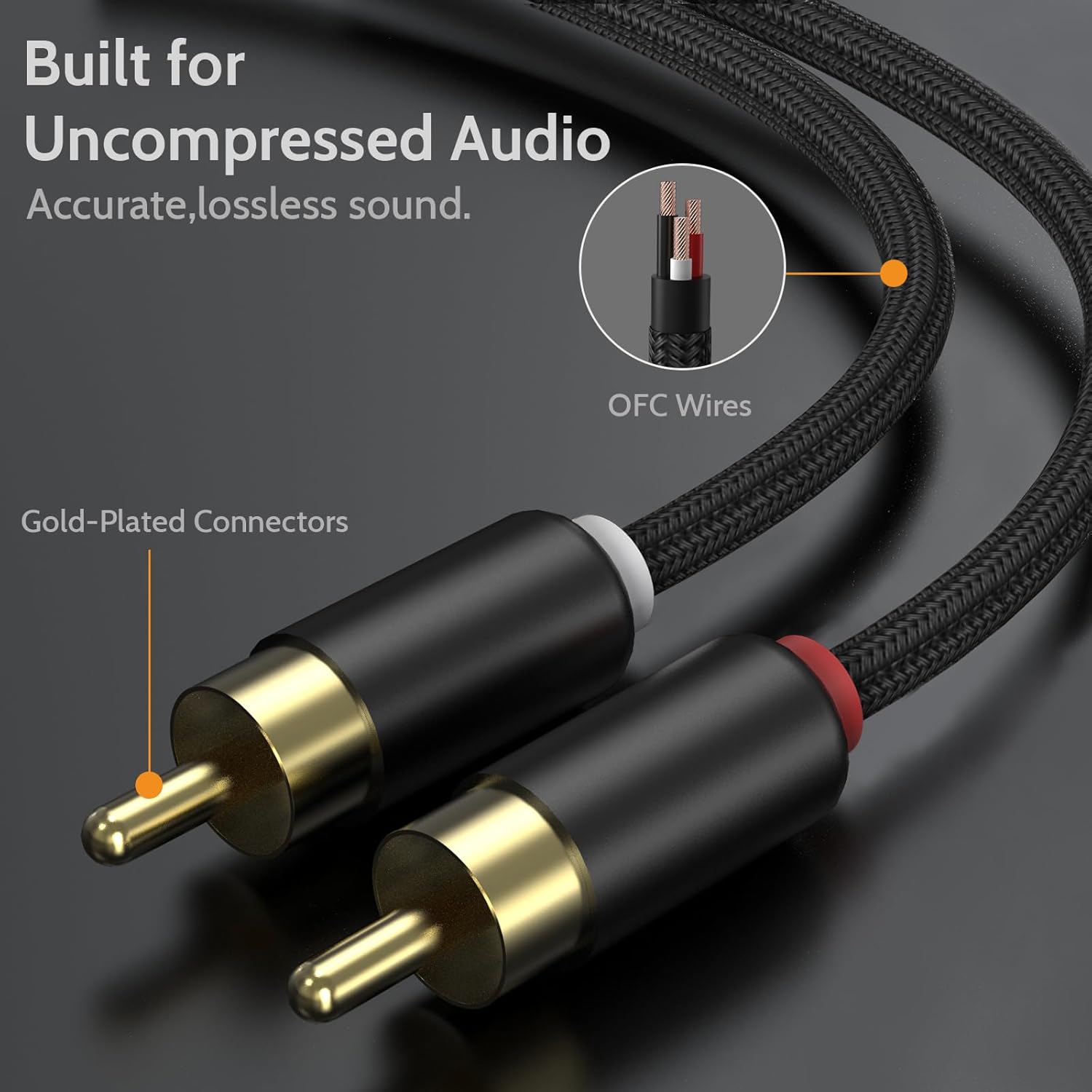
- Durable Construction: Built with aluminum cases and a nylon braided cord for enhanced durability and long-lasting performance.


4. Setup Instructions
Follow these steps to connect your Cubilux RCA to USB Audio Capture Cable:
- Connect RCA Plugs: Insert the red and white RCA plugs into the corresponding RCA LINE OUT ports of your audio source (e.g., mixer, amplifier, CD player). Ensure a secure connection.
- Connect USB-A Plug: Insert the USB-A plug of the cable into an available USB port on your laptop or PC.
- Driver Installation: The cable is plug-and-play and typically does not require additional drivers for most operating systems (Windows, macOS, Linux). Your computer should automatically recognize it as a USB audio input device.
- Select Input Device: In your computer's sound settings or your preferred audio recording software (e.g., Audacity, GarageBand), select the Cubilux RCA to USB Audio Capture Cable (it may appear as "USB Audio Device" or similar) as the audio input source.


5. Operating Instructions
Once the cable is connected and recognized by your computer:
- Open Recording Software: Launch your chosen audio recording application (e.g., Audacity, Adobe Audition, OBS Studio).
- Configure Input: Navigate to the audio settings within your software and ensure the Cubilux cable (e.g., "USB Audio Device") is selected as the input.
- Adjust Recording Levels: Play a test audio from your source and monitor the input levels in your software. Adjust the output volume on your audio source or the input gain in your software to prevent clipping (distortion) and ensure a strong, clear signal.
- Start Recording: Begin playback on your audio source and click the record button in your software.
- Stop Recording: Once finished, stop playback on your source and click the stop button in your software. Save your recorded audio file.
6. Compatibility
This cable is designed for use with computers only (laptops, desktop PCs). It is compatible with most operating systems that support USB audio devices, including Windows, macOS, and Linux.
7. Important Notes and Limitations
- Audio Capture Only: This cable is exclusively for capturing audio from RCA LINE OUT sources to a computer. It is not designed for playing audio from your computer to RCA-enabled speakers or other playback devices.
- Computer Use Only: The cable is not compatible with TVs, car radios, or devices with partial-featured USB ports that do not support standard USB audio input.
8. Maintenance
- Cleaning: Use a soft, dry cloth to clean the cable and connectors. Avoid using liquid cleaners or solvents.
- Storage: Store the cable in a cool, dry place away from direct sunlight and extreme temperatures. Avoid sharp bends or kinks in the cable to prevent internal damage.
- Handling: Always grasp the connector housing when plugging or unplugging the cable, rather than pulling on the cable itself.
9. Troubleshooting
| Problem | Possible Cause | Solution |
|---|---|---|
| No audio input detected | Incorrect input selection; Loose connections; Faulty USB port | Verify the cable is selected as the input device in your computer's sound settings and recording software. Ensure all RCA and USB connections are secure. Try a different USB port on your computer. |
| Distorted or noisy audio | Input levels too high; Ground loop interference; Faulty cable | Reduce the output volume from your audio source or the input gain in your recording software to prevent clipping. Ensure proper grounding of all audio equipment. Test with another cable if available. |
| Cable not recognized by computer | USB port issue; Operating system conflict | Try connecting to a different USB port. Restart your computer. Ensure your operating system is up to date. |
10. Specifications
| Feature | Detail |
|---|---|
| Brand | Cubilux |
| Connector Type | RCA, USB Type A |
| Cable Type | RCA |
| Compatible Devices | Laptop, PC, Computer |
| Special Feature | Audio Capture, Hi-Res ADC, Plug and Play |
| Recommended Uses For Product | Audio Recording |
| Connector Gender | Male-to-Male |
| Unit Count | 5.0 Feet |
| Indoor/Outdoor Usage | Indoor |
| Item Weight | 1.44 ounces |
| Audio Resolution | Up to 48 KHz/24-bit |
11. Warranty and Support
For warranty information and customer support, please refer to the documentation included with your purchase or visit the official Cubilux website. If you encounter any issues not covered in this manual, please contact Cubilux customer service for assistance.
12. Video Resources
Cubilux Audio Capture Cable Overview
This video provides a visual overview of the Cubilux RCA to USB Audio Capture Cable, demonstrating its features and how it connects to various audio sources and computers for recording.


