
1. Introduction
Thank you for choosing the Inefala 9-inch Android Car Stereo. This manual provides essential information for the proper installation, operation, and maintenance of your new car stereo system. This unit is designed specifically for Kia Optima K5 models from 2014 to 2015, offering an upgraded experience with features like wireless CarPlay, Android Auto, Bluetooth 5.0, GPS navigation, and AHD backup camera support. Please read this manual thoroughly before installation and use to ensure optimal performance and safety.
2. Safety Information
- Professional Installation Recommended: Due to the complexity of car electrical systems, professional installation is highly recommended to prevent damage to the unit or your vehicle.
- Power Connection: Ensure all power connections are correct and secure to avoid short circuits or electrical fires. Always disconnect the vehicle's battery before starting installation.
- Driving Safety: Do not operate the unit in a way that distracts you from driving. Always prioritize road safety.
- Temperature: Avoid exposing the unit to extreme temperatures or direct sunlight for prolonged periods.
- Moisture: Keep the unit away from water and excessive moisture.
3. Vehicle Compatibility
This upgraded dash kit is designed for Kia Optima K5 models manufactured in 2014 and 2015. Before purchasing and installation, please verify that the power cable port on the detail page matches your original car's configuration. Activation of steering wheel controls requires key learning in the unit's settings after installation.

Figure 3.1: Visual guide for compatible and incompatible Kia Optima K5 dashboards (2014-2015).
4. Package Contents
Please check the box for the following items:
- 1 x Inefala Android Radio for Kia Optima K5
- 1 x Power Cable
- 1 x RCA Harness
- 1 x GPS Antenna
- 1 x AHD Backup Camera
- 1 x Rear Camera Input Cable
- 1 x External Microphone
- 2 x USB Cables
- 1 x Installation Tool

Figure 4.1: Contents of the Inefala Android Car Stereo package.
5. Product Specifications
| Feature | Specification |
|---|---|
| Operating System | Android |
| CPU | 8 Core |
| RAM | 4GB |
| ROM | 64GB |
| Display Size | 9 Inches |
| Screen Resolution | 1280x720 |
| Connectivity | Bluetooth 5.0, USB, Wi-Fi |
| Special Features | 1080P Video Playback, 32-band EQ, 19 Backgrounds, 59 Desktop Themes, Hands-free Bluetooth, Touchscreen, FM/RDS Radio, Reverse Input Support, Steering Wheel Learning, Wireless/Wired CarPlay & Android Auto & Mirror Link, Siri/Google Voice Assistant, GPS Navigation, WiFi/Hotspot Connection |
| Map Type | Worldwide |
| Mounting Type | Dashboard Mount |
| Audio Output Mode | Stereo |
| Item Weight | 4.11 pounds |
| Package Dimensions | 19.88 x 10.43 x 2.76 inches |
6. Setup and Installation
6.1. Initial Test Before Installation
Before fully installing the unit, perform a quick test to ensure it is functioning correctly:
- Combine the red and yellow wires of the car stereo and connect them to the positive pole of the 12V battery.
- Connect the black wire to the negative pole of the battery.
- After 2 seconds, check if the screen lights up. If it does, the car stereo is functioning normally. If the screen does not turn on, recheck the installation procedure and wiring.
6.2. Wiring Connections
Refer to the wiring diagrams for proper connection of all components. Ensure all sockets are securely connected. If a harness is different or accessories are missing, contact customer support.

Figure 6.1: Port details and RCA harness connections.
6.3. Reversing Camera Wiring
The reversing input must be plugged in even when the reversing camera is not used, as WiFi and Bluetooth signals may be affected otherwise. The included AHD backup camera provides night vision and is waterproof.
- Cable 1 and Cable 5: Connect the positive pole of the car reversing light cable.
- Cable 2: Connect the negative pole of the car reversing light cable.
- Cable 3 and Cable 4: Connect to the reverse trigger wire of the power cable (labeled "Reverse/Back"). If this wire is not needed, pull it out and connect it if the last step does not work.

Figure 6.2: Reversing camera wiring diagram.
6.4. Steering Wheel Control Learning
To enable steering wheel controls:
- Without CANBUS box: Activation of steering wheel controls requires key learning in the unit's settings.
- With CANBUS box:
- Connect the 20-pin white port in the power cable to the CANBUS itself.
- Connect the remaining 8-pin white port to the corresponding port on the back of the radio.
- Match the car model. CANBUS Matching Path: Settings -> Factory Setup (Password 1234) -> Can Settings.
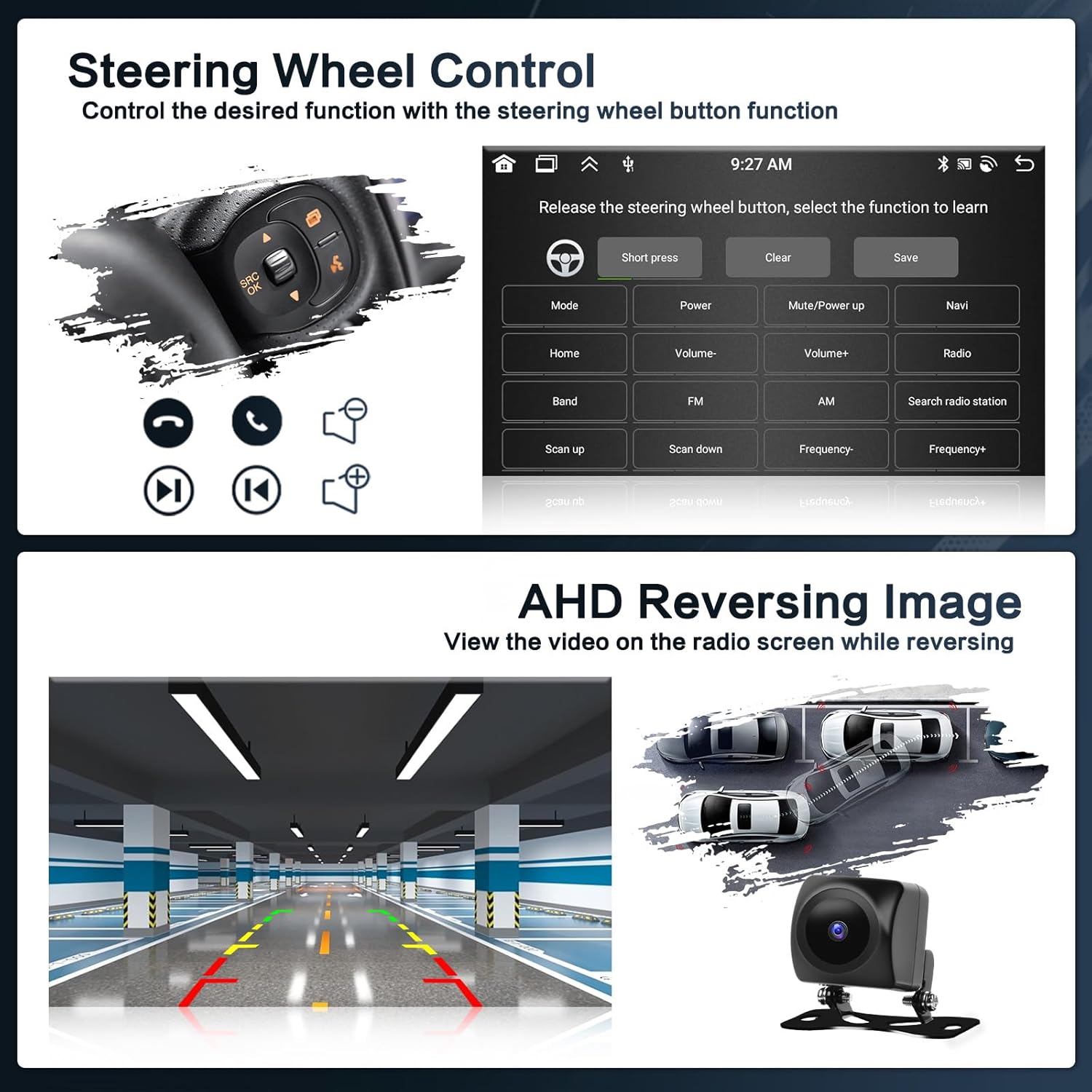
Figure 6.3: Steering wheel control interface for function learning.
7. Operating Instructions
7.1. CarPlay & Android Auto & Mirror Link
The unit supports both wireless and wired connections for Apple CarPlay and Android Auto, as well as Mirror Link functionality.
- Wireless Connection:
- Turn on your phone's Bluetooth, search for the car stereo's Bluetooth, and pair it.
- Click the "CPLink"/"Android Auto" app on the car stereo.
- Wait for a few seconds, and the CarPlay/Android Auto wireless connection will happen automatically.
- After the first successful connection, it will start automatically. You can use voice assistant, navigation, music, calls, and more.
- Wired Connection:
- Connect your iOS/Android cell phone via the original USB cable.
- Click the "CPLink"/"Android Auto" app on the car stereo.
- Wait for a few seconds, and the CarPlay/Android Auto wired connection will happen automatically.
- Note: For Samsung, some phones may not support Android Auto and Mirror Link. For Huawei, some phones may not support Android Auto. The phone needs to support Google Services and install the "Android Auto" app.

Figure 7.1: Wireless CarPlay, Android Auto, and Mirror Link functionality.
Video 7.1: Demonstration of the Android car stereo function interface, including CarPlay and Android Auto music and navigation.
7.2. GPS Navigation
The unit supports online and offline navigation. Satellite navigation supports GPS/Glonass/Galileo for wide coverage. Users can download navigation apps like Waze or free offline maps from the Play Store.
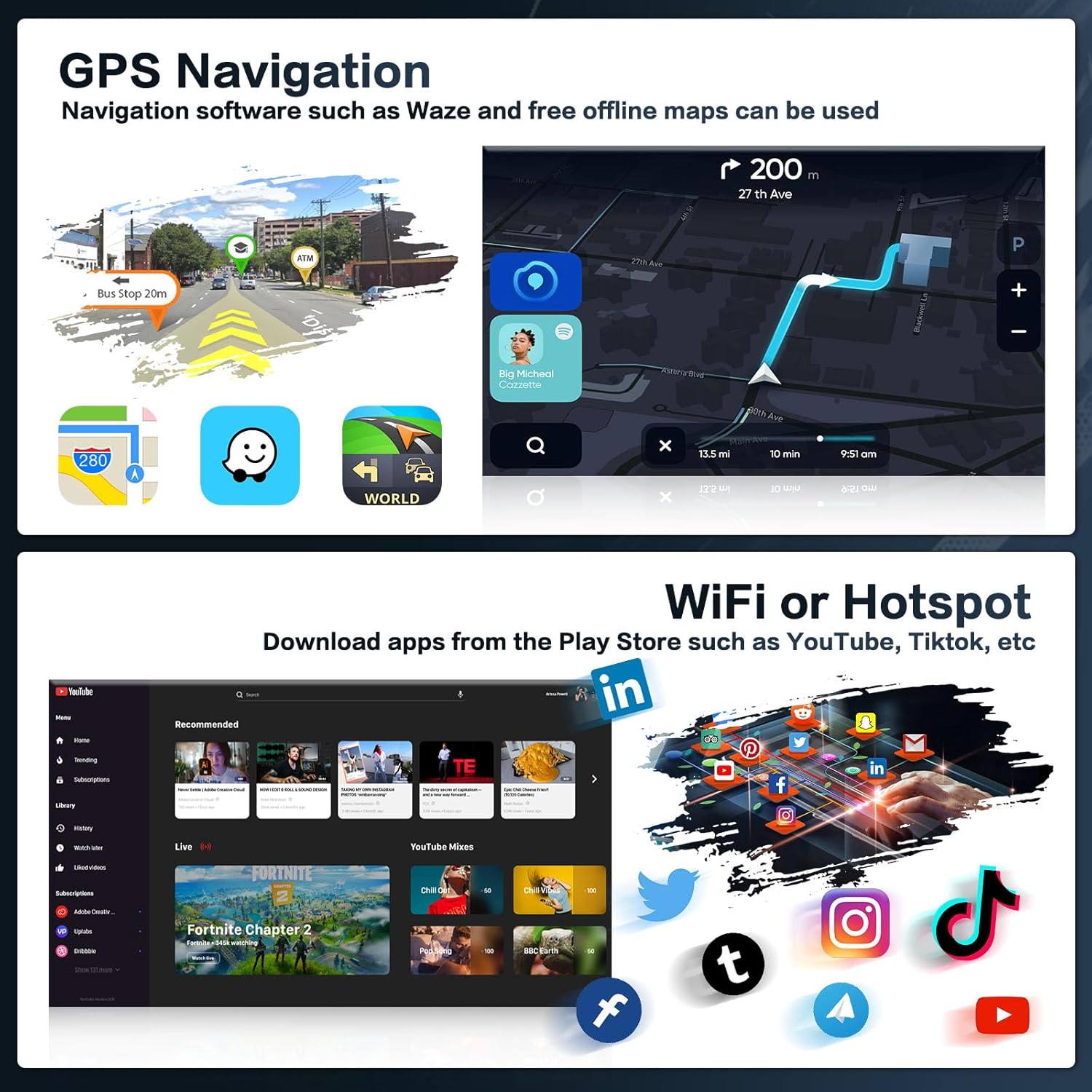
Figure 7.2: GPS Navigation and WiFi Hotspot features.
7.3. Bluetooth 5.0
Bluetooth 5.0 supports hands-free calling, phone book download, and music playback, enhancing convenience and safety while driving.

Figure 7.3: Hands-free Bluetooth and FM/RDS Radio.
7.4. FM/RDS Radio
The stable FM/RDS radio allows you to preset 18 stations, providing channel broadcasts, weather forecasts, and real-time road conditions.
7.5. Display Features
The IPS screen with 1280 x 720 ultra-high resolution supports split screen and 1080P video playback. You can switch between 59 desktop themes and 19 backgrounds to personalize your interface.

Figure 7.4: Wallpaper options and desktop themes.

Figure 7.5: 32-band DSP, Split Screen, and 1280x720 Resolution.
7.6. Voice Control
Utilize voice commands for hands-free operation, enhancing driving intelligence and security. This allows for easier access to functions like opening FM radio or making calls.
7.7. DSP (Digital Sound Processor)
The DSP supports 32-band EQ options, allowing you to fine-tune the audio frequency for a personalized sound experience.
8. Troubleshooting
If you encounter any issues with your Inefala car stereo, please refer to the following general troubleshooting steps:
- No Power: Check all power connections, including the 12V battery connection and ground wire. Ensure the fuse is not blown.
- No Sound: Verify speaker connections. Check audio settings and ensure volume is not muted.
- Bluetooth Connection Issues: Ensure Bluetooth is enabled on both the stereo and your phone. Try unpairing and re-pairing the devices.
- GPS Signal Loss: Ensure the GPS antenna is properly installed and has a clear view of the sky.
- Steering Wheel Controls Not Working: Perform the steering wheel learning procedure as described in Section 6.4.
For persistent issues or specific technical support, please contact Inefala customer service.
9. Warranty and Support
Your Inefala car stereo comes with a 1-year warranty. For product support, returns, or any inquiries, please contact Inefala Direct. You can reach us by clicking "Inefala Direct" on the product page and then selecting "Ask a question." Providing detailed descriptions, pictures, or videos of your issue will help us resolve it faster.

Figure 9.1: How to contact Inefala Direct for support.