TOPGRO T2-Pro Mini Gaming PC User Manual
Model: T2-PRO
Introduction
The TOPGRO T2-Pro Mini Gaming PC is a high-performance desktop computer designed for gaming, content creation, and demanding applications. It features a 13th Gen Intel Core i9-13900HK processor, an NVIDIA GeForce RTX 4060 mobile graphics card, 32GB of DDR5 RAM, and a 1TB M.2 NVMe PCIe 4.0 SSD. This manual provides essential information for setting up, operating, maintaining, and troubleshooting your new mini PC.

Figure 1: TOPGRO T2-Pro Mini Gaming PC Key Features
Package Contents
Please verify that all items listed below are included in your package:
- TOPGRO T2-Pro Mini Gaming PC (x1)
- Power Adapter (x1)
- Power Cable (x1)
- SATA HDD Connection Cable (x2)
- USB Memory for Recovery (x1)
- User Manual/Warranty Card (x1)
- Mounting Screws (x1 set)
Setup Guide
1. Connecting Peripherals
Before powering on your TOPGRO T2-Pro, connect all necessary peripherals:
- Display: Connect your monitor(s) to the HDMI 2.0 ports (up to two 4K@60Hz displays supported) or the USB-C (DP+USB) port using appropriate cables.
- Keyboard and Mouse: Connect your USB keyboard and mouse to the available USB 2.0 or USB 3.0 ports. Wireless peripherals can be connected via Bluetooth 5.3.
- Network: For wired internet, connect an Ethernet cable to the 2.5Gbps LAN port. For wireless internet, ensure the WiFi 6E antennas are securely attached (if external) and connect via Wi-Fi.
- Audio: Connect speakers or headphones to the Line Out port, or use HDMI audio.
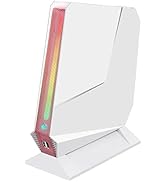
Figure 2: Rear and Front Panel Interfaces
2. Power Connection
Connect the power adapter to the DC IN port on the mini PC, then plug the power cable into a wall outlet. The system is designed for efficient power delivery.
3. Initial Boot-up
Press the power button located on the front of the unit. The system will boot into Windows 11 Pro. Follow the on-screen instructions for initial Windows setup, including language, region, and network configuration.
Operating Your Mini PC
Windows 11 Pro
Your TOPGRO T2-Pro comes pre-installed with Windows 11 Pro, offering a secure and productive computing experience. Familiarize yourself with the Windows interface, Start Menu, and settings to customize your environment.
Storage Expansion
The mini PC includes a 1TB M.2 NVMe PCIe 4.0 SSD. For additional storage, two M.2 2280 SSD slots are available, expandable up to 8TB. An additional 2.5" HDD slot is also available for further expansion, up to 2TB. Refer to the detailed instructions for installing additional storage devices.

Figure 3: Internal Storage and Memory Expansion Options
Network Connectivity
- Wired: Utilize the 2.5Gbps LAN port for high-speed wired network connections.
- Wireless: The integrated WiFi 6E (802.11ax) provides fast and stable wireless connectivity. Connect to your preferred Wi-Fi network through Windows settings.
- Bluetooth: Bluetooth 5.3 allows for seamless connection to wireless accessories such as keyboards, mice, and audio devices.
Maintenance
System Updates
Regularly check for and install Windows updates to ensure system stability, security, and optimal performance. Also, update graphics drivers (NVIDIA GeForce RTX 4060) from the official NVIDIA website for the best gaming and application experience.
Cleaning
To maintain optimal cooling performance, periodically clean the exterior of the mini PC and ensure ventilation openings are free from dust. Use a soft, dry cloth for cleaning. Avoid liquid cleaners directly on the device.

Figure 4: Efficient Cooling System Overview
Data Backup
Regularly back up your important data to an external drive or cloud storage to prevent data loss. The included USB Memory for Recovery can be used for system restoration if needed.
Troubleshooting
No Power
- Ensure the power adapter is securely connected to both the PC and a working power outlet.
- Verify the power outlet is functional by plugging in another device.
- Check the power button for any damage or obstruction.
No Display Output
- Confirm that the monitor is powered on and the correct input source is selected.
- Check all display cables (HDMI, USB-C) for secure connections. Try a different cable or port if available.
- If using multiple monitors, try connecting only one monitor to isolate the issue.
Network Connectivity Issues
- Wired: Ensure the Ethernet cable is properly connected and the router/modem is working. Check network adapter settings in Windows.
- Wireless: Verify Wi-Fi is enabled in Windows settings and you are connected to the correct network. Restart your router/modem. Ensure external antennas are properly attached.
Performance Issues (Lag, Slowdowns)
- Ensure all drivers, especially graphics drivers, are up to date.
- Check for background applications consuming excessive resources using Task Manager.
- Monitor system temperatures. Ensure the PC has adequate ventilation and is not overheating.
Performance Overview
Gaming Performance Demonstration
Observe the TOPGRO T2-Pro Mini Gaming PC's performance with the NVIDIA RTX 4060 GPU in a demanding game environment. This video showcases actual gameplay footage and performance metrics.
Video 1: TOPGRO RTX 4060 Performance in Black Myth Wukong
Technical Specifications
| Feature | Specification |
|---|---|
| Processor | Intel Core i9-13900HK (14C/20T, up to 5.4GHz) |
| Graphics Coprocessor | NVIDIA GeForce RTX 4060 (8GB GDDR6) |
| RAM | 32 GB DDR5 (5200 MHz), expandable up to 64 GB |
| Storage | 1 TB M.2 NVMe PCIe 4.0 SSD (expandable up to 8TB via 2x M.2 2280 slots, plus 2.5" HDD slot up to 2TB) |
| Operating System | Windows 11 Pro |
| Wireless Connectivity | WiFi 6E (802.11ax), Bluetooth 5.3 |
| LAN | 2.5Gbps Ethernet |
| Video Output | 2 x HDMI 2.0 (4K@60Hz), 1 x USB-C (DP+USB) - Supports up to 2 screens |
| USB Ports | 4 x USB 3.0, 2 x USB 2.0 |
| Dimensions (LxWxH) | 10.24 x 1.57 x 11.81 inches |
| Weight | 3.08 pounds |
Warranty and Support
TOPGRO is committed to providing reliable products and excellent customer service. Your TOPGRO T2-Pro Mini Gaming PC comes with a warranty. Please refer to the included Warranty Card for specific terms and conditions.

Figure 5: Warranty Service Information
Customer Support
For technical assistance, warranty claims, or any product-related inquiries, please contact TOPGRO Direct customer service. You can typically find contact information on the warranty card or by visiting the TOPGRO store on Amazon.
- Online Support: Visit the TOPGRO Store on Amazon.
- Email Support: Refer to your warranty card or product packaging for the dedicated support email address.
When contacting support, please have your product model (T2-PRO) and purchase details ready.