
1. Introduction
The ZAQE M4 MP3 Player is a portable multimedia device designed for music playback, video viewing, voice recording, and more. It features a 2.4-inch full touch screen, Bluetooth 5.3 connectivity, a built-in HD speaker, and 64GB of internal storage, expandable up to 128GB with a TF card. This manual provides instructions for setting up and operating your device.
2. Package Contents
Please verify that all items are present in the package:
- ZAQE MP3 Player (M4)
- Type-C USB Cable
- Wired Headphones
- User Manual
- Protective Cover

Image: The package contents including the MP3 player, wired headphones, USB cable, and user manual.
3. Device Overview
Familiarize yourself with the physical components of your ZAQE M4 MP3 Player.
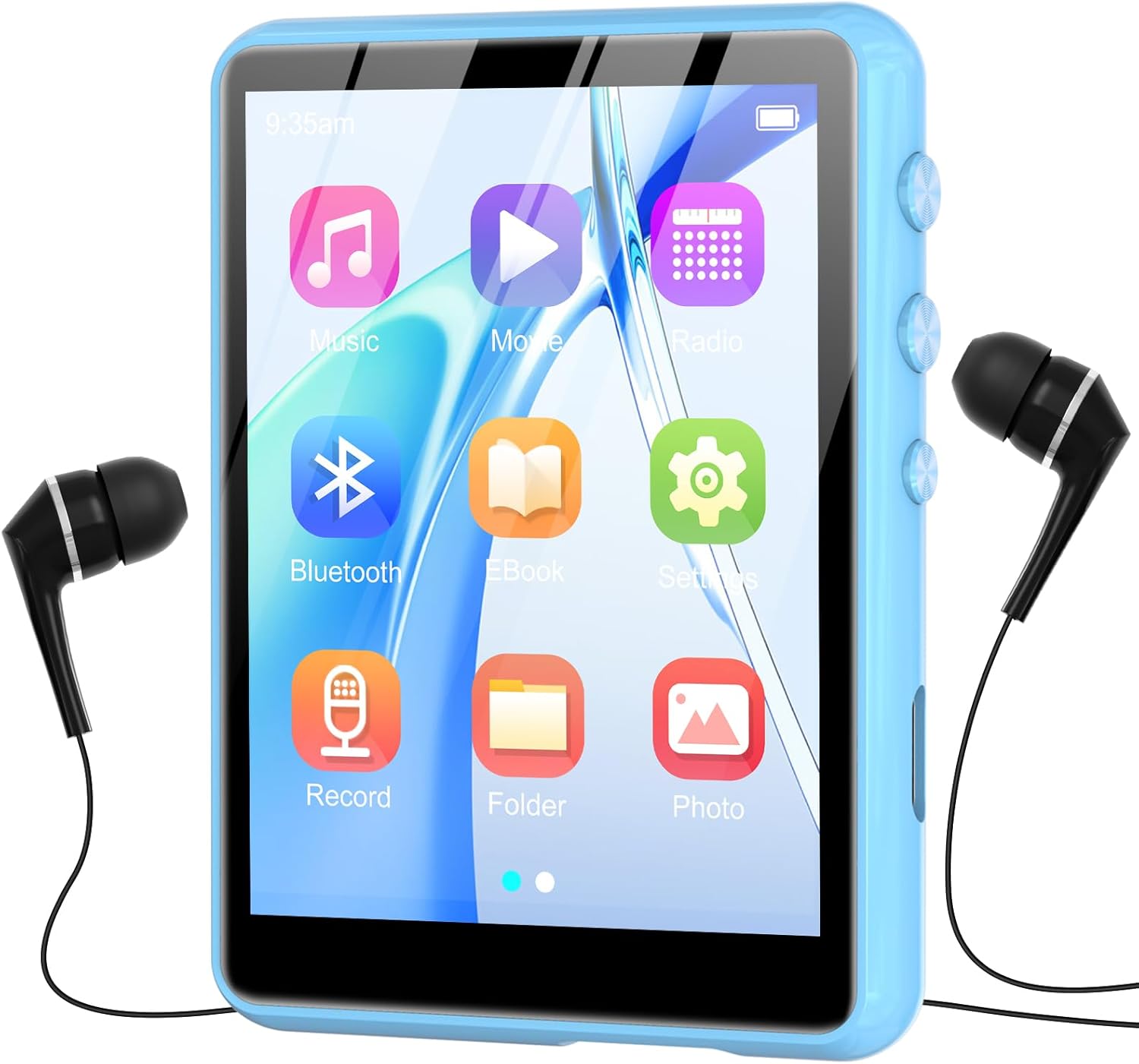
Image: Front view of the ZAQE M4 MP3 Player, displaying its 2.4-inch full touch screen with various application icons.

Image: Side view of the ZAQE M4 MP3 Player, highlighting the physical control buttons and ports for headphones and charging.

Image: Diagram illustrating the dimensions of the ZAQE M4 MP3 Player: 2.81 inches in height, 2.02 inches in width, and 0.38 inches in thickness.
4. Setup
4.1 Initial Charging
Before first use, fully charge the device. Connect the provided Type-C USB cable to the player's charging port and the other end to a USB power adapter (not included) or a computer's USB port. The battery indicator on the screen will show charging status.

Image: Visual representation of the MP3 player's internal 300mAh battery, indicating its power capacity.
4.2 Power On/Off
- To Power On: Press and hold the power button located on the side of the device until the screen illuminates.
- To Power Off: Press and hold the power button until a power-off option appears on the screen, then confirm. A short press will turn the screen off/on.
5. Basic Operation
5.1 Touch Screen Navigation
The ZAQE M4 features a full touch screen for intuitive navigation. Swipe left or right to browse through menus and tap icons to select functions or open applications.
5.2 Volume Control
Use the physical volume buttons on the side of the device to adjust the audio output level.
6. Music Playback
The player supports various audio formats, including MP3, WAV, WMA, AAC-LC, AAC, and FLAC. Enjoy high-fidelity sound quality through the built-in speaker or connected headphones.
6.1 Loading Music Files
Connect the MP3 player to your computer using the Type-C USB cable. The device will appear as a removable disk. Drag and drop your music files into the designated music folder on the player. The internal memory is 64GB, and it supports expansion up to 128GB via a TF card (not included).

Image: The ZAQE M4 MP3 Player highlighting its 64GB internal storage and the slot for a 128GB TF card for expanded memory.
6.2 Playing Music
- From the main menu, tap the "Music" icon.
- Browse your music library by artist, album, genre, or all songs.
- Tap a song to begin playback.
- Use the on-screen controls for play/pause, skip tracks, and repeat modes.

Image: The ZAQE M4 MP3 Player with text indicating HiFi Sound Quality and support for various audio formats (MP3, WAV, APE, WMA, FLAC, AAC-LC).
6.3 Built-in Speaker
The device includes a built-in speaker, allowing you to listen to music without headphones. This feature is convenient for sharing audio in quiet environments.

Image: A family enjoying music from the ZAQE M4 MP3 Player, illustrating its built-in speaker functionality for shared listening.
7. Bluetooth Connectivity
The ZAQE M4 features Bluetooth 5.3 for wireless audio streaming to compatible headphones or speakers. Bluetooth 5.3 offers faster data transfer, a more stable connection, and reduced power consumption compared to previous versions.
7.1 Pairing with Bluetooth Devices
- Ensure your Bluetooth headphones or speaker are in pairing mode.
- On the MP3 player, navigate to the "Bluetooth" menu.
- Turn Bluetooth on and scan for available devices.
- Select your device from the list to pair.
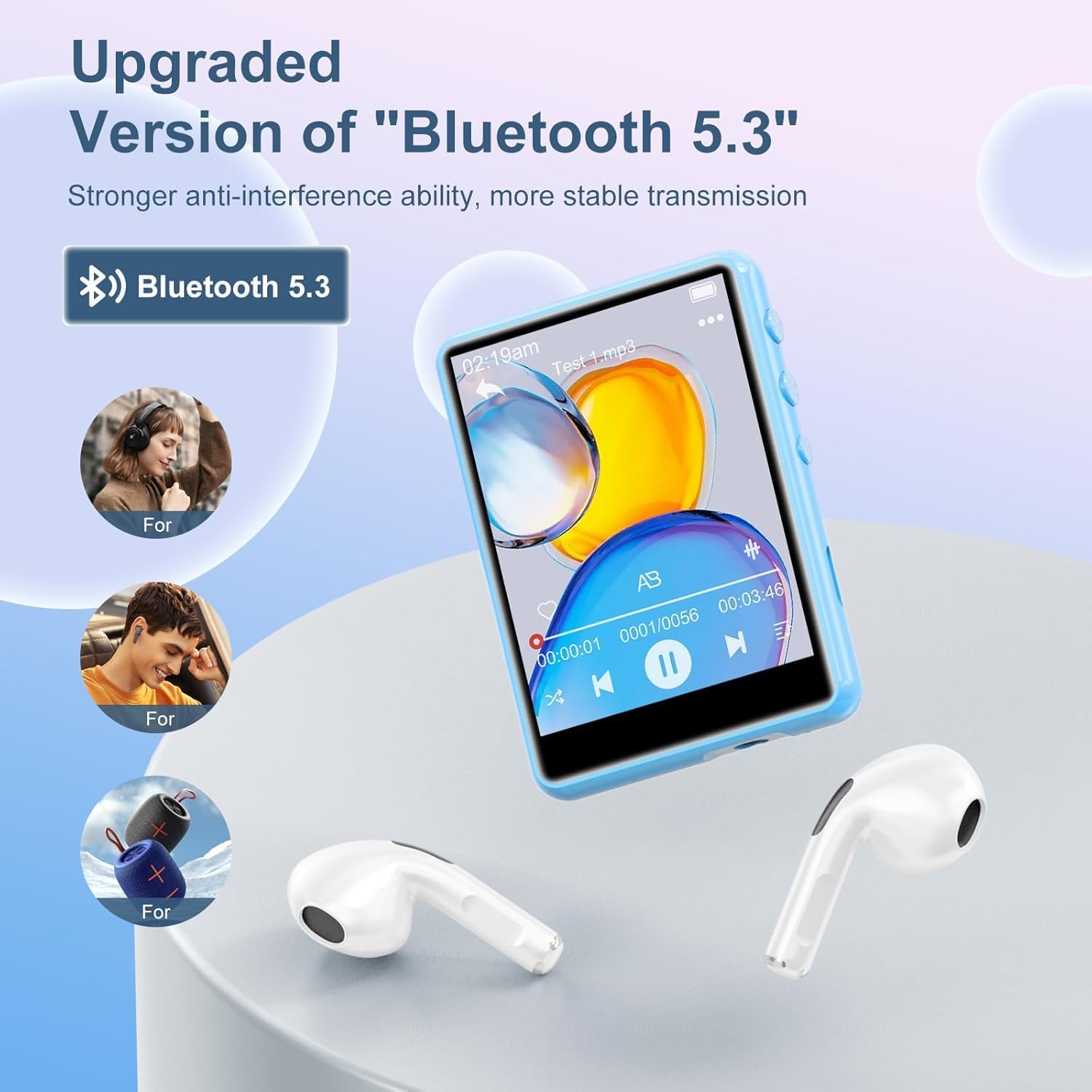
Image: The ZAQE M4 MP3 Player showcasing its upgraded Bluetooth 5.3 feature, connecting wirelessly to headphones and speakers.
8. FM Radio
The built-in FM radio allows you to listen to local radio stations. Connect wired headphones to the player as they act as the antenna for optimal reception.
8.1 Using the FM Radio
- Plug in the wired headphones.
- From the main menu, tap the "FM Radio" icon.
- Use the on-screen controls to scan for stations or manually tune to a frequency.

Image: The ZAQE M4 MP3 Player screen showing the FM Radio interface, tuned to 99.80 MHz, with headphones connected.
9. Voice Recorder
The device includes a voice recorder function for capturing audio notes or lectures.
9.1 Recording Audio
- From the main menu, tap the "Record" icon.
- Tap the record button to start recording.
- Tap the stop button to end the recording. Recordings are saved automatically.

Image: The ZAQE M4 MP3 Player screen showing the voice recorder interface, indicating an active recording with audio waveforms.
10. Video Playback
The MP3 player supports video playback on its 2.4-inch screen. Note that some video formats (e.g., MP4, MKV) may require conversion to a compatible format for playback on this device.
10.1 Playing Videos
- From the main menu, tap the "Video" or "Movie" icon.
- Select the video file you wish to play.
- Use the on-screen controls for playback.

Image: The ZAQE M4 MP3 Player displaying a vibrant video on its 2.4-inch curved color touchscreen, illustrating its video playback capability.
11. E-Book Reader
The device supports reading e-books, allowing you to carry your favorite texts with you.
11.1 Reading E-Books
- From the main menu, tap the "E-Book" icon.
- Select the e-book file you wish to read.
- Use the touch screen to turn pages.
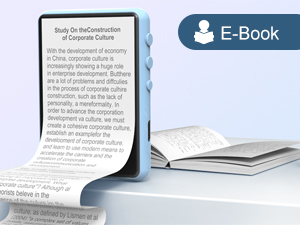
Image: The ZAQE M4 MP3 Player showing text on its screen, demonstrating its e-book reading functionality.
12. File Management
You can manage files directly on the device or by connecting it to a computer.
12.1 Transferring Files via USB
Connect the player to a computer using the provided Type-C USB cable. The device will be recognized as a mass storage device, allowing you to drag and drop files to and from its internal storage or an inserted TF card.
13. Charging and Battery
The ZAQE M4 MP3 Player is equipped with a 300mAh battery, providing good battery life for extended use.
13.1 Charging the Device
Connect the device to a power source using the Type-C USB cable. A full charge typically takes a few hours. Avoid using non-standard chargers to prevent damage.
13.2 Battery Care
- Avoid fully discharging the battery frequently.
- Do not expose the device to extreme temperatures.
- If the device will not be used for an extended period, charge it to about 50% before storing.
14. Specifications
Key technical specifications of the ZAQE M4 MP3 Player:
| Feature | Detail |
|---|---|
| Model Number | M4 |
| Screen Size | 2.4 Inches |
| Display Technology | LCD |
| Memory Storage Capacity | 64 GB (expandable up to 128 GB via TF card) |
| Bluetooth Version | 5.3 |
| Supported Audio Standards | MP3, WAV, WMA, AAC-LC, AAC, FLAC |
| Battery | 1 9V battery (included), 300mAh |
| Item Weight | 7 ounces |
| Package Dimensions | 5.79 x 5.75 x 0.75 inches |
15. Troubleshooting
If you encounter issues with your ZAQE M4 MP3 Player, refer to the following common solutions:
- Device not turning on: Ensure the battery is charged. Connect the player to a power source and try again.
- Cannot connect to computer/TF card not recognized:
- Ensure the USB cable is securely connected to both the player and the computer.
- Try a different USB port or cable.
- If using a TF card, ensure it is properly inserted and not damaged. Some cards may require reformatting (this will erase all data).
- No sound:
- Check the volume level.
- Ensure headphones are properly plugged in or Bluetooth device is correctly paired and connected.
- Verify the audio file format is supported.
- Video playback issues: Ensure the video file format is compatible with the device. Some formats may require conversion.
- Bluetooth pairing failure:
- Ensure the Bluetooth device is in pairing mode and within range.
- Turn Bluetooth off and on again on both devices.
- Clear previous Bluetooth pairings on the MP3 player if necessary.
- Screen unresponsive: Try restarting the device by holding the power button. If unresponsive, allow the battery to fully drain and then recharge.
16. Warranty and Support
For warranty information or technical support, please refer to the contact details provided with your purchase documentation or visit the official ZAQE website. Keep your proof of purchase for warranty claims.

Image: A graphic depicting a handshake within a heart, symbolizing customer support and reliable service.