
Introduction
This manual provides detailed instructions for the Walfront MMDVM Digital Voice Modem. This device features a 3.5-inch color screen and supports various digital modes including DMR, D-Star, YSF (C4FM), P25, NXDN, and POCSAG. It is designed for digital data, voice communication, remote control, and voice gateway functions, offering versatile connectivity for amateur radio enthusiasts.
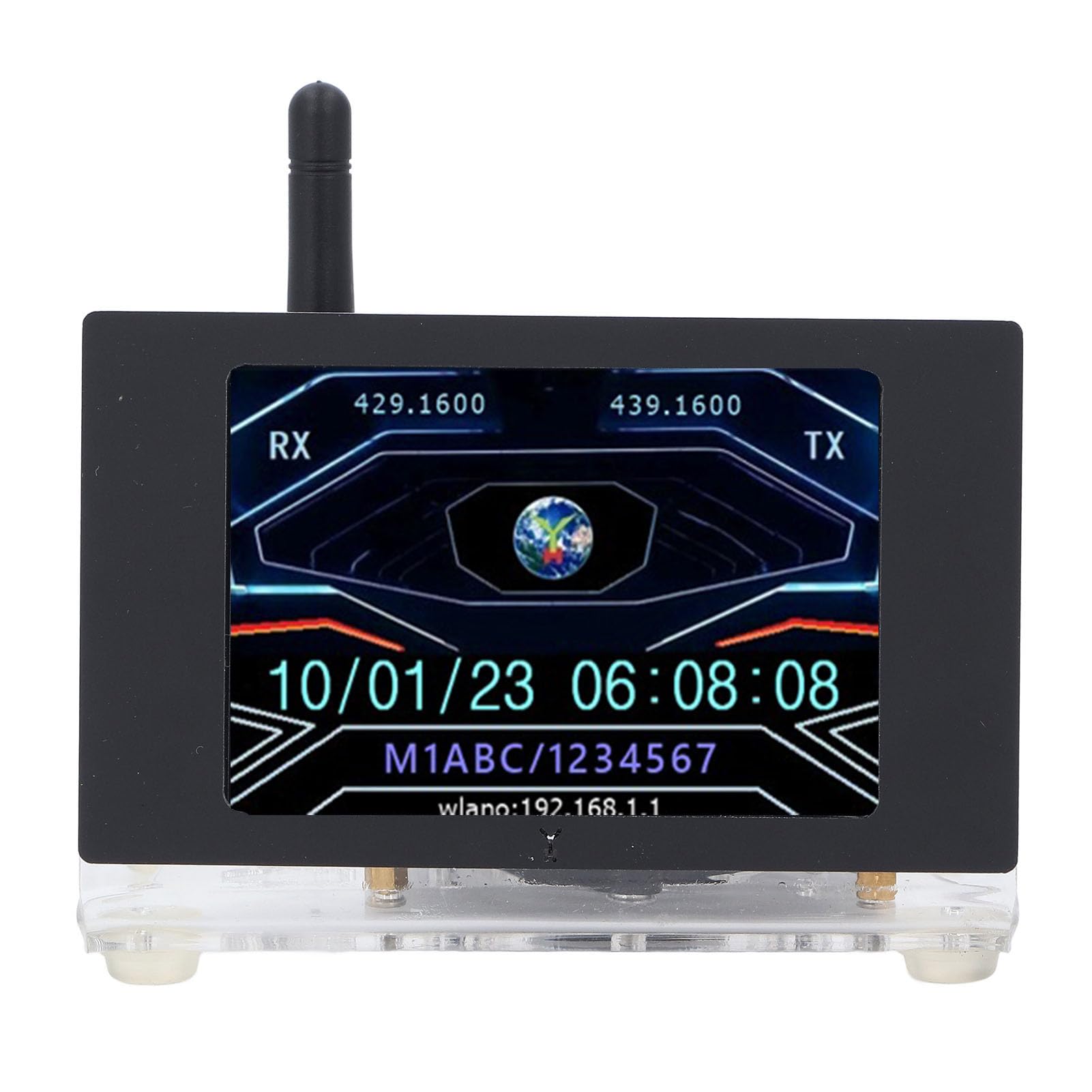
Figure 1: Front view of the Walfront MMDVM Digital Voice Modem, showing the display and antenna.
Setup
Follow these steps to set up your MMDVM Digital Voice Modem:
- Unpack the Device: Carefully remove the MMDVM Digital Voice Modem and its components from the packaging. Ensure all items listed in the package contents are present.
- Insert Memory Card: Locate the memory card slot (typically on the main board or Raspberry Pi ZeroW). Insert the provided 16GB memory card into the slot. This card contains the necessary operating system and software for the modem.
- Attach Antenna: Screw the included antenna onto the SMA connector on the MMDVM board. Ensure it is securely fastened but do not overtighten.
- Power Connection: Connect a 5V 2A power supply (not included) to the external Mini (for Android) port. Use a compatible USB cable. The device will power on automatically.
- Initial Boot: Allow the device to boot up. The 3.5-inch color screen will display boot progress and then the operational interface.
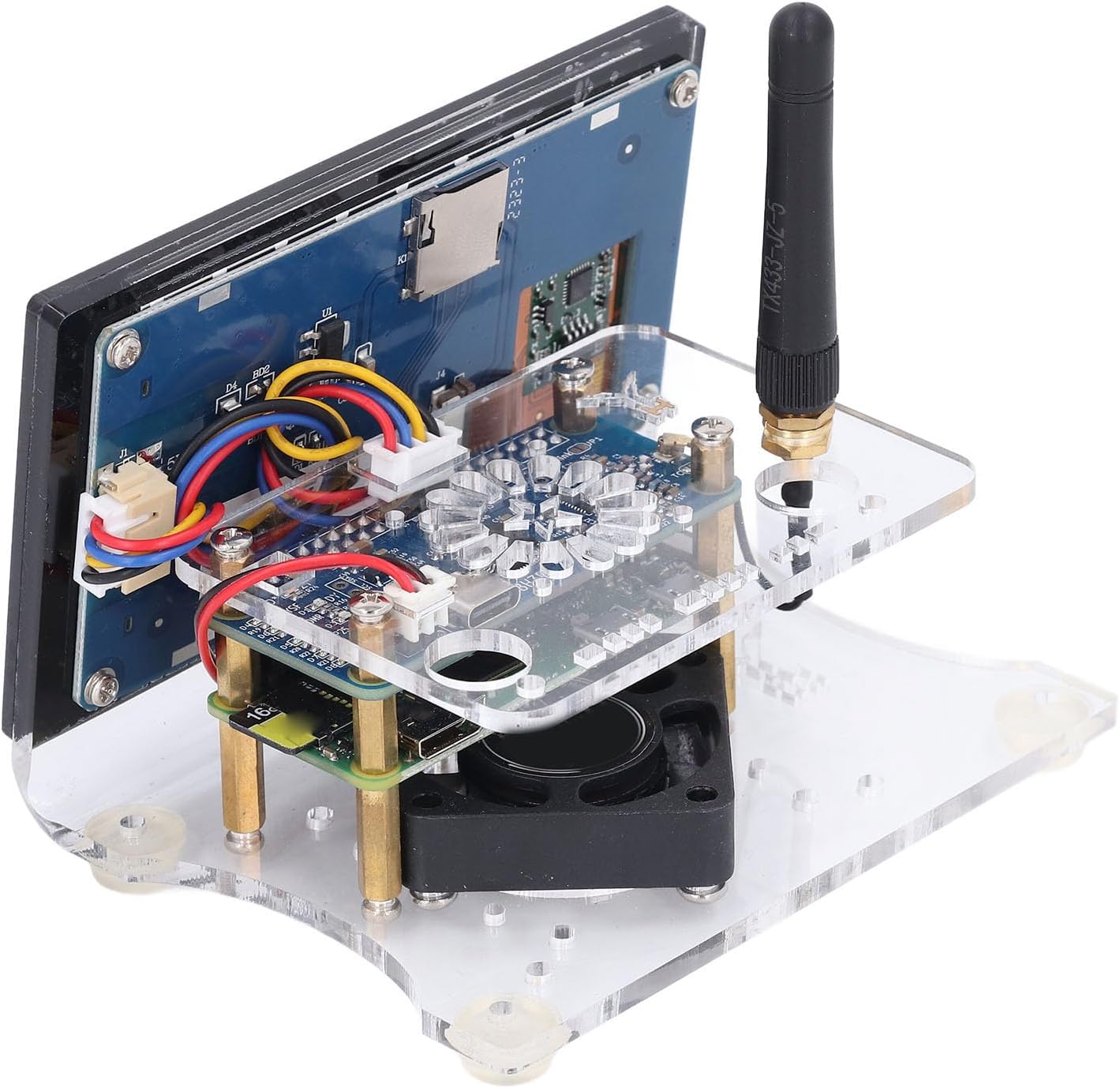
Figure 2: Side view illustrating the antenna connection point and power input port.

Figure 3: Internal view of the MMDVM board, highlighting the memory card slot and cooling fan.
Operating Instructions
The MMDVM Digital Voice Modem supports multiple digital modes and provides a clear display for monitoring activities.
- Supported Modes: The device is compatible with DMR, D-Star, YSF (C4FM), P25, NXDN, and POCSAG modes. Configuration of these modes is typically done via a web interface accessible through a connected computer on the same network. Refer to the specific software documentation for detailed mode setup.
- Display Monitoring: The 3.5-inch color screen provides real-time information, including RX/TX frequencies, call signs, network status (e.g., WLAN IP address), and system time. Monitor this display for operational status and activity.
- Voice Communication: Once configured for a specific digital mode and connected to a network, the modem acts as a hotspot, allowing your digital radio to communicate with other users over the internet.
- Remote Control: The device can be managed remotely via its web interface, allowing for configuration changes and monitoring from a computer or mobile device.
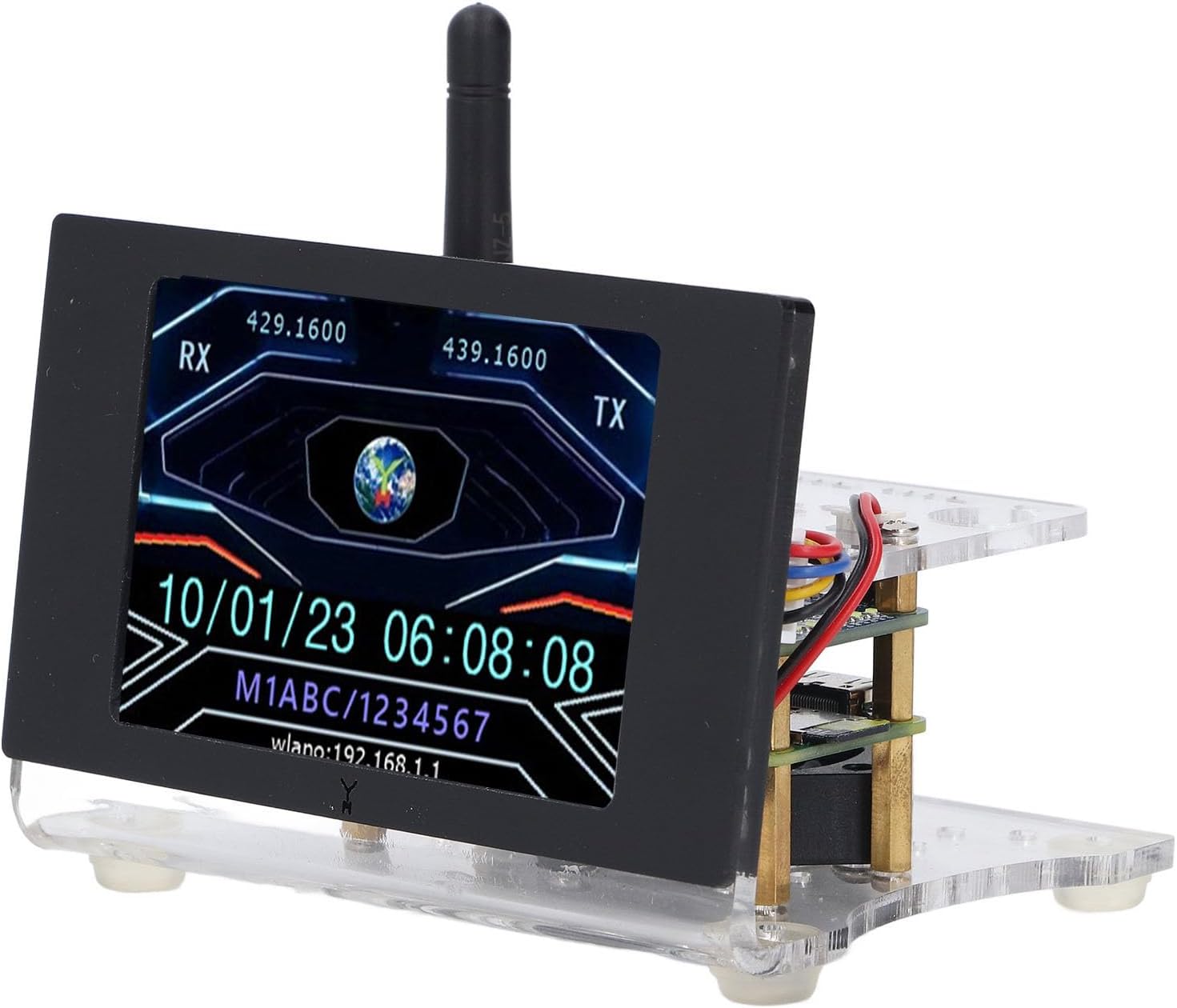
Figure 4: The 3.5-inch color screen displaying RX/TX frequencies, date, time, and WLAN IP address.
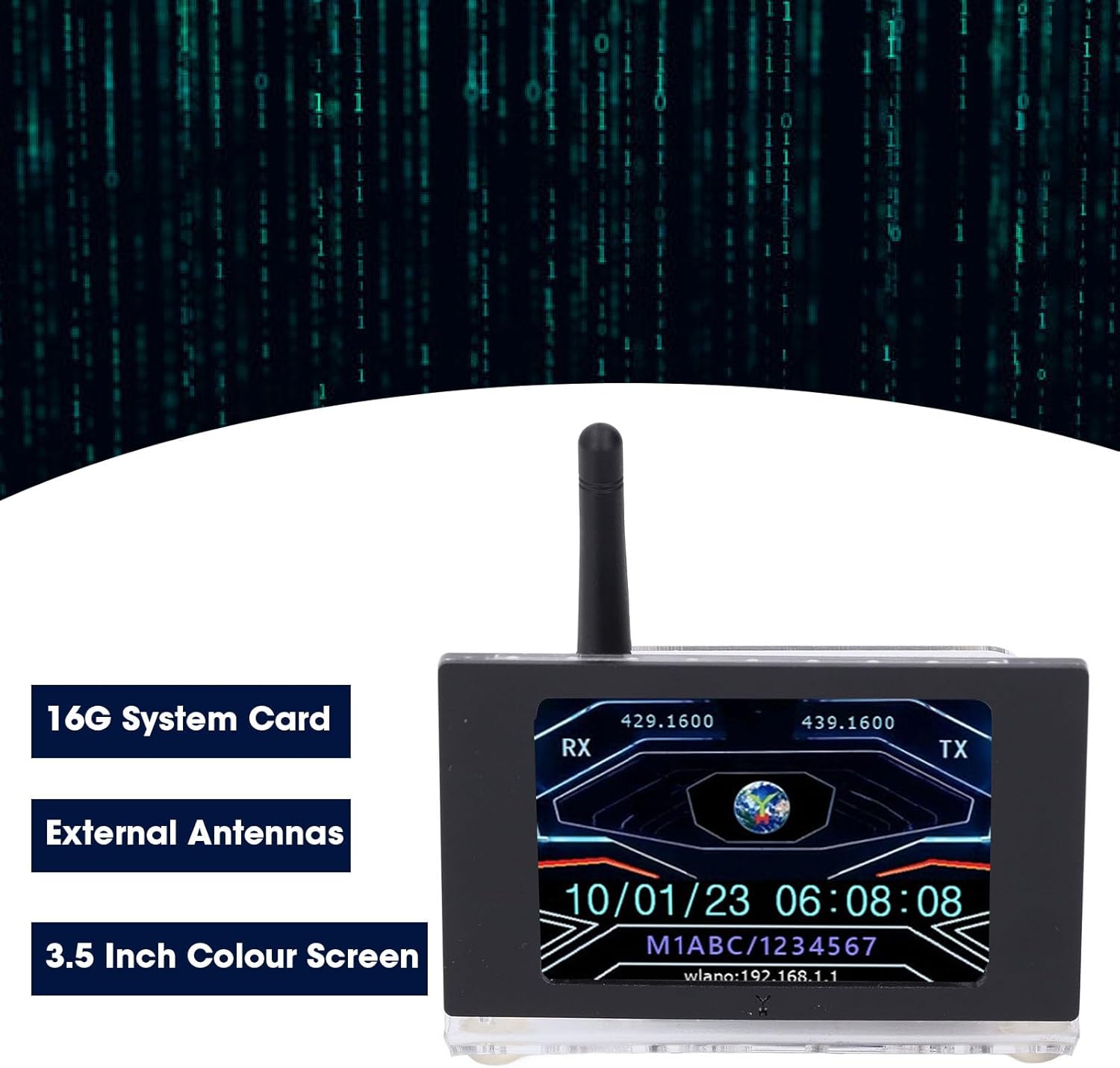
Figure 5: Visual representation of the modem's main features: 16GB system card, external antennas, and the color screen.
Maintenance
To ensure the longevity and optimal performance of your MMDVM Digital Voice Modem, consider the following maintenance tips:
- Cleaning: Gently wipe the exterior of the device and the screen with a soft, dry, lint-free cloth. Avoid using liquid cleaners or abrasive materials.
- Firmware/Software Updates: Regularly check for and apply any available firmware or software updates for the MMDVM software. These updates often include performance improvements, bug fixes, and new features. Refer to the software's official documentation for update procedures.
- Environmental Conditions: Operate the device in a well-ventilated area to prevent overheating. Avoid exposing it to extreme temperatures, humidity, or direct sunlight.
- Antenna Care: Ensure the antenna is always connected when the device is powered on to prevent damage to the radio frequency (RF) circuitry.
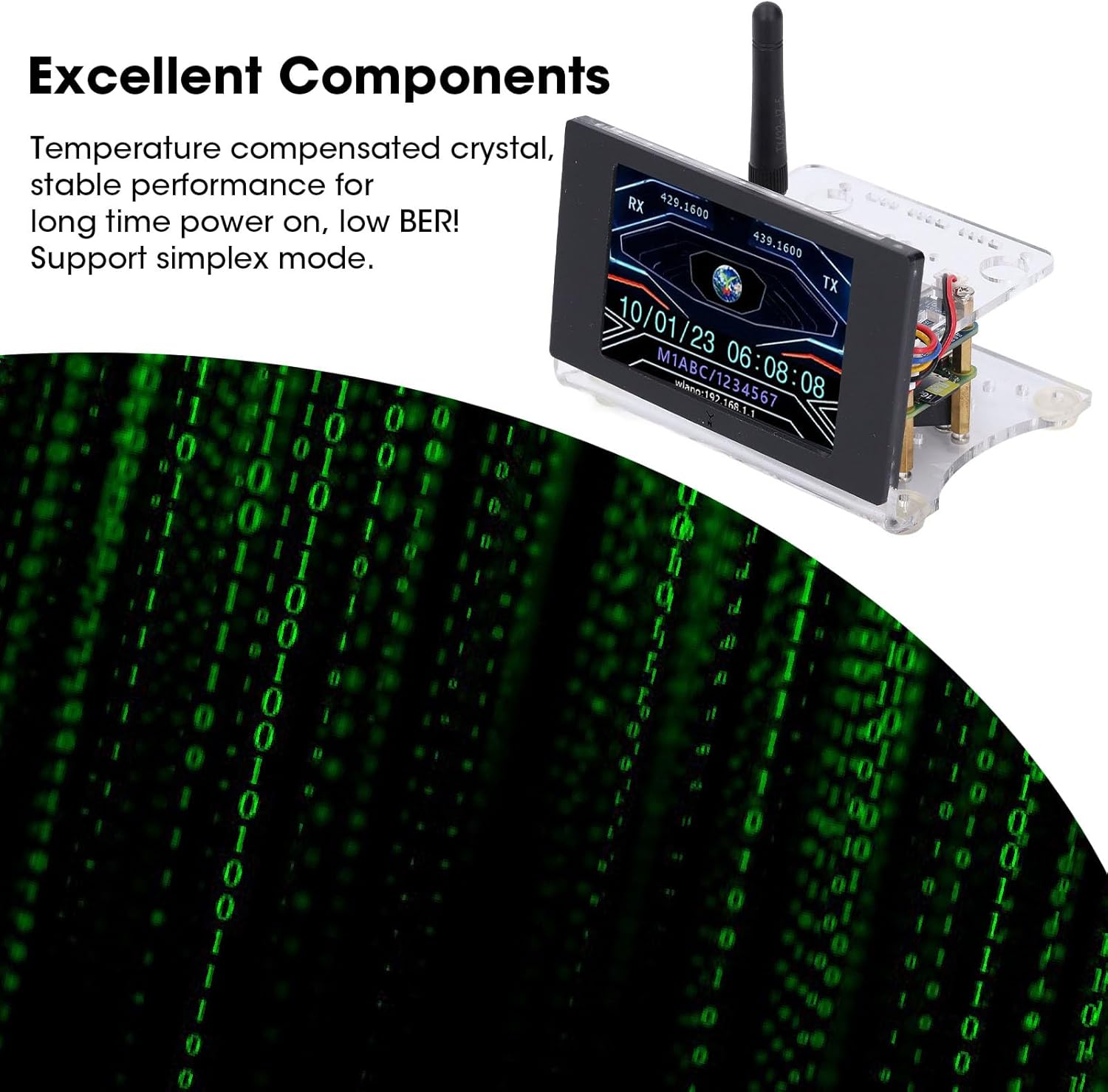
Figure 6: Highlighting the internal components, including the temperature-compensated crystal, which contributes to stable performance and low BER.
Troubleshooting
If you encounter issues with your MMDVM Digital Voice Modem, refer to the following common troubleshooting steps:
- Device Not Powering On:
- Ensure the 5V 2A power supply is correctly connected and functioning.
- Verify the power cable is not damaged.
- No Display on Screen:
- Check power connection.
- Ensure the display ribbon cable is securely connected to the main board.
- No Network Connection (WLAN/Ethernet):
- Confirm Wi-Fi credentials are correctly entered in the configuration.
- Ensure your router is functioning and within range.
- If using Ethernet, check the cable connection and router status.
- Restart the device and your network equipment.
- Poor Voice Quality or No Signal:
- Verify the antenna is securely attached.
- Check the frequency settings in your MMDVM software configuration.
- Ensure your digital radio is correctly configured for the hotspot's frequency and mode.
- Confirm internet connectivity for the hotspot.
Specifications
| Feature | Specification |
|---|---|
| Model Number | WALFRONTikuwh8p4sv |
| Frequency Band | U Band (420.000-434.900 MHz, 438.100-470.000 MHz) |
| Supported Modes | DMR, D-Star, YSF (C4FM), P25, NXDN, POCSAG |
| Output Power | 20mW |
| Display Screen | 3.5 Inch Color Screen |
| Power Supply | External Mini (for Android) Port 5V 2A (Power Supply Not Included) |
| Memory Card | 16GB Memory Card (Shipped with Memory Card) |
| Main Board | For Pi ZeroW, MMDVM Blue Board Hotspot Board |
| Item Weight | 9.5 ounces |
| Package Dimensions | 6.69 x 4.33 x 3.94 inches |

Figure 7: Physical dimensions of the MMDVM Digital Voice Modem.
Warranty Information
Specific warranty details for the Walfront MMDVM Digital Voice Modem are not provided in the product information. Please refer to the retailer's return policy or contact Walfront customer support for warranty inquiries.
Support
For further assistance, technical support, or additional information regarding your Walfront MMDVM Digital Voice Modem, please contact the seller or manufacturer directly. You may also find community support and resources online for MMDVM devices and digital amateur radio.
Video 1: A short preview demonstrating an MMDVM Duplex Hotspot Board, similar to the core component of this device. This video provides a visual overview of the board's appearance and potential applications in ham radio.