
1. Introduction
The AUDIOCULAR D12 PD Portable DAC Dongle is a versatile USB-C audio solution designed to provide high-resolution audio and simultaneous charging capabilities. It integrates a CX31993 DAC chipset for enhanced sound quality and supports Power Delivery (PD) for quick charging. This manual provides instructions for setup, operation, and troubleshooting to ensure optimal performance.

Image 1.1: The AUDIOCULAR D12 PD 2-in-1 USB C to 3.5mm DAC Dongle, showcasing its compact design with a USB-C input, a 3.5mm audio jack, and a USB-C charging port.
2. Key Features
- Hi-Res Audio with CX31993 DAC: Equipped with the CX31993 DAC chipset, supporting audio up to 32-bit/384kHz for clear and detailed sound.
- 2-in-1 Functionality: Allows simultaneous audio playback and Power Delivery (PD) quick charging through its USB-C port.
- Microphone Support: Enables clear call quality for voice chats, conference calls, and gaming communication when using compatible earphones.
- Low Latency for Gaming: Provides high-resolution audio with minimal delay, enhancing the gaming experience.
- Durable Construction: Crafted from premium aluminum alloy for durability, heat dissipation, and a sleek appearance.
- Plug-and-Play: No drivers or additional software are required for operation.
3. Setup Instructions
The AUDIOCULAR D12 is designed for simple plug-and-play operation. Follow these steps to begin using your device:
- Connect to Device: Insert the USB-C connector of the D12 dongle into the USB-C port of your smartphone, tablet, or laptop.
- Connect Audio Device: Plug your 3.5mm headphones, earphones, or speakers into the 3.5mm audio jack on the D12 dongle.
- (Optional) Connect Charger: If simultaneous charging is desired, connect a USB-C charging cable to the USB-C charging port on the D12 dongle, and then connect the other end to a power source.

Image 3.1: Illustration of the plug-and-play functionality, showing the 3.5mm universal audio jack ready for connection.
4. Operating Instructions
4.1 Audio Playback
Once connected, your device should automatically recognize the D12 dongle as an audio output device. Play audio from your device as usual. The D12 supports high-quality audio transmission.

Image 4.1: A user enjoying high-fidelity audio playback using the AUDIOCULAR D12 dongle connected to a smartphone and earphones.
4.2 Simultaneous Charging and Audio
The D12 dongle allows you to charge your device while listening to audio. Connect your charger to the USB-C charging port on the dongle. This feature is useful for extended use during gaming or media consumption.

Image 4.2: A user playing a mobile game while their device is simultaneously charging via the AUDIOCULAR D12 dongle.
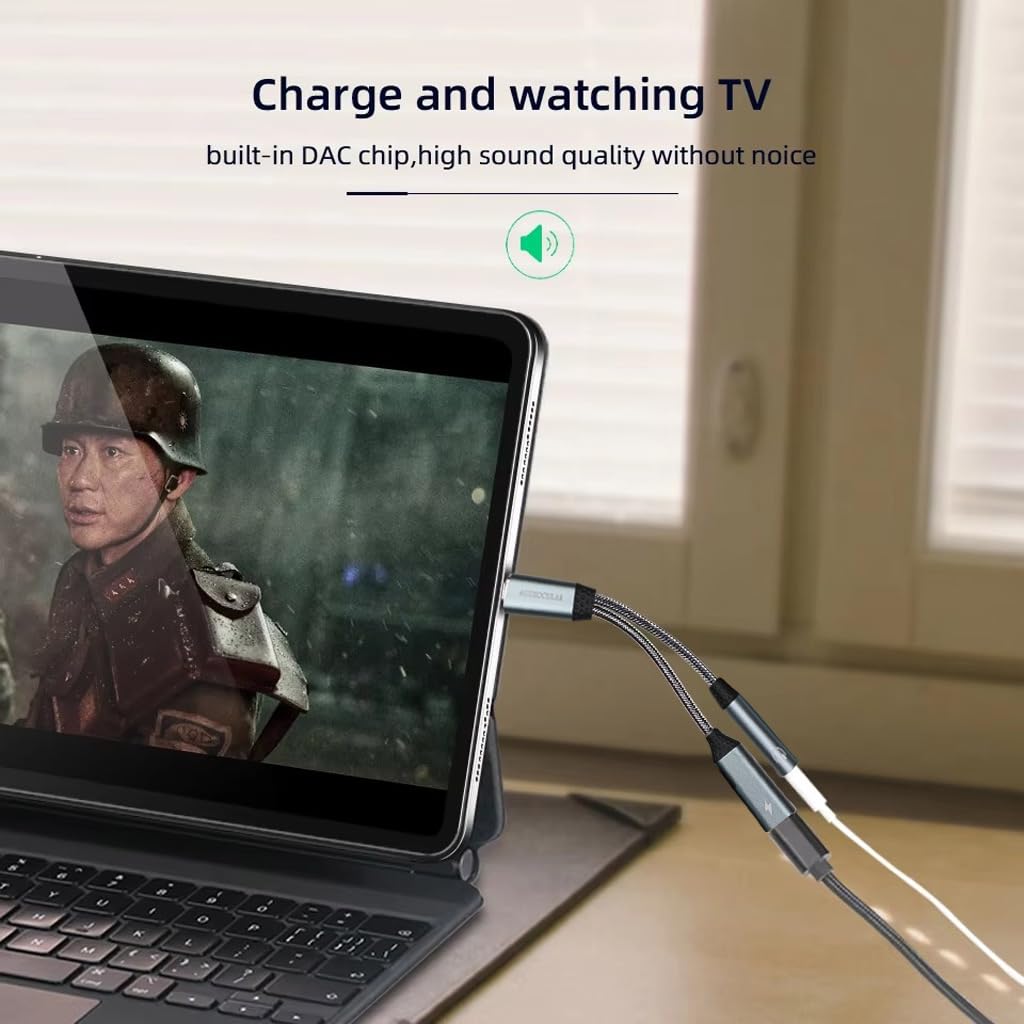
Image 4.3: A user watching a video on a tablet, demonstrating the ability to charge the device and listen to audio simultaneously using the D12 dongle.
4.3 Microphone Functionality
If your connected 3.5mm headphones or earphones include a microphone, the D12 dongle will support its functionality for calls, voice commands, and in-game communication.
4.4 Important Note on Charging and Audio Switching
When using the AUDIOCULAR D12 with a 3.5mm jack connected, if you plug in the charging cable, the audio output will temporarily switch to charging mode, and the audio will pause. To resume playback, simply disconnect and then reconnect your IEM (in-ear monitors) or headphones to the 3.5mm jack.

Image 4.4: Visual guide demonstrating the correct and incorrect methods for connecting a 3.5mm audio jack to the dongle, ensuring a secure and functional connection.
5. Compatibility
The AUDIOCULAR D12 PD dongle is widely compatible with most USB-C devices. It does not support data transfer.
Supported Devices:
- Smartphones: iPhone 15 series, Samsung Galaxy S24/S23/S22/Note20/S20, Google Pixel 7/6/5/4XL, OnePlus 9 Pro/8, and other USB-C Android phones.
- Tablets: iPad Pro/Air/Mini, Huawei tablets, Samsung tablets.
- Laptops: MacBook Pro/Air, Microsoft Surface Pro, Huawei laptops, Xiaomi laptops.
- Gaming Consoles: PS5 and other USB-C enabled devices.
Note: Not compatible with Nothing Smart Phones.
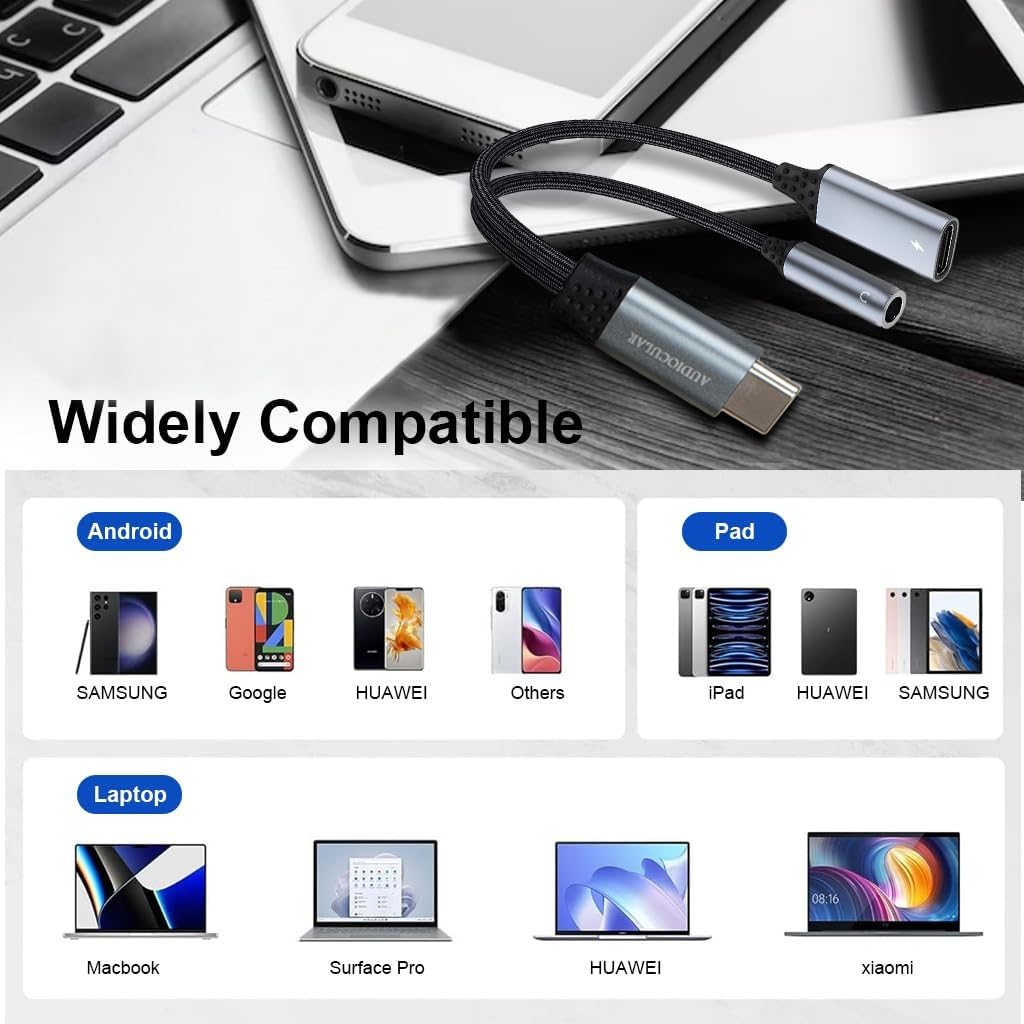
Image 5.1: A visual representation of the wide compatibility of the D12 dongle with various Android phones, iPads, and laptops.
6. Troubleshooting
- No Audio Output:
- Ensure the D12 dongle is securely connected to your device's USB-C port.
- Verify that your 3.5mm audio device is fully plugged into the dongle.
- Check your device's audio settings to confirm the D12 is selected as the output device.
- Test with another pair of headphones or another compatible device to isolate the issue.
- Charging Interruption:
- As noted in Section 4.4, if audio pauses when connecting the charging cable, disconnect and reconnect your audio device to resume playback.
- Ensure the charging cable and power source are functional.
- Microphone Not Working:
- Confirm your headphones have an integrated microphone.
- Check your device's privacy settings to ensure microphone access is granted to the relevant applications.
- Device Not Recognized:
- Ensure your device is listed under compatible devices in Section 5.
- Restart your host device and reconnect the dongle.
7. Specifications
| Feature | Detail |
|---|---|
| Model | D12 |
| DAC Chipset | CX31993 |
| Audio Resolution | Up to 32-bit/384kHz |
| Connector Type | USB Type-C (Input), 3.5mm Audio Jack (Output), USB Type-C (Charging) |
| Charging Support | Power Delivery (PD) Quick Charging |
| Material | Aluminum Alloy |
| Dimensions (L x W x H) | 12.5 x 4 x 2 cm |
| Item Weight | 20 g |
| Country of Origin | China |

Image 7.1: A detailed view of the Conexant CX31993 digital audio decoder chip, highlighting its role in delivering 32-bit/384kHz audio resolution.

Image 7.2: The AUDIOCULAR D12 dongle displayed next to a smartphone, illustrating its compact and modern design with a length of 12.5 cm.
8. Maintenance
- Cleaning: Use a soft, dry cloth to clean the dongle. Avoid liquid cleaners or abrasive materials.
- Storage: Store the dongle in a cool, dry place away from direct sunlight and extreme temperatures.
- Handling: Avoid bending or twisting the cables excessively to prevent internal damage. Do not expose to water or moisture.
9. Warranty and Support
For warranty information or technical support, please contact the manufacturer or importer directly.
Importer/Packer Contact:
Concept Kart
2nd Floor, A36, Block B, Naraina Industrial Area Phase 2,
Naraina, New Delhi, Delhi, 110028, India
Email: customercare@conceptkart.com