
CM8200 Plus
CIdea CM8200 Plus 10-Inch Smart Kids Tablet User Manual
Model: CM8200 Plus
1. Introduction
This manual provides essential information for the safe and effective use of your CIdea CM8200 Plus 10-Inch Smart Kids Tablet. Please read this manual thoroughly before operating the device and retain it for future reference. This tablet is designed for a versatile user experience, featuring a vibrant display, robust performance, and comprehensive connectivity options.
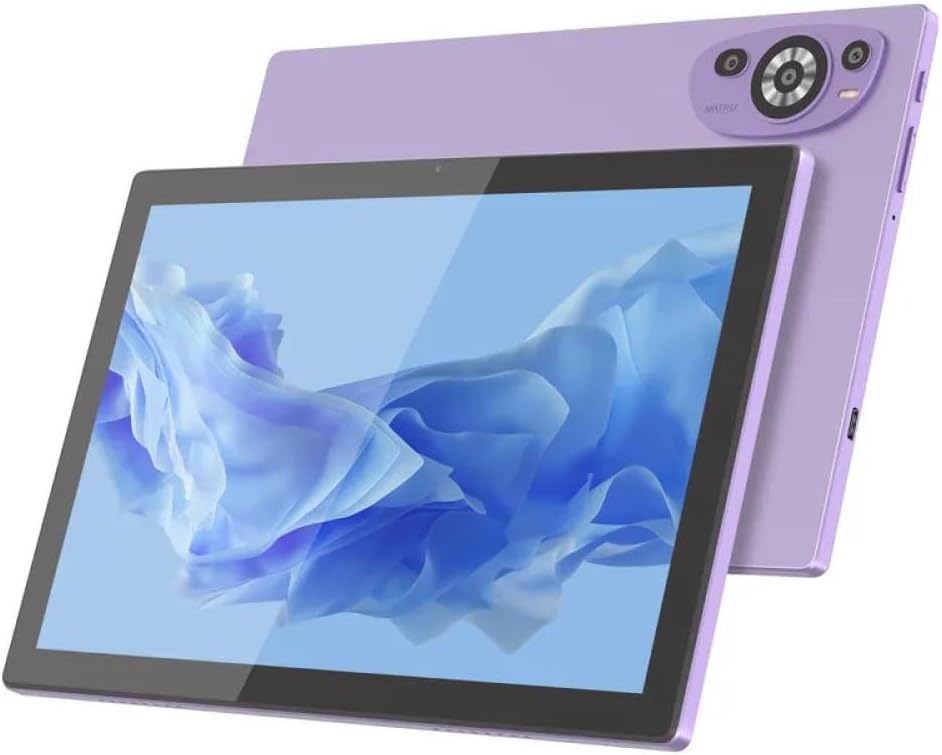
Figure 1.1: Front and back view of the CIdea CM8200 Plus Tablet.
2. Package Contents
Upon unboxing, please verify that all items listed below are present and in good condition:
- CIdea CM8200 Plus 10-Inch Tablet
- Wireless Keyboard
- Wireless Mouse
- Protective Cover
- Charging Cable (USB-C)
- User Manual (this document)
3. Product Overview and Features
The CIdea CM8200 Plus tablet is equipped with advanced features for enhanced usability and performance.
3.1. Device Layout
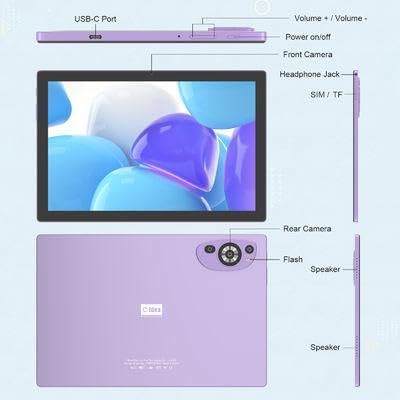
Figure 3.1: Diagram illustrating the location of ports and buttons on the tablet, including USB-C Port, Volume buttons, Power on/off, Front Camera, Headphone Jack, SIM/TF slot, Rear Camera, Flash, and Speakers.
3.2. Key Features
- Display: 10.1-inch IPS display with 1280*800 Pixels resolution, offering vibrant visuals and an eye protection mode.
- Performance: Powered by Android 14 and a quad-core processor, ensuring smooth multitasking.
- Memory: 8GB RAM and 1TB ROM for ample storage and efficient operation.
- Cameras: 13MP rear camera and 16MP front camera for high-quality photos and video calls.
- Connectivity: Supports Dual SIM, Wi-Fi, GPS, and Bluetooth for versatile connection options.
- Audio: Integrated dual speakers for an immersive audio experience.

Figure 3.2: Visual representation of the Android 14 Operating System, highlighting 8GB+1TB storage, App Store access, Quad-core processor, and millions of applications.
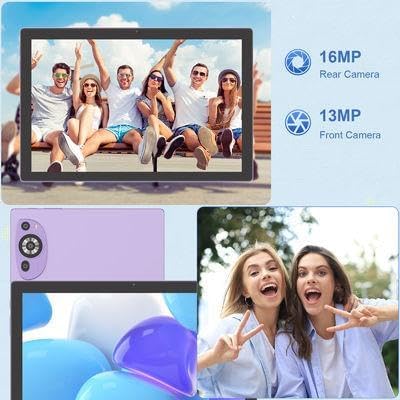
Figure 3.3: Details on the tablet's camera capabilities, featuring a 16MP rear camera and a 13MP front camera.
4. Setup
4.1. Initial Charging
Before first use, fully charge the tablet. Connect the USB-C charging cable to the tablet's USB-C port and the other end to a compatible power adapter. The battery indicator on the screen will show charging status.
4.2. Powering On/Off
- To Power On: Press and hold the Power button until the screen lights up.
- To Power Off: Press and hold the Power button until a power-off menu appears, then select 'Power off'.
4.3. Initial Setup Wizard
Upon first power-on, follow the on-screen instructions to complete the initial setup, which includes selecting language, connecting to Wi-Fi, and setting up your Google account.
4.4. Inserting SIM/TF Card
Locate the SIM/TF card slot on the side of the tablet. Carefully insert your SIM card(s) and/or TF (microSD) card into the designated slots. Ensure the tablet is powered off before inserting or removing cards.
5. Operating the Tablet
5.1. Basic Navigation
The tablet operates via a touchscreen interface. Use gestures such as tap, swipe, pinch-to-zoom, and long-press to navigate applications and menus.
5.2. Connecting Wireless Accessories
Your tablet comes with a wireless keyboard and mouse. To connect them:
- Ensure the keyboard and mouse are powered on and in pairing mode.
- On the tablet, go to Settings > Connected devices > Bluetooth.
- Turn on Bluetooth and scan for available devices.
- Select the keyboard and mouse from the list to pair them.
5.3. Wi-Fi and Mobile Data
To connect to Wi-Fi, go to Settings > Network & internet > Wi-Fi, select your network, and enter the password. For mobile data, ensure a valid SIM card is inserted and mobile data is enabled in Settings > Network & internet > Mobile network.
5.4. Using the Cameras
Open the Camera application from the home screen or app drawer. You can switch between the front and rear cameras, select photo or video mode, and adjust settings as needed.
5.5. Display and Audio Experience

Figure 5.1: The tablet's 10.1-inch 1280*800 HD IPS display and dual speakers provide a clear visual and audio experience, suitable for various media consumption.
6. Maintenance
6.1. Cleaning the Tablet
Use a soft, lint-free cloth to clean the screen and body of the tablet. For stubborn smudges, slightly dampen the cloth with water or a screen cleaner. Avoid using harsh chemicals or abrasive materials.
6.2. Battery Care
To prolong battery life, avoid exposing the tablet to extreme temperatures. It is recommended to keep the battery charge between 20% and 80% for optimal longevity. Do not leave the tablet charging for extended periods after it is fully charged.
6.3. Software Updates
Regularly check for and install software updates to ensure your tablet has the latest features, security patches, and performance improvements. Go to Settings > System > System update.
7. Troubleshooting
This section addresses common issues you might encounter with your tablet.
- Tablet not turning on: Ensure the tablet is charged. Connect it to a power source and try powering on again. If it still doesn't turn on, perform a forced restart by holding the power button for 10-15 seconds.
- Screen unresponsive: Try restarting the tablet. If the issue persists, ensure the screen is clean and free from debris.
- Wi-Fi connectivity issues: Check if Wi-Fi is enabled. Restart your router and the tablet. Ensure you are entering the correct Wi-Fi password.
- Slow performance: Close unused applications. Clear cache and data for frequently used apps. Consider performing a factory reset as a last resort (back up your data first).
- Accessories not connecting: Ensure Bluetooth is enabled on the tablet and the accessories are in pairing mode. Check battery levels of the accessories.
8. Specifications
Detailed technical specifications for the CIdea CM8200 Plus Tablet:
| Feature | Specification |
|---|---|
| Brand | Generic |
| Model Name | C IDEA CM8200 PLUS |
| Memory Storage Capacity | 1 TB |
| Screen Size | 10.1 Inches |
| Display Resolution Maximum | 1280*800 Pixels |
| Operating System | Android 14 |
| Colour | Purple |
| Installed RAM Memory Size | 8 GB |
| Generation | Plus |
| Item Weight | 1.5 Kilograms |
9. Warranty and Support
For warranty information and technical support, please refer to the documentation provided at the time of purchase or contact the retailer/manufacturer directly. Keep your proof of purchase for warranty claims.
Ask a question about this manual
Ask about setup, troubleshooting, compatibility, parts, safety, or missing instructions. Manuals+ will review the question and use this page’s manual context to help answer it.