
ATOTOSELECT CB6C-BK-S01
ATOTOSELECT Smart AI Box CarPlay User Manual
Model: CB6C-BK-S01
1. Introduction
The ATOTOSELECT Smart AI Box CarPlay (Model CB6C-BK-S01) transforms your vehicle's infotainment system into a versatile Android platform. This device enables full Android OS functionality, wireless CarPlay, and wireless Android Auto, enhancing your in-car experience with advanced features such as 4G LTE connectivity, an AI voice assistant, and precise GPS navigation.
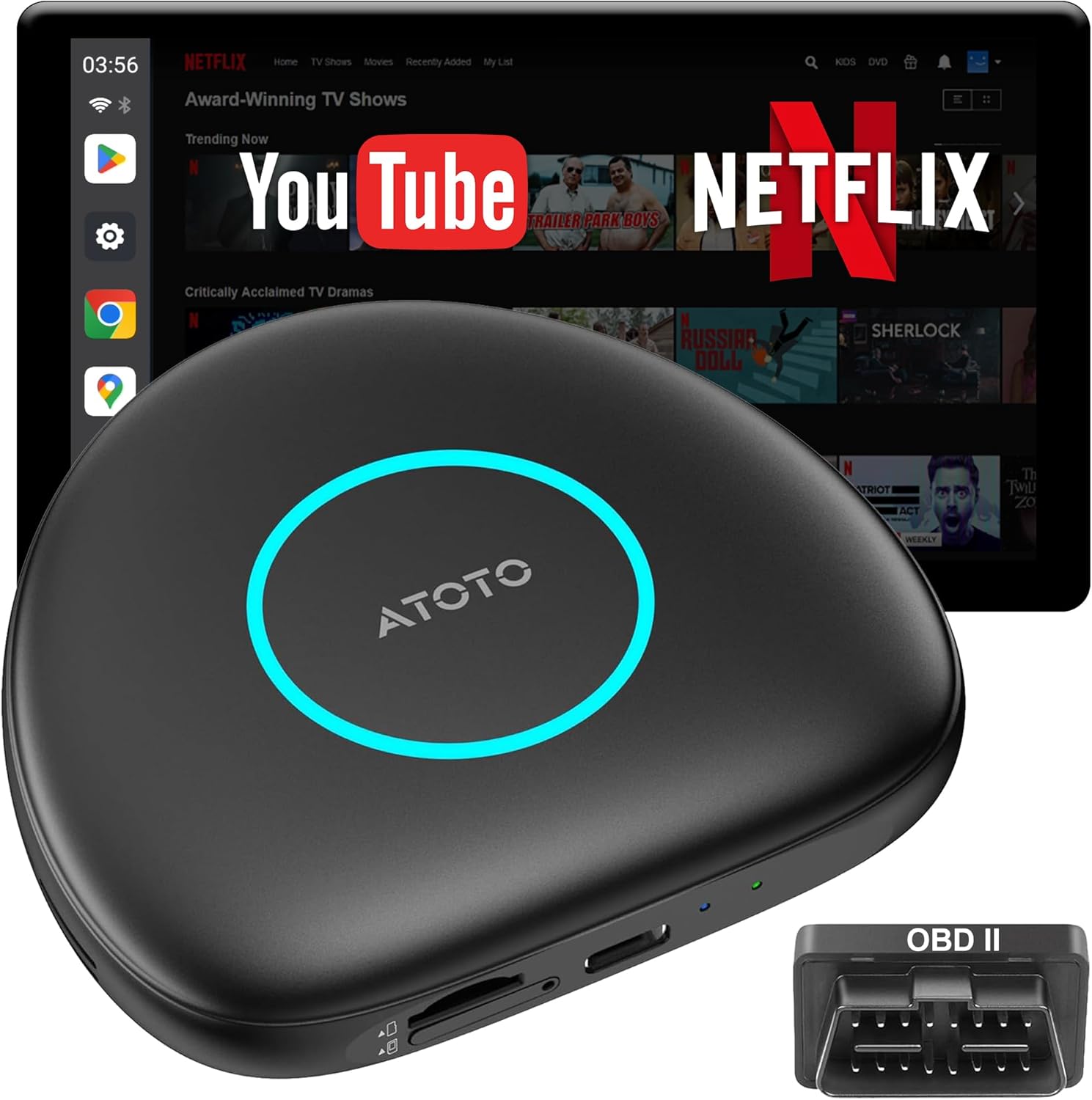
Image 1.1: The ATOTOSELECT Smart AI Box CarPlay device connected to a car's display, showing streaming applications like Netflix and YouTube.
2. Product Overview
The CB6C-BK-S01 is a 3-in-1 adapter that integrates a standalone Android OS, Wireless CarPlay, and Wireless Android Auto into your car's existing display. It features a Snapdragon processor, 4GB RAM, and 64GB ROM, providing a robust platform for various applications and functions.

Image 2.1: Overview of the 3-in-1 adapter highlighting its core components and functionalities.
3. Setup Instructions
3.1 Compatibility
The ATOTOSELECT Smart AI Box is compatible with over 98% of vehicles equipped with factory or aftermarket wired CarPlay or Android Auto. It is not compatible with BMW models. Ensure your car stereo supports wired CarPlay or wired Android Auto for proper functionality.
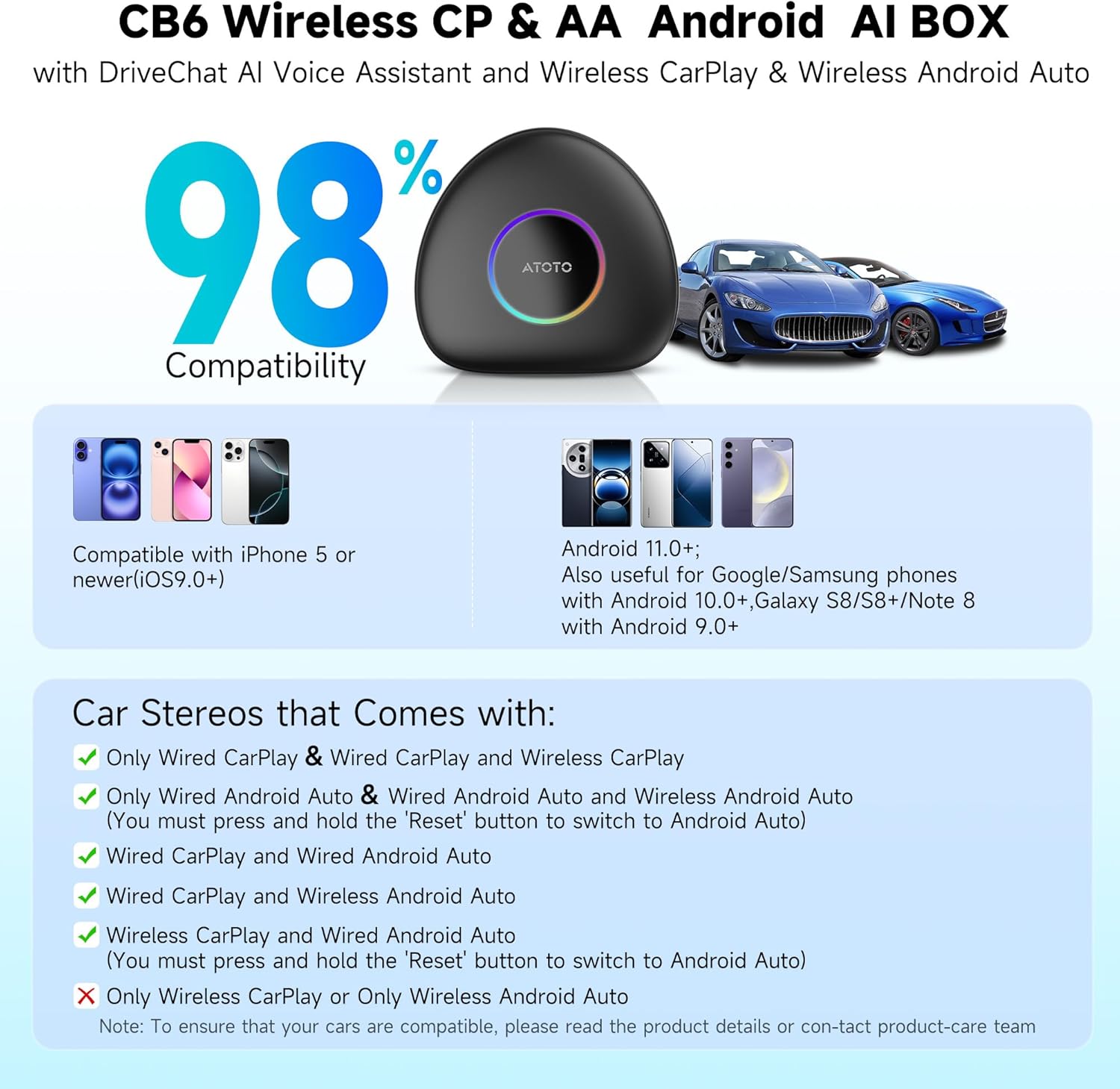
Image 3.1: Compatibility details for various phone operating systems and car stereo configurations.
3.2 Connecting the Device
The device offers plug-and-play installation. Connect the AI Box to your car's USB port that supports wired CarPlay or Android Auto using the appropriate cable.
- USB A-to-C Cable: For connecting to a USB A port in your vehicle.
- USB C-to-C Cable: For connecting to a USB C port in your vehicle.
- USB A to A Y-Cable: For certain vehicles (e.g., Nissan 2016-2020, Isuzu, Camry, 2023 Toyota Crown, 2023 Lexus NX, or Desay SV Volkswagen) that require additional power, connect the Y-cable to both the car's USB A port and a car charger socket for stable performance.

Image 3.2: Various USB cable connection methods for the AI Box, including a Y-cable for supplementary power.
3.3 Initial Configuration
Upon first connection, the device will boot up and display the Android interface on your car screen. You may need to follow on-screen prompts to complete the initial setup, including connecting to Wi-Fi or inserting a SIM card for internet access, and logging into your preferred accounts.
4. Operating Instructions
4.1 Internet Access
The device supports multiple methods for internet connectivity:
- Built-in 4G LTE: Insert a Micro SIM card into the designated slot for independent internet access. Ensure correct card orientation.
- Bluetooth Tethering: Connect to your smartphone via Bluetooth for internet access, which consumes less power.
- WiFi Tethering (5.0 GHz): Connect to your smartphone's Wi-Fi hotspot for a stable internet connection.

Image 4.1: Internet access options and examples of dedicated applications.
4.2 Switching Between Systems
The AI Box allows seamless switching between the full Android OS and the familiar CarPlay/Android Auto interfaces. Refer to the on-screen menu or device settings for specific switching procedures.
4.3 AI Voice Assistant (DriveChat)
Utilize the built-in AI Voice Assistant for hands-free operation. This feature allows you to find information, plan routes, launch applications, and interact with various chatbots through natural conversation, enhancing driving safety and convenience.

Image 4.2: The DriveChat AI Assistant in operation, demonstrating its conversational capabilities.
4.4 Split-Screen Functionality
The device supports split-screen mode, allowing you to run two applications simultaneously on your car's display. This is useful for navigation while entertaining passengers with media content.

Image 4.3: Split-screen mode showing simultaneous use of navigation and media applications.
4.5 Bluetooth Functions
The device features Bluetooth 5.0 for various functions:
- Phone Calls and Music: Connect your phone for hands-free calls and audio streaming.
- Auto Screen Lock/Unlock: An exclusive Bluetooth Screen Lock feature automatically secures the Android system when your authorized phone moves out of range, protecting your privacy.
- Peripheral Connection: Connect compatible Bluetooth accessories, such as the included AC-4450 On-Board OBD II Diagnostic Scanner.

Image 4.4: Bluetooth 5.0 features, including privacy screen lock and peripheral connectivity.
5. Advanced Features
5.1 App Installation
With the full Android OS, you can freely download and install applications from the vast Android marketplace, expanding the functionality of your car's display beyond standard CarPlay or Android Auto limitations.

Image 5.1: The AI Box enabling access to a wide range of Android applications.
5.2 GPS Functionality
The built-in, independent GPS module provides accurate and stable vehicle positioning. It supports professional navigation maps and includes a trip-logging feature to review and share journeys.
5.3 Over-the-Air (OTA) Updates
The device receives OTA updates, which deliver new features, app compatibility, and performance enhancements directly to your unit, ensuring your system remains current and optimized.
6. Maintenance
To ensure optimal performance and longevity of your ATOTOSELECT Smart AI Box CarPlay, follow these general maintenance guidelines:
- Keep the device clean and free from dust and debris. Use a soft, dry cloth for cleaning.
- Avoid exposing the device to extreme temperatures or direct sunlight for extended periods.
- Ensure proper ventilation around the device to prevent overheating.
- Regularly check for and install OTA updates to benefit from the latest software improvements and security patches.
7. Troubleshooting
If you encounter issues with your ATOTOSELECT Smart AI Box CarPlay, consider the following troubleshooting steps:
- No Power/Device Not Starting:
- Verify that the USB cable is securely connected to both the AI Box and the car's USB port.
- If using the Y-cable, ensure both USB connectors are properly plugged in and receiving power.
- Test the car's USB port with another device to confirm it is functional.
- No Display on Car Screen:
- Ensure your car's infotainment system is set to the CarPlay or Android Auto input.
- Restart both the AI Box (by unplugging and replugging) and your car's infotainment system.
- Confirm your vehicle is compatible with wired CarPlay or Android Auto.
- Intermittent Connectivity/Performance Issues:
- Check your internet connection (4G LTE, Bluetooth, or Wi-Fi tethering) for stability.
- Ensure there are no obstructions or interference affecting Bluetooth or Wi-Fi signals.
- Clear cache for problematic applications.
- Maps/Navigation Issues:
- Ensure the GPS module has a clear view of the sky.
- Update your navigation applications to the latest versions.
- If issues persist, consider using the CarPlay/Android Auto navigation feature as an alternative.
- Device Not Responding:
- Locate the reset button (if available, often a small pinhole) and gently press it with a paperclip to restart the device.
For further assistance, refer to the support information in Section 9.
8. Specifications
| Feature | Detail |
|---|---|
| Model Number | CB6C-BK-S01 |
| Operating System | Android 13 |
| RAM | 4GB |
| ROM | 64GB (Expandable up to 256GB via TF Card, not included) |
| Processor | Snapdragon Octa-Core |
| Connectivity | Built-in 4G LTE (supports Cloud/Physical SIM), Dual Bluetooth 5.0/4.2, Dual Wi-Fi 2.4G/5G |
| GPS | Built-in Independent GPS Module |
| Compatible Devices | Car stereos with Wired CarPlay or Wired Android Auto (except BMW models) |
| Connector Type | USB Type C / USB Type A |
| Color | Black |
| Package Dimensions | 6.3 x 6.1 x 1.26 inches |
| Item Weight | 10.2 ounces |

Image 8.1: Physical dimensions of the CB6 device and included cable types.
9. Warranty and Support
ATOTOSELECT is committed to providing reliable customer service. We offer 24/7 technical support and lifetime service for our products, including older models. For any technical assistance, troubleshooting, or inquiries, please contact our support team through the official ATOTOSELECT channels.
Optional protection plans are available for extended coverage. Please refer to your purchase documentation for details on available plans and how to register.
Ask a question about this manual
Ask about setup, troubleshooting, compatibility, parts, safety, or missing instructions. Manuals+ will review the question and use this page’s manual context to help answer it.