1. Introduction
This comprehensive instruction manual provides detailed guidance for setting up, operating, maintaining, and troubleshooting your BeiyoQSZ N602 Drone with 1080P HD Camera. Please read this manual thoroughly before first use to ensure safe and optimal performance of your drone.
2. What's in the Box
Verify that all items listed below are included in your package:
- BeiyoQSZ N602 Drone
- Remote Controller
- 2 x 3.7V 800mAh Lithium Ion Batteries
- USB Charging Cable
- 4 x Spare Propeller Blades
- 4 x Propeller Guards
- Screwdriver
- Carrying Case
- Instruction Manual
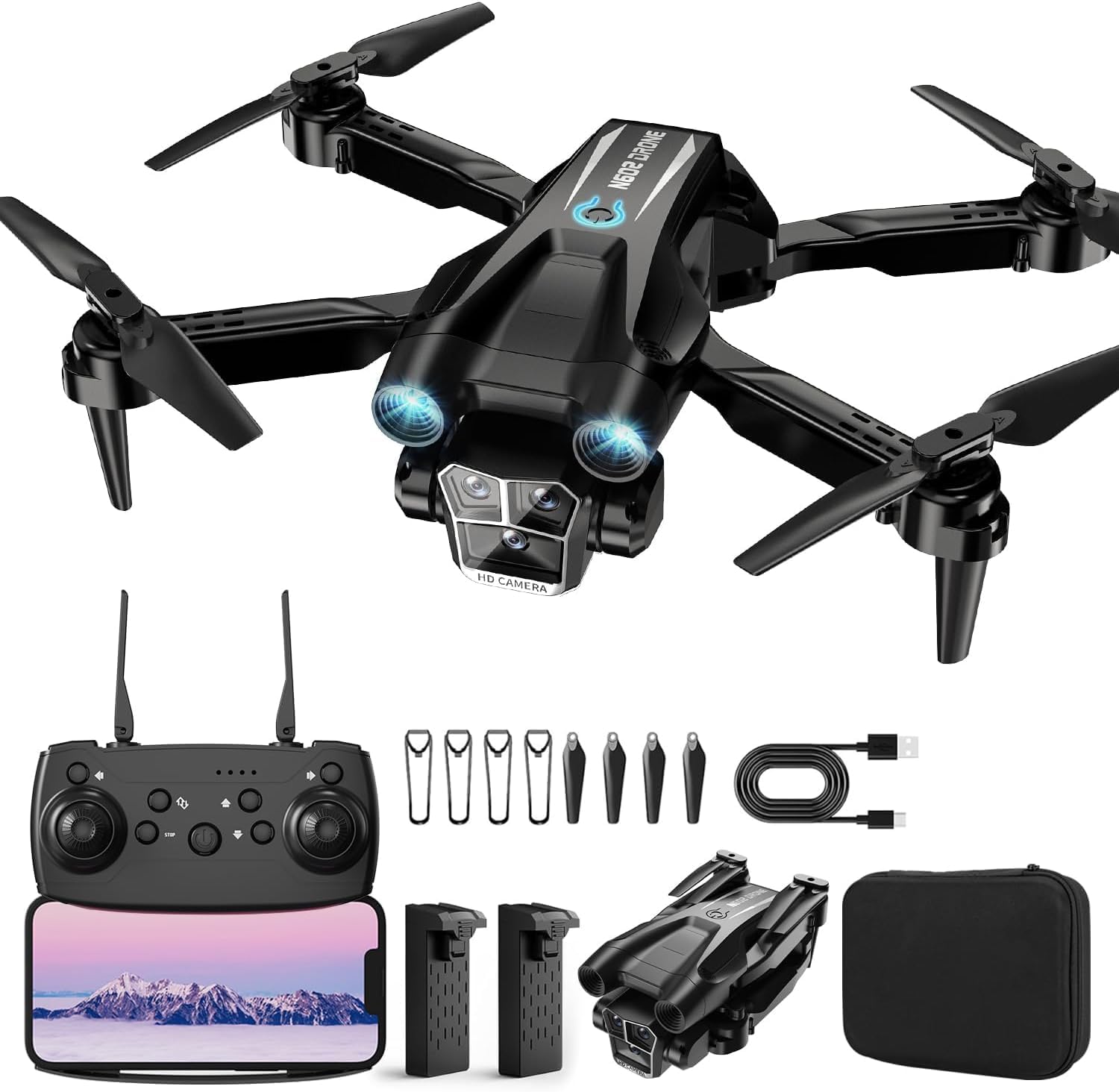
Figure 2.1: Contents of the BeiyoQSZ N602 Drone package, including the drone, remote, batteries, and tools.
3. Setup
3.1. Charging the Batteries
- Connect the provided USB charging cable to the drone's battery.
- Plug the other end of the USB cable into a compatible USB power source (e.g., computer, USB wall adapter).
- The battery indicator will show charging status. Ensure batteries are fully charged before flight.
- For the remote controller, insert 3 AAA batteries (not included) into the battery compartment.
3.2. Attaching Propeller Guards
For beginner pilots, it is highly recommended to attach the propeller guards to protect the blades from damage during collisions.
- Unfold the drone arms.
- Carefully snap each propeller guard onto the corresponding arm of the drone.

Figure 3.1: Propeller guards provide protection, especially for beginners.
3.3. Unfolding the Drone
The N602 drone features a foldable design for portability. To prepare for flight:
- Gently unfold each of the four arms until they lock into place.
- Ensure all arms are fully extended and secure.

Figure 3.2: The drone's foldable design for easy transport and setup.
4. Operating Instructions
4.1. Powering On and Pairing
- Place the drone on a flat, level surface.
- Press and hold the power button on the drone until the indicator lights turn on.
- Turn on the remote controller. The remote and drone should automatically pair. Indicator lights will stabilize once paired.
4.2. Basic Flight Controls
Familiarize yourself with the remote controller layout:

Figure 4.1: Remote controller layout and functions.
- One-Key Takeoff/Landing: Press the dedicated button for automatic takeoff or landing.
- Altitude Hold: The drone will maintain its current altitude, simplifying flight control.
- Headless Mode: In this mode, the drone's orientation is irrelevant; it will move relative to the pilot's position.
- Speed Modes: Cycle through three speed settings (Low, Medium, High) to match your skill level and environment.

Figure 4.2: Key flight features for ease of control.
4.3. Advanced Flight Features
- 3D Flips: Execute impressive aerial stunts with a press of a button.
- Trajectory Flight: Draw a flight path on your smartphone screen, and the drone will follow it automatically.
- Gravity Control: Control the drone's movement by tilting your smartphone.

Figure 4.3: Advanced flight modes for dynamic piloting.
4.4. Camera Operation
The drone is equipped with a 1080P HD camera with 90° adjustable angle.
- Real-time Video Transmission: Connect your smartphone to the drone's Wi-Fi network and open the dedicated app to view live footage.
- Gesture Control: Make a "V" gesture in front of the camera to take photos. Use a palm gesture to start/stop video recording.
- Adjustable Camera: The camera angle can be adjusted by 90° to capture various perspectives.

Figure 4.4: The 1080P HD camera with adjustable angle for versatile photography.

Figure 4.5: Gesture control for hands-free photo and video capture.
4.5. Official Product Video
Video 4.1: An overview of the BeiyoQSZ N602 Drone's features and capabilities, including its 1080P camera and stable flight.
5. Maintenance
5.1. Battery Care
- Always use the provided charging cable.
- Do not overcharge or over-discharge batteries.
- Store batteries in a cool, dry place away from direct sunlight.
- If not used for extended periods, charge batteries to about 50% every 3 months.

Figure 5.1: The drone comes with two batteries for extended flight.
5.2. Propeller Replacement
If a propeller is damaged, replace it immediately using the provided spare blades and screwdriver.
- Power off the drone.
- Use the screwdriver to carefully remove the screw holding the damaged propeller.
- Remove the damaged propeller and replace it with a new one, ensuring correct orientation.
- Secure the new propeller with the screw.
6. Troubleshooting
| Problem | Possible Cause | Solution |
|---|---|---|
| Drone does not respond to remote. | Not paired, low battery (drone/remote). | Ensure drone and remote are powered on and paired. Charge batteries. |
| Drone drifts during flight. | Uneven surface at takeoff, strong wind, uncalibrated. | Take off from a flat surface. Avoid strong winds. Calibrate the drone as per manual. |
| Camera feed is choppy or disconnected. | Weak Wi-Fi signal, too far from drone. | Ensure strong Wi-Fi connection. Fly closer to the drone. |
| Drone crashes frequently. | Beginner pilot, damaged propellers. | Practice in open areas. Attach propeller guards. Replace damaged propellers. |
7. Specifications
| Feature | Detail |
|---|---|
| Brand | BeiyoQSZ |
| Model Number | N602 |
| Special Features | 360 Degree Flip, Foldable, Stable Hover (Optical Flow Positioning) |
| Age Range (Recommended) | Over 14 years |
| Color | Black |
| Video Capture Resolution | 1080p |
| Effective Still Resolution | 2.1 MP |
| Connectivity Technology | Wi-Fi |
| Video Capture Format | MP4 |
| Control Type | Remote Control, Gesture Control, Gravity Control |
| Material | Plastic |
| Batteries | 2 Lithium Ion batteries (included) |
| Item Weight | 13.1 ounces |
| Product Dimensions | 2.55"L x 12.66"W x 10"H (Unfolded) |
8. Warranty & Support
For any product inquiries, technical support, or warranty claims, please contact BeiyoQSZ customer service. We are committed to providing friendly and sincere service.
Email: Beiyoqsz@outlook.com (USA)
Please retain your proof of purchase for warranty purposes.