
1. Introduction
This manual provides comprehensive instructions for the installation, operation, and maintenance of your Razuvious Smart Lock Fingerprint Door Lock, model L8-4585Mortise. This smart lock offers multiple keyless entry options and advanced security features for your home or office.
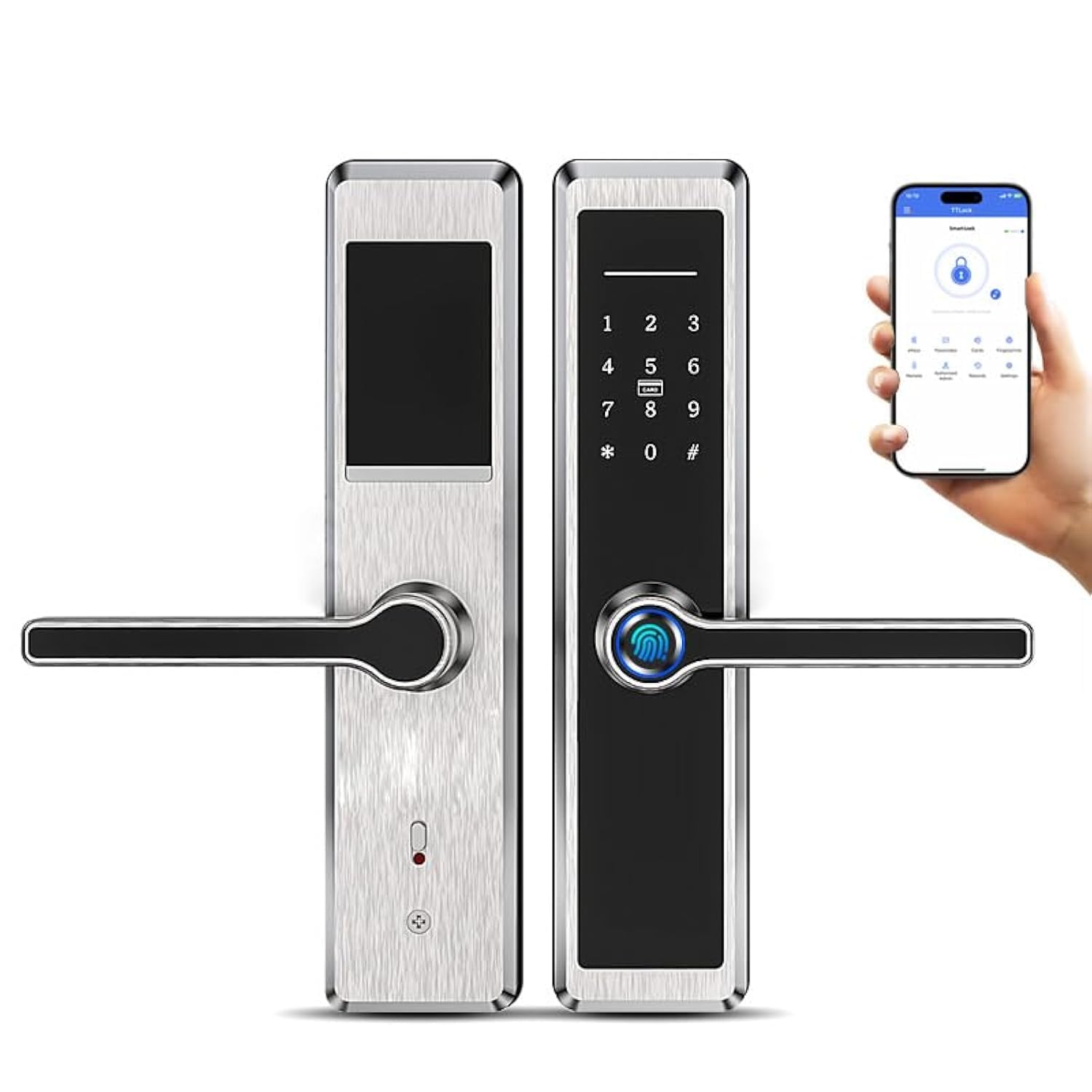
Figure 1.1: Razuvious Smart Lock L8-4585Mortise. This image shows the exterior and interior panels of the smart lock, alongside a smartphone screen displaying the TT Lock application, illustrating the lock's design and app integration.
2. What's in the Box
Please verify that all components are present before beginning installation:
- Smart Lock (Front and Rear Panels)
- Mortise Lock Body (4585 Insert Slot)
- Keychain (for IC Cards)
- Installation Screws and Accessories
3. Setup and Installation
The Razuvious Smart Lock is designed for straightforward installation. An installation video is available to guide you through the process. The door handle is reversible to accommodate both left and right-handed door configurations. Ensure to determine your door's handing (left or right) before installation.
3.1 Mortise Type and Dimensions
This smart lock is compatible with the 4585 mortise type. Please refer to the dimensions below to ensure compatibility with your door.

Figure 3.1: Mortise Options and Dimensions. This diagram illustrates the specific dimensions of the 4585 mortise lock body and the overall smart lock unit, including measurements like 28cm height for the lock panel and 240mm for the mortise plate.
3.2 Installation Steps
- Prepare the door according to the mortise dimensions.
- Install the mortise lock body into the door.
- Attach the exterior and interior panels of the smart lock, ensuring proper cable connection.
- Secure the lock with the provided screws.
- Insert 4 AAA batteries (not included) into the interior panel.
4. Operating Instructions
The Razuvious Smart Lock offers multiple methods for keyless entry and control.
4.1 Unlocking Methods
- Fingerprint: Place your registered fingerprint on the sensor.
- IC Card: Tap a registered IC card on the designated area.
- Anti-Peep Code: Enter your passcode, optionally adding random digits before or after to prevent onlookers from guessing your code.
- TT Lock App: Use the mobile application to unlock the door via Bluetooth.
- Physical Key: For emergency situations, use the provided physical keys.

Figure 4.1: Fingerprint Smart Door Lock Features. This image highlights the five primary methods of unlocking the Razuvious Smart Lock, including fingerprint, app control, and compatibility with smart voice control.
4.2 Locking the Door
To lock the door, you can typically lift the handle or use the TT Lock app. Within the app, a long press on the lock button will engage the lock.

Figure 4.2: APP Touch Unlock and Hold to Lock. This image displays the TT Lock app interface, indicating that a single tap on the lock icon unlocks the door, while a long press locks it. Note: If no gateway is connected, these operations require proximity to the lock.
5. App Control and Advanced Features
The TT Lock app provides comprehensive control and management capabilities for your smart lock.
5.1 Remote Access and Voice Control
For remote locking/unlocking and status checks from anywhere, an optional WiFi gateway (sold separately, ASIN: B09JWNF6C3) is required. With the gateway, the lock is compatible with voice assistants like Alexa and Google Assistant.
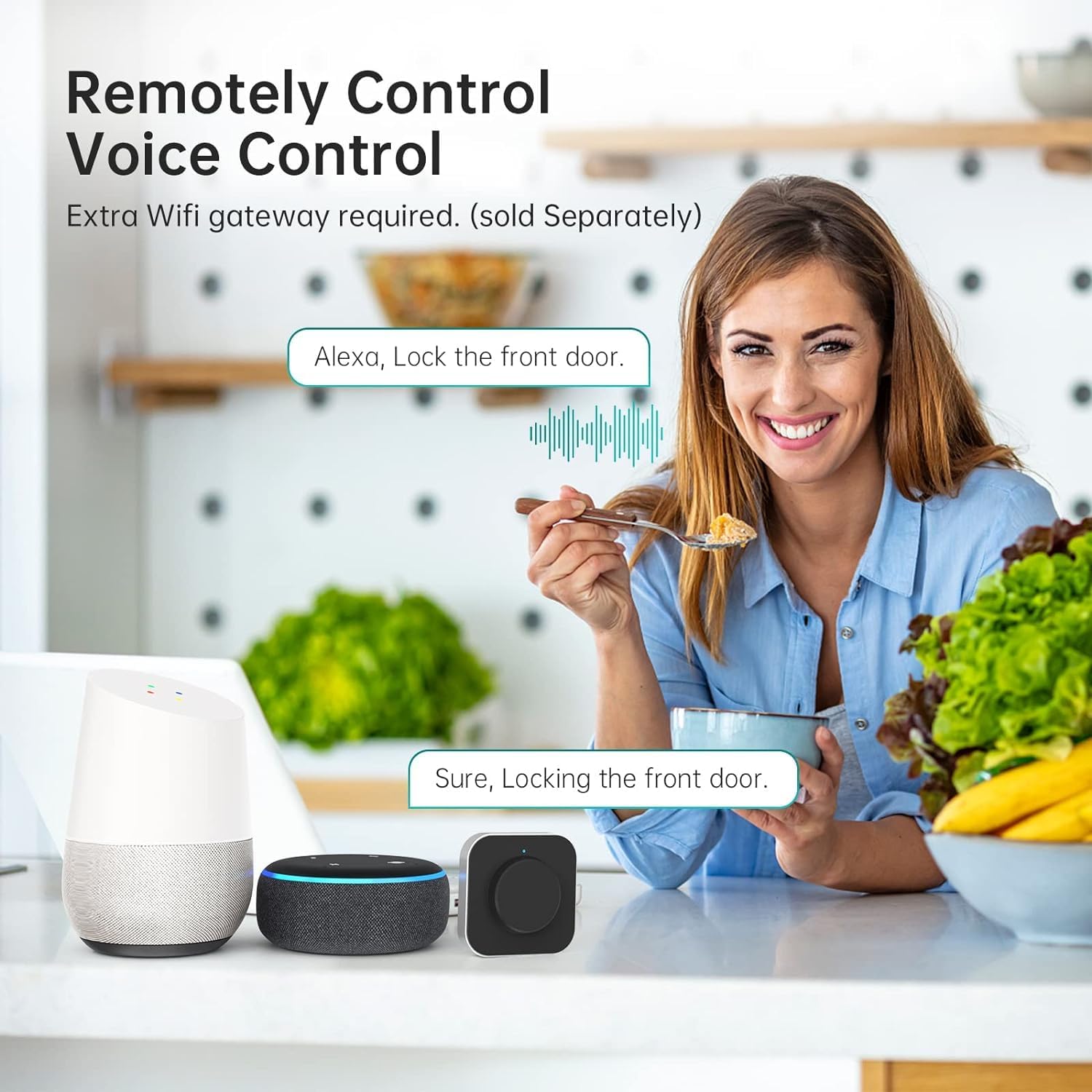
Figure 5.1: Remotely Control Voice Control. This image shows a user interacting with smart home devices (Alexa and Google Home speakers) to remotely control the smart lock via voice commands, emphasizing the need for an extra WiFi gateway.
5.2 Virtual Keys (eKeys) and Access Management
The app allows you to send virtual keys (eKeys) to family and friends, granting them access. You can also set temporary or one-time access for guests and visitors. The app maintains a detailed unlock history, allowing you to monitor access anytime.
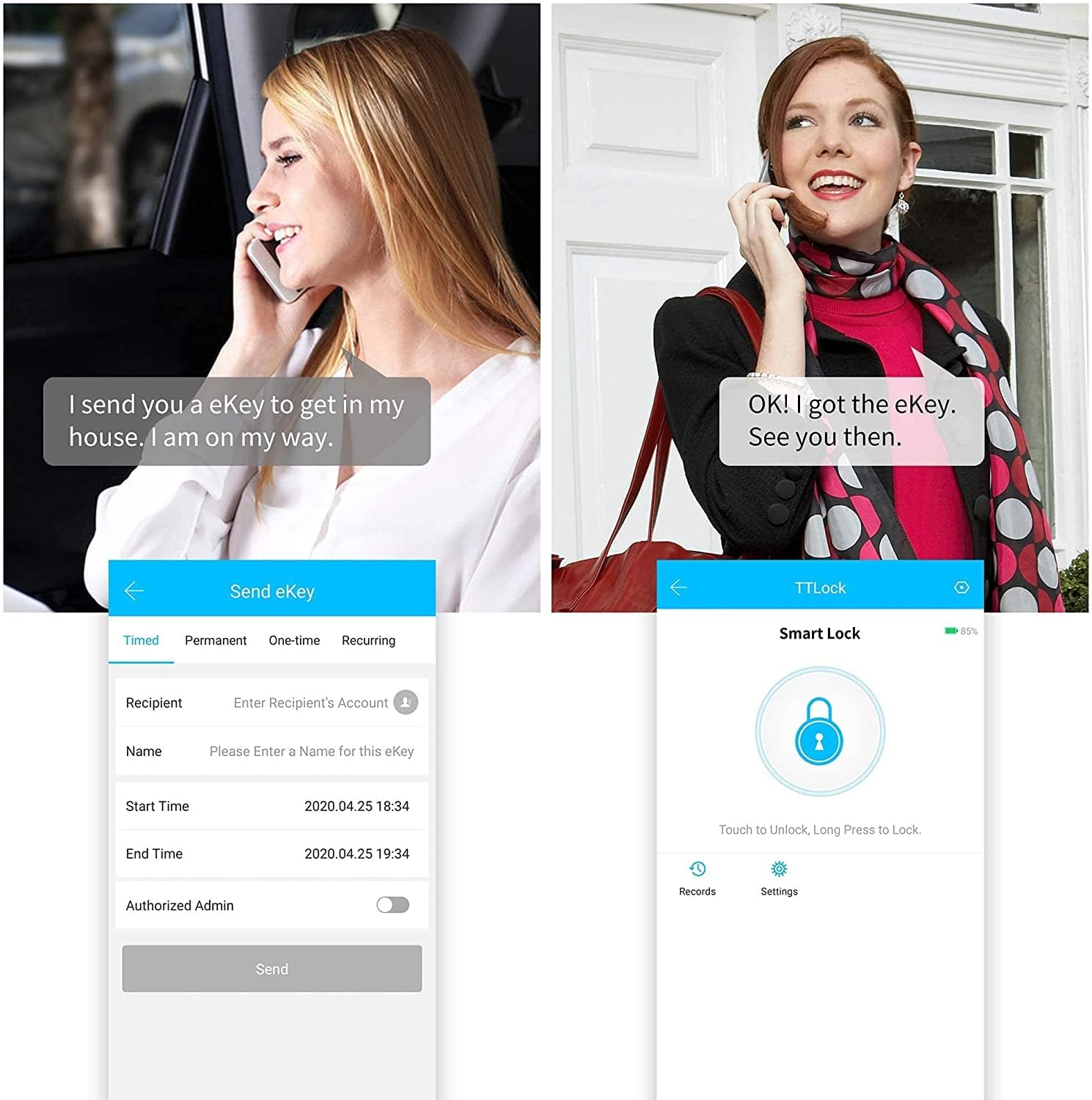
Figure 5.2: eKey Sharing. This image illustrates the process of sending an eKey through the TT Lock app, showing the sender configuring access parameters and the recipient confirming receipt of the eKey.
5.3 Operation Records and Settings
The TT Lock app provides a simple interface to manage users, passwords, and view operation records, including who unlocked the door and when.

Figure 5.3: Simple Interface & Operation Records. This image displays the user-friendly interface of the TT Lock app, showcasing the settings menu and a detailed log of unlock events, categorized by method (Bluetooth, Fingerprint, Password, Gateway).
6. Maintenance
6.1 Battery Replacement
The smart lock is powered by 4 AAA batteries (not included). When the battery level is low, the lock will provide an alert. Replace all four batteries simultaneously for optimal performance.
6.2 External Power Supply
In the event of complete battery depletion, a micro USB port is located on the bottom of the outdoor assembly. You can connect a power bank or other micro USB power source to temporarily power the lock and gain entry.
7. Troubleshooting
- Lock not responding: Check battery levels. If batteries are depleted, use the external micro USB power supply or the physical key.
- Fingerprint not recognized: Ensure your finger is clean and dry. Re-register your fingerprint if issues persist.
- App connection issues: Ensure Bluetooth is enabled on your smartphone and you are within range of the lock. For remote access, verify the WiFi gateway is properly connected and configured.
- Installation difficulties: Refer to the installation video or consult a professional if you encounter significant challenges during installation, especially with drilling or door handing.
8. Specifications
| Brand | Razuvious |
| Model Number | L8-4585Mortise |
| Lock Type | Mortise Lock |
| Special Feature | Fingerprint |
| Material | Stainless Steel |
| Color | Black |
| Finish Type | Brushed |
| Item Dimensions (L x W x H) | 6.5 x 2 x 26 Centimeters |
| Item Weight | 2.82 Kilograms |
| Control Method | App |
| Connectivity Protocol | Bluetooth |
| Power Source | 4 AAA Batteries (not included) |
| Recommended Uses | Home security, office security, short term rentals, property management |
9. Warranty and Support
The Razuvious Smart Lock comes with a 1-year product warranty. If you encounter any issues with your lock, please contact Razuvious customer support for assistance. The TT Lock app can be used for free indefinitely.