
1. Introduction
This manual provides detailed instructions for the Bysimilai USB Bluetooth 5.4 Transmitter Receiver. This versatile 2-in-1 device allows you to add Bluetooth functionality to non-Bluetooth audio devices, enabling wireless audio transmission (TX mode) or reception (RX mode). It is designed for use with various systems including TVs, PCs, speakers, car stereos, and home audio setups.
2. Safety Information
- Avoid prolonged exposure to radiofrequency signals.
- Keep the device away from your body when in use.
- Do not charge the device with damaged USB ports or chargers.
- Follow local regulations regarding disposal of electronic waste.
3. Package Contents
Please check the package for the following items:
- Bysimilai USB Bluetooth 5.4 Transmitter Receiver
- 3.5mm Audio Cable
- Instruction Manual
4. Product Overview
Familiarize yourself with the components and controls of your Bysimilai Bluetooth adapter.

Figure 4.1: Labeled diagram of the Bysimilai USB Bluetooth 5.4 Transmitter Receiver, highlighting its various ports and buttons.
- USB Port: For power supply.
- Protective Cap: Covers the USB port when not in use.
- LED Display Screen: Shows current mode (TX/RX), Bluetooth status, and other information.
- TF Card Slot: For Micro SD card playback.
- MFB Button (Multi-Function Button): Power on/off, play/pause, answer/end calls.
- Nex/Pre Button: Next track/Previous track, Volume up/down (long press).
- TX/RX Mode Switch Button: Toggles between Transmitter and Receiver modes.
- Microphone: For hands-free calling in RX mode.
- 3.5mm AUX Port: For audio input/output.
5. Setup
5.1 Powering the Device
The Bysimilai Bluetooth adapter does not contain an internal battery and requires external USB power to operate. Connect the USB plug of the adapter to any standard USB power source, such as:
- A USB port on a TV, PC, or laptop.
- A USB wall adapter (5V/1A recommended).
- A car USB charger.
The device will power on automatically once connected to a power source.
5.2 Connecting Audio
Use the included 3.5mm audio cable to connect the adapter's 3.5mm AUX port to your audio source or receiving device, depending on the desired mode.
6. Operating Modes
The device supports two primary operating modes: Transmitter (TX) and Receiver (RX). Switch between modes using the dedicated TX/RX Mode Switch Button on the side of the device.
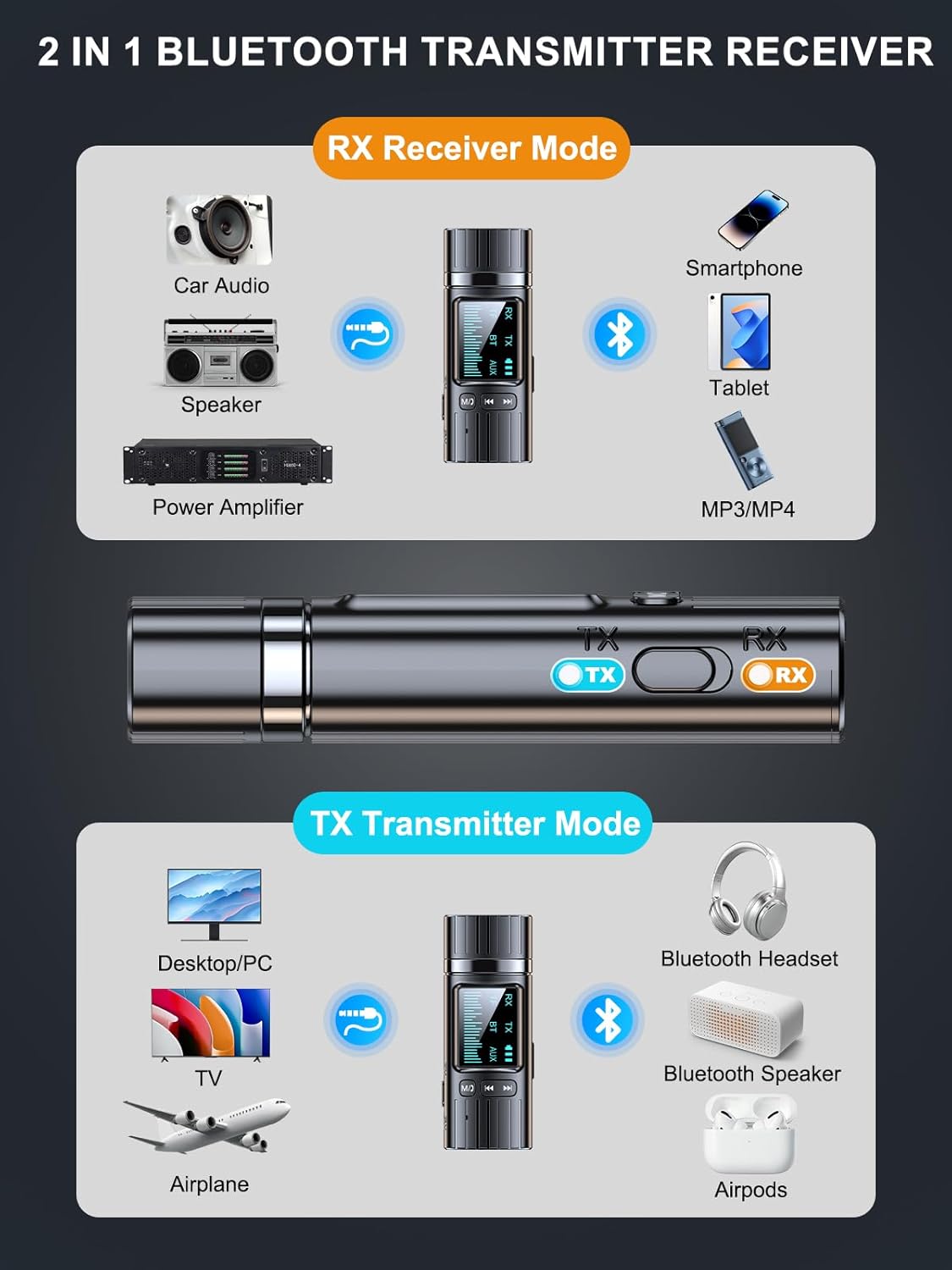
Figure 6.1: Overview of Transmitter (TX) and Receiver (RX) modes.
6.1 Transmitter (TX) Mode
In TX mode, the adapter transmits audio from a non-Bluetooth device to Bluetooth headphones or speakers.
- Set the device to TX mode using the TX/RX switch. The LED display will indicate 'TX'.
- Connect the 3.5mm AUX port of the adapter to the audio output (e.g., headphone jack) of your non-Bluetooth device (TV, PC, CD player).
- Ensure your Bluetooth headphones or speakers are in pairing mode.
- The adapter will automatically search for and connect to nearby Bluetooth audio devices. The display will show a successful connection.

Figure 6.2: Using the adapter in TX mode to transmit TV audio to Bluetooth headphones.
6.2 Receiver (RX) Mode
In RX mode, the adapter receives audio from a Bluetooth-enabled device (smartphone, tablet) and outputs it to a non-Bluetooth speaker or stereo system.
- Set the device to RX mode using the TX/RX switch. The LED display will indicate 'RX'.
- Connect the 3.5mm AUX port of the adapter to the audio input (e.g., AUX-in) of your non-Bluetooth speaker, car stereo, or home sound system.
- On your Bluetooth-enabled device (smartphone, tablet), search for Bluetooth devices and select the adapter (usually named 'Bysimilai' or similar).
- Once paired, audio from your device will play through the connected speaker system.

Figure 6.3: Using the adapter in RX mode for hands-free calling and music in a car.
6.3 TF Card Playback
The adapter supports direct audio playback from a TF (Micro SD) card.
- Insert a TF card with audio files into the TF Card Slot.
- The device will automatically switch to TF card playback mode, indicated on the LED display.
- Use the Nex/Pre buttons to navigate tracks and adjust volume (long press).

Figure 6.4: Inserting a TF card for direct audio playback.
6.4 Hands-free Calling (RX Mode)
When in RX mode and connected to a smartphone, the built-in microphone allows for hands-free calls.
- Answer/End Call: Press the MFB button once.
- Reject Call: Long press the MFB button.
7. Pairing Instructions
The pairing process is generally automatic once the device is in the correct mode and powered on.
7.1 Initial Pairing
- Ensure the adapter is powered on and in the desired TX or RX mode.
- For TX mode: Put your Bluetooth headphones/speakers into pairing mode.
- For RX mode: Enable Bluetooth on your smartphone/tablet and search for the adapter.
- The devices should connect automatically. If prompted for a password, enter "0000".
7.2 Reconnecting
After initial pairing, the adapter will attempt to automatically reconnect to the last paired device when powered on and in the same mode.
8. Troubleshooting
| Problem | Possible Cause | Solution |
|---|---|---|
| No power/Device not turning on | No USB power supply. | Ensure the USB plug is securely connected to a working USB power source. |
| Cannot pair with device | Incorrect mode, device not in pairing mode, too far apart. | Verify TX/RX mode. Ensure the other device is in pairing mode. Reduce distance between devices. Turn both devices off and on again. |
| Static or poor audio quality | Interference, loose audio cable, low quality power source, volume levels. | Ensure 3.5mm audio cable is fully inserted. Try a different USB power source (e.g., a wall adapter instead of a cheap USB hub). Adjust volume on both the adapter and the connected device. Keep away from other electronic interference. |
| Low volume output | Volume settings on adapter or connected device. | Increase volume on the adapter by long-pressing the 'Next' button. Increase volume on the connected audio source/receiver. |
| No audio from TF card | TF card not inserted correctly, unsupported file format. | Ensure TF card is fully inserted. Check if audio files are in a supported format (e.g., MP3). |
9. Specifications
- Model: B0F25VR89J
- Bluetooth Version: 5.4
- Connectivity Technology: AUX, Bluetooth
- Special Feature: Bluetooth V5.4 for stereo sound, Built-In Microphone, LCD Display
- Power Source: USB (No internal battery)
- Transmission Distance: Up to 10 meters (32 feet) barrier-free
- Dimensions: Approximately 3.98 x 3.19 x 0.75 inches
- Item Weight: Approximately 1.44 ounces (0.04 Kilograms)
10. Maintenance
- Keep the device dry. Moisture can damage electronic components.
- Clean the device with a soft, dry cloth. Do not use harsh chemicals or abrasive cleaners.
- Store the device in a cool, dry place when not in use.
- Avoid dropping or subjecting the device to strong impacts.
11. Warranty and Support
For warranty information or technical support, please refer to the contact details provided with your purchase or visit the Bysimilai official website. Keep your proof of purchase for warranty claims.