1. Introduction
This manual provides essential information for setting up, operating, and maintaining your new SAMSUNG Galaxy A26 5G Ai smartphone. Designed for a smooth and seamless experience, this device combines a stylish design with robust performance and advanced camera capabilities.
Key features include a vibrant 6.6-inch 120Hz display, a versatile 50MP triple camera system with optical image stabilization, and a long-lasting 5000 mAh battery. The device supports 5G connectivity and offers ample storage with expandability options.
2. Initial Setup
2.1. Unboxing and First Power On
Carefully remove your device and included accessories from the packaging. Press and hold the Power button (located on the right side of the device) until the Samsung logo appears to power on your phone for the first time. Follow the on-screen prompts to complete the initial setup, including language selection, Wi-Fi connection, and Google account setup.
2.2. SIM Card and MicroSD Card Installation
Locate the SIM tray on the side of your device. Use the provided SIM ejector tool to open the tray. Insert your Nano-SIM card(s) and/or a microSD card into the designated slots on the tray. Ensure the cards are correctly oriented. Gently push the tray back into the device until it clicks into place.

Figure 2.2.1: SIM card tray with slots for SIM and microSD cards.
3. Device Components
3.1. Front View

Figure 3.1.1: The front of the device features a large display with a small notch for the front camera at the top center.
3.2. Rear View
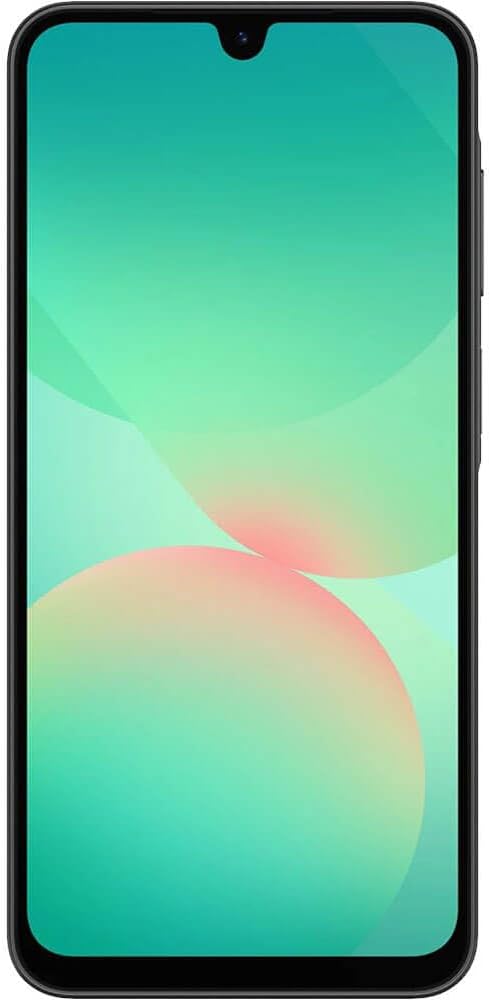
Figure 3.2.1: The rear of the device showcases the triple camera module vertically aligned on the top left, along with the Samsung branding at the bottom.
3.3. Side Views
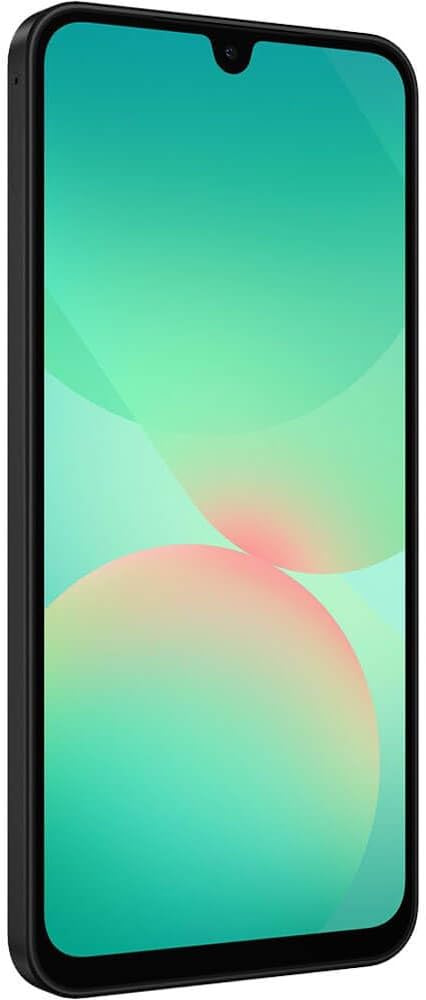
Figure 3.3.1: The right side of the device features the power button (which also integrates the fingerprint sensor) and volume rocker buttons.

Figure 3.3.2: The bottom edge of the device includes the USB-C charging port and a speaker grille.
4. Operating Your Device
4.1. Display and Navigation
The Galaxy A26 5G features a 6.6-inch Super AMOLED display with a 120Hz refresh rate, providing smooth scrolling and vibrant colors. Navigate the interface using touch gestures: swipe up/down for app drawer, swipe left/right for home screens, tap to select, and pinch to zoom.
4.2. Camera Usage
Your device is equipped with a 50MP Triple Camera system, including an Ultra-wide lens and a Macro lens, allowing for diverse photography. The main camera features Optical Image Stabilization (OIS) for sharper photos and stable videos.
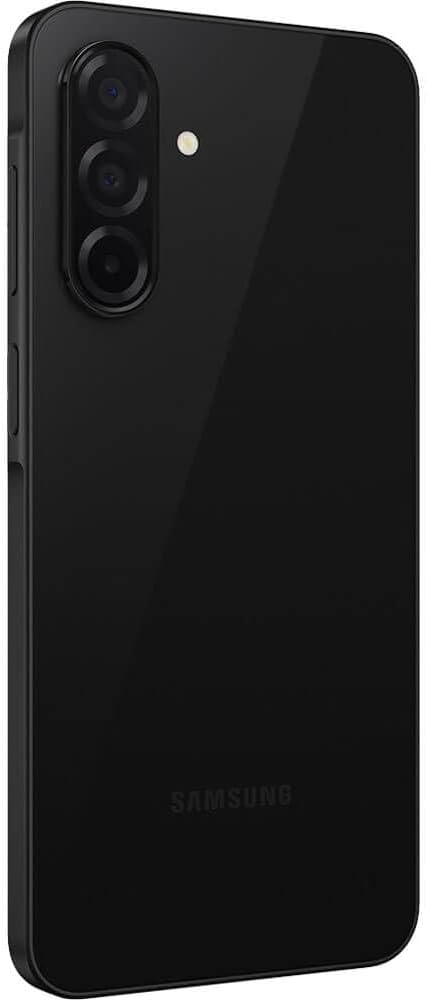
Figure 4.2.1: The triple camera module on the rear of the device.
To open the camera, tap the Camera app icon. Select PHOTO for still images, VIDEO for recording, or explore other modes like PORTRAIT for depth effects. Use the on-screen toggles to switch between the main, ultra-wide, and macro lenses, or to apply digital zoom.
4.3. Battery Management
The device is powered by a 5000 mAh battery, designed to provide long-lasting usage. To optimize battery life, adjust screen brightness, close unused apps, and enable power-saving modes through the Settings menu. The phone supports fast charging (25W) via its USB-C port.
5. Specifications
| Feature | Specification |
|---|---|
| Model Name | A26 5G (SM-A266M/DS) |
| Display Size | 6.6 inches (170.1 Millimeters) |
| Display Resolution | 1080 x 2340 pixels |
| Operating System | Android |
| CPU Speed | 2.4 GHz |
| RAM Memory | 6 GB |
| Internal Storage | 128 GB |
| Battery Capacity | 5000 Milliamp Hours |
| Main Camera | 50 MP Triple Camera |
| Connectivity | 2G, 3G, 4G, 5G, NFC |
| Wireless Carrier | Unlocked (for T-Mobile, Mint, Tello & Global GSM) |
| Dimensions | 6.4 x 3.3 x 1.2 inches |
| Item Weight | 9.6 ounces |
| Color | Black |
| What's in the box | User Manual |
6. Maintenance
6.1. Cleaning Your Device
To clean your device, gently wipe the screen and body with a soft, lint-free cloth. Avoid using harsh chemicals or abrasive materials, as these can damage the screen or finish. For stubborn smudges, slightly dampen the cloth with water or a screen cleaner specifically designed for electronics.
6.2. Software Updates
Regularly check for and install software updates to ensure your device has the latest features, security patches, and performance improvements. You can usually find software update options in the device's Settings menu under 'Software update'.
7. Troubleshooting
7.1. Common Issues and Solutions
- Device not powering on: Ensure the battery is charged. Connect the device to a charger and wait a few minutes before attempting to power it on again.
- Apps freezing or crashing: Close the problematic app and reopen it. If the issue persists, restart your device. Ensure all apps and the operating system are up to date.
- Poor battery life: Reduce screen brightness, disable unused features like Bluetooth or GPS, close background apps, and consider enabling power-saving mode.
- Connectivity issues (Wi-Fi/5G): Toggle Wi-Fi or mobile data off and on. Restart your device. If the issue is with Wi-Fi, try restarting your router.
- Fingerprint sensor not working: Ensure your finger is clean and dry. Re-register your fingerprints in the device settings if the problem continues.
8. Warranty and Support
8.1. Product Warranty
The SAMSUNG Galaxy A26 5G Ai typically comes with a 1-year US warranty. Please refer to the warranty card included in your product packaging or visit the official Samsung website for detailed terms and conditions regarding warranty coverage and service.
8.2. Customer Support
For further assistance, technical support, or service inquiries, please visit the official Samsung support website or contact their customer service hotline. You can find contact information and FAQs on the Samsung website.