
1. Introduction
The ONINCE CarPlay AI Box Z3 is a versatile adapter designed to enhance your in-car entertainment and connectivity. It converts your vehicle's existing wired Apple CarPlay system into a wireless Apple CarPlay and wireless Android Auto experience. Additionally, it provides access to popular streaming applications such as Netflix, YouTube, Disney+, and Prime Video directly on your car's display.
This device is engineered for seamless integration, offering faster boot times, smoother performance, and automatic connection upon vehicle startup.

Figure 1: ONINCE CarPlay AI Box Z3 and its interface capabilities.
2. Compatibility Requirements
The ONINCE CarPlay AI Box Z3 is compatible with specific vehicle configurations. Please review the following requirements carefully before use:
- Vehicle Model Year: Your vehicle must be manufactured in 2016 or later.
- Factory-Installed Wired CarPlay: The vehicle must come equipped with a factory-installed wired Apple CarPlay system.
- Touchscreen Display: A touchscreen display in your vehicle is required for full functionality.
Important Exclusions:
- Not compatible with vehicles manufactured before 2016.
- Not compatible with Tesla or BMW vehicles.
- Not compatible with aftermarket CarPlay systems.
- Not compatible with vehicles that only support wireless CarPlay (wired CarPlay is required).

Figure 2: Visual guide to vehicle compatibility and exclusions.
3. Setup Instructions
3.1 Initial Connection (Plug & Play)
- Connect the AI Box: Plug the ONINCE CarPlay AI Box Z3 into your vehicle's USB port that supports wired Apple CarPlay. Use the provided USB cable.
- Pair Bluetooth & Wi-Fi: On your vehicle's screen, navigate to the Bluetooth settings and pair with the AI Box. Follow the on-screen prompts to connect to the AI Box's Wi-Fi network.
- Enjoy CarPlay/Android Auto: Once connected, the AI Box will automatically launch wireless Apple CarPlay or Android Auto.

Figure 3: Simplified 3-step connection process.
3.2 Setting up Android Auto on Motorcycles (First-Time Setup)
For motorcycles with OEM wired CarPlay, follow these specific steps to enable Android Auto:
- Pair Bluetooth Helmet: Ensure your Bluetooth helmet is paired and connected to your motorcycle's system.
- Plug in AI Box: Connect the ONINCE CarPlay AI Box Z3 to your motorcycle's USB port.
- Resolution Screen: A resolution selection screen may appear on your motorcycle's display. Select the appropriate resolution.
- Power Cycle Motorcycle: Turn off your motorcycle's power for at least one minute.
- Restart and Connect: Power on your motorcycle. Android Auto should now be ready for use.

Figure 4: First-time Android Auto setup for motorcycles.
4. Operation
4.1 Wireless CarPlay and Android Auto
Once the AI Box Z3 is connected, it automatically converts your wired CarPlay system to wireless. This allows for seamless use of navigation, music, calls, and messaging without physical cable connections to your smartphone.
- Automatic Reconnection: The device is designed to automatically reconnect to your smartphone every time you start your vehicle after the initial pairing.
- Full Control: Retain full control over your car's original functions, including touchscreen, steering wheel buttons, and voice commands.
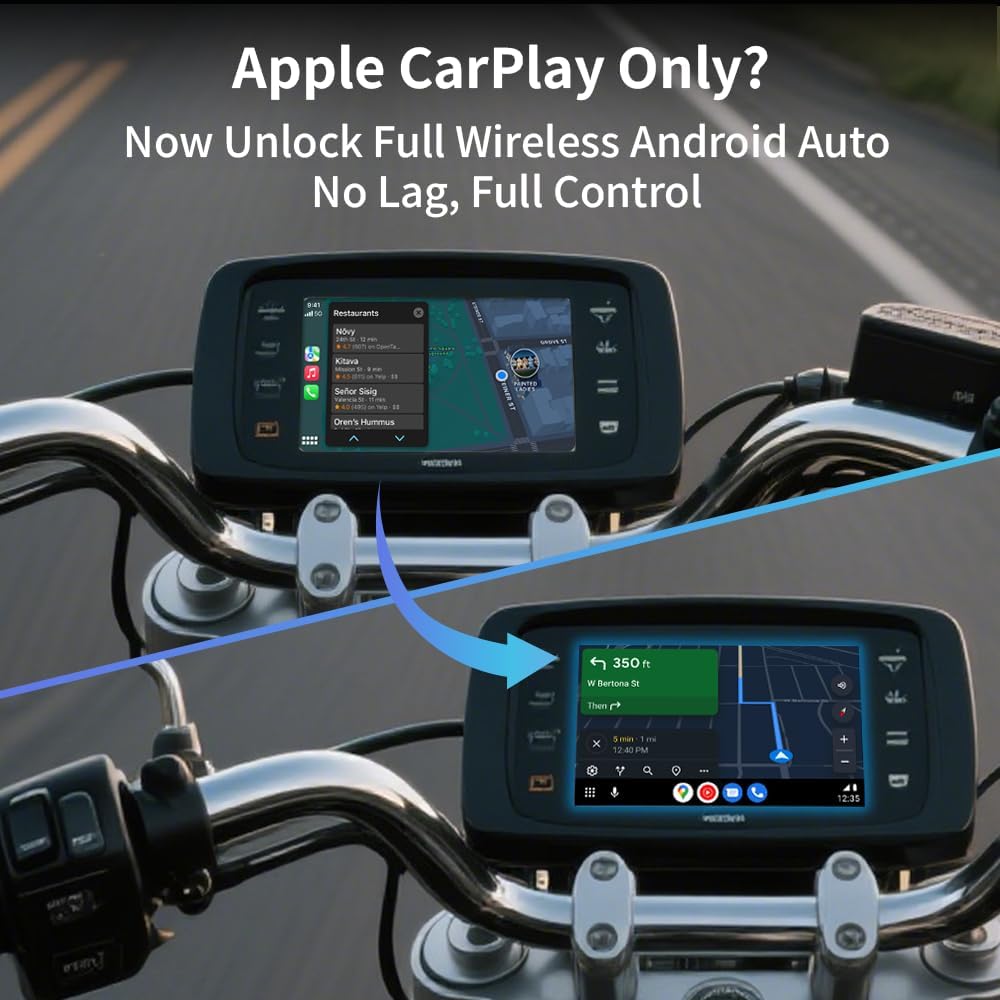
Figure 5: Transition from wired to wireless CarPlay using the AI Box.

Figure 6: Android Auto interface on a motorcycle display.
4.2 Streaming Applications
The AI Box Z3 comes pre-installed with several popular video streaming applications, enhancing your in-car entertainment options:
- Netflix
- YouTube
- Disney+
- Prime Video
These applications are ideal for entertaining passengers or for use during parked periods, such as charging stops or waiting times. The device utilizes 5.8GHz Wi-Fi for stable streaming performance.

Figure 7: Streaming applications available on the AI Box Z3.
4.3 Local Media Playback (MicroSD Card)
The AI Box Z3 supports local media playback via a microSD card (up to 128GB). This allows you to play videos and music stored directly on the card without requiring an internet connection.
- Insert the microSD card into the designated slot on the AI Box.
- Access media files through the device's interface on your car screen.

Figure 8: MicroSD card slot for local media playback.
5. Maintenance
To ensure optimal performance and longevity of your ONINCE CarPlay AI Box Z3, follow these general maintenance guidelines:
- Cleaning: Use a soft, dry cloth to clean the exterior of the device. Avoid using liquid cleaners or abrasive materials.
- Storage: When not in use for extended periods, store the device in a cool, dry place away from direct sunlight and extreme temperatures.
- Firmware Updates: Periodically check the manufacturer's website or the device's settings for available firmware updates to ensure the best performance and compatibility.
- Temperature: While the device is designed for in-car use, prolonged exposure to extreme heat (e.g., leaving it in a hot car for many hours) should be avoided.
6. Troubleshooting
If you encounter issues with your ONINCE CarPlay AI Box Z3, refer to the following common troubleshooting steps:
6.1 Connection Issues
- No Connection Despite Correct Steps: If the device fails to connect, try performing a factory reset on your vehicle's head unit. Consult your vehicle's manual for instructions on how to do this.
- Bluetooth & Wi-Fi Connected, but Android Auto Not Working: Uninstall and then reinstall the Android Auto application from the Google Play Store on your smartphone. After reinstallation, attempt to reconnect.
- Motorcycle Specific Connection Issues:
- Ensure your phone is "forgotten" from your motorcycle's Bluetooth settings before pairing with the AI Box.
- Tap the Android Auto icon on your car screen to initiate the connection.
- Pair your phone directly with the AI Box's Bluetooth.

Figure 9: Troubleshooting steps for connection and Android Auto issues.
6.2 MicroSD Card Playback Issues
- If the AI Box disconnects when a microSD card is inserted, ensure you are accessing the media through the Android Auto interface on your car screen, not directly through the vehicle's native USB input.
- Verify the microSD card is formatted correctly and contains compatible media files.
6.3 Device Overheating
It is normal for electronic devices to generate some heat during operation. However, if the device becomes excessively hot or exhibits performance issues due to heat, consider the following:
- Ensure the device is placed in a well-ventilated area and not covered by other objects.
- Avoid direct sunlight exposure, especially in a parked vehicle.
- If overheating persists and affects functionality, discontinue use and contact support.
7. Specifications
| Feature | Detail |
|---|---|
| Product Dimensions | 2.32 x 0.43 x 2.44 inches |
| Item Weight | 5 ounces (0.14 Kilograms) |
| Model Number | Z3 |
| Connectivity Technology | Wi-Fi (5.8GHz) |
| Controller Type | Android |
| Special Feature | Android Auto, Wireless CarPlay, Streaming Apps |
| Compatible Devices | Smartphone (with wired CarPlay enabled vehicles) |
| Connector Type | USB Type-C |
| Audio Output Mode | Mono |
| Supported Internet Services | Disney+, Netflix, Prime Video, YouTube |
| MicroSD Card Support | Up to 128GB (for local media playback) |
8. Warranty and Support
For warranty information and technical support, please refer to the official ONINCE website or contact their customer service directly. Details regarding product registration, warranty claims, and technical assistance can typically be found on the manufacturer's support pages.
Please retain your proof of purchase for any warranty-related inquiries.