
MINISFORUM BD790i X3D ITX
MINISFORUM BD790I X3D Mini ITX Motherboard User Manual
Model: BD790i X3D ITX
Introduction
The MINISFORUM BD790I X3D is a high-performance Mini ITX motherboard designed for demanding applications, including extreme gaming and content creation. It features an integrated AMD Ryzen 9 7945HX3D processor, offering 16 cores and 32 threads with a boost frequency of up to 5.4 GHz and a substantial 144MB of L2+L3 cache. This motherboard supports advanced connectivity and storage options, making it suitable for compact yet powerful system builds.
Key features include dual PCIe 5.0 M.2 slots for lightning-fast storage, a PCIe 5.0 x16 slot for high-performance graphics cards, and DDR5 memory support up to 96GB. It also provides comprehensive I/O with HDMI, DisplayPort, USB-C, WiFi 6E, and Bluetooth 5.3, ensuring versatile connectivity for various peripherals and displays.
Setup
This section outlines the steps for setting up your MINISFORUM BD790I X3D motherboard. Ensure all components are compatible before beginning installation.
1. Component Installation
- Memory (DDR5 SODIMM): Locate the DDR5 SODIMM slots on the motherboard. Gently insert the memory modules into the slots, ensuring they are correctly oriented, until the clips on both sides snap into place. The motherboard supports up to 96GB of DDR5 memory.
- M.2 SSDs: The motherboard features dual PCIe 5.0 M.2 slots. Carefully insert your M.2 SSDs into the designated slots and secure them with the provided screws. An active SSD cooler is integrated to maintain optimal performance for PCIe 5.0 drives.
- Graphics Card (Optional): If using a dedicated graphics card, insert it into the PCIe 5.0 x16 slot. Ensure it is fully seated and secured with the case's retention mechanism.
- Wireless Module: Install your M.2 2230 Key E Wi-Fi module into its dedicated slot if not pre-installed.
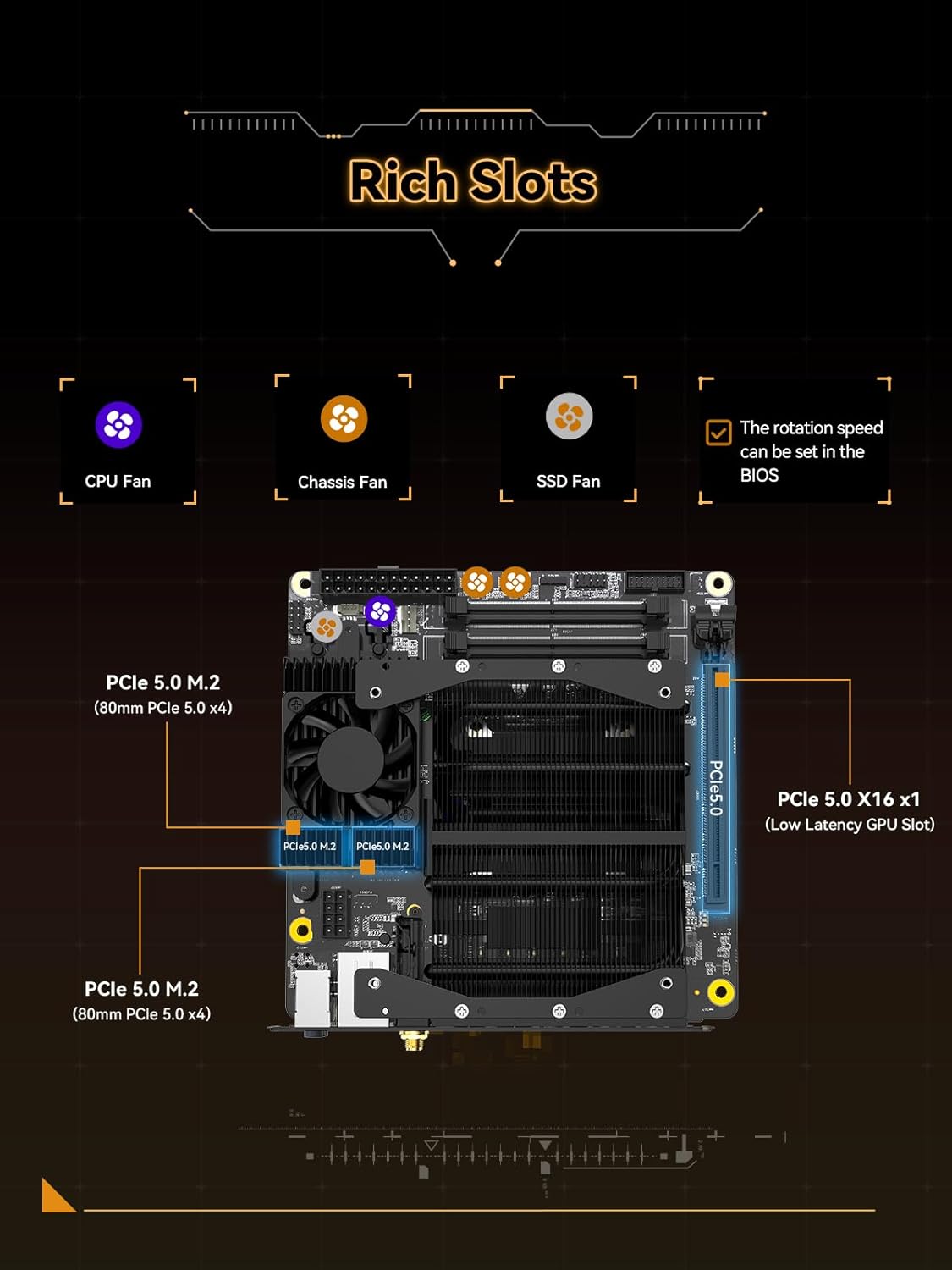
Image: Overview of the motherboard's rich slots, including PCIe 5.0 x16 and dual PCIe 5.0 M.2 slots, along with fan headers for CPU, chassis, and SSD fans.
2. Power and Peripheral Connections
- Power Supply: Connect the appropriate power cables from your power supply unit (PSU) to the motherboard's power connectors.
- Display Connections: Connect your monitor(s) to the available video output ports: HDMI 2.1, DisplayPort 1.4, or USB-C. The motherboard supports triple display output.
- USB Devices: Connect your keyboard, mouse, and other USB peripherals to the USB 3.2 Gen2 Type-A, USB 3.2 Gen1 Type-A, or USB 2.0 Type-A ports.
- Network: For wired network access, connect an Ethernet cable to the RJ45 2.5G LAN port. For wireless, ensure your Wi-Fi antenna is connected.
- Audio: Connect speakers or headphones to the audio output jacks.
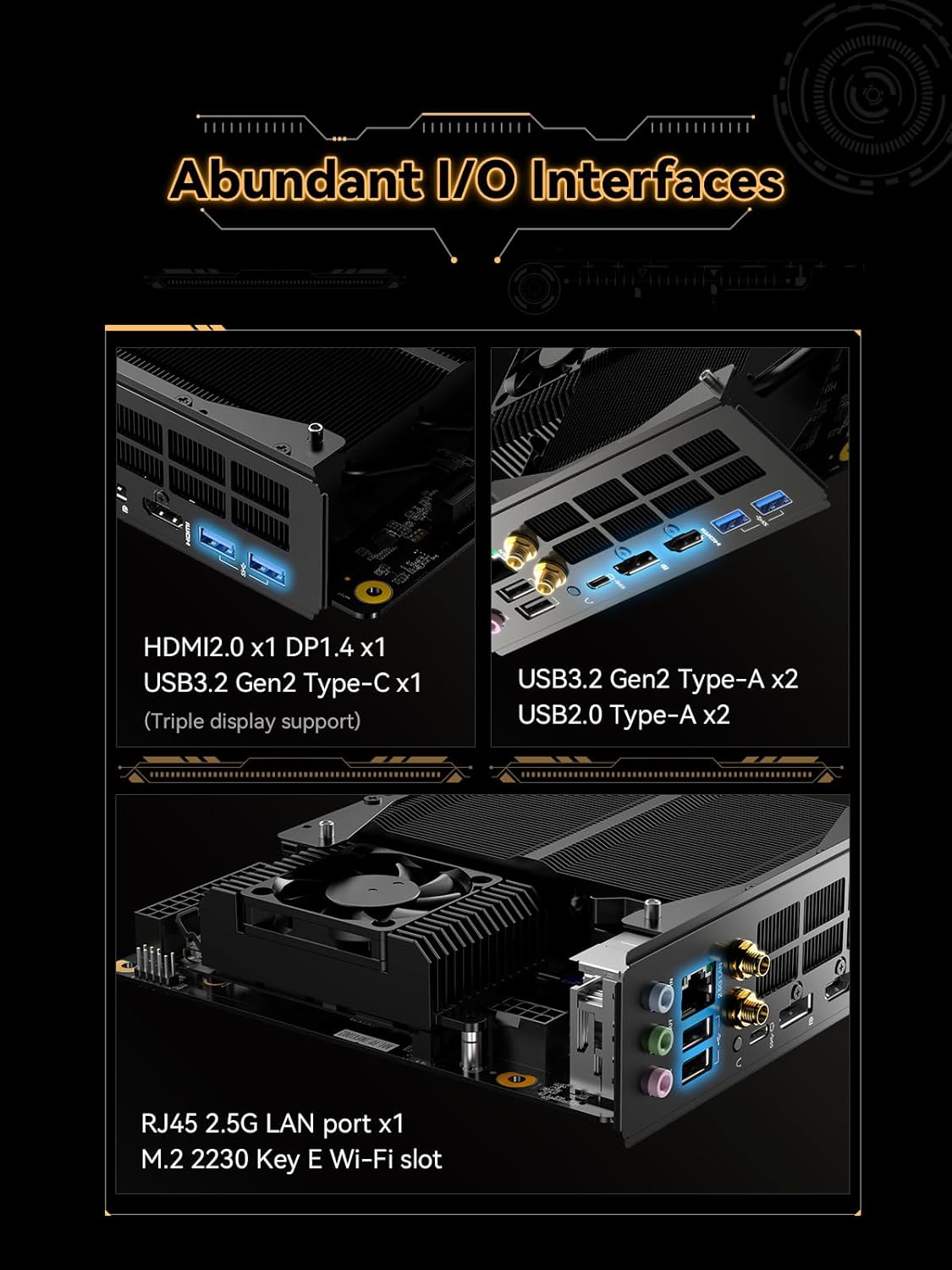
Image: Detailed view of the motherboard's abundant I/O interfaces, including HDMI, DisplayPort, USB-C, USB-A ports, RJ45 LAN, and audio jacks.
Operating
Once all components are installed and connected, you can power on your system. The integrated AMD Ryzen 9 7945HX3D processor provides robust performance for various tasks.
Initial Boot and BIOS Access
Upon first power-on, the system will initiate the boot process. You may need to access the BIOS/UEFI settings to configure boot order, memory profiles (XMP/EXPO), or fan curves. Typically, you can enter the BIOS by pressing the Del or F2 key repeatedly during startup.
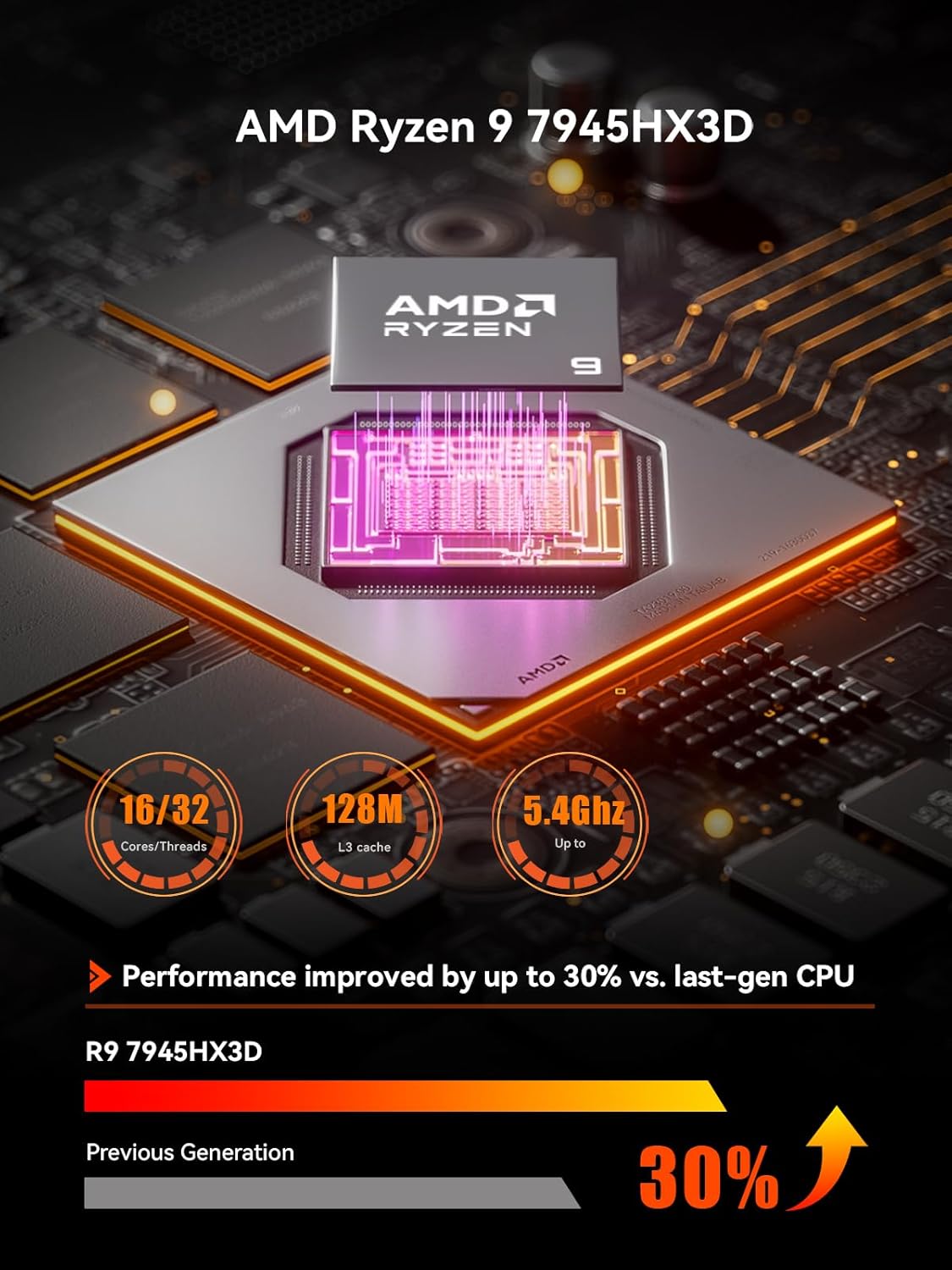
Image: Visual representation of the AMD Ryzen 9 7945HX3D processor, highlighting its 16 cores/32 threads, 128MB L3 cache, and up to 5.4GHz clock speed, indicating a 30% performance improvement over previous generations.
Operating System Installation
Install your preferred operating system (e.g., Windows, Linux) from a bootable USB drive or other media. Ensure you download and install the latest drivers for the motherboard's components, including chipset, graphics, audio, and network, from the MINISFORUM official website or component manufacturers (e.g., Realtek for audio/Ethernet).
Connectivity
- Wireless: Utilize the integrated WiFi 6E for high-speed wireless internet access and Bluetooth 5.3 for connecting wireless peripherals.
- Multi-Display: Leverage the HDMI 2.1, DisplayPort 1.4, and USB-C outputs for a triple-display setup, supporting resolutions up to 8K@60Hz or 4K@120Hz.
Maintenance
Proper maintenance ensures the longevity and optimal performance of your motherboard.
Cooling System
The BD790I X3D features an efficient cooling system with a pre-installed fanless heatsink covering 80% of the motherboard and an active SSD cooler. To maintain effective cooling:
- Dust Removal: Regularly clean dust from the heatsink fins and any installed fans using compressed air. Ensure the system is powered off and unplugged before cleaning.
- Airflow: Ensure adequate airflow within your PC case. Avoid obstructing ventilation openings.
- Fan Control: The rotation speed of CPU, chassis, and SSD fans can be adjusted in the BIOS to optimize cooling and noise levels.

Image: Diagram illustrating the motherboard's cooling solution, showing support for a 12cm fan to enhance heat dissipation from the heatsink.
BIOS Updates
Check the MINISFORUM official website periodically for BIOS/UEFI updates. Updates can improve system stability, performance, and compatibility, and may include optimized fan curves or thermal management improvements.
Troubleshooting
This section provides solutions to common issues you might encounter.
No Display Output
- Ensure all display cables (HDMI, DisplayPort, USB-C) are securely connected to both the motherboard and the monitor.
- Verify the monitor is powered on and set to the correct input source.
- If using a dedicated graphics card, ensure it is properly seated and connected to power. Try connecting the display to the motherboard's integrated graphics ports to rule out a graphics card issue.
System Not Booting
- Check all power connections to the motherboard and components.
- Reseat memory modules and M.2 SSDs to ensure they are properly installed.
- Clear the CMOS (Complementary Metal-Oxide-Semiconductor) settings. Refer to the motherboard's detailed manual for instructions on how to do this (usually involves a jumper or removing the CMOS battery).
Overheating or Excessive Fan Noise
- Ensure proper airflow within your PC case and that case fans are functioning correctly.
- Clean any dust accumulation on the heatsink and fans.
- Update the BIOS to the latest version, as this may include improved fan curves and thermal management.
- Consider adjusting fan speed settings in the BIOS to find a balance between cooling performance and noise.
Driver Issues
- If experiencing issues with network, audio, or other peripherals, ensure you have installed the correct and latest drivers.
- Download drivers directly from the MINISFORUM support page or the respective component manufacturer's website (e.g., Realtek for audio/LAN).
Specifications
The following table details the technical specifications of the MINISFORUM BD790I X3D Mini ITX Motherboard.

Image: A detailed table outlining the specifications of the MINISFORUM BD790I X3D, including CPU, GPU, Memory, Expansion Slots, Wireless, Ethernet, Video Output, Audio Output, USB Ports, I/O Ports, and TDP.
| Feature | Specification |
|---|---|
| Brand | MINISFORUM |
| Model Name | BD790i X3D ITX |
| CPU | Integrated AMD Ryzen 9 7945HX3D (16C/32T, up to 5.4 GHz, 144MB Cache) |
| GPU | AMD Radeon 610M (Integrated) |
| Memory | 2x SODIMM slots, DDR5, up to 5200MT/s, up to 96GB |
| Expansion Slots | 1x PCIe 5.0 X16, 1x M.2 2230 Key E slot (for Wi-Fi) |
| Storage | 2x PCIe 5.0 M.2 slots (80mm PCIe 5.0 x4) |
| Ethernet | RJ45 2.5G LAN port x1 |
| Wireless Connectivity | WiFi 6E, Bluetooth 5.3 |
| Video Output | 1x HDMI 2.1, 1x DP 1.4, 1x USB-C (Alt DP) - Triple display support |
| Audio Output | 1x HDMI 2.1, 1x DP 1.4, 1x USB-C (Line Out) |
| USB Ports | 1x USB 3.2 Gen2 Type-C (Alt DP), 2x USB 3.2 Gen1 Type-A, 2x USB 2.0 Type-A |
| Fan Headers | 1x 4-pin CPU fan header, 2x 4-pin case fan headers, 1x 4-pin SSD fan header |
| Dimensions | Mini-ITX (17x17x1.6cm) |
| TDP | 100W |
Warranty and Support
For detailed warranty information and technical support, please refer to the official MINISFORUM website or contact their customer service directly. Keep your proof of purchase for warranty claims.
MINISFORUM Official Website: www.minisforum.com
Ask a question about this manual
Ask about setup, troubleshooting, compatibility, parts, safety, or missing instructions. Manuals+ will review the question and use this page’s manual context to help answer it.