
Xakava SF30003
SF3000 Portable Handheld HD Gaming Console User Manual
Model: SF30003 | Brand: Xakava
1. Introduction
Welcome to the user manual for your new Xakava SF3000 Portable Handheld HD Gaming Console. This manual provides essential information on setting up, operating, maintaining, and troubleshooting your device. Please read it thoroughly to ensure optimal performance and longevity of your console.
The SF3000 is a versatile handheld device designed for gaming enthusiasts, featuring a 4.5-inch IPS HD screen, dual-core processor, and support for multiple retro game emulators. It also offers additional functionalities such as an e-book reader, video player, and emergency power bank.
2. What's in the Box
Upon unboxing your SF3000 console, please verify that all components are present:
- 1x SF3000 Portable Handheld HD Gaming Console (Grey)
- 1x USB Charging Cable
- 1x User Manual (this document)

Image: The SF3000 Portable Handheld HD Gaming Console in Grey, showcasing its compact design and main features.
3. Product Overview and Button Functions
Familiarize yourself with the console's layout and button functions for optimal use.

Image: Diagram illustrating the various buttons and ports on the SF3000 console, including extended keys, ON/OFF key, DC/OTG port, TF socket, earphone port, volume key, directional keys, SELECT, START, and function keys.
Key Components:
- 4.5-inch IPS HD Screen: For clear and vibrant visuals.
- Directional Keys (D-Pad): For navigation in menus and games.
- Analog Joysticks: For precise control in games.
- Function Keys (A, B, X, Y): Standard gaming action buttons.
- SELECT/START Buttons: For in-game actions and menu navigation.
- L/R Extended Keys: Shoulder buttons for additional in-game controls.
- ON/OFF Key: Power button for the console.
- DC/OTG Port: For charging and On-The-Go connectivity.
- TF Socket: MicroSD card slot for expandable storage and game loading.
- Earphone Port: 3.5mm jack for audio output.
- Volume Key: Adjusts audio volume.
- Integrated Stand: Allows the console to stand upright for hands-free viewing.

Image: Close-up views highlighting the console's design features, including crystal buttons for enhanced control, anti-slip joysticks for stable operation, an integrated stand for comfortable viewing, and an ergonomic grip for extended play.
4. Setup
4.1 Initial Charging
Before first use, fully charge your SF3000 console. Connect the provided USB charging cable to the DC/OTG port on the console and the other end to a compatible USB power adapter (not included) or a computer's USB port. The charging indicator will illuminate during charging and turn off when fully charged.
Note: A full charge typically takes approximately 3-4 hours and provides up to 6 hours of battery life.

Image: The SF3000 console displaying its 3000mAh battery capacity, emphasizing its long battery life and its secondary function as a power bank for charging other devices like mobile phones.
4.2 Inserting a MicroSD Card (TF Card)
The SF3000 comes with pre-loaded games on an internal storage or an included MicroSD card. To expand your game library or access additional content, you can insert a MicroSD card into the TF Socket.
- Locate the TF Socket on the top edge of the console.
- Gently insert the MicroSD card with the gold contacts facing down until it clicks into place.
- To remove, gently push the card inward until it clicks, then release, and it will spring out.
5. Operating Instructions
5.1 Powering On/Off
- To Power On: Press and hold the ON/OFF key for a few seconds until the screen illuminates.
- To Power Off: Press and hold the ON/OFF key until a power-off prompt appears, then select "Power Off". Alternatively, a quick press will put the device into sleep mode.
5.2 Navigating the Interface
Use the Directional Keys or Analog Joysticks to navigate through menus. Press the "A" button (or indicated function key) to select an option, and "B" (or indicated function key) to go back.

Image: The SF3000 console displaying a vibrant game on its 4.5-inch HD screen, showcasing immersive visuals.
5.3 Playing Games
The SF3000 supports multiple emulators, allowing you to play a wide variety of retro games.
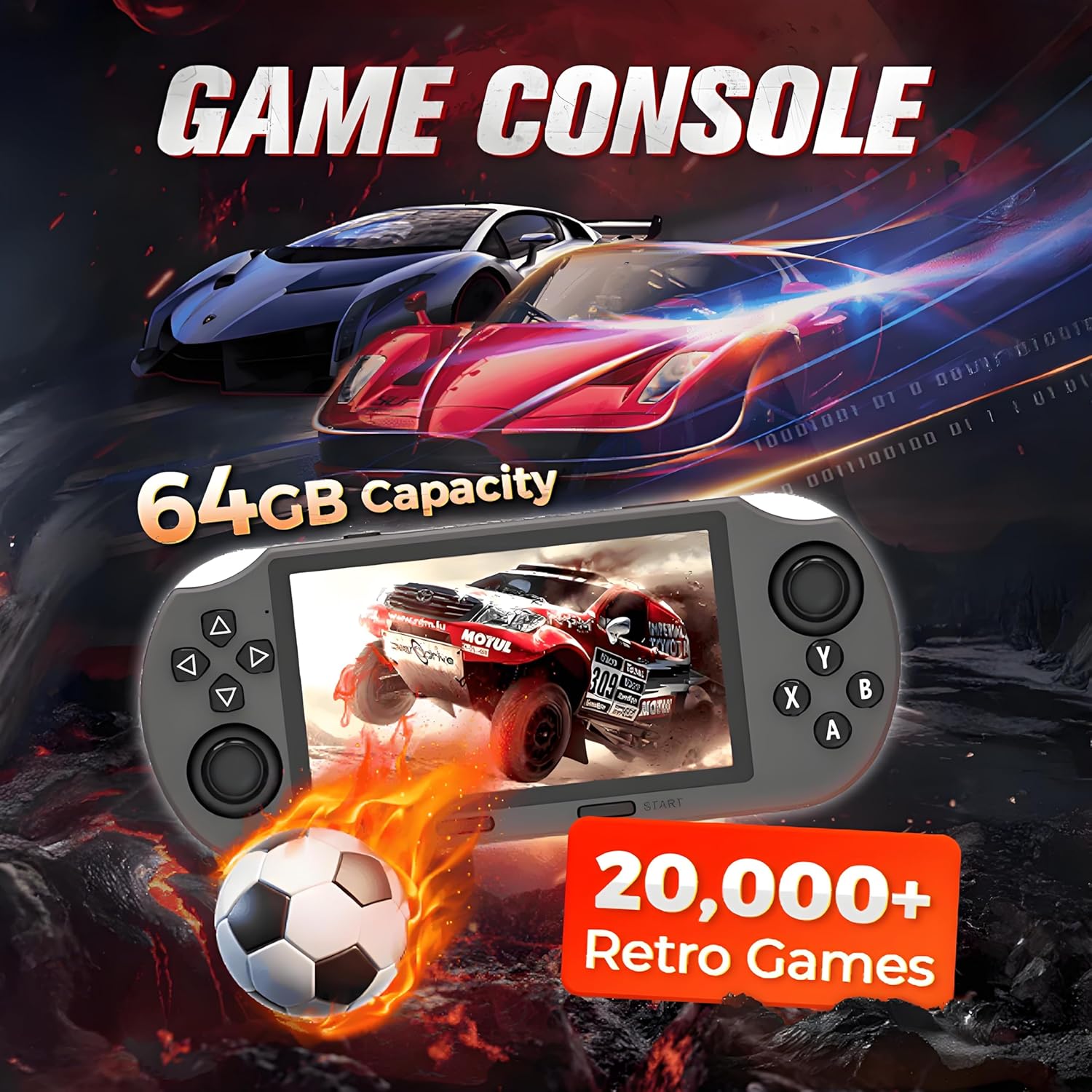
Image: The SF3000 console highlighting its 64GB capacity and the availability of over 20,000 retro games, with a racing game displayed on the screen.
- From the main menu, select the "Games" or "Emulator" option.
- Choose the desired emulator (e.g., MAME, PS1, FC, SFC, GBC).
- Browse the list of available games and select one to start.
- Use the console's buttons and joysticks to play.
Tip: To access in-game menus (e.g., save/load states, exit game), press SELECT + START simultaneously.

Image: A visual representation of the various game emulators supported by the SF3000, including MAME, PS1, FC, SFC, MD, GB, GBC, GBA, PCE, ATARI, SMS, GG, NGPC, and WSC, indicating its broad compatibility with retro gaming platforms.
5.4 Multifunctional Use
The SF3000 is more than just a gaming console:
- E-book Reader: Access and read e-books directly on the console.
- Video Player: Play video files. You can plug in a USB flash drive via the OTG port for instant video playback.
- Emergency Phone Charger: Use the console's battery to provide emergency charge to your mobile phone via the DC/OTG port.

Image: The SF3000 console demonstrating its video playback capability, showing a USB flash drive connected via the OTG port, allowing users to enjoy videos. The integrated stand is also shown in use.

Image: The SF3000 console illustrating its dual functionality: gaming mode on the left and charging mode on the right, where it is shown connected to and charging a mobile phone.
5.5 Language and Display Settings
You can adjust the console's language, volume, and brightness settings through the system menu.
- Navigate to the "Settings" menu.
- Select "Language" to choose your preferred language (supports 25 languages).
- Adjust "Volume" and "Brightness" as needed.
6. Maintenance
- Cleaning: Use a soft, dry cloth to clean the console's exterior. Do not use liquid cleaners or abrasive materials.
- Storage: Store the console in a cool, dry place away from direct sunlight and extreme temperatures.
- Battery Care: To prolong battery life, avoid fully discharging the battery frequently. Charge the console regularly, even if not in use for extended periods.
- Software Updates: Periodically check the manufacturer's website for any available firmware updates to ensure optimal performance and compatibility.
7. Troubleshooting
| Problem | Possible Cause | Solution |
|---|---|---|
| Console does not power on. | Low battery; System crash. | Charge the console for at least 30 minutes. If still unresponsive, perform a hard reset by holding the power button for 10-15 seconds. |
| Games are lagging or freezing. | Insufficient system resources; Corrupted game file; SD card issue. | Close background applications. Try a different game. Reformat or replace the MicroSD card. |
| No sound. | Volume too low; Earphones not properly connected; Software glitch. | Increase volume using the volume key. Re-insert earphones. Restart the console. |
| Screen is blank or distorted. | Software error; Hardware malfunction. | Restart the console. If the problem persists, contact customer support. |
| Cannot charge mobile phone. | Charging cable issue; Console battery too low; Phone not compatible. | Ensure the console is sufficiently charged. Use a different USB cable. Verify phone compatibility with OTG charging. |
8. Specifications
| Feature | Detail |
|---|---|
| Model Number | SF30003 |
| Screen Size | 4.5 Inches |
| Display Type | LCD |
| Controller Type | Button Control |
| Power Source | Battery Powered |
| Battery Life | Up to 6 Hours |
| Memory Storage Capacity | 64 GB (expandable via TF card) |
| Material | Plastic |
| Product Dimensions | 9.3 x 0.55 x 4.6 inches |
| UPC | 686585420961 |
| Manufacturer | Xakava |
9. Safety Information
WARNING: CHOKING HAZARD - Small parts. Not for children under 3 years.
- Keep the device away from water and excessive moisture.
- Avoid exposing the device to extreme temperatures (hot or cold).
- Do not attempt to disassemble or repair the device yourself. This will void the warranty.
- Use only approved charging cables and adapters.
- Take breaks during extended gaming sessions to prevent eye strain and fatigue.
10. Warranty and Support
For warranty information and technical support, please refer to the warranty card included with your product or visit the official Xakava website. You may also contact Xakava customer service directly for assistance with product issues or inquiries.
Manufacturer: Xakava
Amazon Store: Visit the Xakava Store on Amazon
Note: Protection plans are available for purchase separately on Amazon. Please check the product page for details.
Related Documents - SF30003
 |
Poseidon Sand Filter Installation and Operation Manual This manual provides comprehensive instructions for the installation, operation, and maintenance of Poseidon swimming pool sand filters manufactured by Hy-Clor. It covers parts identification, assembly steps, multiport valve functions, troubleshooting, and best practices for optimal pool filtration. |
Ask a question about this manual
Ask about setup, troubleshooting, compatibility, parts, safety, or missing instructions. Manuals+ will review the question and use this page’s manual context to help answer it.