
1. Introduction
This manual provides comprehensive instructions for the installation, operation, and maintenance of your Hikity Android 15 Car Stereo. Designed specifically for Fiat Panda models manufactured between 2003 and 2012, this unit features a 9-inch touch screen, Wireless Carplay, Android Auto, FM/RDS radio, Bluetooth 5.0, GPS navigation, WiFi connectivity, Steering Wheel Control (SWC) support, Mirror Link, and a backup camera input. Please read this manual thoroughly before installation and use to ensure proper functionality and safety.

Image: Comparison of the car dashboard before and after installing the Hikity Android 15 car stereo, showing the upgrade from a basic radio to a large touchscreen unit.
2. Package Contents
Verify that all items listed below are included in your package. If any items are missing or damaged, please contact customer support.
- Hikity Android 15 Car Stereo Unit (9-inch Touch Screen)
- ISO Power Adapter
- Mounting Frame
- Rear View Camera
- External Microphone
- USB Cables
- RCA Cables
- GPS Antenna
- Installation Tools
- Canbus Decoder (if applicable for your vehicle model)

Image: Product dimensions and a visual representation of all accessories included in the package, such as power cable, RCA cable, USB cable, radio antenna, rear camera input, GPS antenna, Canbus plug, installation tools, and microphone.
3. Product Features
- Operating System: Android 15
- Memory: 4GB RAM + 64GB ROM
- Display: 9-inch IPS Touch Screen, 1280*720 resolution, HD 1080P support
- Connectivity: Wireless CarPlay, Wireless Android Auto, Mirror Link (iOS/Android), Bluetooth 5.0, Built-in WiFi
- Audio: FM/RDS Radio, 32-band Equalizer (32EQ), AI DSP (Activation required)
- Navigation: Built-in GPS module with online and offline map support
- Control: Steering Wheel Control (SWC) support, Touch control
- Inputs/Outputs: Rear view camera input, RCA output, USB ports
- Compatibility: Specifically designed for Fiat Panda 2003-2012

Image: An infographic detailing the core Android operating system, highlighting its latest version, high capacity memory (4GB RAM + 64GB ROM), and high-performance processor for smooth operation.
4. Installation Guide
4.1 General Installation
The Hikity Android 15 car stereo is designed for a direct fit in Fiat Panda models (2003-2012). Professional installation is recommended. Ensure the vehicle's battery is disconnected before starting any electrical work.
4.2 Car Stereo Wiring Diagram
Refer to the provided wiring diagram for connecting the main power, audio outputs, USB, and other essential cables. Ensure all connections are secure to prevent malfunctions.

Image: Detailed wiring diagram for the car stereo, illustrating connections for power, RCA cables, USB cables, camera input, radio antenna, and GPS antenna. It also includes a note about Canbus wiring affecting Bluetooth functionality.
4.3 Reverse Camera Wiring
The unit includes a reverse camera for enhanced safety. Follow these steps for wiring:
- Connect the Red Cable (1) from the camera to the positive terminal of the car's reverse light cable.
- Connect the Black Cable (2) from the camera to the negative terminal of the car's reverse light cable.
- The reverse input cable must be plugged into the head unit even if the reverse camera is not being used. Failure to do so may affect Bluetooth and WiFi signal reception.
- There is no need to connect the other two red extension cables (3) and (4) unless specified by your vehicle's specific wiring requirements.
Image: A clear diagram showing how to connect the reversing camera, including the positive and negative connections to the car's reverse light and the importance of plugging in the reverse input cable to the head unit.
5. Operating Instructions
5.1 Power On/Off
Press and hold the power button (usually located on the front panel or a soft button on the screen) to turn the unit on or off. A short press typically mutes the audio or puts the unit into standby mode.
5.2 Touch Screen Interface
The 9-inch IPS touch screen provides intuitive control. Navigate through menus, select applications, and adjust settings by tapping or swiping. The interface supports split-screen functionality, allowing two applications to run simultaneously.

Image: The user interface design of the car stereo, demonstrating various app icons, a shortcut menu, and the split-screen function which allows viewing navigation and playing music concurrently.
5.3 Wireless CarPlay & Android Auto
Connect your iPhone or Android smartphone wirelessly to access navigation, music, calls, and messages directly on the car stereo display. This feature provides a safer way to use your phone's functions while driving.
- Ensure Bluetooth and Wi-Fi are enabled on your smartphone.
- On the car stereo, select the CarPlay or Android Auto icon.
- Follow the on-screen prompts to pair your device.

Image: A visual representation of Wireless CarPlay and Android Auto in action, displaying phone calls, music playback, navigation, and access to popular mobile applications on the car stereo screen.
5.4 Mirror Link
Mirror Link allows you to display your smartphone's screen directly onto the car stereo. This is useful for apps not natively supported by CarPlay or Android Auto.
- Connect your smartphone via USB or Wi-Fi.
- Select the 'Mirror Link' option on the car stereo.
- Follow the instructions on both devices to establish the connection.
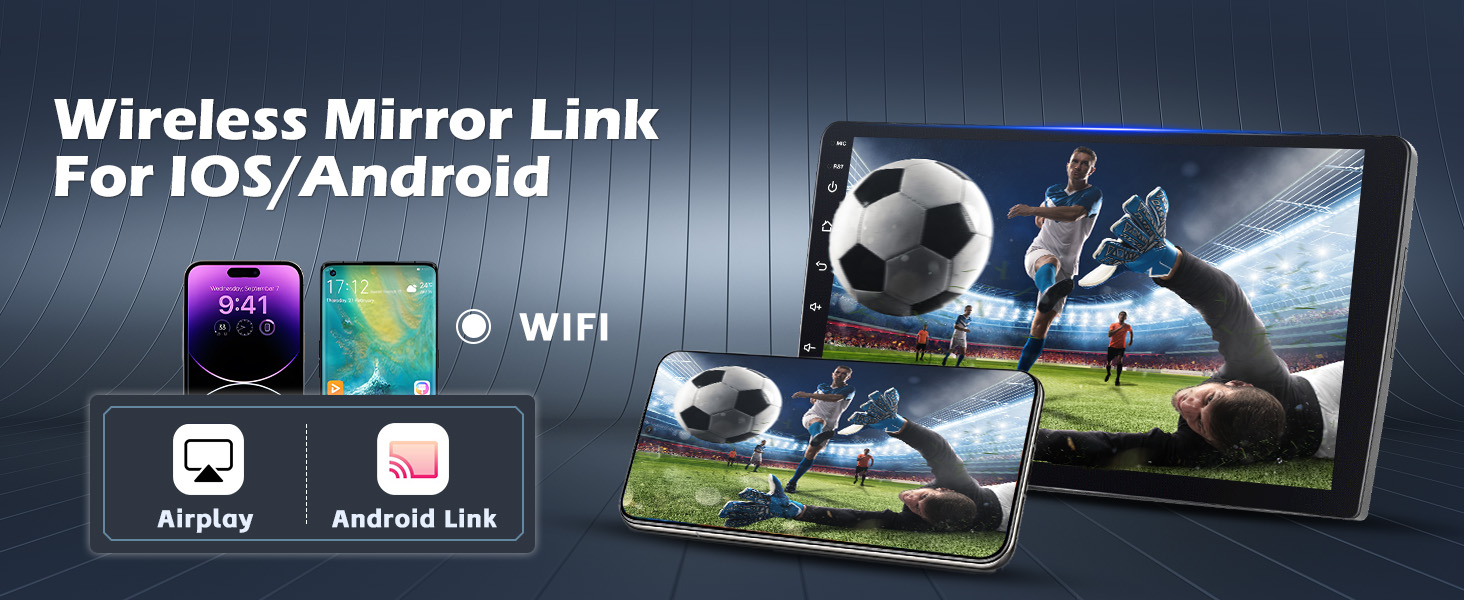
Image: The Mirror Link function displaying a smartphone's content, such as a video, directly on the car stereo screen, illustrating seamless content sharing.
5.5 GPS Navigation
The built-in GPS module supports both online and offline navigation. Download maps for offline use or connect to Wi-Fi for real-time traffic updates and online mapping services.

Image: The GPS navigation interface on the car stereo, alongside icons for voice control, demonstrating how to use voice commands for navigation and media playback.
5.6 FM/RDS Radio
Tune into your favorite radio stations with the integrated FM/RDS tuner. RDS (Radio Data System) provides additional information like station name, song title, and traffic announcements where available.
5.7 Bluetooth Connectivity
Bluetooth 5.0 enables hands-free calling and wireless audio streaming. Pair your smartphone to make and receive calls safely and enjoy your music library without cables.
- Go to the Bluetooth settings on the car stereo.
- Enable Bluetooth on your smartphone and search for available devices.
- Select the car stereo from the list and confirm pairing.

Image: A comprehensive view of the car stereo's audio features, including Bluetooth for hands-free calls and music streaming, the FM/RDS radio interface, and the 32-band equalizer for sound customization.
5.8 Steering Wheel Control (SWC)
The unit supports your vehicle's original steering wheel controls, allowing you to manage audio, calls, and other functions without taking your hands off the wheel. This feature requires proper wiring and configuration.
- Access the SWC learning function in the system settings.
- Follow the on-screen instructions to assign functions to your steering wheel buttons.

Image: A depiction of the steering wheel control functionality, showing the steering wheel buttons highlighted and the car stereo's interface for configuring these controls, including options for volume, track changes, and call management.
5.9 Backup Camera
When properly installed, the included backup camera automatically displays a clear view of the area behind your vehicle when shifting into reverse, making parking and maneuvering safer.
5.10 Audio Settings (EQ, DSP)
Customize your audio experience with the 32-band equalizer to fine-tune sound frequencies. The AI DSP (Digital Signal Processor) offers advanced sound effects, though activation may be required for full functionality.
6. Maintenance
To ensure the longevity and optimal performance of your car stereo, follow these maintenance guidelines:
- Cleaning: Use a soft, dry cloth to clean the screen and exterior. For stubborn smudges, slightly dampen the cloth with water or a screen-safe cleaner. Avoid abrasive materials or harsh chemicals.
- Temperature: Avoid exposing the unit to extreme temperatures. Prolonged exposure to direct sunlight or very cold conditions can affect performance and lifespan.
- Software Updates: Periodically check for software updates through the system settings or the manufacturer's website to ensure you have the latest features and bug fixes.
- Connections: Ensure all cables are securely connected. Loose connections can lead to intermittent issues.
7. Troubleshooting
If you encounter issues with your car stereo, refer to the following common problems and solutions:
| Problem | Possible Cause | Solution |
|---|---|---|
| Unit does not power on | Loose power connection, blown fuse, vehicle battery issue | Check power cables and fuse. Ensure vehicle battery is charged. |
| No sound | Volume too low, mute activated, loose speaker wires, incorrect audio settings | Increase volume, check mute status, verify speaker connections, adjust audio settings. |
| Bluetooth/WiFi issues | Interference, incorrect pairing, reverse input cable not connected | Ensure reverse input cable is connected. Re-pair device. Check for interference. Restart unit. |
| Touch screen unresponsive | Software glitch, screen damage | Restart the unit. If issue persists, contact support. |
| Backup camera not displaying | Incorrect wiring, faulty camera, reverse gear not detected | Check camera wiring (positive/negative to reverse light). Ensure reverse gear is engaged. |
If these solutions do not resolve the issue, please contact Hikity customer support for further assistance.
8. Specifications
| Feature | Detail |
|---|---|
| Brand | Hikity |
| Model Number | 08e80aa6-f5e8-47eb-bc59-ef896bd7bd42 |
| Operating System | Android 15 |
| RAM | 4GB |
| ROM | 64GB |
| Screen Size | 9 inches |
| Screen Resolution | 1280 x 720 |
| Connectivity Technology | USB, Bluetooth, Wi-Fi |
| Special Features | Built-In Wi-Fi, FM/RDS Radio, GPS, Wireless CarPlay, Android Auto, Mirror Link, SWC |
| Compatible Devices | Smartphone (Android/iOS) |
| Audio Output Mode | Stereo |
| Surround Sound Channels | 4 |
| Video Encoding | MKV, RMVB, AVI, MP4, MDV |
| Output Power | 45 Watts (RMS), 180 Watts (Peak) |
| Control Method | Touch |
| Product Dimensions | 23.5P x 13.5l x 9H cm |
9. Warranty and Support
Your Hikity Android 15 Car Stereo comes with a 24-month warranty. For any inquiries, technical assistance, or warranty claims, please contact Hikity customer support. Online support is available, with responses typically provided within 24 hours.
For the most up-to-date support information and contact details, please visit the official Hikity website or refer to the contact information provided with your purchase.