
1. Product Overview
This manual provides detailed instructions for the installation, operation, and maintenance of your Inefala 4+64G Android 15 Car Radio. This unit is specifically designed for Peugeot 407 models manufactured between 2004 and 2011, offering advanced features such as wireless Carplay/Android Auto, GPS navigation, FM/RDS radio, Digital Sound Processor (DSP), WiFi connectivity, Bluetooth, Steering Wheel Control (SWC) compatibility, USB ports, and AHD rear camera support.

Figure 1: Inefala 4+64G Android 15 Car Radio main unit.
2. Package Contents
Verify that all items listed below are included in your package:
- Inefala Car Radio for Peugeot 407
- Power Cable
- Canbus Box
- RCA Cable
- GPS Antenna
- Rear Camera Input Cable
- AHD Emergency Camera (Rear Camera)
- External Microphone
- 2 USB Cables
- Radio Antenna
- Accessories
- Mounting Support
- Installation Tool

Figure 2: Detailed view of wiring harnesses and included accessories.
3. Setup and Installation
Professional installation is recommended. Ensure the vehicle's power is disconnected before beginning installation.
3.1 Wiring Diagram
Refer to the following diagram for proper connection of the radio and its peripherals, including the reverse camera.

Figure 3: Wiring connections for the radio and reverse camera.
3.2 Rear Camera Connection
The reverse input cable must be plugged in even if the reverse camera is not used, as it may affect Bluetooth and WiFi signal reception.
- Cable 1 and Cable 6: Connect the positive pole of the car reversing light cable.
- Cable 2: Connect the negative pole of the car reversing light cable.
- Cable 3 and Cable 4: Connect to the reverse trigger wire of the power cable (labeled "Reverse/Back"). No need to connect if without this wire. Pull it out and connect it if the last step doesn't work.

Figure 4: AHD Rear Camera unit.
3.3 Installation Effect
Observe the visual transformation of your car's dashboard before and after the installation of the Inefala car radio.

Figure 5: Before and After Installation in Peugeot 407.
4. Operating Instructions
4.1 Android System and Performance
The unit features a 4GB RAM + 64GB ROM configuration, providing strong and stable processing and storage capabilities for a smooth user experience. It runs on the latest Android 15 operating system, offering fast performance and access to millions of applications.

Figure 6: System features including 4+64G storage, navigation, UI themes, EQ, and Bluetooth 5.0.
4.2 Wireless Carplay and Android Auto
Connect your smartphone wirelessly to the unit to access Carplay or Android Auto. This allows for hands-free calling, messaging, music playback, and navigation using voice commands or touch controls. The unit also supports Mirror Link functionality, mirroring your phone's screen to the car display.
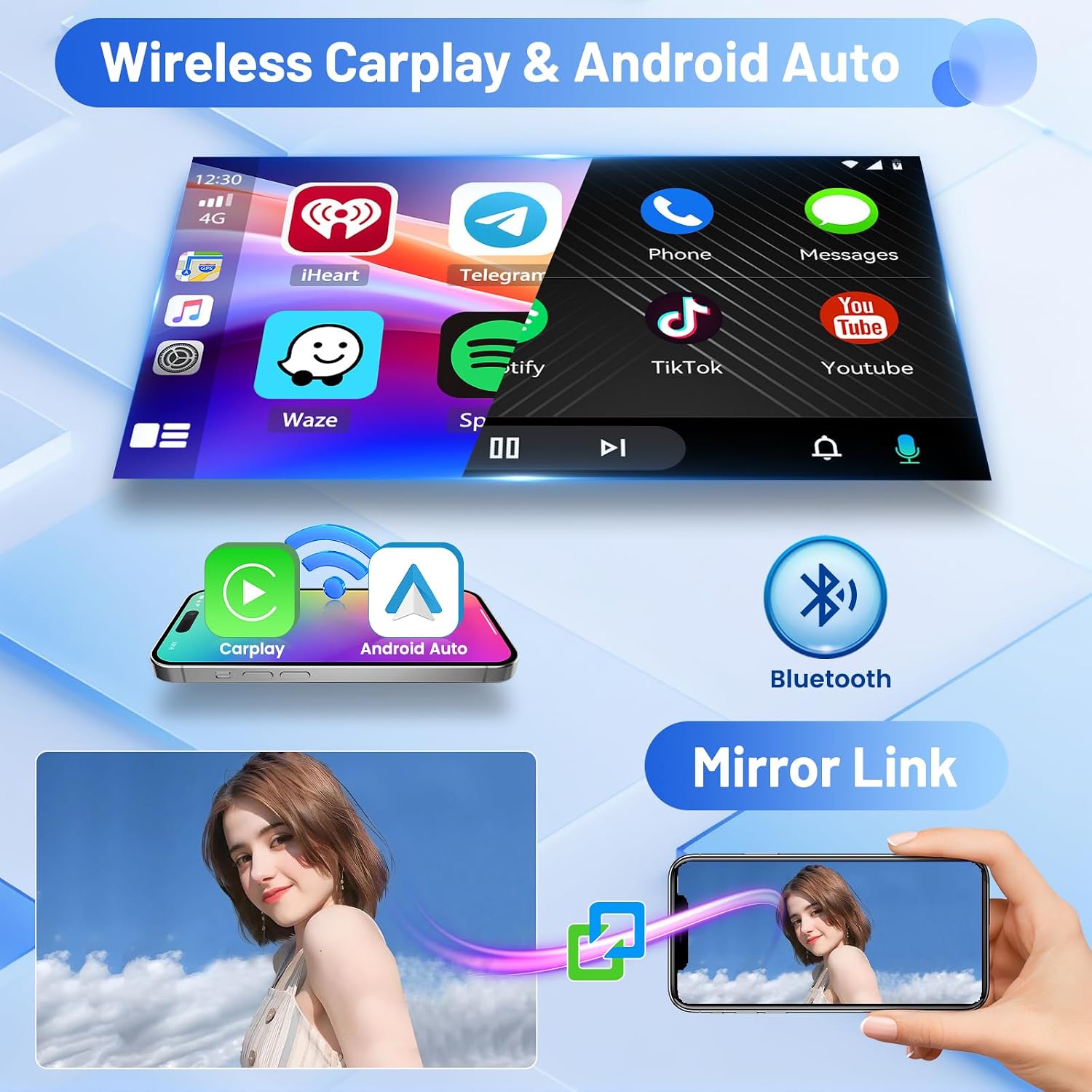
Figure 7: Wireless Carplay, Android Auto, Bluetooth, and Mirror Link capabilities.
4.3 GPS Navigation and WiFi
The unit provides GPS navigation with both online and offline map support. Connect to WiFi to download navigation apps, stream music, and videos, or access other online content.

Figure 8: WiFi connectivity and GPS navigation interface.
4.4 FM/RDS Radio and Bluetooth
Enjoy FM/RDS radio with clear reception. The built-in Bluetooth allows you to pair your devices for wireless music streaming, hands-free calling, and file transfer.

Figure 9: FM/RDS Radio and Bluetooth features.
4.5 DSP and 32-Band EQ Function
The integrated Digital Sound Processor (DSP) and 32-band Equalizer (EQ) allow for precise audio customization, enhancing your listening experience with various sound profiles.
4.6 Split Screen Function
Utilize the split-screen feature to run two applications simultaneously, such as navigation and music playback, for enhanced multitasking.

Figure 10: Split Screen and 32-Band EQ interfaces.
4.7 Rear View Camera Operation
When the vehicle is shifted into reverse gear, the screen automatically displays the rear view camera feed, providing a safer parking and reversing experience.
4.8 Steering Wheel Control (SWC)
The unit supports steering wheel controls, allowing you to manage calls, adjust volume, and change tracks safely without taking your hands off the wheel.
- Without CANBUS Decoder: Connect the plugs or the steering wheel control wires (Key1/Key2) in the power cable to the corresponding port or wire of your original car. Then go to "SWC" manual match to activate the button function.
- With CANBUS Decoder: Connect the CANBUS before powering on the radio. Then follow this path: Apps > Settings > Factory Settings (8888) > Vehicle > Automotive type to make SWC work properly. First, select the brand of the CANBUS decoder, then select the matching model and year according to the situation.

Figure 11: Rear View Camera display and Steering Wheel Control interface.
5. Maintenance
To ensure the longevity and optimal performance of your Inefala car radio, follow these maintenance guidelines:
- Cleaning: Use a soft, dry cloth to clean the screen and exterior surfaces. Avoid abrasive cleaners or solvents that could damage the finish.
- Temperature: Avoid exposing the unit to extreme temperatures, both hot and cold, for extended periods.
- Moisture: Keep the unit dry. Do not expose it to water or excessive humidity.
- Software Updates: Periodically check for available software updates to ensure the system runs efficiently and has the latest features and security patches.
6. Troubleshooting
If you encounter issues with your Inefala car radio, refer to the following common troubleshooting steps:
- No Power: Check all power connections and ensure the vehicle's ignition is on. Verify fuses are intact.
- No Sound: Check speaker connections, volume levels, and audio source selection. Ensure the mute function is not activated.
- Bluetooth Connection Issues: Ensure Bluetooth is enabled on both the car radio and your smartphone. Try unpairing and re-pairing the devices.
- GPS Signal Loss: Ensure the GPS antenna is properly installed and has a clear view of the sky.
- Touchscreen Unresponsive: Try restarting the unit. If the issue persists, a factory reset might be necessary (note: this will erase all user data).
- Rear Camera Not Displaying: Verify the camera's power and video connections. Ensure the reverse trigger wire is correctly connected.
For persistent issues, please contact technical support.
7. Specifications
| Feature | Description |
|---|---|
| Brand | Inefala |
| Model Number | Inefala-A7688A3662H1MI2IT53 |
| Operating System | Android 15 |
| Memory/Storage | 4GB RAM + 64GB ROM |
| Screen Size | 9 inches |
| Connectivity Technology | Bluetooth, USB, Wi-Fi |
| Special Features | Carplay, Android Auto, Mirror Link, FM/RDS Radio, 32-band EQ, GPS, SWC |
| Compatible Devices | Smartphone |
| Audio Output Mode | APE/FLAC/WAV/MP3/WMA |
| Video Encoding | MKV/RMVB/AVI/MP4/MDV |
| Output Power | 45 Watts x 4 Channels |
| Control Method | Touch |
| Input Type | RCA, AHD |
| Item Weight | 1.39 Kilograms |
| Country of Origin | China |
8. Warranty Information
This Inefala car radio comes with a 24-month warranty. Inefala provides lifetime online assistance for inquiries and aims to respond within 24 hours.
9. Technical Support
For any technical assistance, questions, or support needs, please contact Inefala directly through the platform where you purchased the product. Look for the seller's name (Inefala) and an option to 'Ask a question' or 'Contact Seller'.

Figure 12: How to contact Inefala for technical support.