
1. Product Overview
This manual provides instructions for the Inefala Android 15 Car Stereo, designed for Opel Corsa (2015-2019) and Opel Adam (2013-2016) vehicles. It features a 9-inch display, 4GB RAM, 64GB internal storage, Wireless CarPlay, Android Auto, GPS navigation, Bluetooth, Wi-Fi, FM/RDS radio, 32-band equalizer, steering wheel control compatibility, and AHD rear camera support.
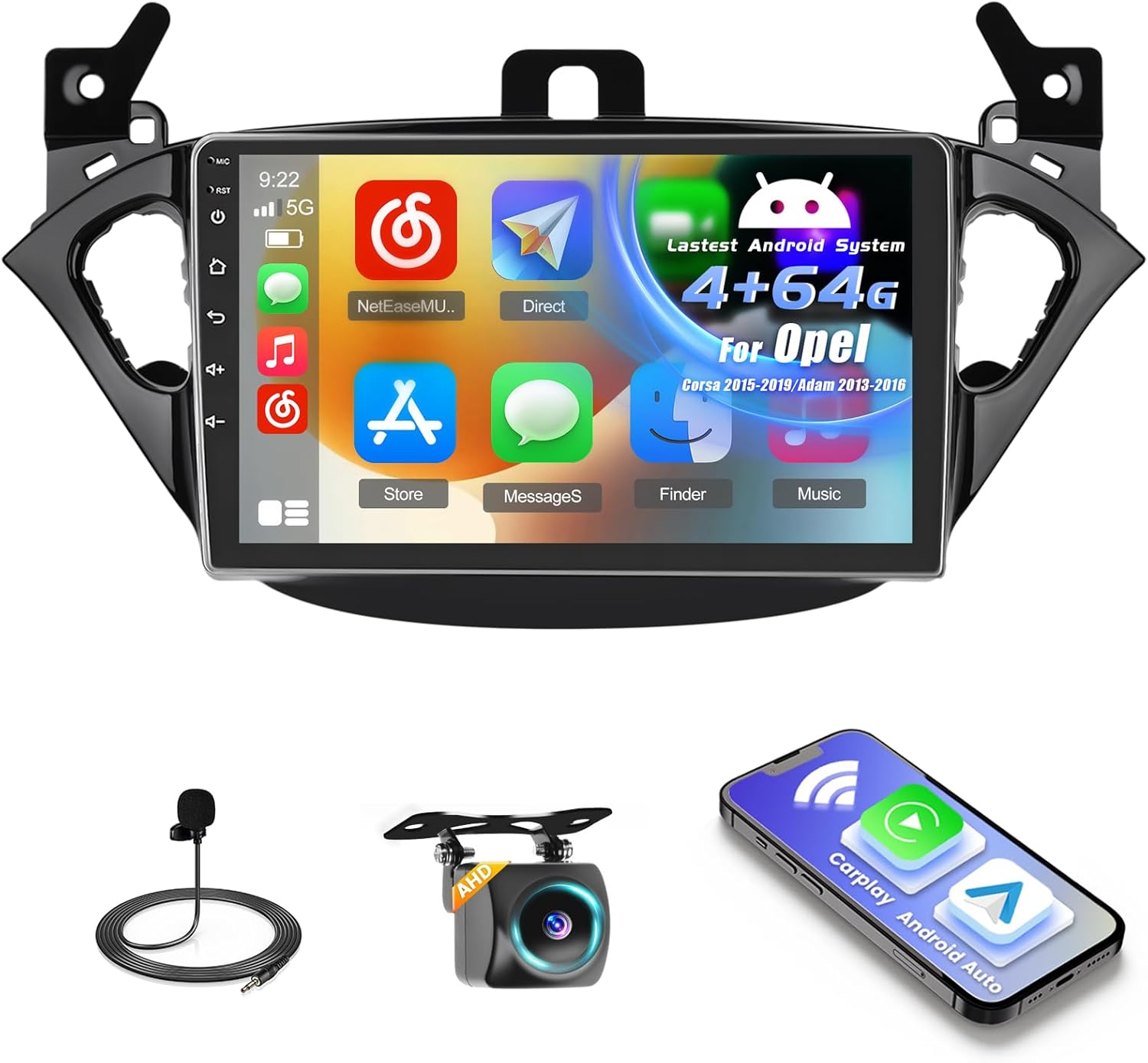
Figure 1.1: Inefala Android 15 Car Stereo and accessories including microphone, AHD camera, and smartphone displaying CarPlay/Android Auto.
2. Package Contents
Verify that all items are present in the package:
- Inefala Android Car Stereo Unit
- Power Cable
- Canbus Box
- RCA Cable
- GPS Antenna
- Rear Camera Input Cable
- AHD Emergency Camera
- External Microphone
- 2 x USB Cables
- Original Car USB Cable
- Radio Antenna
- Mounting Bracket
- Installation Tool

Figure 2.1: Detailed view of included cables, ports, and package contents.
3. Setup and Installation
3.1 Vehicle Compatibility Check
Ensure your vehicle's center console matches the compatible configurations. If your original center console does not match the approved images, contact support for additional wiring harnesses. Cracks may occur during installation if not handled carefully.

Figure 3.1: Compatibility guide for Opel Corsa and Adam center consoles. Green checkmarks indicate compatible configurations, red crosses indicate incompatible ones.
3.2 Wiring Connections
Connect the provided cables according to your vehicle's wiring diagram. The Canbus box facilitates communication between the stereo and your car's systems.
3.2.1 Rear Camera Wiring
The reverse input cable must be connected even if the reverse camera is not immediately used. Failure to do so may affect Bluetooth and Wi-Fi signal reception.
- Cable 1 and Cable 6: Connect the positive pole of the car reversing light cable.
- Cable 2: Connect the negative pole of the car reversing light cable.
- Cable 3 and Cable 4: Connect to the reverse trigger wire of the power cable (labeled 'Reverse/Back'). If the camera does not activate, try disconnecting and reconnecting this wire.

Figure 3.2: Rear camera and Canbus wiring diagram, illustrating connections for power, ground, and trigger wires.
3.3 Steering Wheel Control (SWC) Setup
The unit supports steering wheel controls for convenience.
- Without CANBUS Decoder: Connect the plugs or the steering wheel control wires (Key1/Key2) in the power cable to the corresponding port or wire of your original car. Then, go to the 'SWC' manual match settings to activate the button functions.
- With CANBUS Decoder: Connect the Canbus before powering on the radio. Follow this path: Apps > Settings > Factory Settings (password: 8888) > Vehicle > Automotive type to make SWC work properly. First, select the brand of the Canbus decoder, then select the matching model and year according to your vehicle's specifications.

Figure 3.3: Steering wheel control setup interface and button mapping.
4. Operating Instructions
4.1 Basic System Navigation
The car stereo runs on Android 15, providing a familiar smartphone-like interface. Navigate through apps and settings using the touchscreen. The system offers 4GB RAM and 64GB ROM for smooth operation and ample storage.

Figure 4.1: Overview of key features including memory, navigation, UI themes, equalizer, Bluetooth, and split screen.
4.2 Wireless CarPlay & Android Auto
Connect your smartphone via USB cable or Wi-Fi to enable Wireless CarPlay or Android Auto. This allows you to access navigation, make calls, send messages, and listen to music using voice commands or the touchscreen interface.

Figure 4.2: Wireless CarPlay and Android Auto interface with various app icons.
4.3 GPS & Wi-Fi Navigation
The unit supports both online and offline GPS navigation. Download offline maps for areas with limited network coverage. Connect to Wi-Fi to access online navigation apps, stream media, and download other applications.

Figure 4.3: Wi-Fi connectivity for internet access and GPS navigation display.
4.4 Bluetooth Connectivity
Pair your devices via Bluetooth for hands-free calling, music streaming, and file transfer. Access your phonebook directly from the stereo display.

Figure 4.4: Bluetooth interface for hands-free calls and music playback.
4.5 FM/RDS Radio
Tune into FM radio stations. The RDS (Radio Data System) feature displays station information, song titles, and traffic announcements where available.
4.6 Split Screen Function
Utilize the split-screen feature to run two applications simultaneously, such as navigation on one side and music playback on the other.

Figure 4.5: Split screen display and 32-band equalizer settings.
4.7 32-Band Equalizer (32EQ)
Adjust audio output with the integrated 32-band equalizer to customize your listening experience. Presets are available, or you can create custom sound profiles.
4.8 Rear View Camera Display
When the vehicle is shifted into reverse, the screen automatically displays the feed from the AHD rear camera, providing a clear view for safer maneuvering.

Figure 4.6: Rear view camera display with parking guidelines.
5. Maintenance
To ensure optimal performance and longevity of your Inefala car stereo, follow these maintenance guidelines:
- Cleaning: Use a soft, dry cloth to clean the screen and unit. Avoid abrasive cleaners or solvents.
- Software Updates: Periodically check for software updates through the system settings or the manufacturer's website to ensure you have the latest features and bug fixes.
- Environmental Conditions: Avoid exposing the unit to extreme temperatures or direct sunlight for prolonged periods.
6. Troubleshooting
If you encounter issues with your car stereo, refer to the following common problems and solutions:
- No Power: Check all power connections and fuses. Ensure the car's ignition is on.
- No Sound: Verify speaker connections. Check volume levels and mute settings. Ensure the correct audio source is selected.
- Rear Camera Not Displaying: Confirm the reverse input cable is correctly connected (refer to Section 3.2.1). Check the camera's power supply.
- Steering Wheel Controls Not Working: Re-check Canbus or Key1/Key2 wiring. Ensure correct configuration in the system settings (refer to Section 3.3).
- GPS Signal Issues: Ensure the GPS antenna is properly installed and has a clear view of the sky.
- Bluetooth/Wi-Fi Connectivity Problems: Ensure the reverse input cable is connected, as it can affect signal reception. Restart the unit and your phone.
- System Lag/Freezing: Close unnecessary background applications. Perform a system restart. If issues persist, consider a factory reset (backup important data first).
7. Specifications
| Feature | Specification |
|---|---|
| Brand | Inefala |
| Model Number | Inefala-A7617A3477A4MI2IT53-C112 |
| Operating System | Android 15 |
| RAM | 4GB |
| Internal Storage | 64GB |
| Screen Size | 9 inches |
| Display Resolution | 1280*720 (High Definition) |
| Connectivity | Bluetooth 5.0, USB, Wi-Fi |
| Special Features | Wireless CarPlay, Android Auto, Mirror Link, GPS, FM/RDS, 32EQ, SWC, AHD Camera Support |
| Audio Output Mode | APE/FLAC/WAV/MP3/WMA |
| Video Encoding | MKV/RMVB/AVI/MP4/MDV |
| Wattage | 45 watts |
| Weight | 2.02 Kilograms |
| Dimensions | 29.5 x 28.5 x 12 cm |
8. Warranty and Support
For warranty information and technical support, please refer to the documentation provided with your purchase or contact Inefala customer service directly. Keep your proof of purchase for warranty claims.