
1. Introduction
Thank you for choosing the Hikity 1 DIN Android Car Stereo. This manual provides detailed instructions for the installation, operation, and maintenance of your new car multimedia system. Please read this manual thoroughly before use to ensure proper functionality and to maximize your user experience. Keep this manual for future reference.
2. Safety Information
- Professional Installation Recommended: Due to the complexity of car electrical systems, professional installation is highly recommended to prevent damage to the unit or your vehicle.
- Power Supply: Ensure the unit is connected to a 12V DC power supply with a negative ground. Incorrect voltage can cause damage.
- Wiring: Follow the wiring diagrams carefully. Incorrect wiring can lead to malfunctions, electrical shorts, or fire.
- Driving Safety: Do not operate the unit in a way that distracts you from driving. Always prioritize road safety.
- Temperature: Avoid exposing the unit to extreme temperatures or direct sunlight for prolonged periods.
- Moisture: Keep the unit away from water and excessive moisture.
3. Package Contents
Please check the package for the following items:
- 1 x Android Car Stereo
- 1 x Power Cable
- 1 x GPS Antenna
- 1 x User Manual
- 1 x WiFi Antenna
- 1 x Mounting Bracket
- 1 x Backup Camera
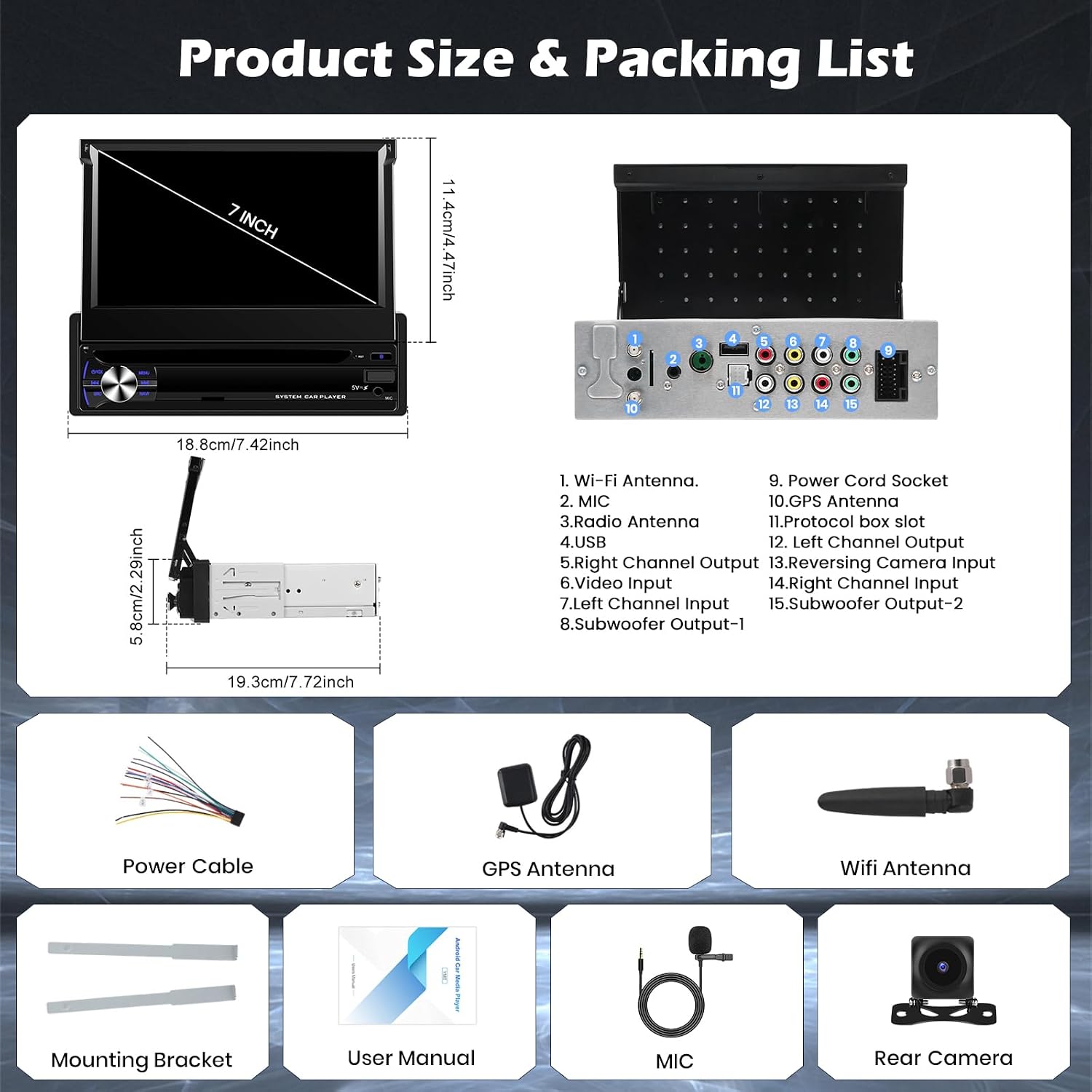
Image: Diagram showing the dimensions of the car stereo and a visual list of all included accessories: power cable, WiFi antenna, rear camera, mounting bracket, GPS antenna, and microphone.
4. Product Overview
The Hikity 1 DIN Android Car Stereo is a versatile multimedia system designed to enhance your driving experience. It features a 7-inch retractable IPS touchscreen and runs on Android 15 with 4GB RAM and 64GB storage.
Key Features:
- Android 15 Operating System: Provides a smooth and modern user experience with access to various applications.
- 7-inch Retractable IPS Touchscreen: Offers a vivid and intuitive interface for navigation, media, and settings. The retractable design maintains dashboard aesthetics.
- Wireless CarPlay & Android Auto: Seamless smartphone integration for navigation, apps, and calls.
- GPS Navigation: Built-in GPS module with support for online and offline maps.
- Wi-Fi Connectivity: Enables real-time updates, online streaming, and software updates.
- Bluetooth: Hands-free calling and audio streaming with an external microphone for clear communication.
- FM/RDS Radio: Integrated radio tuner for local broadcasts.
- Backup Camera Support: Includes a rear camera for safer parking maneuvers.
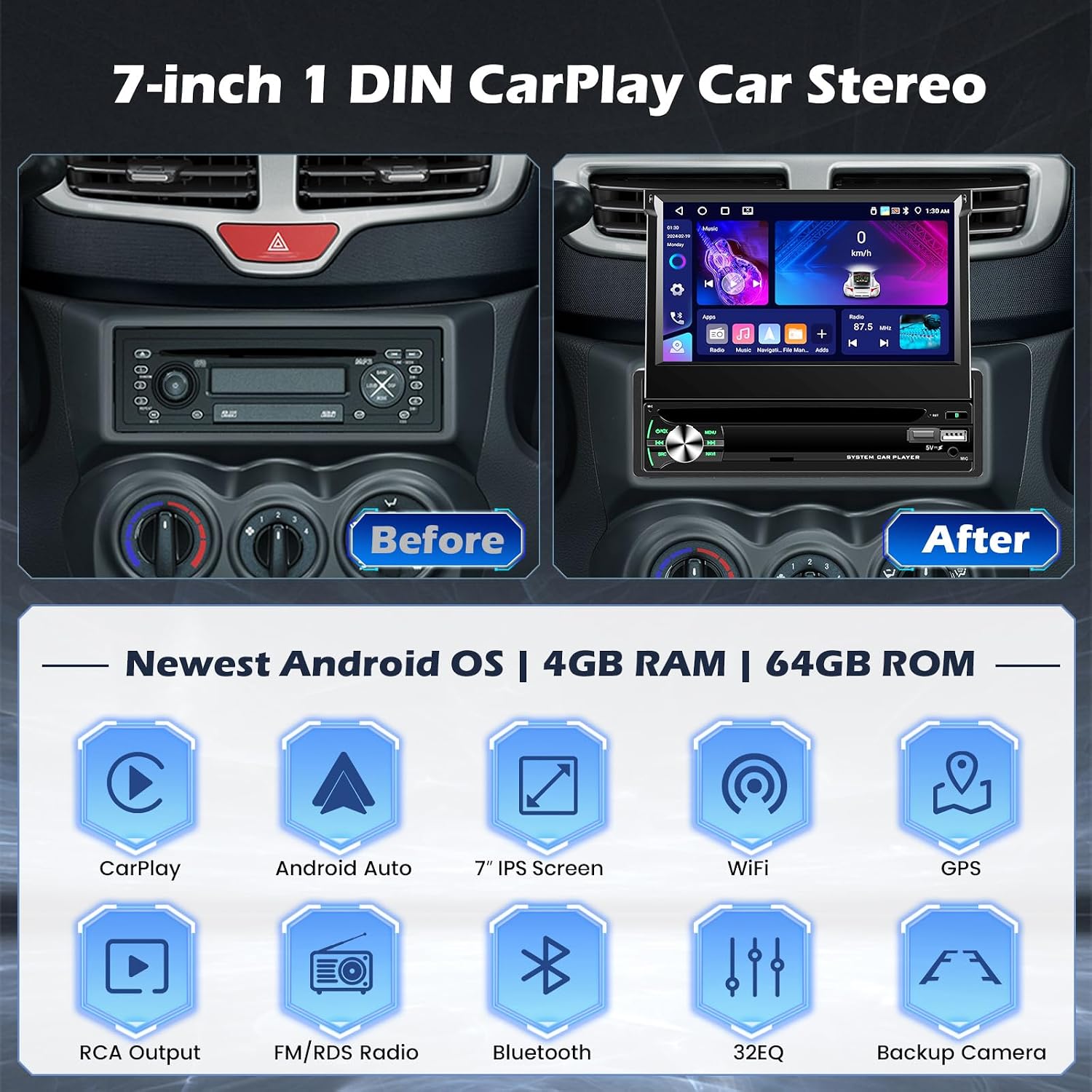
Image: A comparison of a car dashboard before and after installation, showing the 7-inch 1 DIN CarPlay car stereo. Below it are icons representing key features: CarPlay, Android Auto, 7" IPS Screen, WiFi, GPS, RCA Output, FM/RDS Radio, Bluetooth, 32EQ, and Backup Camera.

Image: The 7-inch IPS retractable touchscreen extended, with diagrams illustrating its 95-degree adjustable angle and retraction mechanism. Features like 1024*600 resolution, high temperature protection, scratch-resistance, and anti-knock are highlighted.
5. Setup and Installation
5.1 Wiring Diagram
Refer to the following diagrams for correct wiring connections. Incorrect wiring can damage the unit or vehicle. If you are unsure, consult a professional installer.

Image: A universal 16-pin ISO connector adapter for Android car stereos, showing the wiring harness.

Image: An RCA cable adapter with multiple connectors for audio output, video input, and subwoofer connections.

Image: A detailed wiring diagram for the car stereo, showing connections for power, speakers, antenna, and other peripherals. The diagram labels various input/output ports on the back of the unit and the corresponding wires in the harness.
5.2 Backup Camera Wiring
The included backup camera requires specific wiring for proper function. The reverse input cable must be connected even if the reverse camera is not being used, as it can affect Bluetooth and WiFi signal reception.
- Red Cable (1): Connects to the positive terminal of the car's reverse light cable.
- Black Cable (2): Connects to the negative terminal of the car's reverse light cable.
- There is no need to connect the other two red extension cables (3) and (4) unless specified by your vehicle's setup.

Image: A diagram illustrating how to connect the backup camera, showing the red and black wires connecting to the reverse light and the video signal cable connecting to the head unit.
6. Operating Instructions
6.1 Basic Operation
The unit features a responsive 7-inch IPS touchscreen. Power on/off by pressing the power button. Adjust volume using the rotary knob or on-screen controls. Navigate through menus and applications by touching the screen.

Image: Various screenshots of the user interface (UI) design, demonstrating different app layouts, radio interface, and settings. It also shows the split-screen function with navigation and media playing simultaneously.

Image: A visual representation of the three-panel homepage display, showing customizable widgets for music, speed, and other applications.
6.2 Wireless CarPlay & Android Auto
Connect your smartphone wirelessly via Bluetooth or Wi-Fi to access CarPlay or Android Auto. This allows you to use navigation, make calls, send messages, and listen to music directly from your phone's interface displayed on the car stereo.
- Connection Method: Typically, initial setup involves pairing via Bluetooth, which then establishes a Wi-Fi connection for data transfer.

Image: Screenshots demonstrating Wireless CarPlay and Android Auto interfaces, showing navigation, music playback, and various apps. It also highlights hands-free calling and the connection methods (USB, Bluetooth).
6.3 GPS Navigation
The built-in GPS module provides accurate navigation. You can use pre-installed map applications or download others from the Google Play Store via Wi-Fi. Ensure the GPS antenna is properly installed for optimal signal reception.

Image: A driver interacting with the car stereo for GPS navigation and voice control, showing map applications and voice assistant prompts.
6.4 Wi-Fi Connection
Connect the car stereo to a Wi-Fi hotspot (e.g., from your smartphone) to access online features, download apps, stream media, and receive software updates.

Image: A visual representation of the built-in WiFi feature, showing various app icons connected to the car stereo screen, implying internet access for streaming and downloads.
6.5 Bluetooth
Pair your phone via Bluetooth for hands-free calling and audio streaming. The external microphone ensures clear voice quality during calls.
- Pairing: Go to Bluetooth settings on the car stereo, enable Bluetooth on your phone, search for the car stereo, and pair.
- Hands-Free Calling: Use the touchscreen to dial, answer, or end calls.
- Bluetooth Music: Stream audio from your phone to the car stereo.

Image: Displays the Bluetooth interface for hands-free calling and music, the FM/RDS radio interface with frequency display, and a 32-band equalizer (32EQ) for audio customization.
6.6 FM/RDS Radio
Access the radio function to listen to FM broadcasts. The RDS (Radio Data System) feature displays station information where available.
- Scanning: Use the on-screen controls to scan for stations or manually tune to a frequency.
- Presets: Save your favorite stations for quick access.
6.7 Steering Wheel Control (SWC)
The unit supports the original SWC learning function, allowing you to map your vehicle's steering wheel buttons to control various functions of the car stereo.
- Setup: Access the SWC settings in the system menu to configure the buttons.

Image: A car steering wheel with illuminated controls, alongside a screenshot of the car stereo's steering wheel control learning interface, showing options to assign functions like volume, track skip, and voice commands.
6.8 Backup Camera
When the vehicle is shifted into reverse gear, the car stereo automatically displays the view from the connected backup camera, assisting with parking.
6.9 AI DSP (Digital Sound Processor)
The AI DSP feature allows for advanced audio customization, including 3D optimized sound, 5.1 panorama, strong bass, HiFi scene, pure vocals, and more. Activation may be required to use these features.

Image: The AI DSP interface showing various sound effect options like 3D optimized, 5.1 Panorama, Strong bass, HiFi scene, and Pure vocals, with a background image of a concert, indicating enhanced audio experience.
7. Maintenance
- Screen Cleaning: Use a soft, lint-free cloth to clean the touchscreen. Do not use abrasive cleaners or solvents.
- Software Updates: Periodically check for software updates via the Wi-Fi connection to ensure optimal performance and access to new features.
- General Care: Avoid spilling liquids on the unit. If the unit becomes wet, power it off immediately and allow it to dry completely before use.
8. Troubleshooting
If you encounter issues, refer to the following common problems and solutions:
| Problem | Possible Cause | Solution |
|---|---|---|
| No power | Incorrect wiring; Blown fuse; Vehicle battery issue | Check power cable connections; Inspect vehicle fuses; Verify vehicle battery voltage. |
| No sound | Speaker wiring incorrect; Volume too low; Mute activated | Check speaker connections; Increase volume; Deactivate mute function. |
| GPS signal weak/lost | GPS antenna not properly installed or obstructed | Ensure GPS antenna has a clear view of the sky; Check antenna connection. |
| Bluetooth connection issues | Phone not discoverable; Incorrect pairing; Interference | Ensure phone Bluetooth is on and discoverable; Re-pair the device; Move away from other wireless devices. |
| Touchscreen unresponsive | System freeze; Dirt on screen | Restart the unit; Clean the screen. |
If the problem persists after trying these solutions, please contact customer support.
9. Specifications
| Feature | Specification |
|---|---|
| Brand | Hikity |
| Model Number | Hikity-A4112H1MI2-63EU |
| Operating System | Android 15 |
| RAM | 4GB |
| Internal Storage | 64GB |
| Display | 7-inch IPS Retractable Touchscreen |
| Connectivity Technology | USB, Wi-Fi, Bluetooth |
| Special Features | Android Auto, Apple CarPlay, GPS Navigation, RDS, WiFi |
| Compatible Devices | Smartphones |
| Audio Output Mode | Stereo |
| Surround Sound Channel Configuration | 4.0 |
| Video Encoding | H.264, H.265 |
| Color | Black |
| Product Dimensions (LxWxH) | 19.3 x 5.8 x 18.8 cm (7.6 x 2.3 x 7.4 inches) |
| Output Power | 45 Watts (per channel), 180 Watts (total) |
| Number of Channels | 4 |
| Control Method | Touch |
| Audio Output Type | Speakers |
| Supported Formats | .gif, .jpg, AVI, WAV, WMA |
| Item Weight | 1.73 Kilograms |
10. Warranty and Support
Your Hikity car stereo comes with a 24-month warranty from the date of purchase. This warranty covers manufacturing defects and ensures the product meets quality standards.
For any inquiries, technical assistance, or warranty claims, please contact our customer support. We offer online inquiry support with a guaranteed response within 24 hours.
Please retain your proof of purchase for warranty validation.