
Introduction
This manual provides detailed instructions for the setup, operation, and maintenance of your GMVOX PS5 Controller Paddles. These paddles enhance your gaming experience by adding programmable back buttons, turbo functionality, and microphone support, compatible with PS5, PC, Mac, and Android devices.

Overview of GMVOX PS5 Controller Paddles features.
Setup
1. Initial PS5 System Configuration
Before connecting the paddles, it is essential to configure your PlayStation 5 console to use a USB cable for controller communication. Failure to do so will prevent the paddles from functioning correctly.
- Navigate to Settings on your PS5 console.
- Select Accessibility.
- Choose Controller (General).
- Locate Communication Method and select “Use USB Cable”.
2. Physical Installation and Connection
The GMVOX PS5 Controller Paddles are designed for plug-and-play functionality, requiring no complex installation, disassembly, or soldering.
- Align the paddle attachment with the bottom port of your PS5 DualSense controller.
- Gently push until it securely clicks into place.
- Connect the included USB cable from the paddle attachment to your PS5 console, PC, Mac, or Android device.

Illustration of the plug-and-play connection process for the GMVOX PS5 Controller Paddles.
Note: Only wired USB cable connection is supported. The package includes a 3-meter USB cable for optimal reach.

The paddles connected to a PS5 console, demonstrating wired connectivity.
Operating Instructions
1. Programmable Back Buttons (M1, M2, M3, M4)
The paddles feature four programmable back buttons, allowing you to remap up to 17 standard controller function buttons. Each back button can store up to 25 key combinations, enabling complex actions with a single press.

Diagram showing the four programmable back buttons and the 17 mappable function buttons.
Programming a Back Button:
- Press the MACRO button on the paddle attachment. The indicator light will activate.
- Press the desired back button (M1, M2, M3, or M4) you wish to program.
- Press the standard controller button(s) you want to map to the back button. You can input a sequence of up to 25 button presses.
- Press the MACRO button again to save the setting. The indicator light will turn off.
Clearing a Back Button Mapping:
- Press the CLEAR button on the paddle attachment.
- Press the specific back button (M1, M2, M3, or M4) whose mapping you wish to clear.
- The mapping for that button will be reset.
2. Key Swap Function
The Key Swap feature allows you to customize the sequence of your action buttons, providing flexibility in gameplay.

Visual representation of the Key Swap function.
Using Key Swap:
- Press the A/B button on the paddle attachment to cycle through key swap modes.
- Refer to the product's quick start guide for specific key swap configurations and their corresponding indicator lights.
3. Turbo Rapid Fire Function
Activate the Turbo function for rapid-fire actions, set to a default rate of 8 shots per second. This feature is particularly useful in fast-paced games.
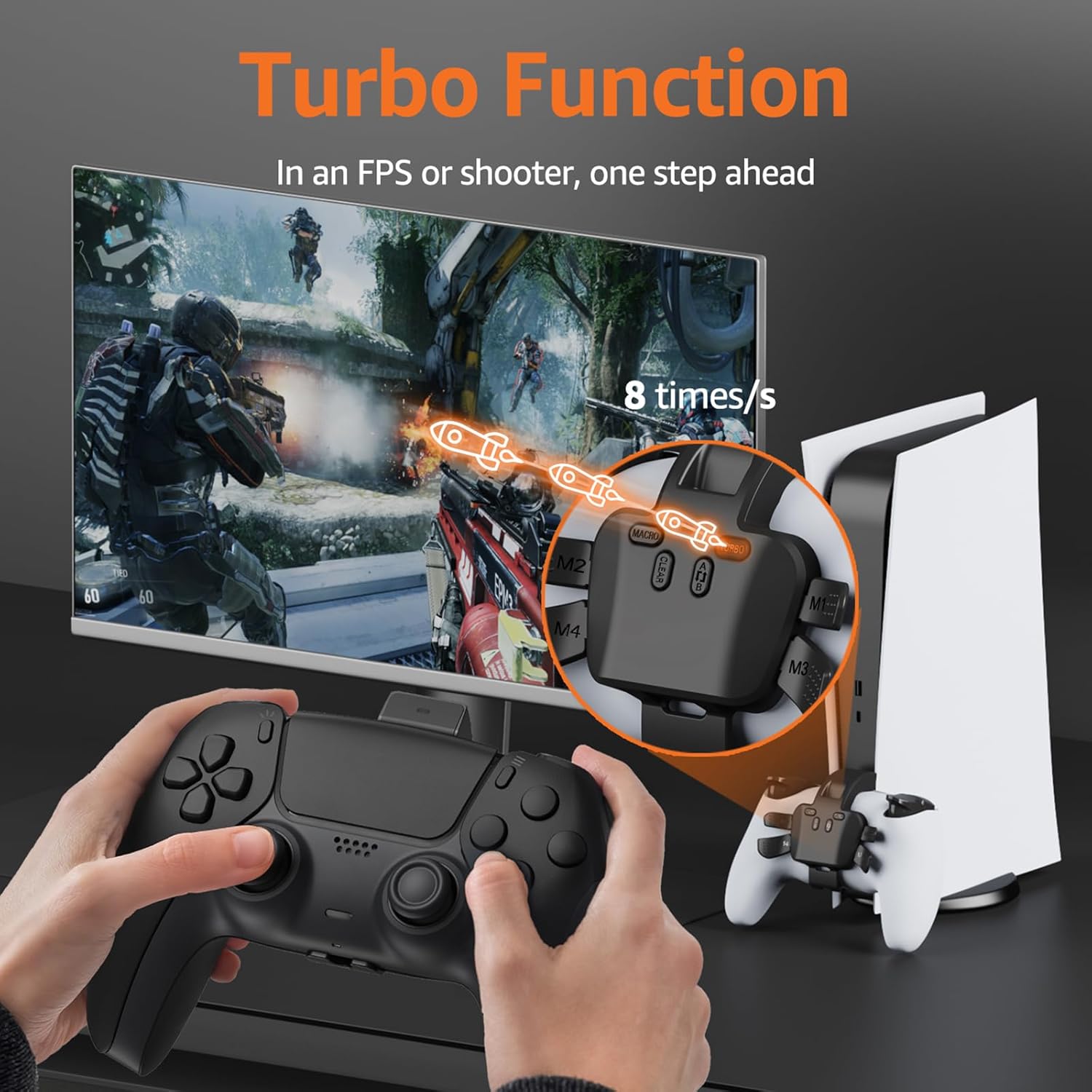
The Turbo function in action during an FPS game.
Activating Turbo:
- Press the TURBO button on the paddle attachment. The indicator light will activate.
- While Turbo is active, any mapped button will perform rapid-fire actions.
Deactivating Turbo:
- Press the TURBO button again. The indicator light will turn off.
4. Microphone Function
The latest version of GMVOX PS5 Controller Paddles includes microphone support, allowing you to connect a headset directly to the controller's 3.5mm jack for in-game communication.

Connecting a headset to the paddle attachment for microphone functionality.

The current model supports microphone functionality.
Maintenance
To ensure the longevity and optimal performance of your GMVOX PS5 Controller Paddles, follow these simple maintenance guidelines:
- Cleaning: Use a soft, dry cloth to wipe down the paddles and controller. Avoid using harsh chemicals or abrasive materials.
- Storage: Store the paddles in a cool, dry place away from direct sunlight and extreme temperatures when not in use.
- Handling: Avoid dropping the device or subjecting it to excessive force, which could damage internal components or the connection port.
Troubleshooting
Paddles Not Responding
- Verify PS5 Settings: Ensure your PS5 console's communication method is set to “Use USB Cable” (Settings > Accessibility > Controller (General) > Communication Method). This is the most common reason for non-functionality.
- Secure Connection: Confirm the paddle attachment is firmly connected to the controller and the USB cable is securely plugged into both the attachment and the console/device.
- Cable Integrity: Test with a different compatible USB cable if available, to rule out a faulty cable.
Compatibility Issues
- PS5 Pro Consoles: Please note that some PS5 Pro console models (e.g., those shipped with ZCT1 series controllers) may force Bluetooth connection mode, even when the “Use USB Cable” option is selected. Since these paddles require a wired USB connection, they may not be compatible with such PS5 Pro configurations.
- Supported Platforms: The paddles are compatible with PS5 (standard models), PC, Mac, and Android devices. Ensure your device is listed as supported.
Macro/Turbo Functionality Concerns
- Single Button Turbo: The Turbo function may not apply to single buttons directly programmed to the back paddles. For turbo functionality on a single button, consider programming a macro that includes a rapid double-press of that button, then apply turbo to the macro.
- Joystick Movement in Macros: When programming macros, be aware that joystick movements are also recorded. To avoid unintended controller behavior, ensure joysticks are not moved during macro recording if precise button sequences are desired.
Specifications
| Product Dimensions | 3.1 x 1.3 x 3.3 inches |
| Item Weight | 5.8 ounces |
| Manufacturer | GMVOX |
| Connectivity | Wired (USB Cable) |
| Compatibility | PS5 Console, PC, Mac, Android |
Warranty and Support
GMVOX is committed to providing high-quality products. While specific warranty details are not included in this manual, please refer to the product packaging or the official GMVOX website for the most current warranty information.
For technical support, troubleshooting assistance, or any product-related inquiries, please contact GMVOX customer service through the retailer where the product was purchased or via the official GMVOX support channels.