
1. Introduction
Thank you for choosing the AOKER 32-inch Rolling Smart Touch Screen TV. This manual provides essential information for the safe and efficient operation of your device. Please read it thoroughly before use and retain it for future reference.
2. Safety Information
To ensure safe operation and prevent damage, please observe the following precautions:
- Do not expose the device to rain, moisture, or extreme temperatures.
- Avoid placing the device near heat sources or in direct sunlight.
- Use only the provided power adapter and charging cable.
- Keep ventilation openings clear to prevent overheating.
- Do not attempt to disassemble or repair the device yourself. Contact qualified service personnel.
- Ensure the stand is securely assembled and the TV is stable before moving.
- Keep small children and pets away from the device during operation and movement.
3. Package Contents
Please check the package for the following items:
- AOKER 32-inch Smart Touch Screen TV
- Rolling Stand Assembly (Base, Pole, Mounting Bracket)
- Power Adapter
- Remote Control
- User Manual (This document)
4. Product Overview
4.1 Key Features
- Display: 32-inch 1080P FHD Touchscreen, 300 nits brightness, 60Hz refresh rate, 100% sRGB, 1ms response time, 10-point touch control.
- Audio: Dual stereo speakers.
- Portability: Built-in 148Wh battery (up to 6 hours wireless use), five silent 360° rotating wheels.
- Operating System: Google Certified Android 13 OS.
- Performance: 6GB RAM, 128GB Storage.
- Adjustability: Stand adjusts up to 20cm in height, 25° tilt down, 30° tilt up, 90° rotation.
- Connectivity: Wireless casting, Type-C, USB-A, HDMI ports.
4.2 Product Components

Figure 1: Overall Product View. This image displays the AOKER 32-inch Rolling Smart Touch Screen TV in its upright position, highlighting its ability to rotate. Key features such as 1080P Full HD resolution, 100% sRGB color accuracy, 1ms response time, and wireless connectivity are indicated on the screen.

Figure 2: Screen Features. This image provides a detailed look at the screen's capabilities, including 1080p Full HD resolution, a wide 178° IPS viewing angle, 100% sRGB color gamut, 10-point touch control, 300 Nits brightness, a 60Hz refresh rate, millisecond response time, and integrated dual stereo speakers. A hand is shown interacting with the touchscreen, and a remote control is visible.

Figure 3: Android 13 OS Interface. This image illustrates the smart TV's operating system, Android 13, with a display of common application icons, signifying access to the Google Play Store. The image also highlights the device's 6GB RAM and 128GB internal storage capacity.

Figure 4: Quiet Mobility. This image shows the AOKER Smart TV positioned on its mobile stand, emphasizing its quiet mobility. The stand features 360-degree rotating wheels, allowing for easy movement between different locations, such as a living room or office. A person stands next to the TV, illustrating its scale and portability.
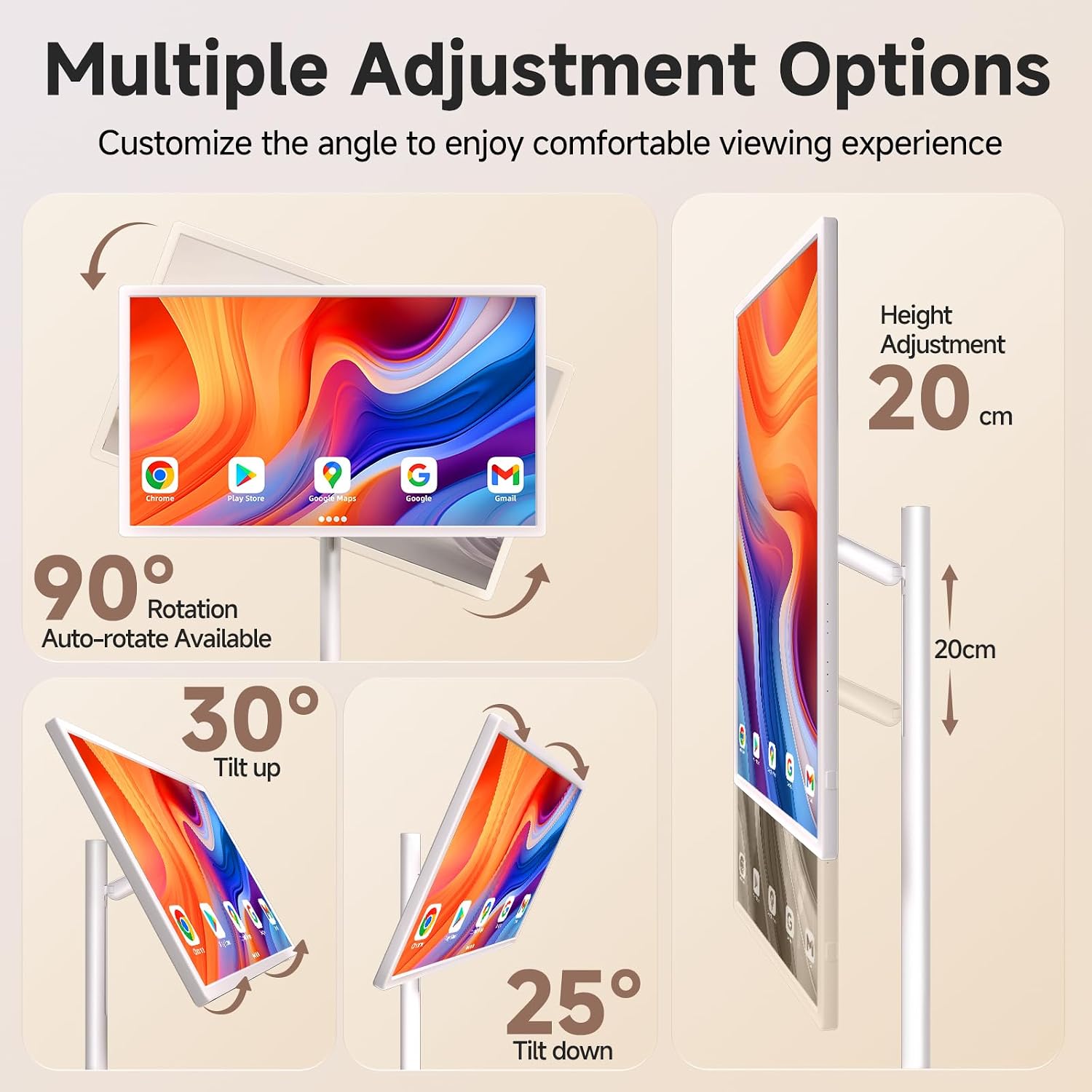
Figure 5: Adjustment Options. This diagram details the versatile adjustment capabilities of the TV's stand. It shows the screen can rotate 90 degrees for portrait or landscape viewing, tilt up by 30 degrees, tilt down by 25 degrees, and its height can be adjusted by up to 20 centimeters.

Figure 6: Usage Scenarios. This collage presents various practical applications of the AOKER Smart TV in different environments. It shows the TV being used while cooking in a kitchen, as a secondary monitor for studying, for gaming in a living room, and for following fitness instructions during a workout.
5. Setup Instructions
5.1 Assembling the Stand
- Carefully unpack all components from the box.
- Attach the pole to the base, ensuring it is securely fastened.
- Mount the TV screen to the top of the pole using the provided screws and mounting bracket. Ensure all connections are tight and stable.
- Verify that the wheels are properly attached to the base and can rotate freely.
5.2 Initial Power-On and Charging
- Connect the power adapter to the TV's charging port and plug it into a wall outlet.
- Allow the TV to charge fully before first use. The charging indicator light will change when charging is complete.
- Press the power button located on the back or side of the TV to turn it on.
- Follow the on-screen prompts to complete the initial Android setup, including language selection, Wi-Fi connection, and Google account login.
6. Operating Instructions
6.1 Basic Operation
- Power On/Off: Press the power button on the TV or the remote control.
- Volume Control: Use the volume buttons on the remote control or the on-screen controls.
- Home Screen: Press the Home button on the remote to return to the main Android interface.
6.2 Touchscreen Use
- Tap: Lightly touch the screen to select an item or open an application.
- Swipe: Drag your finger across the screen to scroll through content or navigate between pages.
- Pinch-to-Zoom: Use two fingers to zoom in or out on images and web pages.
6.3 Android OS Navigation
- Apps: Access installed applications from the home screen or the app drawer.
- Google Play Store: Download new applications, games, movies, and books.
- Settings: Adjust Wi-Fi, Bluetooth, display, sound, and other system preferences.
6.4 Connectivity
- Wireless Casting: Use compatible devices to wirelessly mirror content to the TV screen. Refer to your device's casting instructions.
- HDMI: Connect external devices such as gaming consoles or Blu-ray players using an HDMI cable. Select the HDMI input from the source menu.
- USB-A: Connect USB flash drives or other USB peripherals for media playback or data transfer.
- Type-C: Connect compatible devices for video input or data transfer.
6.5 Stand Adjustments
- Height Adjustment: Loosen the locking mechanism on the pole, adjust the screen to the desired height (up to 20cm), and re-tighten the mechanism.
- Tilt Adjustment: Gently tilt the screen up (30°) or down (25°) to achieve the optimal viewing angle.
- Rotation: Rotate the screen 90° to switch between landscape and portrait orientations. The device supports auto-rotation.
7. Maintenance
- Cleaning the Screen: Use a soft, lint-free cloth slightly dampened with water or a screen cleaner. Do not spray liquid directly onto the screen.
- Cleaning the Body: Wipe the exterior surfaces with a soft, dry cloth. Avoid abrasive cleaners.
- Battery Care: For optimal battery life, avoid fully discharging the battery frequently. Charge the device regularly, even if not in use for extended periods.
- Storage: When storing the TV for a long time, ensure it is powered off and stored in a cool, dry place.
8. Troubleshooting
If you encounter issues with your AOKER Smart TV, refer to the table below for common problems and solutions.
| Problem | Possible Cause | Solution |
|---|---|---|
| TV does not power on. | Low battery or power adapter not connected. | Connect the power adapter and charge the TV. Ensure the power button is pressed firmly. |
| No Wi-Fi connection. | Incorrect password, out of range, or router issue. | Verify Wi-Fi password. Move closer to the router. Restart your router. |
| Touchscreen unresponsive. | Temporary software glitch or screen obstruction. | Restart the TV. Ensure the screen is clean and free of debris. |
| No sound. | Volume too low or muted. | Increase volume using the remote or on-screen controls. Check if the TV is muted. |
| Picture is distorted or unclear. | Input source issue or display settings. | Check the connected input source (HDMI, casting). Adjust display settings in the TV menu. |
If the problem persists after trying these solutions, please contact customer support.
9. Specifications
| Feature | Detail |
|---|---|
| Model Number | 3ae54caa-f9a2-494a-8446-be8925d19c03 |
| Screen Size | 32 Inches |
| Resolution | 1920 x 1080 Pixels (FHD 1080p) |
| Aspect Ratio | 16:9 |
| Image Brightness | 300 nits |
| Screen Surface | Matte |
| Operating System | Android 13 OS |
| RAM | 6GB |
| Storage | 128GB |
| Battery | 148Wh Lithium Ion (included) |
| Connectivity | Wireless Casting, Type-C, USB-A (1 total), HDMI |
| Product Dimensions | 2.28 x 17.13 x 29.06 inches |
| Item Weight | 43.2 pounds |
| Manufacturer | AOKER |
10. Warranty and Support
10.1 Warranty Information
The AOKER 32-inch Rolling Smart Touch Screen TV comes with a one-year warranty from the date of purchase. Additionally, we offer a special 6-month no-questions-asked replacement policy. If any problems occur within the first six months, your unit will be replaced directly without repair delays.
10.2 Customer Support
For setup assistance, technical issues, or warranty claims, please contact our dedicated customer support team. Our team is available 24/7 to provide assistance and ensure a smooth experience.
Please refer to your purchase documentation or the AOKER official website for specific contact details.