1. Introduction
This manual provides essential information for setting up, operating, and maintaining your Samsung 37-inch ViewFinity S8 (S80UD) 4K UHD HDR10 Monitor. Please read this manual thoroughly before using the product to ensure proper and safe operation. Keep this manual for future reference.

Figure 1.1: Front view of the Samsung ViewFinity S8 Monitor.
2. What's in the Box
Verify that all components are present in the package:
- Samsung ViewFinity S8 Monitor (LS37D800UANXZA)
- HDMI Cable
- Power Cable
- Quick Setup Guide
3. Setup
3.1 Assembling the Stand
The monitor features an Easy Setup Stand designed for tool-free assembly. Simply align the stand base with the monitor arm and press until it clicks into place.

Figure 3.1: Illustration of the Easy Setup Stand assembly, showing the monitor arm detaching from the base.
3.2 Connecting the Monitor
Connect the monitor to your computer and power source using the provided cables. Refer to the port diagram below for connection points.
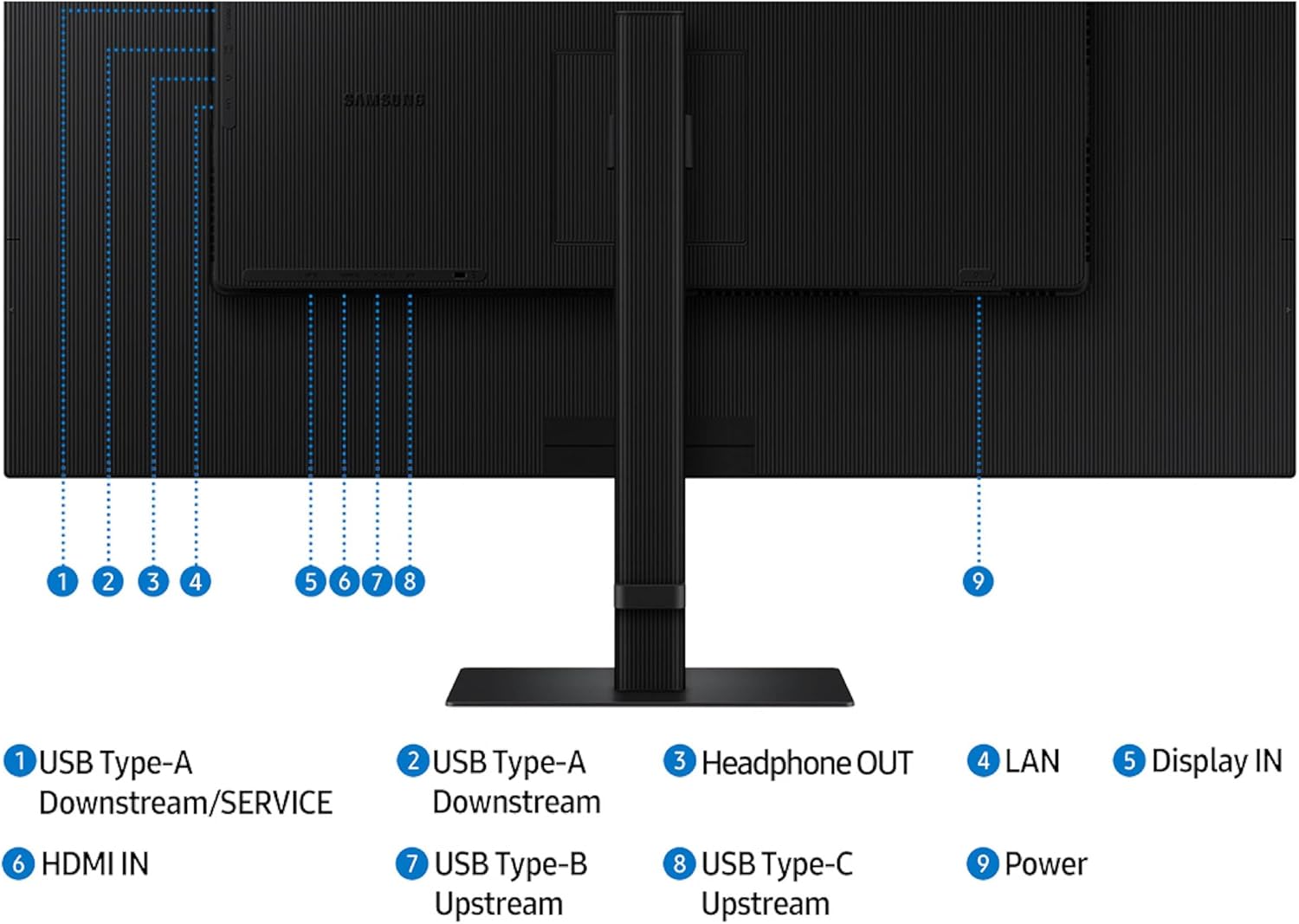
Figure 3.2: Rear view of the monitor displaying various input and output ports.
- USB Type-A Downstream/SERVICE (1, 2): Connect USB devices or use for service.
- Headphone OUT (3): Connect headphones or external speakers.
- LAN (4): Connect an Ethernet cable for network access.
- Display IN (5): Connect a DisplayPort cable from your computer.
- HDMI IN (6): Connect an HDMI cable from your computer or other devices.
- USB Type-B Upstream (7): Connect to your computer to enable USB downstream ports.
- USB Type-C Upstream (8): Connect to your computer for video, data, and up to 90W power delivery.
- Power (9): Connect the power cable.
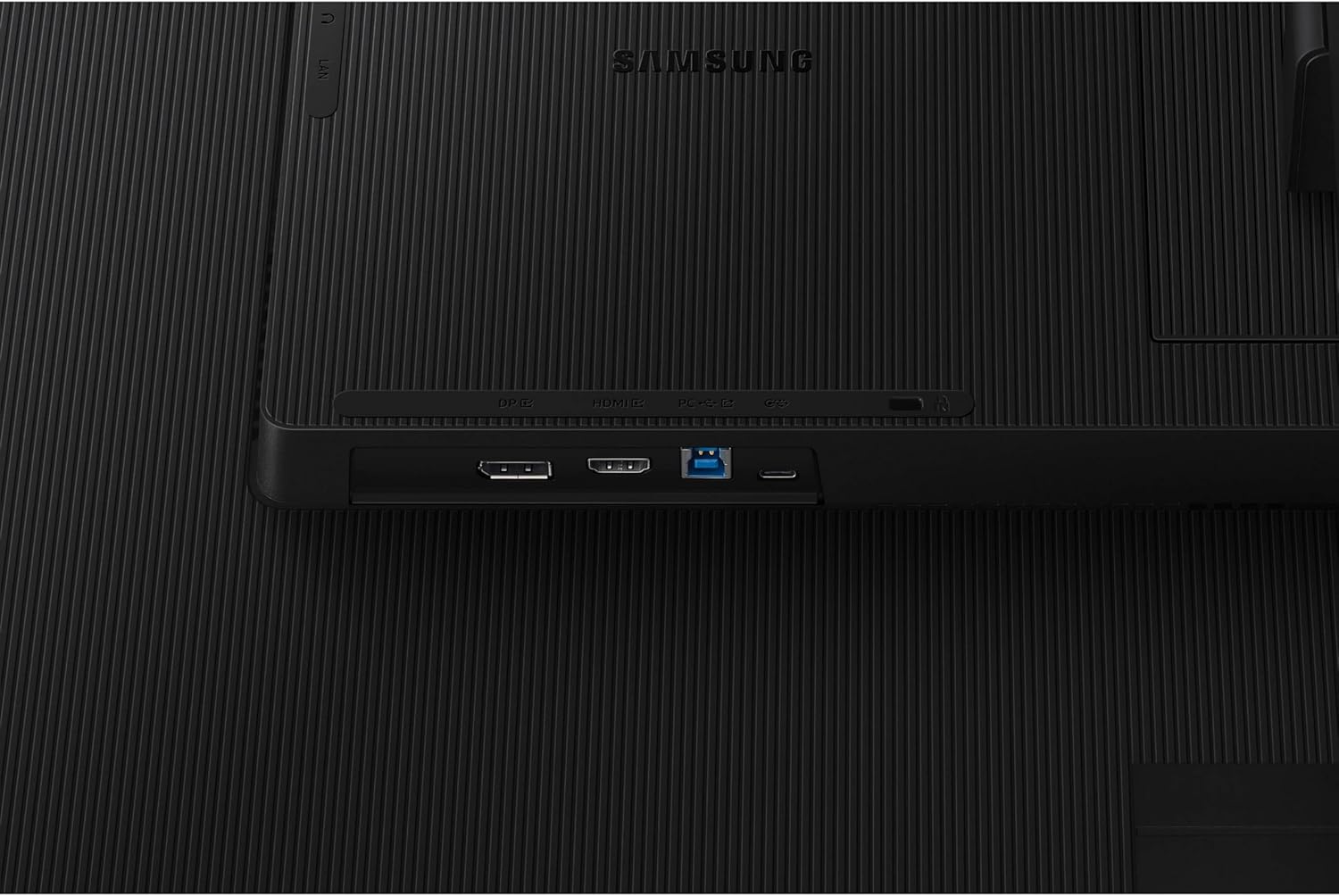
Figure 3.3: Detailed view of the monitor's bottom-facing ports.
4. Operating Instructions
4.1 Power On/Off and Menu Navigation
The monitor features a single multi-directional button located on the rear for power control and menu navigation. Press the button to power on/off or access the On-Screen Display (OSD) menu. Use the directional movements of the button to navigate through menu options.
4.2 Display Features
- 4K UHD Resolution (3840x2160): Provides high pixel density for crystal-clear visuals.
- HDR10 Support: Offers enhanced contrast and a wider color gamut with 1.07 billion colors for true-to-life color representation.
- Expanded Workspace: The 37-inch display provides additional screen real estate compared to smaller monitors, enhancing productivity.

Figure 4.1: Visual representation of UHD resolution, highlighting the increased detail compared to FHD and QHD.
4.3 KVM Switch Functionality
The built-in KVM switch allows you to control multiple computers with a single set of keyboard and mouse connected to the monitor. Access KVM options through the OSD menu to switch between connected sources. This feature supports split screen, Picture-in-Picture (PIP), or Picture-by-Picture (PBP) modes for enhanced multitasking.
5. Connectivity
The monitor offers versatile connectivity options:
- USB-C Port: Supports up to 90W power delivery, video signal, and data transfer through a single cable, simplifying workstation setup.
- Built-in LAN Port: Provides seamless Ethernet connectivity for laptops connected via USB-C, eliminating the need for additional adapters.
- Multiple USB Type-A Ports: For connecting peripherals such as keyboards, mice, and external storage devices.
- HDMI and DisplayPort: Standard video input options for broad compatibility.
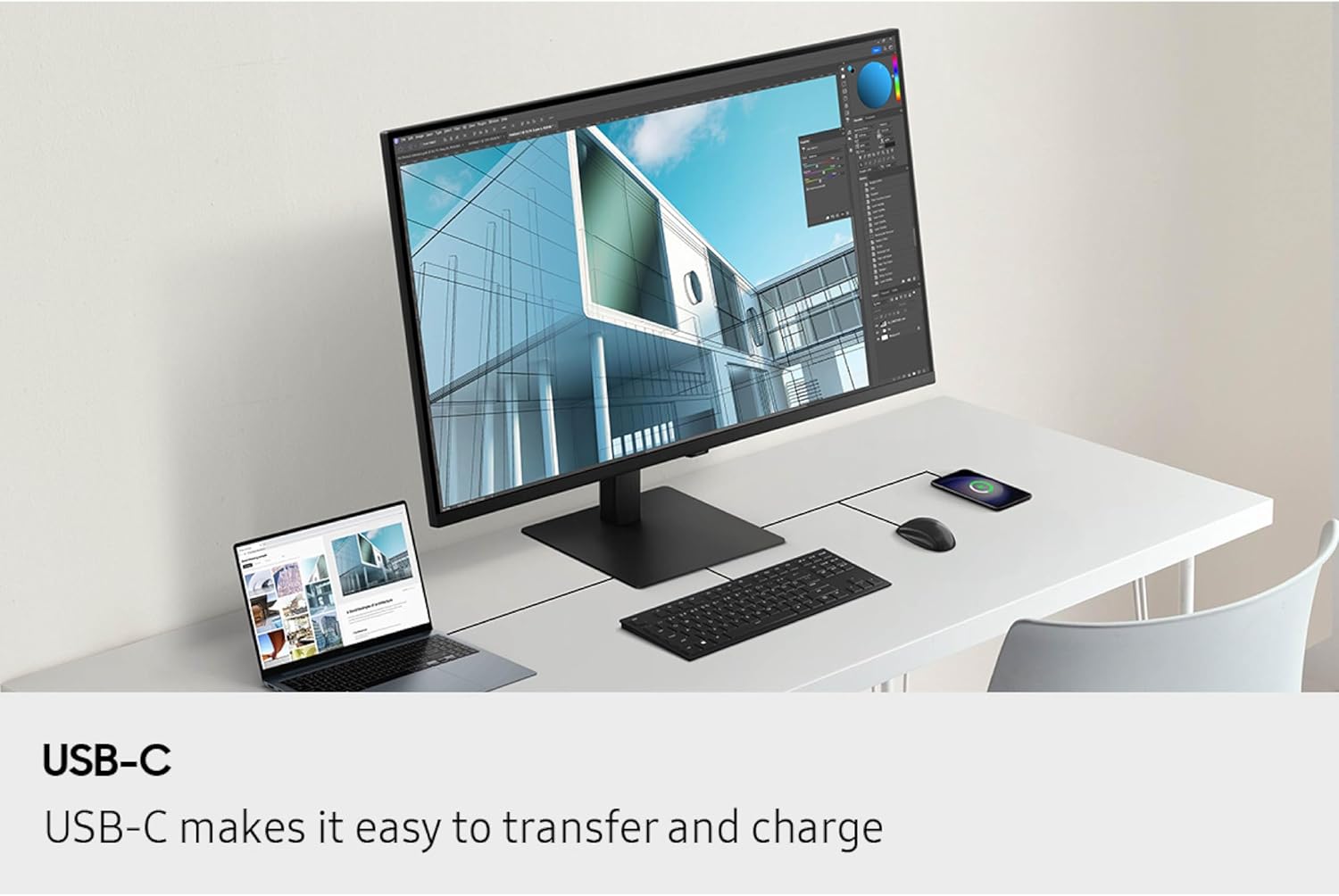
Figure 5.1: Example setup showing a laptop connected to the monitor via USB-C, providing power, video, and data to connected peripherals.
6. Ergonomics and Eye Care
6.1 Ergonomic Design
The monitor's stand allows for height adjustment, tilt, and swivel to achieve an optimal viewing angle and reduce strain during extended use.
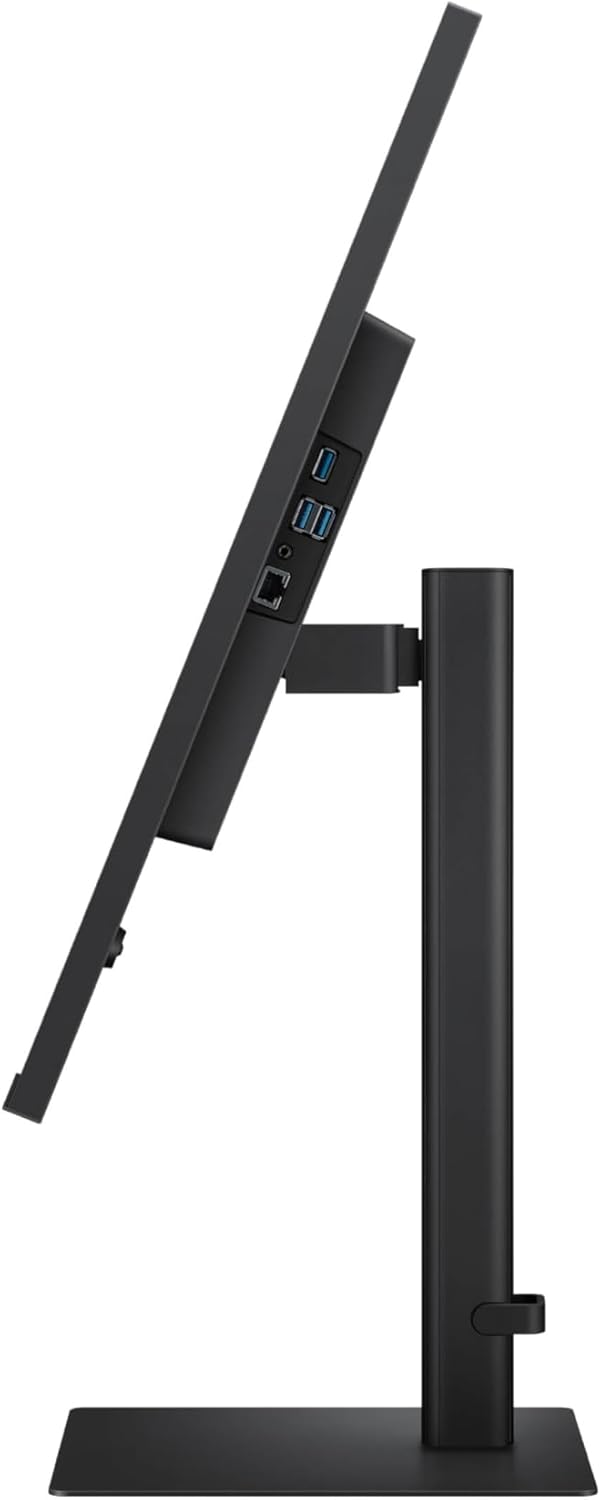
Figure 6.1: Side view of the monitor demonstrating its tilt capability.
6.2 Advanced Eye Care
The ViewFinity S8 is TÜV-certified for intelligent eye care, incorporating features to reduce eye strain:
- Flicker-Free Technology: Minimizes screen flickering for comfortable viewing.
- Eye Saver Mode: Reduces blue light emissions, which can contribute to eye fatigue.
- Adaptive Picture: Automatically optimizes brightness and color temperature based on ambient lighting conditions.
7. Maintenance
To ensure the longevity and optimal performance of your monitor, follow these maintenance guidelines:
- Cleaning the Screen: Gently wipe the screen with a soft, lint-free cloth. For stubborn marks, lightly dampen the cloth with water or a specialized screen cleaner. Avoid using harsh chemicals or abrasive materials.
- Cleaning the Casing: Use a soft, dry cloth to wipe the monitor casing.
- Ventilation: Ensure the monitor's ventilation openings are not blocked to prevent overheating.
- Power Off When Not in Use: Disconnect the power cable from the wall outlet if the monitor will not be used for an extended period.
8. Troubleshooting
If you encounter issues with your monitor, refer to the following common problems and solutions:
| Problem | Possible Cause | Solution |
|---|---|---|
| No power | Power cable not connected; power outlet not active. | Ensure power cable is securely connected to the monitor and a working power outlet. Check the power button on the monitor. |
| No signal | Video cable not connected; incorrect input source selected. | Verify video cable (HDMI, DisplayPort, USB-C) is securely connected to both monitor and computer. Select the correct input source via the OSD menu. |
| Screen flickering | Interference; outdated graphics drivers. | Ensure no strong electromagnetic devices are near the monitor. Update your computer's graphics drivers. |
| KVM switch not working | Incorrect setup; KVM feature not enabled. | Ensure all devices are properly connected to the monitor's USB upstream ports. Check KVM settings in the OSD menu. |
9. Specifications
| Feature | Detail |
|---|---|
| Brand | Samsung |
| Model Number | LS37D800UANXZA |
| Screen Size | 37 Inches |
| Resolution | 4K UHD (3840 x 2160 Pixels) |
| Aspect Ratio | 16:9 |
| Screen Surface | Matte |
| HDR Support | HDR10 |
| Color Support | 1.07 Billion Colors |
| Connectivity | USB-C (90W PD), HDMI, DisplayPort, USB Type-A, USB Type-B, LAN, Headphone Out |
| KVM Switch | Built-in |
| Ergonomics | Height Adjustable, Tilt, Swivel |
| Eye Care Features | TÜV-certified, Flicker-Free, Eye Saver Mode, Adaptive Picture |
| Item Weight | 19.6 pounds |
| Product Dimensions (LxWxH) | 9.84 x 32.44 x 25.51 inches |
| Voltage | 240 Volts |
10. Warranty and Support
For warranty information and technical support, please refer to the official Samsung website or contact Samsung customer service. Details are typically provided in the warranty card included with your product or available online.
Online Support: Visit www.samsung.com/us/support/


