
Blue Bot See & Say Version
Generic Blue Bot Programmable Robotics Class Bundle (See & Say Version) User Manual
Model: Blue Bot See & Say Version
Introduction
The Generic Blue Bot Programmable Robotics Class Bundle, See & Say Version, is designed to introduce learners to fundamental concepts of control, direction, estimation, sequencing, programming, and coding. This compact, Bluetooth-enabled robot provides an interactive and engaging platform for educational activities. This manual provides instructions for the setup, operation, and maintenance of your Blue Bot system.

Image Description: A young boy, dressed in a white shirt, is seated at a table, smiling as he looks at a tablet. In front of him, a transparent Blue Bot robot is positioned on a mat with coin designs. The image illustrates the interactive learning experience with the Blue Bot and a digital device.
What's in the Box
Your Blue Bot Class Bundle includes the following components:
- 6x Blue-Bot Coding Robots
- 1x FREE Docking Station
- 1x USB Cable for the Docking Station

Image Description: This image displays six transparent Blue Bot robots, each with colorful buttons on top, resting securely in a hexagonal black docking station. The robots are arranged in a circular pattern within the station, indicating they are ready for charging or storage.
Product Features
The Blue Bot See & Say Version offers several key features designed to enhance the learning experience:
- Interactive Coding with Audio Feedback: Provides audio feedback for commands, making programming intuitive.
- STEM Learning & Programming: Develops sequencing, problem-solving, and computational thinking skills.
- Bluetooth-Enabled: Allows wireless connection to tablets or PCs for advanced programming.
- Built-in Directional Buttons: Enables standalone programming without external devices.
- Rechargeable & Durable: Equipped with a long-lasting battery for extended use.
- 200-Step Programming Memory: Supports complex command sequences.
- Audio Recording and Playback: Enhances interactive learning.
- Transparent Outer-shell: Allows visibility of internal components.
- Clear and Bright Buttons: Easy to identify and operate.
Setup Instructions
1. Charging the Blue Bots
- Connect the provided USB cable to the docking station and a suitable USB power adapter (not included) or computer USB port.
- Place each Blue Bot into an available slot on the docking station. Ensure the charging contacts on the robot align with the pins in the station.
- The LED indicator on the docking station will illuminate to show charging status. Allow sufficient time for a full charge before first use.
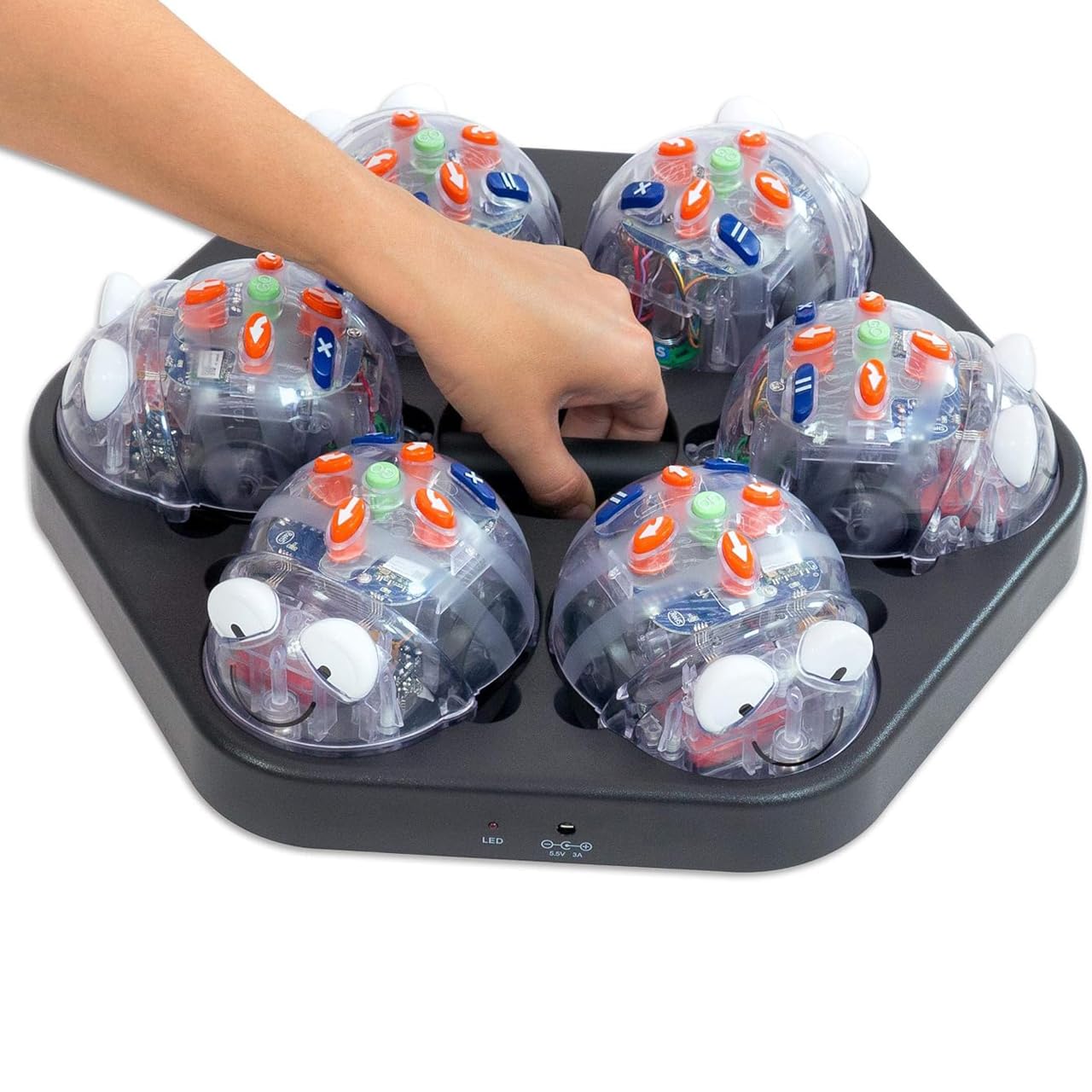
Image Description: A person's hand is shown gently placing one of the transparent Blue Bot robots into an empty slot on the black hexagonal docking station. Five other robots are already in place, illustrating the process of docking the robots for charging or storage.
2. Powering On
Locate the power switch on the underside of each Blue Bot and slide it to the 'ON' position. The robot will emit a sound and its eyes will light up, indicating it is ready for use.
3. Bluetooth Connectivity (Optional)
To control the Blue Bot wirelessly via a tablet or PC:
- Ensure Bluetooth is enabled on your tablet or PC.
- Download and install the official Blue Bot application from your device's app store or the manufacturer's website.
- Open the application and follow the on-screen instructions to pair with your Blue Bot. The robot's unique identifier should appear in the app's device list.
Operating Instructions
1. Basic Movement Commands
The Blue Bot features intuitive buttons on its back for direct programming:
- Forward Arrow: Moves the Blue Bot one step forward.
- Backward Arrow: Moves the Blue Bot one step backward.
- Left Arrow: Turns the Blue Bot 90 degrees to the left.
- Right Arrow: Turns the Blue Bot 90 degrees to the right.
- Go Button: Executes the programmed sequence of commands.
- Clear Button: Clears the current program from the Blue Bot's memory.

Image Description: A close-up front view of a transparent Blue Bot robot. Its large, friendly eyes and a smiling mouth are visible. On its back, various colorful buttons are clearly seen, including orange arrow buttons for movement, a green 'Go' button, and a red 'Clear' button, indicating its programmable interface.
2. Programming a Sequence
- Press the desired directional buttons in the order you want the Blue Bot to move. Each press adds a command to the sequence.
- The Blue Bot can store up to 200 steps in its memory.
- Once your sequence is entered, press the Go Button to execute the program.
- To start a new program, press the Clear Button first.
3. Audio Recording and Playback
The Blue Bot See & Say version allows for audio recording and playback, enhancing the interactive experience. Refer to the Blue Bot application or specific product documentation for detailed instructions on utilizing this feature, as it often involves software interaction.
Maintenance
1. Cleaning
To clean your Blue Bot and docking station, use a soft, dry cloth. For stubborn dirt, a slightly damp cloth with mild soap can be used, ensuring no liquid enters the electronic components. Do not submerge the robots or docking station in water.
2. Battery Care
The Blue Bots contain rechargeable batteries. For optimal battery life:
- Charge the robots fully before first use.
- Avoid completely draining the battery frequently.
- Store robots in the docking station when not in use to maintain charge.
- If storing for an extended period, ensure robots are partially charged (around 50%) and recharge every few months.
Troubleshooting
| Problem | Possible Cause | Solution |
|---|---|---|
| Blue Bot does not turn on. | Battery is depleted. Power switch is off. | Ensure the power switch is in the 'ON' position. Place the Blue Bot on the docking station to charge. |
| Blue Bot does not move after programming. | 'Go' button not pressed. Program not cleared from previous use. Obstruction. | Press the Go Button after entering commands. Press the Clear Button before starting a new program. Check for any physical obstructions. |
| Cannot connect via Bluetooth. | Bluetooth is off on device. App not open. Blue Bot out of range. | Ensure Bluetooth is active on your tablet/PC. Open the Blue Bot application. Move the Blue Bot closer to the device. Restart both the Blue Bot and the device. |
| Audio feedback is not working. | Volume too low. Audio feature not activated. | Check the volume settings on the Blue Bot (if applicable) or within the connected application. Ensure the 'See & Say' feature is enabled in the app. |
Specifications
- Model: Blue Bot See & Say Version
- Programming Memory: Up to 200 steps
- Connectivity: Bluetooth
- Power Source: Rechargeable battery
- Included: 6x Blue Bots, 1x Docking Station, 1x USB Cable
- Manufacturer: Terrific Teaching Solutions
- ASIN: B0F1YTZ34P
Warranty and Support
Information regarding product warranty and customer support is typically provided by the retailer or manufacturer at the time of purchase. Please refer to your purchase documentation or contact the seller, Terrific Teaching Solutions, for specific details on warranty coverage and support services for your Blue Bot Programmable Robotics Class Bundle.
Ask a question about this manual
Ask about setup, troubleshooting, compatibility, parts, safety, or missing instructions. Manuals+ will review the question and use this page’s manual context to help answer it.