
1. Introduction
This manual provides detailed instructions for the installation, operation, and maintenance of your ZOSI 4K PoE Security Camera System. This system is designed to provide comprehensive surveillance with high-resolution video, advanced detection features, and convenient remote access. Please read this manual thoroughly before installation and use to ensure proper functionality and safety.
Video: An introductory overview of the ZOSI 4K PoE Security Camera System, highlighting its key features and benefits.

Image: The ZOSI 4K PoE Security Camera System, showcasing the NVR and four dome cameras, emphasizing person and vehicle detection capabilities.
2. Package Contents
Verify that all items listed below are included in your package. If any items are missing or damaged, please contact ZOSI customer support.
- 1 x 8-Channel 4K 8MP NVR with 2TB Hard Drive
- 4 x 4K 8MP PoE CCTV Cameras
- 4 x 60ft Ethernet Cables
- 1 x NVR Power Supply
- 1 x HDMI Cable
- 1 x Ethernet Cable (for NVR network connection)
- 1 x USB Mouse
- 1 x Mounting Screw Bag
- 1 x Quick Start Guide
- Mounting Template(s)
- Warning Sticker(s)

Image: Visual representation of all components included in the ZOSI 4K PoE Security Camera System package, such as the NVR, cameras, cables, and accessories.
3. System Overview
3.1 Network Video Recorder (NVR)
The NVR is the central unit for recording, storing, and managing video footage from your PoE cameras. It features 8 PoE ports for direct camera connection and is expandable to a 16-channel system with an additional PoE switch. A 2TB surveillance-grade HDD is pre-installed for local storage.
- Video Input: 8 channels via RJ45 PoE ports, expandable to 16 channels.
- Video Output: HDMI, VGA.
- Storage: 2TB pre-installed HDD, supports auto-overwrite.
- Compression: H.265+ for efficient storage.
- USB Ports: 2 (for mouse, USB backup).

Image: The ZOSI 4K NVR unit, highlighting its 2TB hard drive capacity and capability for continuous 24/7 recording.

Image: Comparison illustrating the efficiency of H.265+ video compression over H.264, showing reduced file size while maintaining video quality.
3.2 PoE IP Cameras
The system includes four 8MP (4K) PoE IP cameras designed for both indoor and outdoor use. These cameras receive power and data through a single Ethernet cable, simplifying installation.
- Resolution: 4K (8MP) Ultra HD for clear imaging.
- Lens: 4.0mm fixed lens with a 90-degree viewing angle.
- Night Vision: Spotlight for color night vision, 4 IR-LEDs for up to 100ft B/W night vision.
- Audio: Built-in microphone and speaker for two-way audio.
- Detection: Person, vehicle, and face detection with AI-powered smart alerts.
- Weatherproof: IP66 rated for outdoor durability, operating in temperatures from -10°C to 66°C (14°F to 151°F).

Image: A ZOSI PoE IP camera shown in various indoor and outdoor environments, emphasizing its IP66 weatherproof rating and suitability for diverse conditions.

Image: A close-up of a ZOSI PoE camera, highlighting its 4K resolution capabilities for clear and detailed surveillance.
4. Setup Guide
4.1 Connecting the System
- Connect Cameras to NVR: Use the provided Ethernet cables to connect the PoE IP cameras to the PoE ports on the back of the NVR. The cameras will receive both power and video signal through these cables.
- Connect NVR to Monitor: Connect the NVR to a monitor or TV using the HDMI or VGA cable.
- Connect NVR to Network: Connect the NVR's NETWORK port to your router using an Ethernet cable for remote access and app functionality.
- Connect USB Mouse: Plug the USB mouse into one of the NVR's USB ports for system navigation.
- Power On: Connect the NVR power supply to the NVR and then to a power outlet. The system will boot up automatically.

Image: A detailed diagram of the ZOSI NVR's back panel, illustrating all available ports and their respective connections for power, video input, audio, and network.

Image: A diagram demonstrating the simple plug-and-play PoE setup, showing how a single Ethernet cable connects the IP camera to the PoE NVR for both power and data.
4.2 Expandability
Your 8-channel NVR can be expanded to support up to 16 cameras by adding an external PoE switch. This allows for scalable surveillance coverage for larger properties.
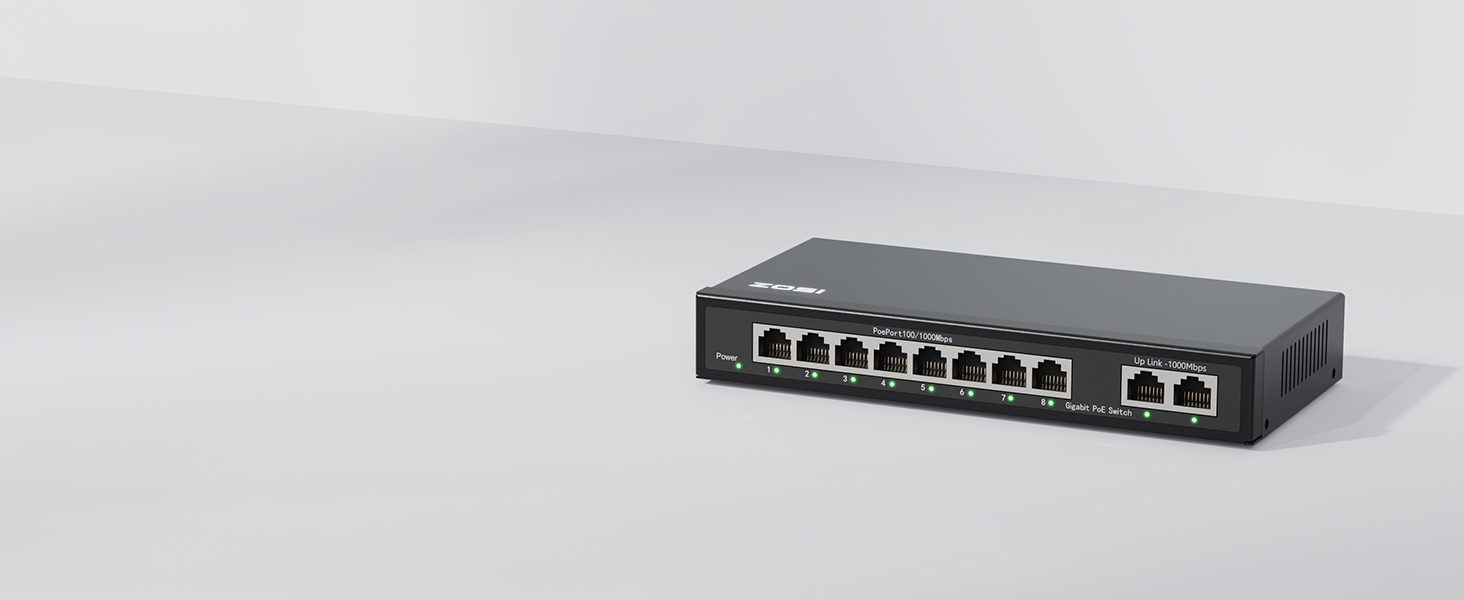
Image: An 8-port PoE switch, illustrating how it can be integrated to expand the camera capacity of the ZOSI NVR system.

Image: A visual representation of a fully expanded 16-channel PoE camera system, showing multiple camera feeds on a monitor, demonstrating the system's scalability.
5. Operating Instructions
5.1 Initial Setup and App Download
- First-Time Login: Follow the on-screen prompts on your connected monitor to complete the initial NVR setup, including setting a password.
- Download Zosi Smart App: Scan the QR code provided in the Quick Start Guide or search for "Zosi Smart" in your mobile app store (iOS/Android).
- Add Device: Open the app, create an account, and follow the instructions to add your NVR system by scanning the QR code on the NVR or manually entering its details.

Image: A QR code for easy download of the Zosi Smart mobile application, facilitating remote access and control of the security system.
5.2 Remote Access and Live View
Once the NVR is connected to your network and added to the Zosi Smart App, you can view live camera feeds from anywhere using your smartphone, tablet, or computer.

Image: Various devices (smartphone, tablet, laptop, desktop) displaying live feeds from the ZOSI security camera system, illustrating remote access capabilities.
5.3 Two-Way Audio
Each camera is equipped with a built-in microphone and speaker, enabling two-way communication through the Zosi Smart App. This allows you to speak to individuals near the camera or deter intruders.

Image: A user interacting with the Zosi Smart App on a smartphone, demonstrating the two-way audio feature to communicate with someone near the camera.

Image: A person speaking into a ZOSI camera, with speech bubbles indicating real-time two-way communication, showing the interactive audio feature.
5.4 Smart Detection and Alerts
The system utilizes AI-powered detection to identify persons, vehicles, and faces, reducing false alarms from irrelevant movements. You can customize detection zones and sensitivity settings.
- Person/Vehicle Detection: Receive alerts only when a human or vehicle is detected.
- Customizable Zones: Define specific areas for detection to focus on critical points.
- Alerts: Get real-time push notifications via the app and email alerts.

Image: A visual demonstrating the AI detection capabilities, highlighting detected faces, persons, and vehicles with corresponding app push notifications and email alerts.

Image: A scene showing a person and a vehicle, with bounding boxes indicating successful AI detection, demonstrating the system's ability to differentiate objects.

Image: A grid overlay on a surveillance scene, illustrating how users can define and customize specific detection zones to focus on areas of interest.
5.5 Active Deterrence
When a person is detected, the cameras can activate a spotlight and siren alarm to deter potential intruders, providing an active layer of security.

Image: A security camera activating a spotlight and siren to deter an intruder, demonstrating the active deterrence feature of the system.

Image: A security camera's spotlight illuminating a person in the dark, illustrating the deterrence effect of the integrated spotlight.
5.6 Night Vision Modes
The cameras offer multiple night vision modes to ensure clear footage in low-light conditions:
- Color Night Vision: Utilizes spotlights to capture full-color video in darkness.
- Starlight Night Vision: High-performance sensor captures more light for vibrant colors in low-light.
- B&W Night Vision: Infrared LEDs provide clear black and white footage up to 100ft.

Image: A split image showing the same outdoor scene in daylight with 4K Ultra HD clarity and at night with Starlight Night Vision, demonstrating superior low-light performance.

Image: An outdoor scene at night captured with full-color night vision, showcasing the camera's ability to render colors even in dark conditions.

Image: An outdoor scene at night captured with starlight night vision, demonstrating enhanced detail and color reproduction in very low ambient light.

Image: An outdoor scene at night captured in black and white night vision, showing clear visibility provided by infrared illumination.
5.7 Recording and Playback
The NVR records 24/7 to the pre-installed 2TB hard drive. You can review recorded footage via the NVR interface or the Zosi Smart App.
- 24/7 Recording: Continuous recording ensures no moment is missed.
- Event Recording: Configure the system to record only when motion or specific events are detected.
- Smart Playback: Easily navigate through recorded footage using a timeline to find specific events.
- Local Storage: All footage is stored locally on the 2TB HDD, with no monthly fees.

Image: A monitor displaying multiple camera feeds, with a 24/7 clock icon, indicating continuous recording by the ZOSI NVR system.

Image: A timeline interface showing recorded events, with specific time markers for quick navigation and review of detected activities.

Image: A graphic emphasizing local storage with no monthly fees, represented by a large '0' icon, highlighting cost-effective data retention.
6. Maintenance
Regular maintenance ensures optimal performance and longevity of your security system.
- Clean Camera Lenses: Periodically clean camera lenses with a soft, damp cloth to remove dust and smudges that may affect image clarity.
- Check Cable Connections: Ensure all Ethernet cables are securely connected to both cameras and the NVR to prevent signal loss.
- Firmware Updates: Check the Zosi Smart App or ZOSI website for available firmware updates for your NVR and cameras. Updates can improve performance and add new features.
- Hard Drive Health: The NVR's 2TB HDD is designed for continuous recording. Monitor its health through the NVR settings periodically.
- Backup Important Footage: Regularly back up critical video footage to a USB drive or other storage solution as needed.
7. Troubleshooting
If you encounter issues with your ZOSI security system, refer to the following common troubleshooting steps:
| Problem | Possible Solution |
|---|---|
| No video from camera | Check Ethernet cable connection. Ensure camera is powered (PoE). Restart NVR. |
| Cannot access system remotely | Verify NVR is connected to the internet. Check router settings (firewall, port forwarding if necessary). Ensure Zosi Smart App is updated. |
| Poor image quality | Clean camera lens. Check for obstructions. Ensure camera resolution settings are optimal. |
| False motion alerts | Adjust detection sensitivity and customize detection zones in the NVR settings or Zosi Smart App. |
| Hard drive full / not recording | Check hard drive status in NVR settings. Ensure auto-overwrite is enabled. Format HDD if necessary (this will erase all data). |
For further assistance, please contact ZOSI customer support.
8. Specifications
Detailed technical specifications for the ZOSI 4K PoE Security Camera System.
| Feature | Detail |
|---|---|
| Brand | ZOSI |
| Model Number | 88N2-2258B4-US-V2 |
| Connectivity Technology | Wired (PoE) |
| Video Capture Resolution | 4K (8MP) |
| Number of Channels | 8 (expandable to 16) |
| Memory Storage Capacity | 2 TB HDD |
| Operating System | Linux |
| Special Features | App Control, Audio Recording, Human Detection, Privacy Masking, Vehicle Detection, Spotlight, Color Night Vision |
| Night Vision Range | 100 Feet (B/W IR) |
| Frame Rate | 30 fps |
| Recording Mode | Event, Manual, Continuous |
| Lens Type | Fixed |
| Viewing Angle | 90 Degrees |
| Weatherproof Rating | IP66 |
| Color | Black |
| Item Dimensions | 13 x 12 x 7 inches |
9. Warranty and Support
ZOSI is committed to providing reliable products and excellent customer service.
9.1 Warranty Information
Please refer to the warranty card included in your package or visit the official ZOSI website for detailed warranty terms and conditions. Keep your purchase receipt as proof of purchase for warranty claims.
9.2 Customer Support
For technical assistance, troubleshooting, or any questions regarding your ZOSI product, please contact our customer support team. You can find contact information on our official website or through the Zosi Smart App.
- Online Support: Visit the ZOSI Official Store on Amazon for FAQs and support resources.
- Email Support: Refer to your Quick Start Guide for the support email address.
- Phone Support: Refer to your Quick Start Guide for the support phone number.

Image: A graphic illustrating ZOSI's commitment to customer priority, including fast delivery, quick response, and lifetime customer support.

Image: A visual representing data privacy and security, with a house protected by a shield, emphasizing ZOSI's commitment to user privacy and secure data encryption.