
Introduction
This manual provides detailed instructions for the setup, operation, and maintenance of your RAPIQUE R102 Ultra-Light Wireless Mouse. Designed for comfort and versatility, the R102 features dual-mode connectivity (Bluetooth 5.1 and 2.4GHz wireless), silent clicks, and adjustable DPI settings, making it suitable for various computing environments.

This image highlights the ultra-lightweight design of the RAPIQUE R102 mouse, emphasizing its 53-gram weight for comfortable, all-day use. It shows the mouse from different angles, illustrating its sleek profile.
Package Contents
- R102 Lightweight Wireless Mouse x1
- USB Receiver x1
- USB-C Charge cable x1
- Manual x1
Product Overview
Familiarize yourself with the components and controls of your RAPIQUE R102 mouse.
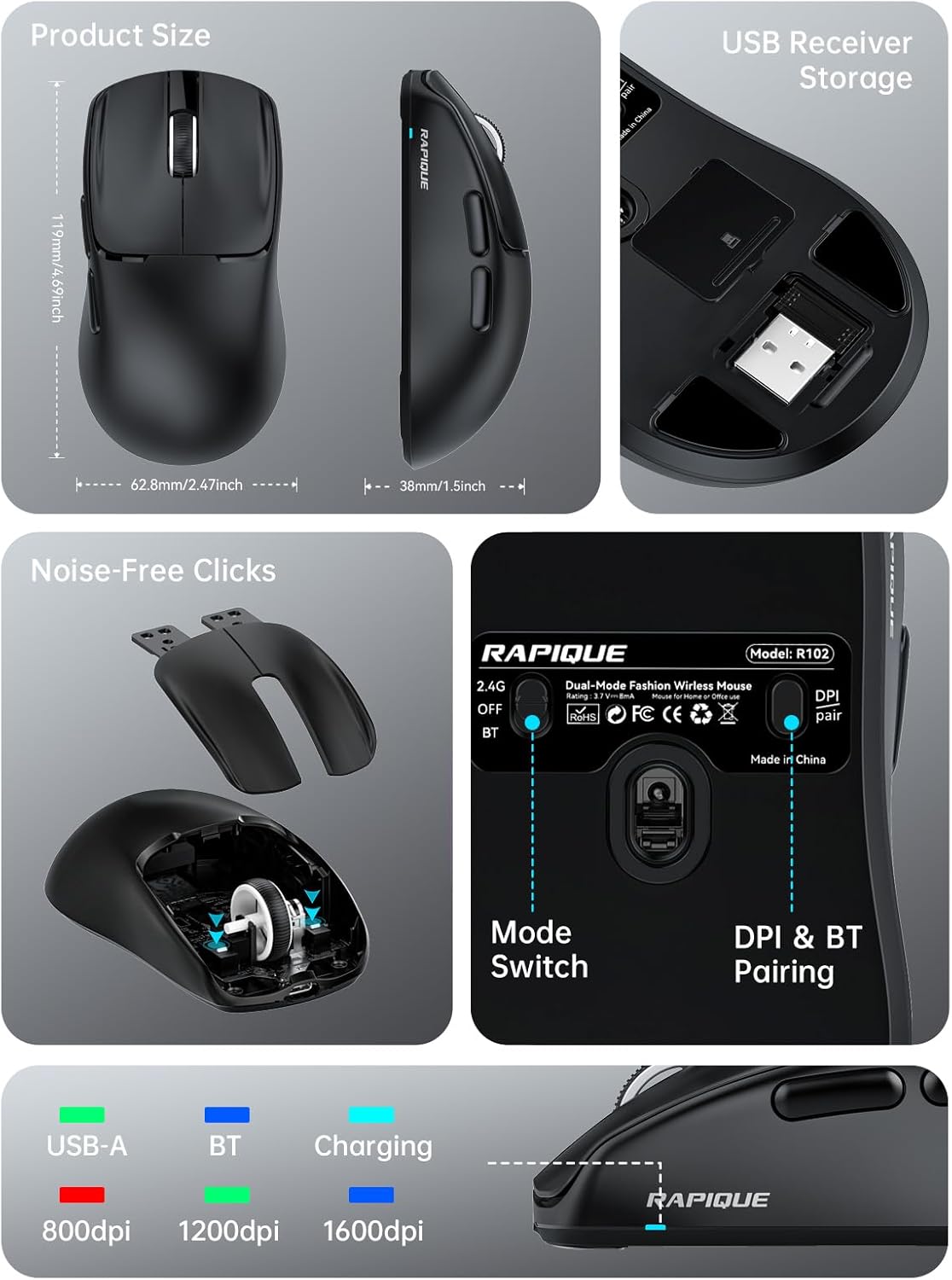
This comprehensive image provides a detailed look at the RAPIQUE R102 mouse. It includes precise product dimensions, shows the convenient storage location for the USB receiver, illustrates the internal mechanism for noise-free clicks, and clearly labels the mode switch and DPI/Bluetooth pairing button on the mouse's underside.
Key Components
- Left/Right Click Buttons: Designed for silent operation.
- Scroll Wheel: For smooth vertical scrolling.
- DPI Button: Located on the top, cycles through DPI settings.
- Forward/Back Buttons: Located on the left side for quick navigation.
- USB-C Charging Port: Located at the front for recharging.
- Mode Switch: On the bottom, selects between 2.4G, Off, and Bluetooth modes.
- DPI & BT Pairing Button: On the bottom, used for DPI adjustment and Bluetooth pairing.
- USB Receiver Storage Slot: On the bottom, for convenient storage of the 2.4GHz USB receiver.
Setup
Charging the Mouse
The RAPIQUE R102 mouse is equipped with a built-in rechargeable battery. Before first use, or when the battery is low, connect the provided USB-C charging cable to the mouse's USB-C port and the other end to a USB power source (e.g., computer USB port, USB wall adapter). A full charge typically takes 1-2 hours.

This image demonstrates the USB-C charging capability of the R102 mouse. It highlights the 500mAh battery and indicates that 1-2 hours of charging can bring the battery to 98%, while 24 hours of use results in 86% power remaining, emphasizing its long-lasting battery.
Connecting the Mouse
The R102 mouse supports two connectivity modes: 2.4GHz Wireless via USB receiver and Bluetooth 5.1.
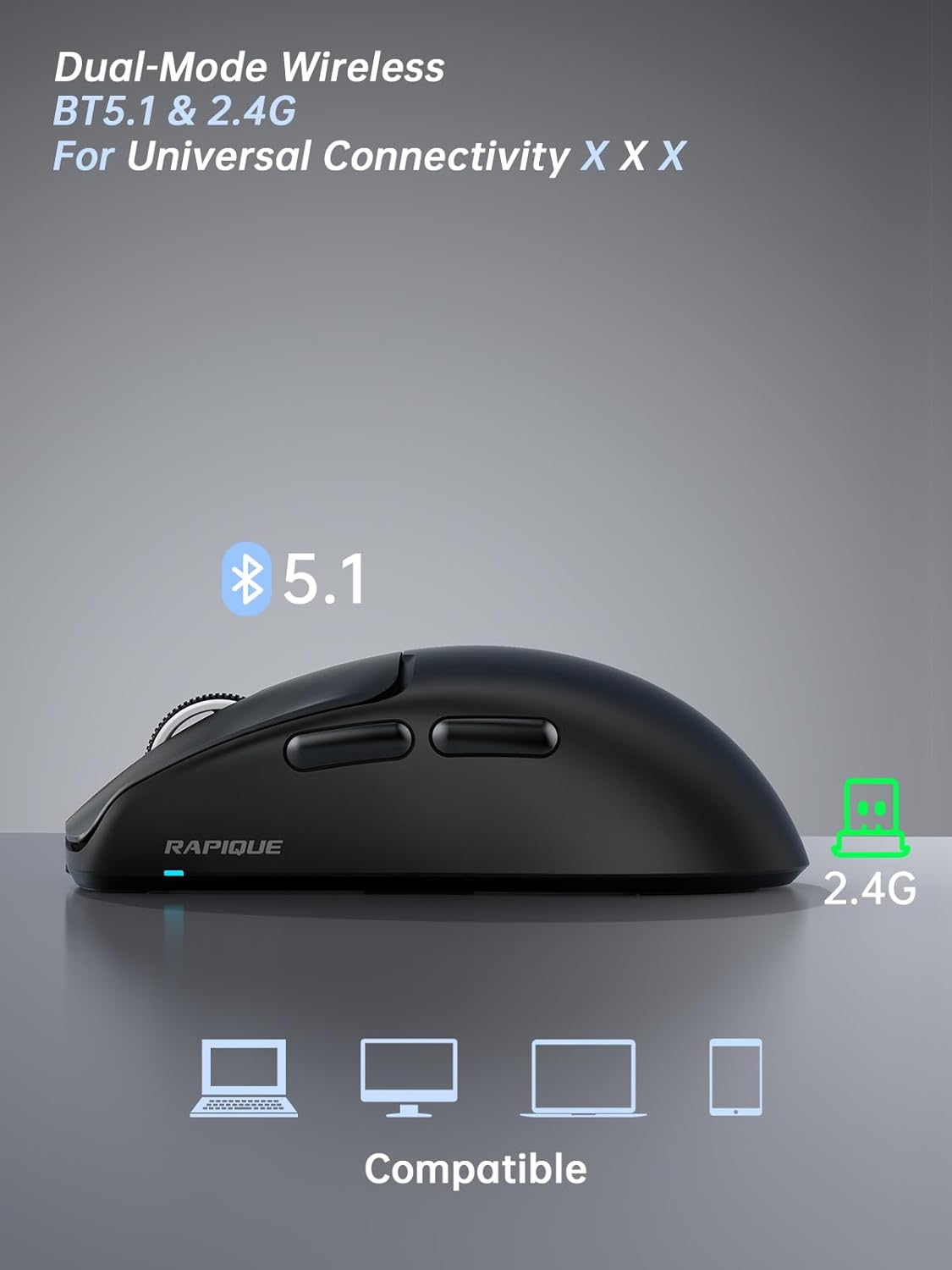
This image illustrates the dual-mode connectivity of the RAPIQUE R102 mouse, supporting both Bluetooth 5.1 and 2.4GHz connections for broad compatibility across various devices.
2.4GHz Wireless Mode
- Locate the USB receiver stored in the compartment on the bottom of the mouse.
- Plug the USB receiver into an available USB-A port on your computer.
- Slide the mode switch on the bottom of the mouse to the "2.4G" position.
- The mouse should automatically connect to your computer. No drivers are required.
Bluetooth Mode
- Slide the mode switch on the bottom of the mouse to the "BT" position.
- Press and hold the "DPI & BT Pair" button on the bottom of the mouse for 3-5 seconds until the indicator light starts blinking, indicating it's in pairing mode.
- On your device (MacBook, iPad, Android, etc.), go to Bluetooth settings and search for "RAPIQUE R102".
- Select "RAPIQUE R102" to pair. Once connected, the indicator light will stop blinking.
Operating Instructions
DPI Adjustment
The R102 mouse offers three adjustable DPI (Dots Per Inch) levels: 800, 1200, and 1600. To change the DPI, press the DPI button located on the top of the mouse, just below the scroll wheel. Each press will cycle through the available DPI settings, allowing you to customize cursor sensitivity for different tasks.
This image focuses on the bottom of the R102 mouse, illustrating the DPI & BT pairing button. It highlights the three DPI levels (800, 1200, 1600) that can be cycled through by pressing this button, allowing users to adjust cursor sensitivity.
Using Side Buttons
The two side buttons on the left of the mouse function as "Forward" and "Back" buttons by default. These are useful for quick navigation in web browsers and file explorers, enhancing productivity.
Power Management
To conserve battery life, the mouse will enter a sleep mode after a period of inactivity. To wake it up, simply move the mouse or click any button. For extended storage or travel, slide the mode switch to the "OFF" position.

This image demonstrates the versatility of the RAPIQUE R102 mouse in different settings, including office, home, and travel. It shows the mouse being used with a desktop setup, a tablet, and a laptop, emphasizing its adaptability for various computing needs.
Maintenance
- Cleaning: Use a soft, dry cloth to clean the mouse. For stubborn dirt, a slightly damp cloth can be used, ensuring no liquid enters the internal components. Avoid harsh chemicals or abrasive materials.
- Storage: When not in use for extended periods, store the mouse in a cool, dry place. Ensure the mode switch is set to "OFF" to prevent battery drain.
- Battery Care: Avoid fully discharging the battery frequently. Recharge the mouse when the low battery indicator appears.
Troubleshooting
Mouse Not Responding
- Check Battery: Ensure the mouse is sufficiently charged. Connect the USB-C charging cable and allow it to charge for a few minutes.
- Check Mode Switch: Verify that the mode switch on the bottom of the mouse is set to the correct position (2.4G or BT) for your connection type.
- Re-pair 2.4GHz: For 2.4GHz mode, try unplugging and re-plugging the USB receiver into a different USB port on your computer.
- Re-pair Bluetooth: For Bluetooth mode, delete "RAPIQUE R102" from your device's Bluetooth list and repeat the pairing process.
- Restart Device: Sometimes, restarting your computer or device can resolve connectivity issues.
Cursor Movement is Erratic or Laggy
- Clean Sensor: Ensure the optical sensor on the bottom of the mouse is clean and free from dust or debris.
- Surface: Use the mouse on a clean, non-reflective, and uniform surface. A mouse pad is recommended.
- Interference: Move the mouse closer to the USB receiver (for 2.4GHz) or your Bluetooth device. Avoid using it near strong electromagnetic interference sources.
- DPI Setting: Adjust the DPI setting to a level that suits your preference and task.
Silent Click Feature Not Working
- The R102 is designed with silent click switches. If you experience loud clicks, ensure the mouse is not damaged. Contact customer support if the issue persists.
Specifications
| Feature | Detail |
|---|---|
| Product Dimensions | 4 x 2.5 x 0.04 inches |
| Item Weight | 1.94 ounces |
| ASIN | B0F1Y72169 |
| Item model number | R102 |
| Batteries | 1 Nonstandard Battery batteries required. (included) |
| Customer Reviews | 4.5 out of 5 stars (43 ratings) |
| Best Sellers Rank | #1,450 in Computer Mice |
| Date First Available | May 9, 2025 |
| Manufacturer | Rapique |
| Brand | RAPIQUE |
| Color | Black |
| Connectivity Technology | 2.4GHz Wireless, Bluetooth 5.1 |
| Special Feature | Lightweight(53g), Portable, Soundless, USB C Rechargeable, Wireless(Bluetooth 5.1+2.4GHz) |
| Movement Detection Technology | Optical |
Warranty and Support
For warranty information and technical support, please refer to the official RAPIQUE website or contact their customer service directly. You can also visit the RAPIQUE Store on Amazon for additional resources and contact details.