
1. Product Overview
The HopeFlex Q50 is a versatile 4G LTE cellular security camera designed for both indoor and outdoor surveillance. It operates independently without the need for Wi-Fi, utilizing a pre-installed SIM card for data connectivity. Key features include 1080p Full HD video, AI motion detection, pan-tilt functionality, two-way audio, and solar-powered operation for continuous use.

Figure 1: HopeFlex Q50 Camera with highlighted features.
Key Features:
- 4G LTE Connectivity: Operates on 4G cellular networks (Verizon, AT&T, T-Mobile compatible) with a pre-installed SIM card, eliminating the need for Wi-Fi. Includes 300MB initial data.
- 1080p Full HD Video: Delivers clear, high-definition video footage.
- AI Motion Detection: Intelligently detects human movement, reducing false alarms from pets or vehicles.
- Pan-Tilt Functionality: Offers 355° horizontal and 90° vertical rotation for comprehensive area monitoring.
- Two-Way Talk: Enables real-time communication through the camera's built-in speaker and microphone.
- Color Night Vision: Provides clear, full-color video even in low-light conditions.
- Solar-Powered: Equipped with a solar panel and a 5200mAh rechargeable battery for continuous operation.
- Cloud Storage: Supports secure AES 128-bit encrypted cloud video storage.
- Family Sharing: Allows multiple users to access and monitor the camera via the app.
2. What's in the Box
Upon unboxing your HopeFlex Q50 camera, please ensure all components are present:
- HopeFlex Q50 4G LTE Cellular Security Camera with integrated solar panel
- Mounting bracket and screws
- User Manual
- Pre-installed SIM card (with initial data)
3. Setup Guide
3.1 Initial Charging
Before installation, it is recommended to fully charge the camera's internal battery using a standard USB charger (not included) for optimal performance, especially if solar exposure is initially limited.
3.2 App Download and Account Creation
- Download the official HopeFlex app from your smartphone's app store (iOS or Android).
- Create a new user account and log in.
3.3 Camera Pairing
- Power on the camera.
- In the HopeFlex app, select "Add Device" and follow the on-screen instructions to scan the QR code on the camera.
- Ensure your phone has a stable internet connection during the pairing process.
3.4 SIM Card Activation and Data Plan
The camera comes with a pre-installed SIM card. To activate and manage your data plan:
- The included SIM card provides 300MB of data to get started.
- Top up your data plan anytime through the HopeFlex app.
- The camera supports Verizon, AT&T, and T-Mobile networks.
3.5 Mounting the Camera
Select a mounting location that provides optimal solar exposure for the solar panel and a clear view of the area you wish to monitor.
- Attach the mounting bracket to a wall or suitable surface using the provided screws.
- Securely attach the camera to the mounting bracket.
- Adjust the angle of the solar panel to maximize direct sunlight exposure throughout the day.
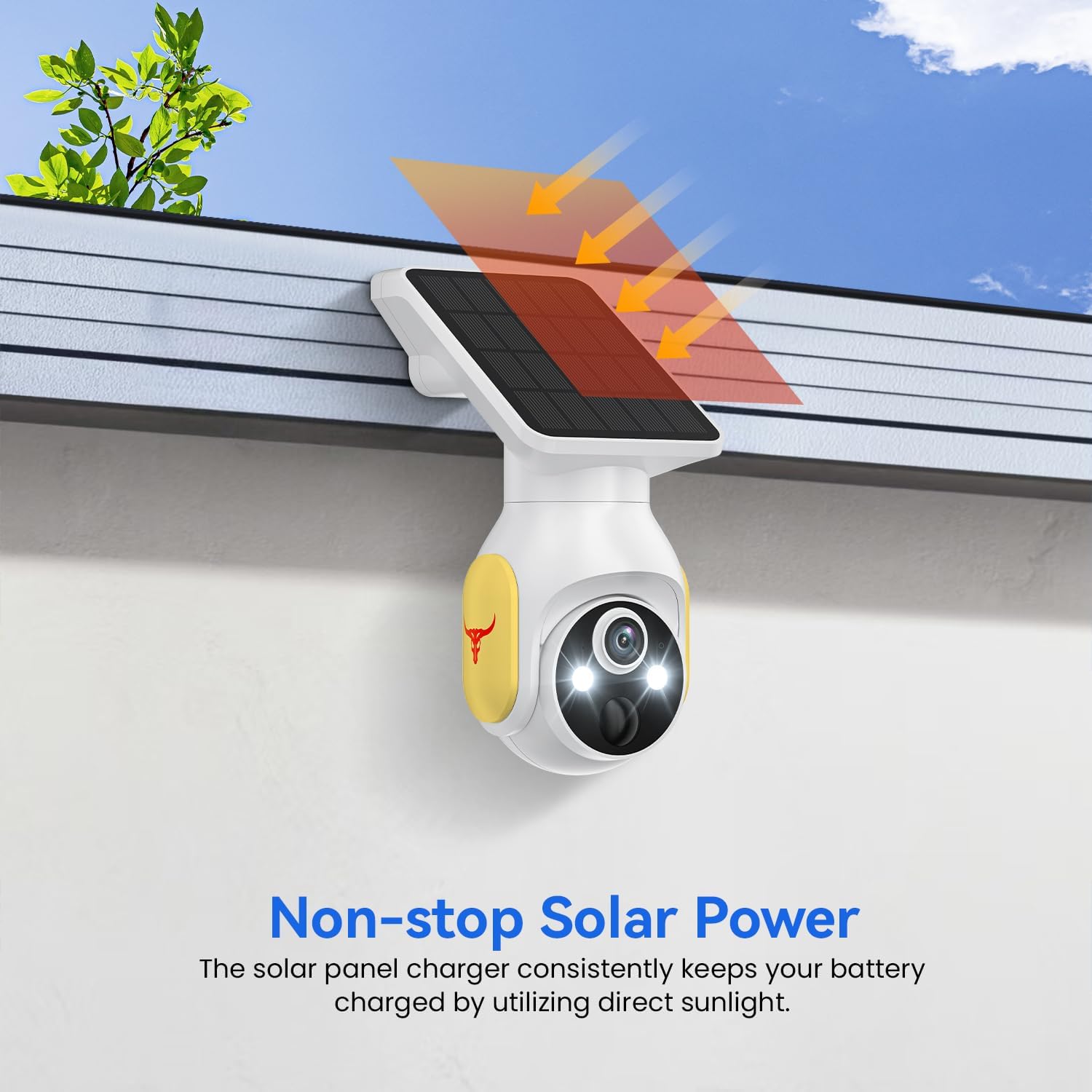
Figure 2: Proper positioning for solar charging.
4. Operating Instructions
4.1 Live View and Recording
Open the HopeFlex app to access the live video feed from your camera. You can manually initiate recordings or capture screenshots from the live view interface.
4.2 Pan and Tilt Control
Use the directional controls within the app to remotely adjust the camera's viewing angle. The camera supports 355° horizontal and 90° vertical rotation to cover a wide area.
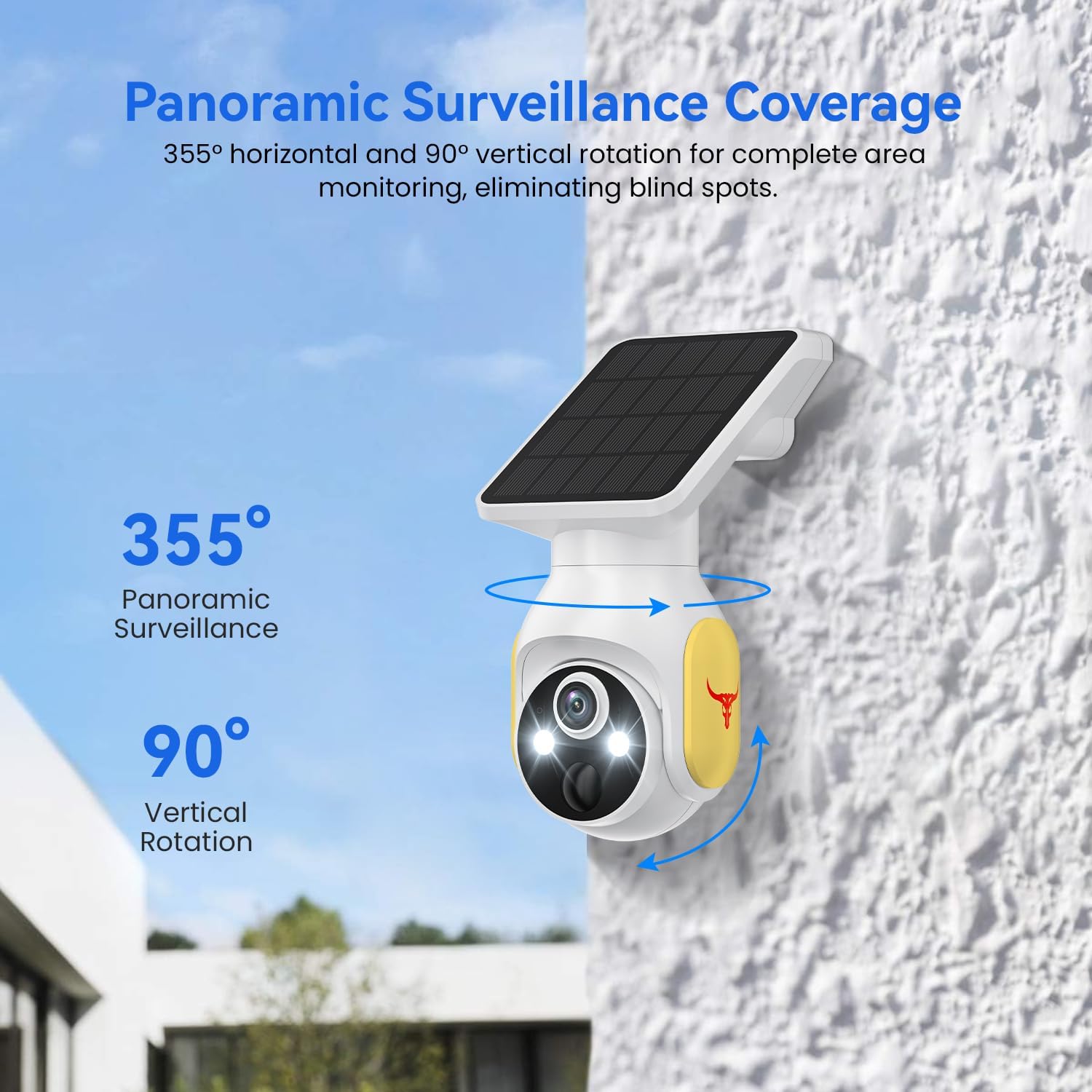
Figure 3: Pan and tilt capabilities for wide surveillance.
4.3 Two-Way Audio
Activate the microphone icon in the app to speak through the camera's speaker, and listen to audio from the camera's surroundings. This feature is useful for communicating with visitors or deterring intruders.

Figure 4: Using two-way talk to communicate.
4.4 AI Motion Detection and Alerts
Configure motion detection settings within the app. The AI human detection feature helps to filter out irrelevant motion events. You will receive push notifications on your smartphone when motion is detected.
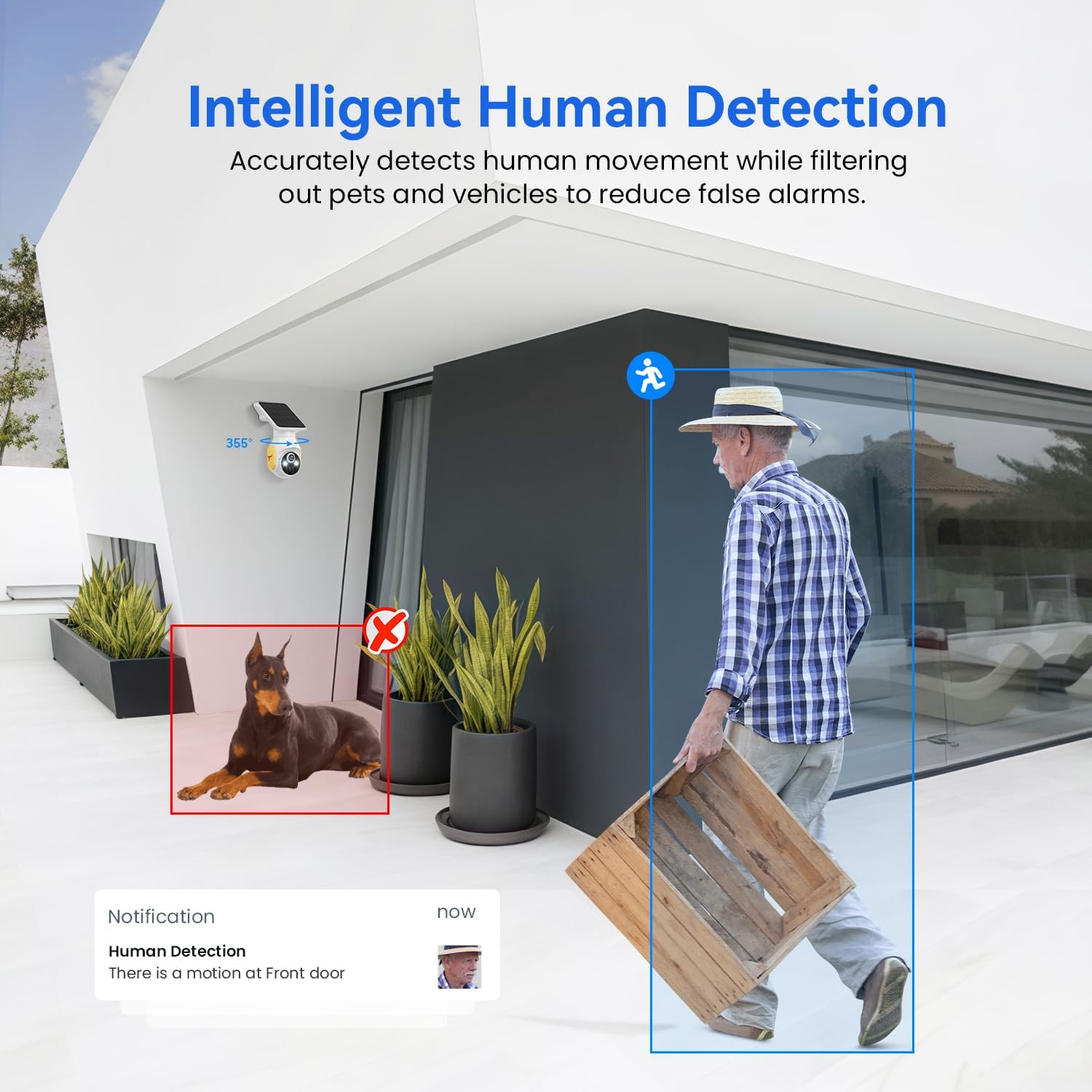
Figure 5: AI Human Detection in action.
4.5 Night Vision
The camera automatically switches to night vision mode in low-light conditions. It features color night vision for enhanced clarity and detail.

Figure 6: Comparison of color night vision vs. standard night vision.
4.6 Cloud Storage and Playback
Recorded events are stored securely in the cloud. Access and playback past recordings through the app. Cloud storage is AES 128-bit encrypted for data security.
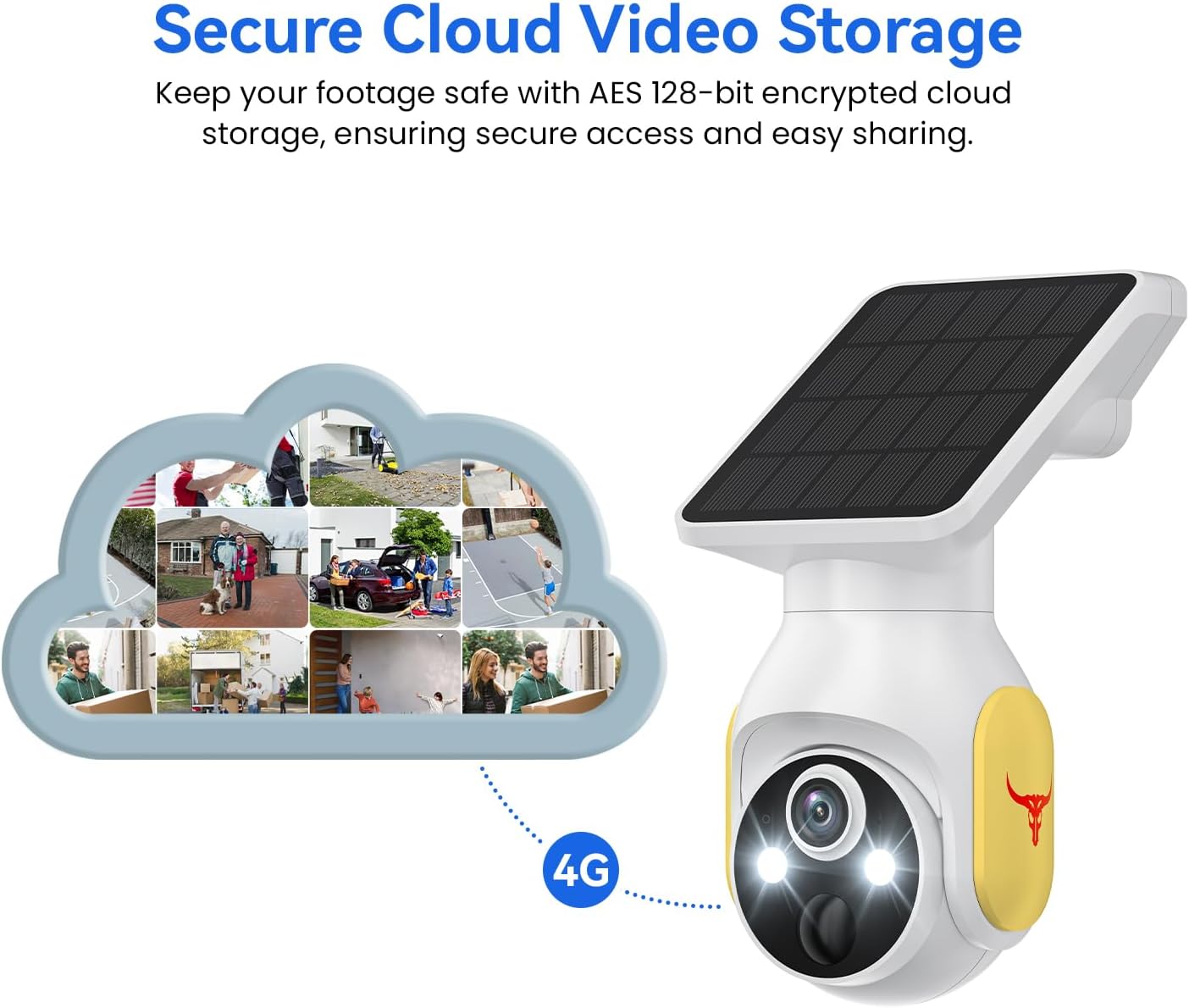
Figure 7: Secure cloud storage for recorded footage.
4.7 Family Sharing
The app allows you to share camera access with family members or trusted individuals. Navigate to the sharing settings in the app to invite others.
5. Maintenance
5.1 Cleaning the Camera and Solar Panel
- Regularly wipe the camera lens and solar panel with a soft, damp cloth to remove dust, dirt, or debris. This ensures clear image quality and efficient solar charging.
- Avoid using harsh chemicals or abrasive materials that could damage the camera's surface or lens.
5.2 Battery Care
While the camera is solar-powered, ensure the solar panel receives adequate sunlight. In prolonged periods of low sunlight, the internal battery may require occasional manual charging via a USB power source to maintain optimal performance.
5.3 Firmware Updates
Periodically check the HopeFlex app for available firmware updates. Keeping your camera's firmware up-to-date ensures access to the latest features, security enhancements, and bug fixes.
6. Troubleshooting
6.1 Camera Not Connecting to 4G Network
- Check SIM Card: Ensure the pre-installed SIM card is properly seated and activated.
- Data Plan: Verify that your data plan is active and has sufficient data remaining. Top up if necessary via the app.
- Signal Strength: Relocate the camera to an area with better 4G cellular signal strength.
- Network Compatibility: Confirm your location's cellular network is compatible with Verizon, AT&T, or T-Mobile.
6.2 Motion Detection Issues
- App Settings: Check the motion detection and human detection settings in the HopeFlex app to ensure they are enabled and configured correctly.
- Sensitivity: Adjust the motion detection sensitivity to prevent false alarms or missed events.
- Obstructions: Ensure there are no physical obstructions blocking the camera's view.
6.3 Battery Not Charging / Low Battery
- Solar Panel Exposure: Verify the solar panel is receiving direct sunlight for several hours daily. Clear any obstructions (leaves, dirt) from the panel.
- Manual Charge: If solar charging is insufficient, manually charge the camera using a USB power adapter.
- Extreme Weather: In very cloudy or cold conditions, solar charging efficiency may decrease.
6.4 Unable to Access Cloud Storage
- Subscription Status: Confirm your cloud storage subscription is active and not expired.
- Internet Connection: Ensure the camera has a stable 4G connection to upload footage to the cloud.
7. Specifications
| Feature | Detail |
|---|---|
| Model Name | Q50 |
| Brand | HopeFlex |
| Connectivity Technology | Wireless (4G LTE) |
| Wireless Technology | 4G |
| Video Capture Resolution | 1080p Full HD |
| Special Features | Night Vision (Color), AI Motion Detection, Pan-Tilt, 2-Way Talk, Solar Powered |
| Indoor/Outdoor Usage | Indoor, Outdoor |
| Power Source | Solar Powered (5200mAh rechargeable battery) |
| Night Vision Range | 33 Feet |
| Pan/Tilt Range | 355° Horizontal, 90° Vertical |
| Item Dimensions | 4.54 x 3.41 x 7.44 inches (11.5 x 8.7 x 18.9 cm) |
| Item Weight | 0.7 Kilograms |
| Compatible Devices | Smartphone (Android, iOS) |

Figure 8: HopeFlex Q50 Camera dimensions.
8. Warranty and Support
For detailed warranty information, please refer to the warranty card included with your product packaging or visit the official HopeFlex website. If you encounter any issues or require technical assistance, please contact HopeFlex customer support through the contact information provided in the app or on the official website.