
1. Introduction
This manual provides essential information for the safe and efficient operation of your ZDSSY ZD-L018AQ Smart Projector. This device offers 1080P native resolution with 4K support, 600 ANSI lumens brightness, electric focus, and auto keystone correction. It features integrated WiFi 6 and Bluetooth 5.2 for seamless connectivity and a built-in Smart TV OS with access to various applications.

Image 1.1: ZDSSY ZD-L018AQ Smart Projector, a compact device with a lens on the front and a stand for adjustable positioning.
2. What's in the Box
Verify that all items are present upon unboxing:
- Mini Projector
- Remote Control
- Power Cord
- User Manual (this document)
3. Product Overview
Familiarize yourself with the projector's components and ports.
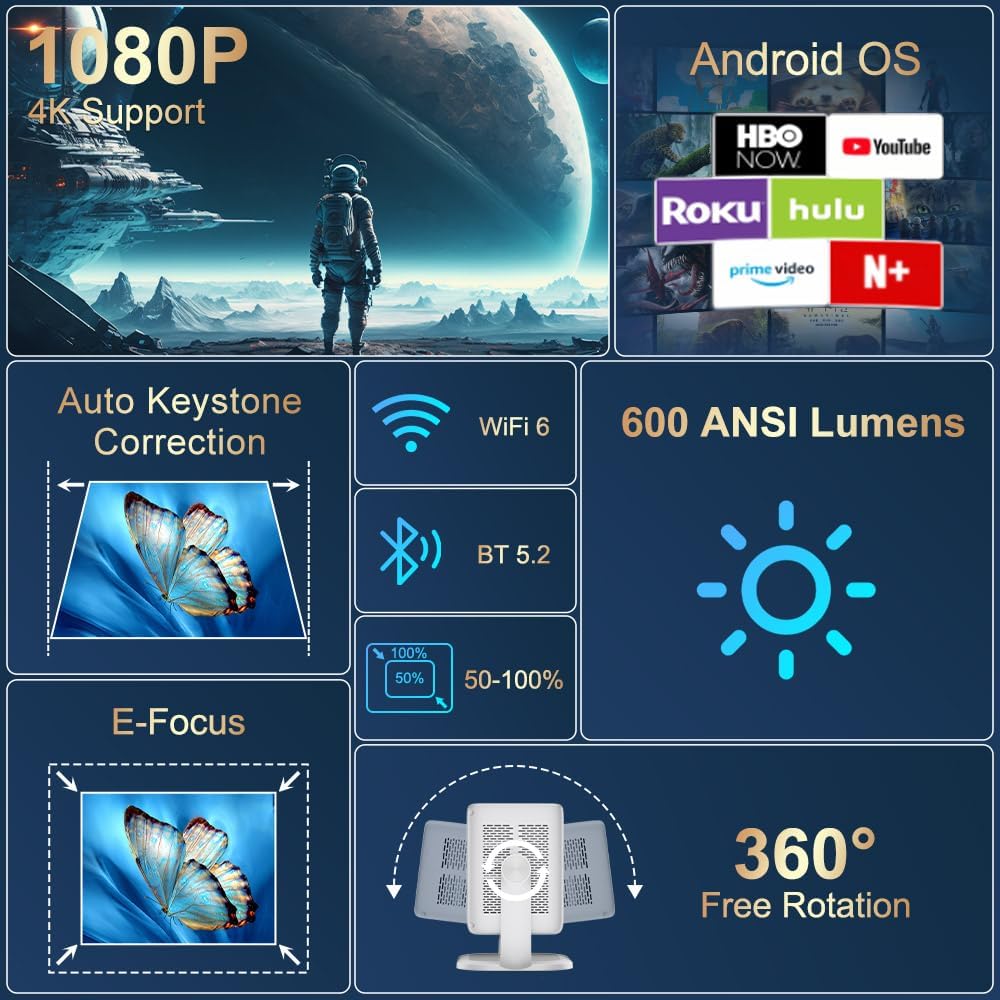
Image 3.1: Overview of the projector's key features including 1080P 4K support, Auto Keystone, WiFi 6, Bluetooth 5.2, E-Focus, 600 ANSI Lumens, and 360° Free Rotation.
3.1 Front Panel
- Projection Lens: Emits the image onto the screen or surface.
- Focus Ring: Manual adjustment for image sharpness (though electric focus is primary).
3.2 Rear Panel
- Power Port: Connects to the included power cord.
- HDMI Port: Connects to external devices like laptops, gaming consoles, or DVD players.
- USB Port: For connecting USB storage devices or other peripherals.
- Audio Out (3.5mm Jack): For connecting external headphones or speakers.
- Power Button: Turns the projector on/off.
4. Setup
4.1 Power Connection
- Connect the included power cord to the projector's power port.
- Plug the other end of the power cord into a standard electrical outlet.
4.2 Placement and Adjustment
Position the projector on a stable, flat surface. The integrated 360° rotatable and adjustable stand allows for flexible projection angles, including ceilings and walls.
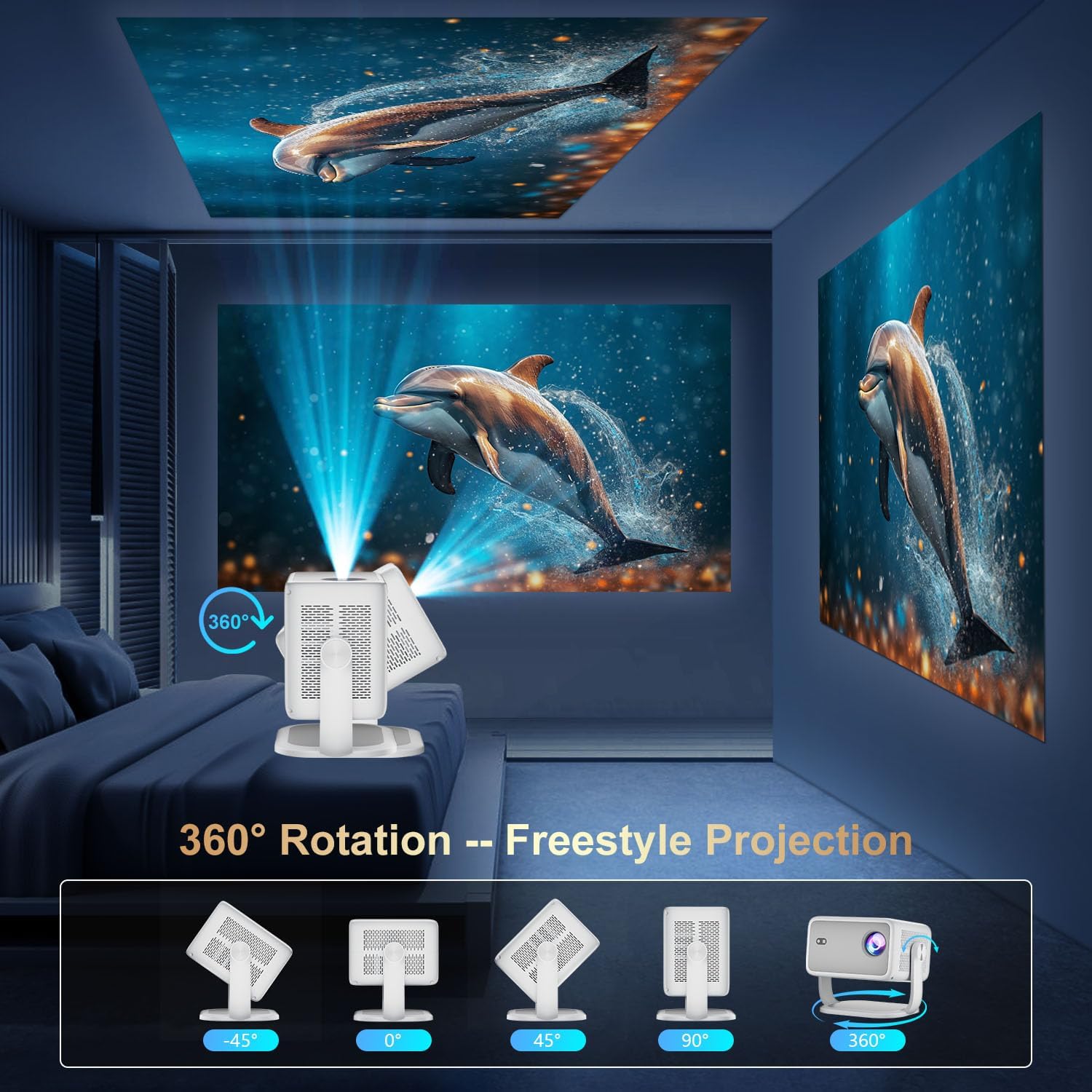
Image 4.1: The projector demonstrating its 360-degree rotation capability for versatile projection angles.
4.3 Focus and Keystone Correction
The projector features automatic keystone correction and electric focus for quick image alignment and sharpness. Digital zoom (50%-100%) allows for image resizing without moving the unit.

Image 4.2: The projector automatically adjusting focus and keystone correction for a perfectly aligned and sharp image.
4.4 Initial Network Setup
- Power on the projector using the power button on the rear panel or the remote control.
- Navigate to 'Networking Setting' on the home screen using the remote.
- Select your WiFi network and enter the password to connect.
5. Operating
5.1 Remote Control Usage
The included remote control is the primary interface for navigating the projector's Smart TV OS. It requires two AAA batteries (not included).
- Power Button: Turns the projector on/off.
- Navigation Buttons: Use the directional arrows to move between menu options.
- OK Button: Confirms selections.
- Back Button: Returns to the previous screen.
- Volume Buttons: Adjusts audio output.
5.2 Smart TV OS and Applications
The projector runs on a Smart TV OS, providing access to various streaming applications.

Image 5.1: The projector's home screen displaying various built-in applications such as Netflix, YouTube, Prime Video, and Hulu.
- From the home screen, select the desired application (e.g., Netflix, YouTube, Hulu, Prime Video).
- Log in with your account credentials if required.
- Browse and enjoy content.
- Additional apps can be downloaded from the App Store.
5.3 External Device Connectivity
Connect external devices via HDMI or USB:
- HDMI: Connect an HDMI cable from your external device to the projector's HDMI port. Select 'HDMI' input from the projector's home screen.
- USB: Insert a USB drive into the USB port. Navigate to 'Files' on the home screen to access content.
5.4 Wireless Screen Mirroring (Miracast/AirPlay)
The projector supports Miracast and AirPlay for wireless screen mirroring from compatible devices (Windows, iOS, Android).

Image 5.2: A smartphone wirelessly mirroring its screen content to the ZDSSY ZD-L018AQ Smart Projector via WiFi.
- Ensure your device and the projector are connected to the same WiFi network.
- On the projector, select the 'AirPin' or 'ScreenCast' option (may vary by firmware version).
- On your mobile device, activate screen mirroring/casting and select the projector from the list of available devices.
5.5 Bluetooth Audio
Connect external Bluetooth speakers or headphones for enhanced audio.

Image 5.3: The projector wirelessly connected to a soundbar via Bluetooth 5.2, enhancing the audio experience.
- Navigate to 'Bluetooth Setting' on the projector's home screen.
- Enable Bluetooth and search for available devices.
- Select your Bluetooth audio device to pair.
6. Maintenance
Regular maintenance ensures optimal performance and longevity of your projector.
- Lens Cleaning: Use a soft, lint-free cloth specifically designed for optical lenses to gently wipe the projection lens. Avoid abrasive materials or harsh chemicals.
- Ventilation: Ensure the projector's ventilation openings are clear of dust and obstructions to prevent overheating. Do not block the vents during operation.
- Storage: When not in use, store the projector in a cool, dry place, away from direct sunlight and extreme temperatures. Use the original packaging or a protective case if available.
- Power Off: Always power off the projector properly before unplugging it.
7. Troubleshooting
Refer to this section for solutions to common issues.
| Problem | Possible Cause | Solution |
|---|---|---|
| No Power | Power cord not connected; power outlet issue. | Check power cord connection; try a different outlet. |
| No Image | Input source not selected; external device not connected. | Select correct input source (HDMI, USB); ensure external device is on and connected. |
| Blurry Image | Focus not adjusted; projector too close/far. | Use electric focus or manual focus ring; adjust projector distance. |
| No Sound | Volume too low; external audio device not connected/paired. | Increase volume; check Bluetooth pairing or 3.5mm audio cable connection. |
| WiFi/Bluetooth Connectivity Issues | Incorrect password; device out of range; interference. | Re-enter password; move closer to router/device; reduce interference. |
8. Specifications
| Feature | Detail |
|---|---|
| Brand | ZDSSY |
| Model Number | ZD-L018AQ |
| Display Resolution | 1920 x 1080 (Native) |
| 4K Support | Yes |
| Brightness | 600 ANSI Lumens |
| Connectivity Technology | Bluetooth 5.2, HDMI, USB, Wi-Fi 6 |
| Special Features | Auto Screen Alignment, Built-In Speaker, Built-In Wi-Fi, Portable, Electric Focus |
| Recommended Uses | Indoor/Outdoor |
| Product Dimensions | 6.69 x 5.9 x 9.05 inches |
| Item Weight | 2.97 pounds |
9. Warranty and Support
ZDSSY is committed to providing high-quality products and customer satisfaction.
- Customer Service: 24/7 Professional Service is available for any inquiries or assistance.
- Returns/Exchanges: A 30-day return or exchange policy is offered.
- Technical Support: Lifetime technical support is provided for your product.
For further assistance, please refer to the contact information provided with your purchase or visit the official ZDSSY website.