
1. Introduction and Overview
This manual provides detailed instructions for the installation, operation, and maintenance of your Jufodrca 8 Core Car Radio. This unit features an 8-core CPU, Android 13 operating system, 7-inch HD IPS touchscreen, wireless Apple CarPlay, Android Auto, 5G WiFi, GPS navigation, Bluetooth 5.0, DSP sound processing, FM RDS radio, steering wheel control compatibility, and support for a 1080P AHD backup camera.
The car radio is compatible with various Ford models, including Ford F150 (2004-2008), F250/F350 (2008-2016), E250/E350 (2009-2014), Shelby GT500 (2007-2009), Five Hundred/Montego (2005-2007), Milan (2006-2009), Sable (2008-2009), Mountaineer (2007-2010), Fusion (2006-2009), Taurus (2008-2009), Escape (2008-2012), Freestyle (2005-2007), Freestar (2004-2007), MKX (2007-2009), Mark LT (2006-2008), Edge (2007-2010), Focus (2005-2007), Mustang (2005-2009), Explorer (2006-2010), and Expedition/MAX (2007-2014).

Figure 1: Jufodrca 8 Core Car Radio main unit.
Video 1: Demo of the Jufodrca Ford F150 Radio Stereo features and user interface.
2. Installation Guide
Before beginning installation, ensure your vehicle's battery is disconnected. Refer to your vehicle's service manual for specific dashboard removal instructions.
2.1 Package Contents
Verify all components are present:
- Car Radio x1
- Power Cable x1
- Canbus x1
- GPS Module x1
- RCA Cable x1
- USB Cable x2
- Crowbar x1 (for panel removal)
- Reversing Control Cable x1
- Backup Camera x1
- MIC x1
2.2 General Installation Steps
- Carefully remove the original car radio and dashboard trim using the provided crowbar.
- Connect the main power cable harness to the car radio and the vehicle's wiring.
- Connect the Canbus module if your vehicle requires it for steering wheel controls or other integrated features.
- Attach the GPS module and position it for optimal signal reception (e.g., on the dashboard).
- Connect the RCA cables for audio/video output or input as needed.
- Connect the USB cables for external devices.
- Install the backup camera and connect its cable to the reversing control input on the car radio.
- Connect the external microphone for hands-free calling.
- Before fully reassembling the dashboard, temporarily connect the battery and test all functions of the new car radio.
- Once all functions are verified, securely mount the car radio and reassemble the dashboard trim.

Figure 2: Visual comparison of the Ford F150 dashboard before and after installing the Jufodrca car radio. Note: Ensure your vehicle's dashboard matches the 'After' image for proper fitment.
3. Operating Instructions
3.1 High-Resolution Touchscreen and UI
The unit features a 7-inch 1024*600 IPS capacitive touchscreen display, offering smooth, clear, and vivid colors. Navigate the Android 13 interface by tapping and swiping. The system provides various UI themes for personalization.

Figure 3: The 7-inch 1024*600P HD IPS touchscreen provides superior clarity and color compared to standard displays.
3.2 Bluetooth 5.0 Connectivity
The integrated Bluetooth 5.0 module provides stable and fast wireless connections for hands-free calling, wireless music streaming, and phonebook synchronization.
- On the car radio, open the Bluetooth application.
- On your mobile device, enable Bluetooth and search for available devices.
- Select the car radio's Bluetooth name (e.g., "CarBT") from your phone's list.
- Enter the pairing password (usually "0000") if prompted.
- Once paired, you can make calls, stream audio, and access your phonebook directly from the car radio.

Figure 4: The independent Bluetooth module and external antenna ensure a strong and stable connection.
Video 2: Instructions on how to connect Bluetooth for CarPlay and WiFi.
3.3 Wireless Apple CarPlay and Android Auto
The car radio supports both wireless Apple CarPlay and Android Auto, allowing seamless integration with your smartphone for navigation, music, calls, and messages. After connecting via Bluetooth, the system will automatically connect to CarPlay or Android Auto.

Figure 5: Wireless CarPlay and Android Auto provide voice control and live navigation.
Video 3: Instructions on how to connect Bluetooth for Android Auto and WiFi.
3.4 5G WiFi Connectivity
The integrated 5G WiFi module provides faster internet speeds, more stable connections, and a wider signal range. Connect to a mobile hotspot or available Wi-Fi networks to access online features, download apps, and stream content.
- Access the Wi-Fi settings from the main menu.
- Turn on Wi-Fi and select your desired network.
- Enter the password if required and connect.
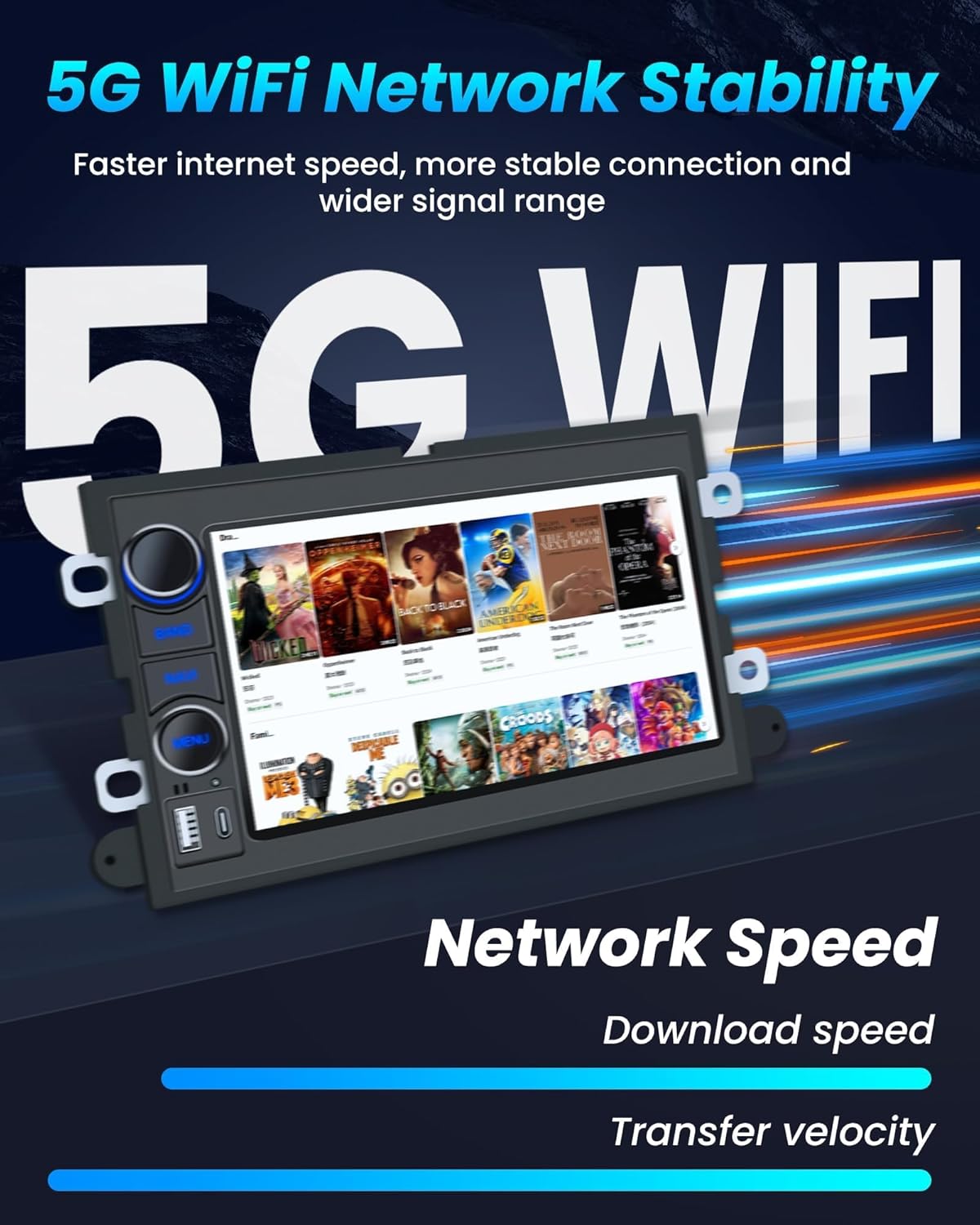
Figure 6: Enjoy faster internet speed and stable connection with 5G WiFi.
3.5 GPS Navigation
The unit includes a GPS module for accurate navigation. It supports both online and offline navigation. Download maps for offline use in areas with limited signal, or use real-time routes when connected to WiFi.
- Tap the "Navi" or "Maps" icon on the home screen.
- Select your preferred navigation application (e.g., Google Maps, Waze).
- Enter your destination to begin navigation.

Figure 7: Precision-made GPS antenna for online or offline map navigation.
3.6 FM RDS Radio
The built-in FM radio (87.5–108MHz) with RDS (Radio Data System) allows you to listen to your favorite stations and receive broadcast information. It supports 18 preset stations.
- Tap the "Radio" icon on the home screen.
- Use the scan function to find available stations or manually tune to a frequency.
- Save your favorite stations to the preset buttons.

Figure 8: The FM RDS radio offers channel broadcasts and RDS tuning technology.
3.7 DSP Sound Processing
Experience premium audio quality with the Digital Sound Processor (DSP). It includes 36 preset EQ styles (e.g., Rock, Jazz, Classic) and allows for custom sound adjustments to optimize your listening experience.
- Access the "DSP Equalizer" app from the main menu.
- Select a preset EQ style or customize the frequency bands to your preference.
- Adjust sound field, surround, bass enhancement, and sound filter settings.
3.8 1080P AHD Backup Camera
The included 1080P AHD night-vision backup camera provides a clear, wide-angle view (170°) of the area behind your vehicle. It automatically displays the rearview when you engage reverse gear, enhancing safety during parking and reversing maneuvers. The camera is IP-rated for waterproofing.

Figure 9: The backup camera provides a clear view and automatic obstacle warnings.

Figure 10: 1080P AHD Backup Camera for safer driving and parking.
3.9 Steering Wheel Controls (SWC)
The unit supports existing steering wheel controls, allowing you to manage audio, calls, and other functions without taking your hands off the wheel. Configuration may be required in the system settings.
- Go to "Car Settings" or "Steering Wheel Setting" in the system menu.
- Follow the on-screen instructions to program each steering wheel button to its corresponding function.

Figure 11: Enjoy full control of your car stereo with steering wheel controls.
4. Specifications
| Feature | Detail |
|---|---|
| Brand | Jufodrca |
| Model Name | Jufodrca |
| Screen Size | 7 Inches |
| Display Type | IPS |
| Touch Screen Type | Capacitive |
| Operating System | Android 13 |
| CPU | 8 Core |
| Memory Storage Capacity | 32 GB (ROM) |
| Connectivity Technology | Bluetooth 5.0, USB, Wi-Fi (5G) |
| Special Features | Wireless Carplay & Android Auto, FM RDS Radio, GPS Maps, 1080P Backup Camera, SWC, Mirror Link, DSP Sound Processing |
| Supported Satellite Navigation System | GPS (North America maps included) |
| UPC | 750872693830 |
5. Troubleshooting
If you encounter issues with your Jufodrca car radio, please refer to the following common troubleshooting steps:
- No Power: Check all power connections and fuses. Ensure the vehicle's battery is fully charged.
- No Sound: Verify speaker connections. Check volume settings on both the car radio and your connected device. Ensure the DSP settings are correctly configured.
- Bluetooth Connection Issues: Ensure Bluetooth is enabled on both devices. Try forgetting the device on your phone and re-pairing. Clear any background CarPlay/Android Auto connections if not in use.
- CarPlay/Android Auto Not Connecting: Ensure Bluetooth is connected first. For CarPlay, verify that CarPlay is enabled in your iPhone's General settings. For Android Auto, ensure the Android Auto app is installed and updated on your phone.
- GPS Signal Loss: Ensure the GPS antenna is properly installed and has a clear view of the sky.
- Backup Camera Not Displaying: Check the camera's power and video connections. Ensure the reversing control cable is correctly wired to trigger the display when reverse gear is engaged.
- Slow Performance: Close unused applications. Clear cache and temporary files from the system settings.
For further assistance, please contact Jufodrca customer support.
6. Maintenance
To ensure the longevity and optimal performance of your Jufodrca car radio, follow these maintenance guidelines:
- Screen Cleaning: Use a soft, lint-free cloth to gently wipe the touchscreen. Avoid abrasive cleaners or harsh chemicals that could damage the display.
- Software Updates: Periodically check for and install software updates to ensure the system has the latest features and security patches.
- Environmental Conditions: Avoid exposing the unit to extreme temperatures, direct sunlight for prolonged periods, or excessive moisture.
- Cable Connections: Ensure all cables are securely connected and free from damage.
7. Warranty and Support
7.1 Return Policy
This product is subject to a 30-day refund/replacement return policy. Please refer to the retailer's specific return guidelines for detailed information.
7.2 Customer Support
For any questions, technical support, or warranty claims, please contact Jufodrca customer support. Jufodrca is committed to providing a fully upgraded, intelligent, and safe new era of car radio experience.
Contact Email: Jufodrca@gmail.com

Figure 12: Jufodrca provides 24-hour customer support.


